I’m just trying to use the post processing stack of Unity for the first time, with the preview package version 2.0.17 and even with the help of the documentation I’m not able to achieve what I would like to do.
My example is simple, I have a scene with 2 cubes:
And I want to apply a bloom effect to the cube to the right only. So what I’ve done is:
Change the layer of the right cube to PostProcessing
Update the Main Camera culling mask to only render Default layer
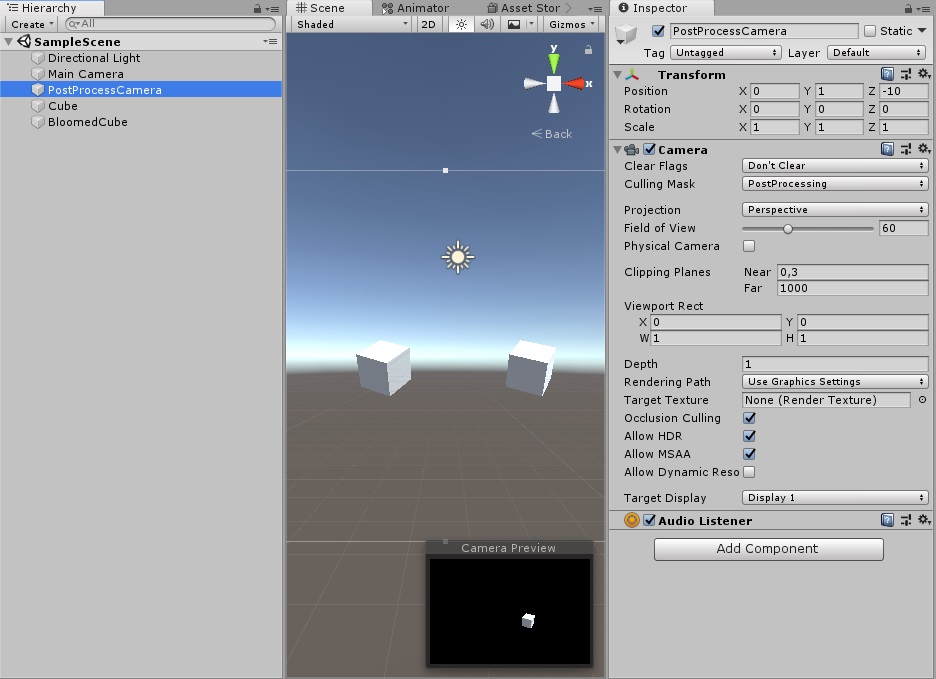
Create a copy of the Main Camera and change its culling mask to only render PostProcessing layer + the clear flags to Don’t clear + change the depth from -1 to 1 to render after the Main Camera
Now, for the post processing part, I’ve added a Post Process Layer component to the PostProcessCamera:
Then I’ve created a new game object with the PostProcessing layer on which I’ve added a Post Process Volume with its Is Global checkbox ticked. I then created a post process profile file with a bloom effect like that:
The “Don’t clear” option means whatever was rendered by previous cameras is used as the background. Thus, the second camera starts with the first cube and background already visible and the second cube just gets rendered on top. The post process effect still applies to everything, because everything is what the camera sees.
Try stepping through using the Frame Debugger.
There are a ton of threads on how to apply post processing to a limited set of objects on screen, but the TLDR version is you need to write custom post process effects to do this.