I’m currently using Emit with EmitParams to provide unique data per particle while emitting hundreds or thousands of particles from a script. I was wondering if there’s a more efficient way to do this kind of bulk emitting of unique particles. I’ve been trying to use Get/SetParticles to do it, but the particles created this way no longer move or age and despawn (I never call Emit in this setup).
I found that by calling Emit first and only passing in a count and then calling SetParticles to actually assign the unique data does work and is a little faster than using Emit with EmitParams, but it’s not the same massive speed boost I get from just using Get/SetParticles (which might not be a fair comparison because as stated above that doesn’t seem to work).
Bulk scripted emission is not going to be very fast, no matter how you configure it.
What kind of unique properties are preventing you from using built-in emission/Shape module settings?
I’m creating a voxel engine/editor (MagicaVoxel is a quick easy reference) and whenever voxels are added or removed I want to animate them in/out. This is done using particles with specific unique positions and colors set to match the changes made to the voxels. For small edits up to a thousand or 2 voxels/particles it works fine, but I’m curious if it can be pushed further to handle large scale sweeping changes to the environment. Here’s a quick video of the effect;
1 Like
Looks cool!
I do have one idea for how to make this faster, based on what you’ve said.
In 2018.3, we have added support for sequenced mesh emission. This means that you can spawn particles on each vertex of a mesh, in order.
To use it for your effect:
- create a mesh, assign it to the shape module, set the mode to Loop instead of Random
- set the emission module to 1 burst at time 0 (count doesn’t matter, you set that later)
- on each emission frame, set the vertices to be 1 for each particle spawn position
- set the burst count to be equal to the number of particles you will spawn
- call Stop followed by Play (can call Emit(n) instead, but stop/play will cause the spawning to happen on a thread, whereas Emit happens on the main thread)
This should be faster than your current method.
2018.3 beta starts mid July, I believe.
1 Like
I look forward to giving that a try. Thank you for the detailed breakdown on how to do it. The Stop/Play trick to use a thread is intriguing.
1 Like
I was digging into my performance bottleneck with emitting particles some more and noted some surprising results. Sometimes I can emit several thousand particles in a few milliseconds, and other times a couple hundred particles or less will take over 20 milliseconds (in both cases there’s still plenty of room in the system for the new particles). I was wondering why this might be and have a few ideas. Right now I use 2 particle systems for the effect shown above, 1 for adding voxels and 1 for removing them. Each system has a max capacity of 20,000 particles and has particles emitted in variable sized bursts, with multiple bursts overlapping each other in time, meaning that the particles in the system have a range of different remaining lifetimes. When particles are emitted to the Add system they are all emitted with a constant lifetime, whereas the Remove voxels system has a randomized lifetime per particle. The Add system almost always performs significantly better than the Remove system when it comes to emitting new particles.
Is this due to the particle system needing to find gaps in its internal arrays to put the new particles? Would it be more efficient to use many separate smaller particle systems, 1 for each burst of particles, and then reuse the systems for future bursts only once all its current particles have expired? My thinking is this would make finding room to place the newly emitted particles much quicker. I performed a quick and dirty test by just calling Clear on the current particle system before emitting and that made emitting much faster, but that’s perhaps not a fair comparison.
The built-in Unity Profiler should be able to answer this question. In particular, the Timeline view should show you a visual breakdown of what is taking the time. If the time is being spent inside your own script code, you can add your own profile markers via Profiler.BeginSample / EndSample.
1 Like
I did not know about Profiler.BeginSample, very useful because deep profiling was too slow to be useful for this. Thank you.
I found that a significant majority of the time was being spent on ParticleSystem.WaitForPreviousRenderingToFinish when trying to emit more particles from my script. Would either always using an empty particle system like stated above or using the new sequenced mesh emission in 2018.3 avoid this rendering synchronization overhead? Or is there some other potential work around?
Oh interesting… that profile marker usually means you’re doing a lot of other rendering and the particle updates are blocked from starting.
We are actually working on removing that stall at the moment…
1 Like
Presently I’m using cube mesh particles that both cast and receive shadows, and there can be upwards of 15 thousand of them alive at a time, so that is a lot of rendering work. As for other non-particle rendering there’s actually very little going on in my scene, just a couple meshes. The video above doesn’t show it off but my scene is actually 3D and the user can spin the camera around, hence the use of cube mesh particles.
I’ll gladly be a test case for patching that stall whenever a fix is available for testing.
1 Like
If you’d be willing to submit a test project in a bug report, mentioning this thread and my name, then it will find it’s way to me for testing 
I may have other perf advice too once I’ve seen a repro project.
1 Like
I have done just that; https://fogbugz.unity3d.com/default.asp?1066517_f36of5mutfb308c1
Please let me know if there’s anything else I can do.
1 Like
Hey,
I’ve had a look at this.
The main performance problem here won’t be solved by any fix I hope to make for WaitForPreviousRenderingToFinish. Once I make my fix, that marker may take less time, but the FPS will still be bad because you have some very expensive mesh particle systems in use here.
Mesh particle rendering in Unity is incredibly slow if you aren’t careful, because all computation happens on the CPU, for every vertex of every particle. And you have well over 20,000 mesh particles at times, in this stress test scene.
The good news is that you can make this much faster by using GPU Instancing. (available since Unity 2018.1) It only requires you to use a compatible shader. You need to either add GPU Instancing support to “Voxel Diffuse.shader”, or replace it with Particles/Standard Unlit (or Surface, if you want lighting).
With your project, I get frame times of over 500ms when many particles are being rendered. If I simply swap to an instanced shader, the longest frame time I see is 40ms (usually 20-30ms).
If you want to keep using your custom shader, take a look at this page for how to add particle instancing support to it:
I’m going to keep your bug open in case my bug fix can make it even faster… thanks for sharing it! It’s a cool looking scene!
2 Likes
Thank you very much for looking into this. I’ve switched over to GPU instancing and it’s running much better as you said. I’ve also added a feature that combines what would be adjacent particles into single larger particles (can’t remember if that was already in the build I sent you). This reduces it to half as many particles on average. I’ll continue to look for ways to cut back on how many particles are needed to achieve my desired animation, as now I know it’s a rendering time bottleneck and not Emit as I mistakenly thought.
Thank you so very much for all your help on this and other threads related to Unity’s particle system. It has been immensely helpful and very much appreciated.
1 Like
Hi me again. I noticed a graphical problem when using GPU instancing, multiple directional lights, and forward rendering.
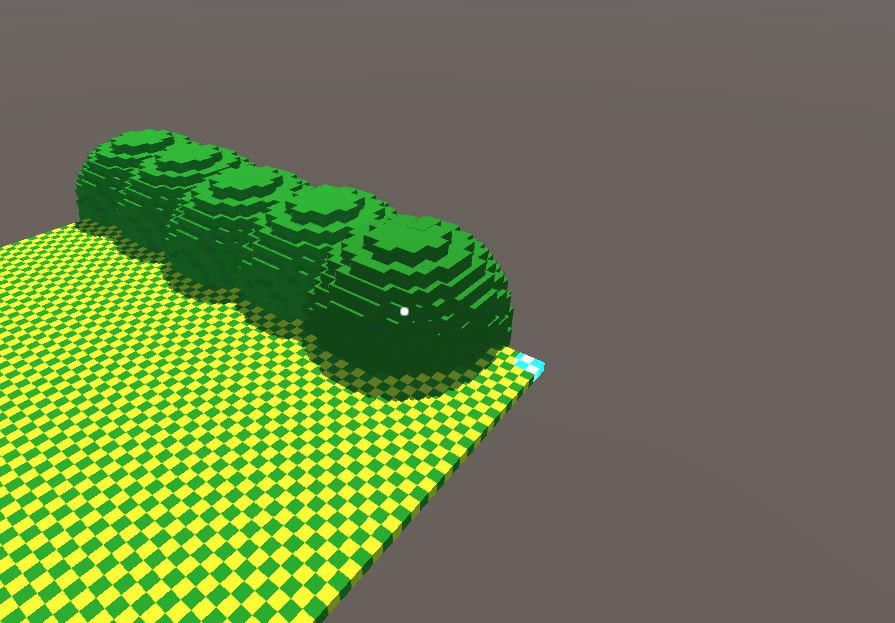
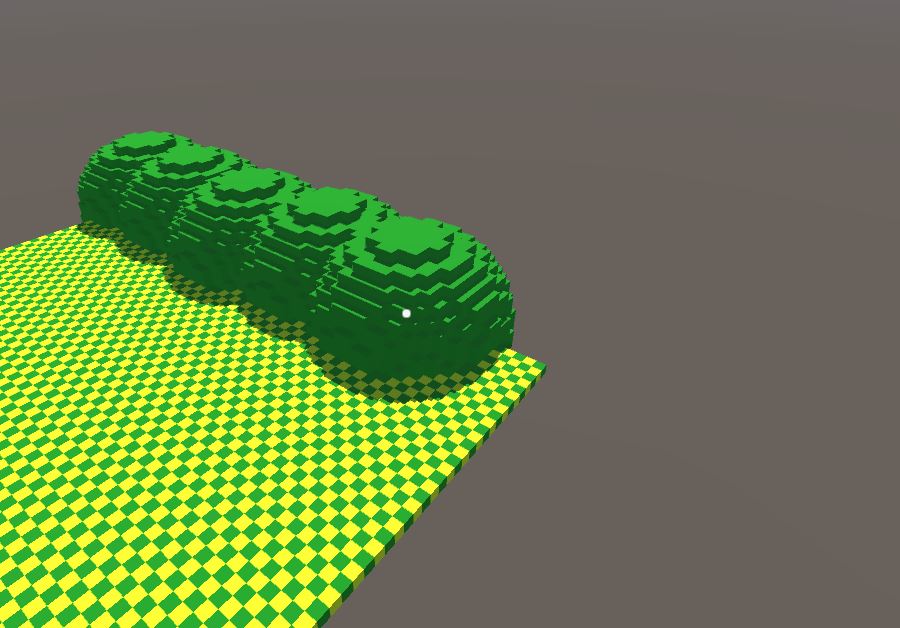
The sphere on the far right is actually a bunch of particles just before they are swapped out with the finished mesh. They are only being shaded by a single light in my scene which is why it appears darker, whereas everything else has both lights applied. There’s also a light blue highlighted corner appearing that should not be there. It’s only present while there are active particles and then disappears. My best guess is that it’s some particles rendering without proper per instance data applied. Here’s what it looks like after the particles despawn and the mesh is swapped in (and what it’s supposed to look like even as particles).
If I use only a single light then this rendering glitch doesn’t happen, if I don’t use GPU instancing then it doesn’t happen, or if I use deferred rendering. In order to keep multiple lights and GPU instancing I can switch to deferred rendering. I’m fine with doing that, but I wanted to post this here in case it was an unknown bug and/or there are other solutions to it.
The GPU instancing shader I’m using is copied directly from Unity - Manual: Particle System GPU Instancing with the only change being to add Z buffer offset. Removing the offset does not fix the issue.
Hi,
We fixed this recently but the docs update hasn’t gone out yet.
Replace the pragma with:
#pragma surface surf Standard nolightmap nometa noforwardadd keepalpha fullforwardshadows addshadow vertex:vert
Thank you for the fix. That got rid of the strange light blue highlight corner but unfortunately the particles are still only being lit by a single directional light so they appear darker than they should.
The lighting is not quite as sophisticated as the full standard shader, in order to be performant. Additional lights are added using spherical harmonics as an approximation. I suspect this is the issue you are hitting, though I can’t say for certain.
It is possible to add the full lighting model, though we don’t have any particle examples in the docs for that.
You need to remove “noforwardadd” from the pragma line, then add a pass for that, which adds each light by re-rendering the system for each light. Alternatively, just use deferred rendering
Deferred rendering it is! Thanks for the explanation. Just wanted to make sure it wasn’t a bug.
1 Like