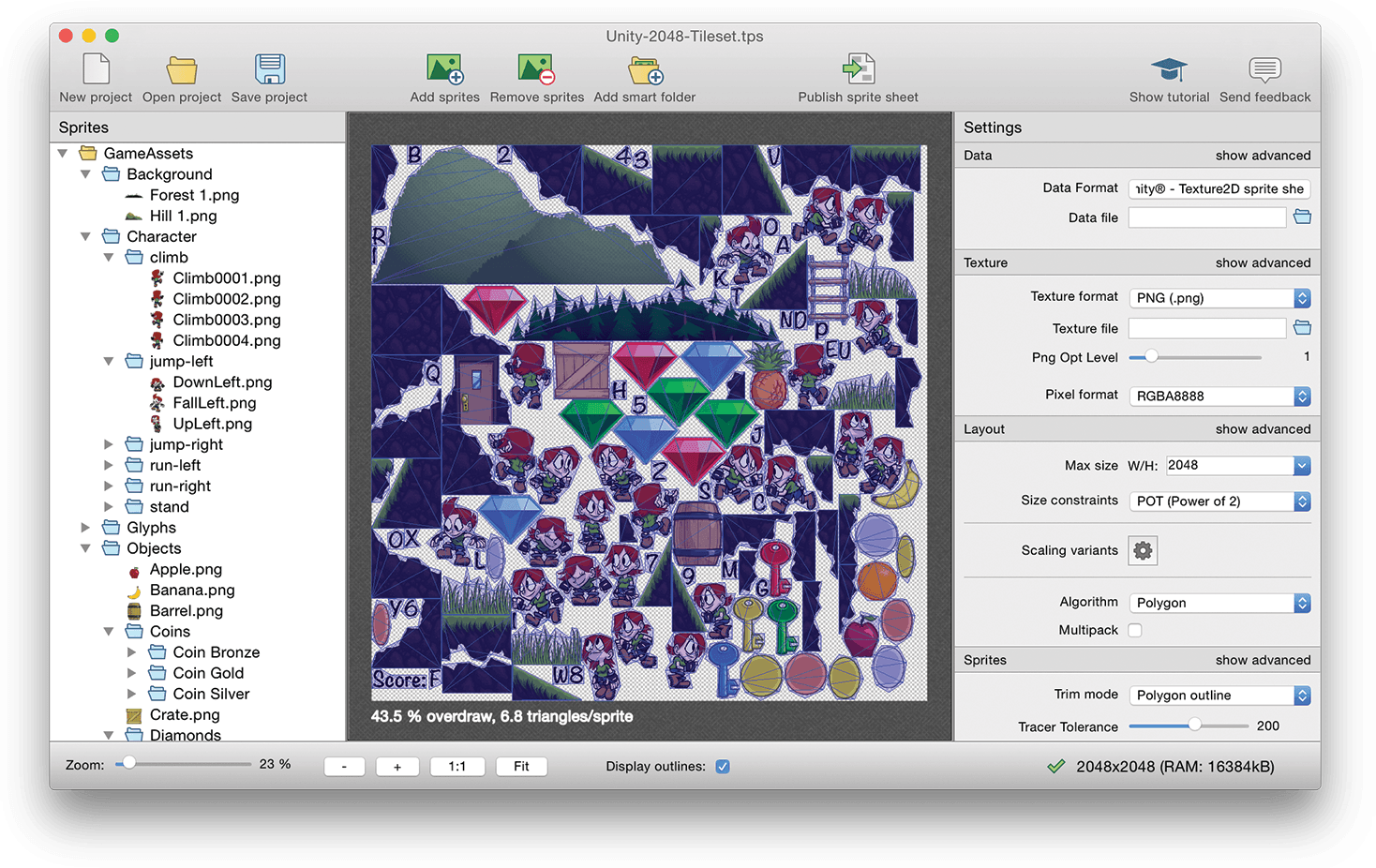
Vertices are expensive - because the CPU is required to transform them. So reducing the number of vertices is important. A too low vertex count, on the other hand, is also bad because this hands much work over to the GPU.
TexturePacker’s high-quality polygon tracer creates meshes with a low vertex count and overdraw. The tracer tolerance slider gives you control over the optimization.
The free TexturePacker Importer plugin for Unity automatically re-imports the data as soon as you re-enter Unity’s editor.
You can even hand off the sprite sheet creation to your artist. Just add the generated .png and .tpsheet file to your project.
Packing normal maps
If you want to use normal mapped sprites for dynamic light effects in your game, you have to create sprite sheets with the same layout for normal maps and diffuse maps. TexturePacker does this for you - with a single click.
Hi, I recently tried your extension and it looks great! Thanks for your work. But I can’t use the atlas in Unity.
I’m trying to create an atlas for mesh objects to reduce draw calls. I followed the steps included in your extension(the free version’s documentation pdf seems out of date, though) What should I choose, the json(.txt) or texture2d(.tpsheet)? Because the example contains .txt with json format but the tutorial says I should choose Unity3D(which one?)
Also, I tried to import the atlas with Texture Packer Importer, but the extension seems not working. I tried the ‘right click’ on the project panel as you posted on the youtube tutorial, but there wasn’t any drop down menu for texture packer. That means I can’t add newly created atlases.
I tried replacing the ‘example.png’ and ‘example_data.txt’ with my generated ones and it did work, but the texture UVs were not correct. So I couldn’t use them either.
I’m using the latest Mac OS X on iMac 5k. Can you check the compatibility, please?
the youtube tutorial you mentioned describes a 3rd-party tool also called “Texture Packer Importer”, this is not CodeAndWeb’s importer presented in here.
That’s kinda weird… because I downloaded the texture packer importer written by CodeAndWeb. Maybe my mistake?
After several trials and fails, I ended up writing my own texture packing script. Because I wanted to do texture packing for mesh objects and skinned mesh objects, while CodeAndWeb’s Texture Packer does not support mesh UV remapping.
Anyway, thanks for your reply. Cheers!
This is a great addition! Saves a lot of space in our atlas. It’s a shame it doesn’t work with NGUI, perhaps I should go and bug the NGUI dev about supporting it ha!
After updating to the latest version (which supports polygon definition), when I publish a new sprite sheet, Unity won’t properly load the new texture. Rectangular textures appear squared in the inspector with misaligned sprites and with “Not yet compressed” format written in the preview. It’s fixed by right-clicking the texture and selecting “Reimport”.
I’m a Long time user of TexturePacker on other platforms, but is there a best practice to have multiple resolutions atlases (HD/SD) with Unity + TexturePacker?
We currently use tk2d for that, but would love to move away if possible.
@Devil_Inside We’ve just created an updated version of the Importer that should fix the issues. It also works with CloudBuild. I can send you an update of the dll if you want. Just contact me at support at codeandweb.com
We’ll push the update to the asset store soon. It just takes some time until the new version appears.
Is there a possibility to set different pixels per units property for separate sprites in spritesheets?
Unity Sprite Packer allow this option, but i can’t find the way to recreate this effect with you sprite packer…
Hi, I have installed the installer from the links on this forum post and the right click context menu is not appearing for me in Unity 5.0.2f1 - any ideas?
I’ve found a bug on Texture Importer.
Everything works fine except when we override the texture max size for other platforms on Unity, then we get a bunch of errors: Invalid vertex array. Some vertices are outside of the Sprite rectangle…
The tpsheet file has the texture size and you force the texture to have the same size, but if we want to change it for other platforms you must convert the vertices coordinates to match the new override size.
just updated to the latest version 4.0.4, it cannot change the imported folder name or move under other folder. Also, is it possible to provide the source code of the TexturePackerImporter.dll
You’re right, I’ll fix this. An update will be available within the next few days.
You want to move the TexturePackerImporter.dll to another folder, right? That should be possible as long as it is placed in an “Editor” directory (otherwise Unity won’t load it) somewhere in your Assets folder. What problem do you observe?
When I rename codeandweb.com folder to “XXX” and select SettingsTexturePackerImporter.asset in Project folder, it will generate a dummy file in XXX/Editor/SettingsTexturePackerImporter.asset
@yuewahchan : The importer always stores its settings (SettingsTexturePackerImporter.asset + SettingsTexturePackerImporter.txt) in the same directory as the DLL. If you move only the DLL to a new folder, the asset+txt files are automatically created there.
What debug output would you like to see in the console log? The tpsheet files detected + processed by the importer you can lookup in SettingsTexturePackerImporter.txt.