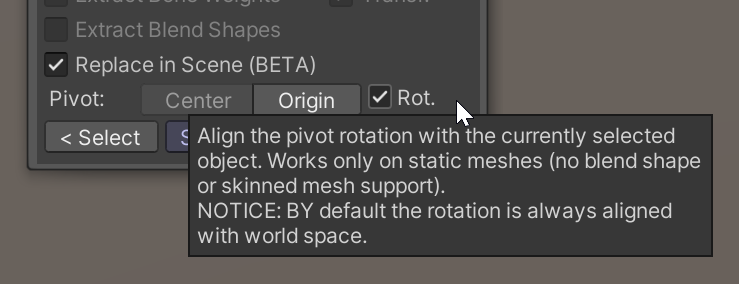
I will set it toON by default in the next release. It has been off by default due to historical reasons (did not exists in older versions) but I see now it’s just too confusing (unexpected) if turned off. If off then mesh is extracted “as is seen from the world space” so that if you re-instantiate it in the world it will be correctly aligend only with 0/0/0 global rotation.
Hope that resolves the issue
(If not please let me know.)
I saw that flag, and with that flag set both meshes are generated with the same rotation.
The problem, in my opinion, remains with that off flag whereby the selected part of the mesh is extracted as displayed (the rotation is integrated into the mesh itself), while the second part of the mesh is extracted as if that flag were set. hence the inconsistency.
I would expect that flag to act the same way for both meshes, but it doesn’t seem to work for the “base” mesh.
I’m currently using Split with that flag enabled, and then manually setting the rotation to the object in the scene.
wanting to see my report from another point of view, if I wanted the behavior with that flag deactivated for both parts, I would have to do a first split (generate MESH1 + MESH BASE), then invert the selection of the triangles and carry out a new split (generate MESH2 + BASE MESH 1) and then delete the two BASE MESH.
I am currently testing it. There seem to be some inconsistencies with the translation if “ Rot” is enabled. Will have to dig into that but at least this now is consistent in both cases in terms of rotation.
UPDATE: Patch is working as expected. Will submit it soon. The released version will also include some other small patch for pivot origin (sometimes it wento to 0/0/0 for no reason).
Thanks for the feedback :-). I’ll put it on the list though I can’t make any promises. I want to keep the tool simple and it already has a lot of options. I think the more likely addition would be a code hook/event after the extraction so users can register some code to run automatically. Just an idea though, again no promises or ETA.
Is there a way to split all meshes in the prefab and keep them where they are? I can do it one at a time with the mesh splitter but not all of them. I’ve tried the Split Meshes in Prefab option but it’s just making empties.
Maybe I’m missing the manual on the splitting meshes but I can’t find it to check what it says.
Hi, I am not sure where the “Split Mesh in Prefab” entry comes from. It’s not part of the Extractor, Smoother, Painter or DoubleSided (I just checked). Maybe my brain just has a blackout but I am not even sure it’s from one of my assets :-/
Anyways, maybe you can describe what you have and what you want to achieve. What do you mean by “split all meshes” in a prefab? Thanks.
I want to take something that has multiple meshes that could be taken apart and break them apart. Right now I can grab one and make it separate but i want to do all of them at the same time without continuing to select over and over
Hi, ah okay, got it
Hm, right now I fear the extractor does it only one-by-one. But I will put it on the list of things to investigate (no promises though but it won’t be forgotten).
First of all, thank you for all your contributions to us overwhelmed indies. You make our lives so much better.
Lol Now that I’ve gotten the gushing out of the way lol, I was wondering if there was any functionality for not only adjusting the position of the pivot of a mesh we are extracting, but also its rotation? I am new to the Mesh Extractor tool (frickin loving it so far), and I ran into this question quite quickly.
Please forgive me if this was already asked, or even worse, contained in the manual. XD I swear I looked!!
interesting question. There is no dedicated pivot rotation tool in the extractor but you can make your mesh rotate if you first rotate your object in the scene and then choose the “World” setting for the Pivot:
Using that setting the mesh will be transformed as if it was in world space meaning it will retain the rotation. Sadly this does not work well for skinned meshes but for those you would usually control the rotation with the bones anyways.
Here is a quick demo I just did (please excuse my clumsyness in the video :D):
Hope this helps
Edit: I have now updated tha manual FAQs to explain this in there as well. Thanks for the question!
The extractor does not really offer UV editing. It just makes a rectangle around the selected mesh in the UV space and slices that out. If you selected let’s say only a part of a floor that is a quadratic shape both in the mesh and the UV space and if those UVs are already aligned to be tileable then yes, you would be able to use that after extraction. Though I think for 99.9% of meshes that won’t be the case and UV would need some tweaking afterwards.
If you want real UV editing then this asset would be a better fit:
You can of course use both. Slice the mesh first with the extractor and then edit the UVs if needed.