I put a character A in timeline as a animation track. Then dragged 2 animations: running, sprinting forward roll in A’s track. I wanted A to running at the begin of this track and then roll forward. And it worked when I click the Unity “Play” button.
But when I tried to replay it in Timeline Editor at specific time, things changed. Character A went back to the original position after “running” animation clip finished, then rolled from that position, which was totally different from what I saw in the “Play” mode.
I’m also having a problem with the Timeline Editor and character’s position. If I have a character in my world, who has an Animation Track, when I click on the animation track in the Timeline Editor, the character is moved to world position 0,0,0.
So I want my character to start on top of a hill, but when I click on the Timeline Editor, or when I press Play in Unity, the character is immediately moved to 0,0,0 (underneath of the hill mesh).
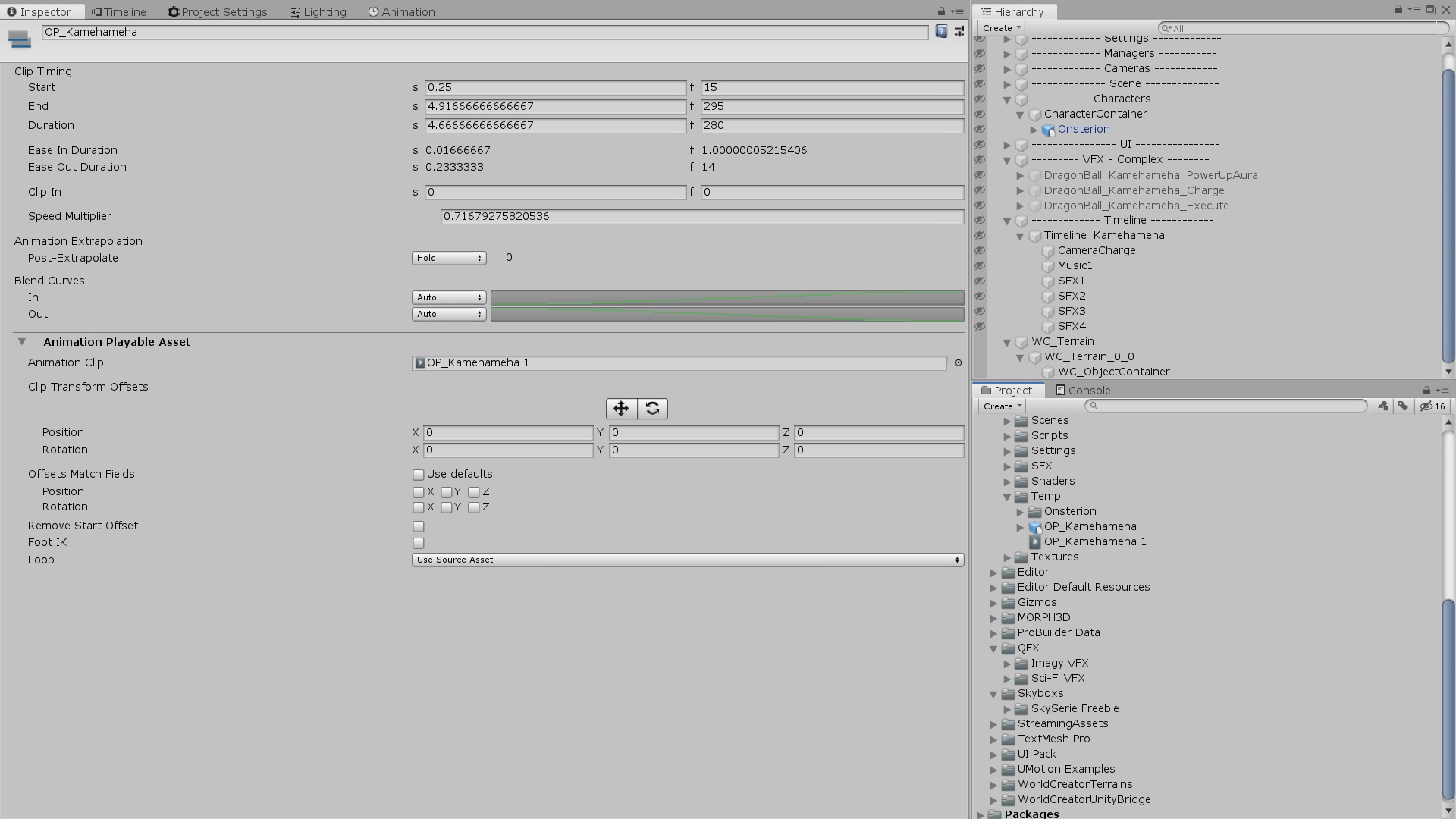
In order to edit the initial position of an object bound to an Animation Track, you can use the track’s offset. Click on the animation track in the timeline, activate the Apply Track Offset checkbox, then edit the position/rotation to match your desire.
I ran into a similar issue when trying to play two root motion animations sequentially on a character.
Specifying the offset works for the first animation but then the second animation will start from whatever offset is specified for that second clip (as the motion of the first clip is not remembered or applied?).
We would then need to specify another offset for the second clip or any following clips, which seems error prone and would become wrong if, let say, the first animation changes slightly.
Is that what that chehckbox “Äpply Track Offsets” is there for? It doesn’t seem to be present in the currently available build (5.6.0b6).
Actually, the “Äpply Track Offsets” is there on the track inspector, I was looking at the clip level.
I see it applies the offset for all the clips, which is nice but it still requires to have a local offset for each sequential clips to align them after the previous one.
Add a character with an animation to the timeline, but the animation does not move the character. So I try to record a move animation in the time line for this character like so:
Move to first frame and press record.
Move the character just a few pixel to get the keyframe → ok
Move to another frame and move the character to new posistion still recording
Deactivate recording
When I move now the time slider in the editor, the charcter’s movement is not reflected in preview.
When I press save the character is moved somewhere in the scene
When I then use the timeslider the animation is played backwards (Character starts from end and moves to beginning)
I saw and used this workaround from another thread :
“The only workaround I can give you right now is to have a parent gameobject that would be used to record the position and keep the Humanoid object for animation clips.”
I think it’s a reasonable workaround as I found working with the offsets confusing and error prone.
You are a life saver! Sad to see that even Unity employees didnt suggest this! Now my Characters smooth transition from one clip to another at the position it ended!