Back in 2021, we released the Import Activity Window. Using this window you can inspect everything the AssetDatabase knows about an Asset and get a “Reason for import” as well. This is incredibly useful, as it lets you find out almost all reasons for why an Asset was marked for re-import.
However, one thing that has historically not been handled by it is telling you about what queued up an Asset for re-import, if the Asset was only made Dirty and had no other changes. The reason for this is because behind the scenes, the AssetDatabase keeps a history of your imported files (until you restart the Editor, and then the current revision is the only version kept in the AssetDatabase). When an Asset is only set as Dirty with no other changes, the AssetDatabase does not produce a new artifact, and as such we cannot compare against a previous revision because no revision has been generated.
ObjectSetDirty tracking to the rescue
Since 2022, a new Diagnostic flag was added to the Editor which will output if an object was dirtied. This flag will output to the Editor log the call stack from where an object became dirty. Following that line of thought, we want to provide an advanced workflow to allow you to investigate deeper what code was responsible for Dirtying an Asset, so that you can handle the situation where some Asset keeps being flagged for re-import without having actually been modified.
The way to enable this Diagnostic is by opening the Preferences Window → Diagnostics → Core → ObjectSetDirty
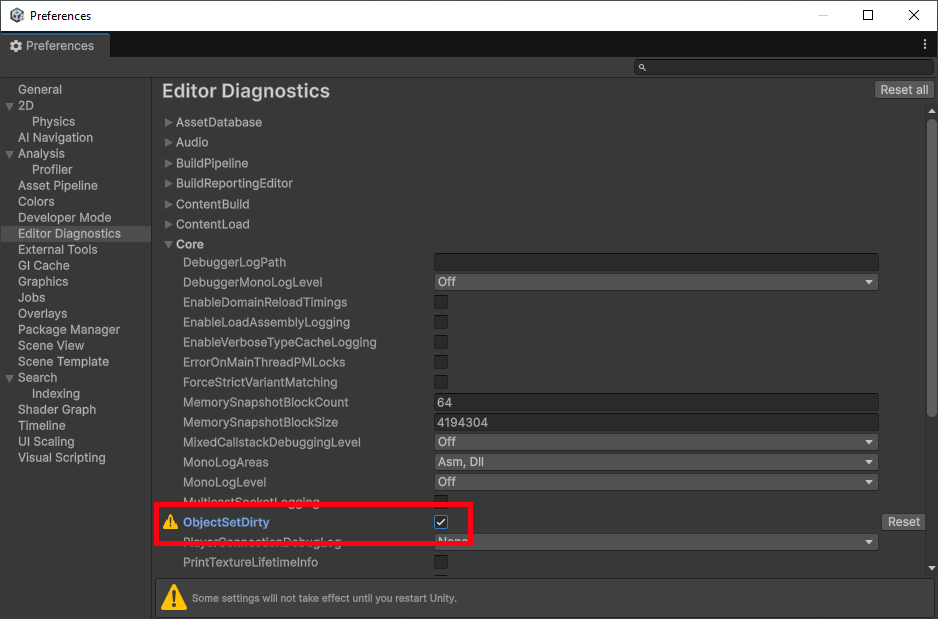
You’ll have to restart the Editor to have this Diagnostic take effect.
Once you restart the Editor, you’ll notice that the Editor.log now has a lot more activity as all SetDirty calls for any object in your project (and in the Editor) will show up on the Editor.log.
These messages can look like:
Increment Dirty(14) : [-2444] Cube (GameObject)
or
Clear Dirty(0) : [43518] (PrefabImporter)
The format for these messages is:
Increment Dirty:
Increment Dirty({DirtyCount}) : [{InstanceId}] {ObjectName} {ObjectType}- Dirty Count
- An integer value that tracks how dirty an Object is)
- InstanceId
- The instance of the object in question
- ObjectName
- The name you’ve given to an object
- ObjectType
- The type of the object in question
- Dirty Count
Clear Dirty:
Clear Dirty({DirtyCount}) : [{InstanceId}] ({ObjectType})- DirtyCount
- This should always be zero as the DirtyCount is being cleared
- InstanceId
- The instance id for the object in question
- ObjectType
- The type of Object who’s DirtyCount is being cleared
- DirtyCount
You should already be able to inspect when an Asset is being made Dirty, as generally calls to EditorUtility.SetDirty will do that. You can see below that I’ve put together a Script that does just that and has this as part of the callstack:
(Mono JIT Code) UnityEditor.EditorUtility:SetDirty (UnityEngine.Object)

(Mono JIT Code) TroublesomeScript:CallSetDirty () (at C:/Projects/AssetPipeline/DirtyAsset/Assets/TroublesomeScript.cs:12)
In order to better illustrate when Objects become dirty, beyond calls to EditorUtility.SetDirty, we need to enable Full Stack Trace logging going to the Console Window, opening the menu and selecting: “Stack Trace Logging → All → Full”.

Once this change is made (no need to restart the Editor) you can now see more about where an object is actually being made dirty within :
(Unity) Object::SetDirty (at $unity/Runtime/BaseClasses/BaseObject.cpp:1067)
Now, the interesting part is how to do this for an object that you care about in your project. This is where the Debug View for the Inspector panel comes in. By clicking on the ellipsis menu you can select the Debug view for the Inspector as shown in the image below:

If you do this, then you can find the InstanceId, and in this case, its --2148.
Searching for --2148 should give no hits in the Editor log, but once you modify the value, you should be able to see it show up, like in the stack trace below (in this example, I’m changing the Position.x value):
Increment Dirty(7) : [-2148] Cube (Transform)
StackWalker::GetCurrentCallstack (at $unity/PlatformDependent/Win/StackWalker.cpp)
StackWalker::ShowCallstack (at $unity/PlatformDependent/Win/StackWalker.cpp)
PlatformStacktrace::GetStacktrace (at $unity/PlatformDependent/Win/.../Diagnostics/PlatformStacktrace.cpp)
Stacktrace::GetStacktrace (at $unity/.../Diagnostics/Stacktrace.cpp)
DebugStringToFile (at $unity/Runtime/Logging/LogAssert.cpp)
DebugStringToFile<core::basic_string<char,core::StringStorageDefault<char> > > (at $unity/.../LogAssert.h:166)
Object::IncrementPersistentDirtyIndex (at $unity/Runtime/BaseClasses/BaseObject.cpp)
Object::SetDirty (at $unity/Runtime/BaseClasses/BaseObject.cpp)
ApplyToObject (at $unity/Editor/Src/Utility/SerializedProperty.cpp)
SerializedObject::ApplyToFirstObject (at $unity/Editor/Src/Utility/SerializedProperty.cpp)
SerializedObject::ApplyModifiedPropertiesWithoutUndo (at $unity/Editor/Src/Utility/SerializedProperty.cpp)
SerializedObject::ApplyModifiedProperties (at $unity/Editor/Src/Utility/SerializedProperty.cpp)
SerializedObject_CUSTOM_ApplyModifiedProperties (at $unity/.../EditorBindings.gen.cpp)
(wrapper managed-to-native) UnityEditor.SerializedObject:ApplyModifiedProperties_Injected (intptr)
UnityEditor.SerializedObject:ApplyModifiedProperties ()
UnityEditor.UIElements.Bindings.SerializedObjectBindingPropertyToBaseField`2<UnityEngine.Vector3, UnityEngine.Vector3>:SyncFieldValueToProperty () (at $unity/Modules/UIElementsEditor/Bindings/SerializedObjectBindingPropertyToBaseField.cs:36)
UnityEditor.UIElements.Bindings.SerializedObjectBinding`1<UnityEngine.Vector3>:SyncFieldValueToProperty () (at $unity/Modules/UIElementsEditor/Bindings/SerializedObjectBinding.cs:155)
UnityEditor.UIElements.Bindings.SerializedObjectBindingToBaseField`2<UnityEngine.Vector3, UnityEngine.UIElements.INotifyValueChanged`1<UnityEngine.Vector3>>:FieldValueChange (UnityEngine.UIElements.IEventHandler) (at $unity/Modules/UIElementsEditor/Bindings/SerializedObjectBindingToBaseField.cs:120)
The important part is in the INotifyValueChanged`1<UnityEngine.Vector3>>:FieldValueChange which states a Vector3 value was changed (i.e. the Vector3 for the Position) and this eventually goes to ApplyModifiedProperties, and finally to SetDirty.
Using this workflow, you should be able to track down what is making your Assets dirty and figure out if this is intended, or if something is not working as expected. Happy hunting!
Also, remember to reset the diagnostic, because it can get quite spammy!
