Nothing I’ve tried works. I have a 1024 x 768 image and want it to scale and fit the screen regardless
of the screens resolution or aspect ratio. In NGUI I’d just anchor the 4 sides to the relevant edges of the camera. In unity UI no matter what I do the image either ends up with top and bottom chopped off or black edges on either side. Any ideas if this is even possible with the unity UI?
Make sure your canvas is not set to “World Space”, and then you need to set the canvas scaler to, for instance, scale with screen size. And the image inside the canvas needs to be set to expand, which I imagine you had already done.
1 Like
here is a script that changes scale and rotation of image to match screen
Doesn’t work. i’ve got the canvas set to Screen space - camera (because I render meshes on top of the canvas) Scalar is set to Scale with screen size, Match set to either width or height doesn’t matter.
The image does scale but doesn’t change it’s aspect ratio. Mega frustrating as I’d have though this was an essential thing for a UI to be able to do.
I’ll try the script now thanks.
Hi, I’m getting an error : Background.cs(50,9): error CS0103: The name `Orientation’ does not exist in the current context
sorry it relies on this to send messages when the orientation changes
but if not need orientation changes then the math in the first one should stretch the image right
I’m not sure what I’'m doing wrong but in the editor the image is 90 degrees rotated like it thinks the screen is in portrait mode.
my original image was vertical i assume yours is horizontal
change line 37 of background from
to
and it works… i just tested it
the orientation code will rotate and strectch the image again when u rotate your phone
sorry thanks

if it not work
click the ‘set native size’ button in image
Thank you so much for the help. Unfortunately although I got your code to mostly work it seemed to stretch the image a little too much for some reason and would cut off the top and bottom of the image. No Idea why. So I inserted my very very old OnGUI code that did a similar thing and it now works. Here is my code just incase it helps someone else and maybe someone can work out why mine works and your’s seems to cut the top and bottom of the image off. Because after hours of looking I couldn’t work out the difference!
  void OrientationChanged()
    {
        _driven.Clear();
        _driven.Add(this, _t as RectTransform, DrivenTransformProperties.Scale | DrivenTransformProperties.Rotation);

        float RatioX = Screen.width / _image.preferredWidth;
        float RatioY = Screen.height / _image.preferredHeight;
        Vector3 RSize = new Vector3(RatioX, RatioY, 1);
        _t.localScale = RSize;

    }
Can u share dimensions or image? Thanks
I would make an Image on the canvas, set the canvas to ScreenSpaceOverlay, and the image to Preserve Aspect Ratio (to prevent strange stretching). I would also hold Alt + Shift, when I set the image’s anchors, and I would select the far bottom right anchor option – the Fill Entire Space option. Then, just size it as you like, and if you have the correct screen dimensions in the canvas scaler, it’ll scale properly.
You can get the dimensions from selecting an option other than Free Aspect in the Game tab.
If you build the UI this way, it will scale the layout as needed for the game that you are making.
What about making so that the camera is always including a part of the image so that no border or camera background colour appears, whatever the ratio (free aspect), zooming in and out as needed? Is there some option for that or do you have to write a script?
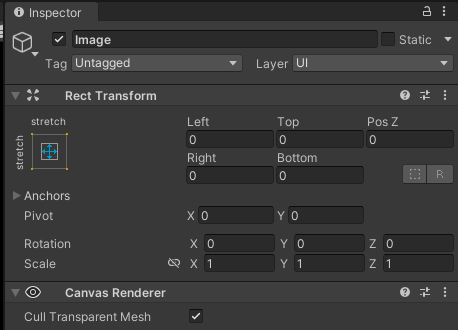
by default the position (e.g left top etc) have some value make it 0 for everything and for pivot as well, worked for me