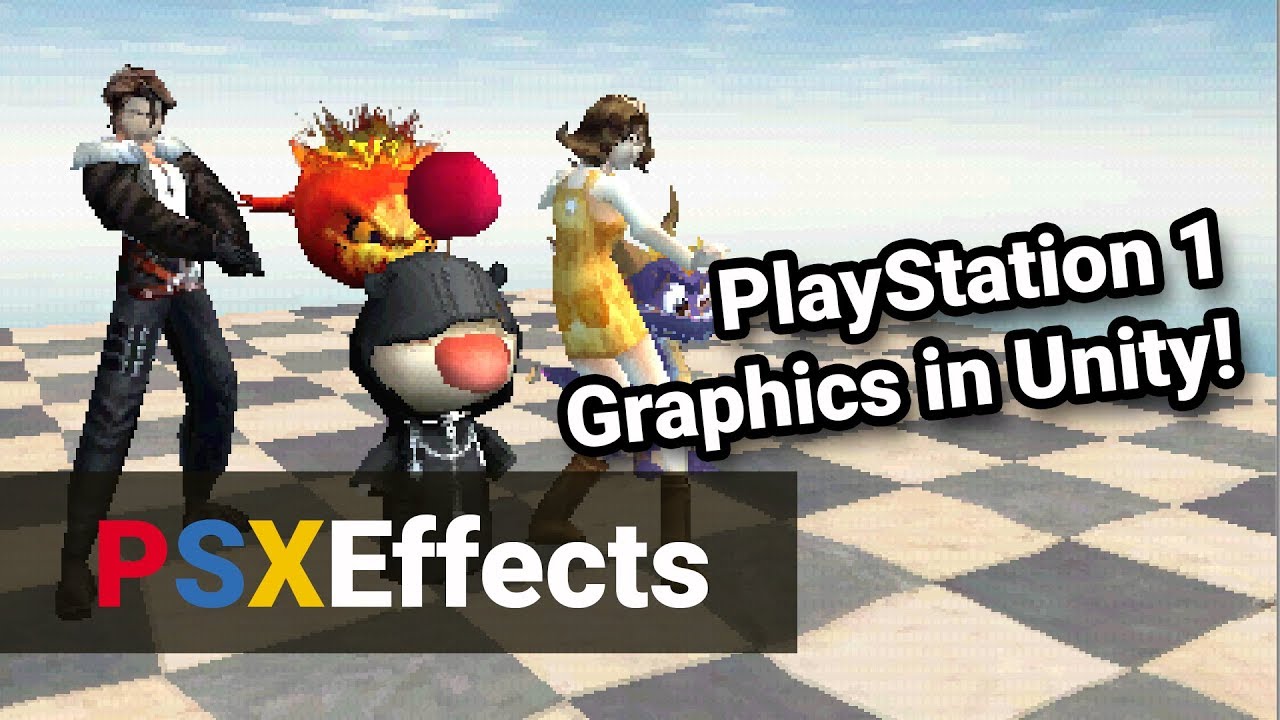
Overview
PSXEffects is an all-in-one package that allows you to simulate all of the original PlayStation One’s graphics quirks accurately and easily. Setup is simple and only requires one script and a canvas to render to.
I just released a small demo game using PSXEffects called Ship Battle 2. It’s just a short and bare-bones game demonstrating what is possible with PSXEffects (and a sequel to a game I made yeaaarrss ago in Unity).
An easy to use all in one prefab that includes the PS1Camera and PS1Canvas will soon be included in PSXEffects! This allows you to drag one object into the scene and PSXEffects will be set up!
PSXEffects 1.9 was released finally removing the need of a second camera and a canvas in the scene! All that you need to do now is attach the PSXEffects script to a camera.
Hi, I’m trying to run this on a Nintendo Switch but if I have the post processing enabled it gives me a blank screen. Is there anything I can do about that? Thanks
Hi, the blank screen is due to the shaders not being included in the build. To include them in the build, follow these steps from the documentation included with PSXEffects:
If you build your game and just see a black screen, this is because Unity
doesn’t include the PSXEffects shaders by default. To fix this, go to
Edit>Project Settings>Graphics and under Built-in Shader Settings, expand
Always Included Shaders and add “Hidden/PS1ColorDepth” and
“PSXEffects/PS1Shader” to the array.
In the latest update of PSXEffects, correct spherical harmonics lighting was introduced making the shader look similar to the Standard shader, using the skybox to light it up. To disable this, you can simply go into the lighting settings of the scene and change the mode from skybox to color. And I assume bringing the intensity of the point light really up will make it bright.
Hmm… what version of Unity and PSXEffects are you using (the current version of PSXEffects at the time of writing this is 1.10.5)? I recently added spotlight and point light support into the asset.
You can email me at support@tripleaxis.net if you want to send me your scene so I can take a look as well.
I just bought PSXEffects, working really nicely for camera effects, but I was wondering, why when I convert my probuilder material over to PS1Shader does it just show blank? Here is the road material before:
Hi ckosmic, I sent an email to your support address last week, just checking that it was received!
It was regarding the framerate limiter: Since the framerate limiter functions at the engine level, it ends up affecting the framerate at which additional post-process effects are able to update. If PSXEffects had an additional post-process version of the framerate limiter (update every second frame to simulate 30fps, or every third frame to simulate 20fps, etc), it would solve this issue.
I haven’t tried the framerate limiter, but if it just uses application target framerate, it’ll change everything. I managed once to do a framerate limiter using a rendertexture that refreshed it on a coroutine, but I couldn’t think of a good way to do it cleanly, so I gave up. Which way does this do the limiter?
I’m assuming PSXEffects uses application target framerate. Try setting it to a low value (eg: 5 fps) in the Unity Editor, hit Play, and watch the entirety of Unity (not just the game) slow down to the framerate it’s been told to target — until you exit Play mode, of course.
I believe the framerate limiter is working as intended! I’d just like to be able to do something like say, limit the framerate to 60fps, and then simulate a lower framerate for in-game visuals. This would allow for UI and post-effects on top of PSXEffects, without them also being bound to any desired lower framerate.