Scaling up a pixel-perfect in the build the same way it is done in the editor

Hello guys,

First of all, I hope I am in the right category :slight_smile: And second, thanks in advance for any help you may provide, I really appreciate the effort.

Now, I am making a 2D retro pixel art game in 320x180 resolution. While playing in the editor I use the 4x scale, so I am looking at a 1280x720 image although the “pixel perfect quality” is preserved. That simply means that all my graphics snaps to the original 320x180 pixel grid and therefore no sub-pixel positions are used at all.

When I build the game the problems start to occur. If I build it as 320x180 it is of course too small to play on a 3840x2160 screen, but when I enter the fullscreen mode the graphics are blurred. All sprites are setup properly - filter mode is “Point (no filter)” and the compression is “None”, and the screen res is an integer multiple of base game res so that also is not the reason.

When I build the game as 1280x720 then the stretching to fullscreen is fine, but of course now the sub pixel artifacts are occurring which is no surprise.

I should also mention that I have extensively checked out all the options with PixelPerfectCamera component and other related items to no avail.

Is there a way to stretch 320x200 to full screen without the blurred output?

Interesting.. Is there a reason why you target a specific resolution in your build (like 1280x720)? Have you tried building it with fullscreen option on? I assume you run your OS on 3840x2160 resolution, so anything smaller than that would always have to be scaled and as a result would introduce potential artifacts.

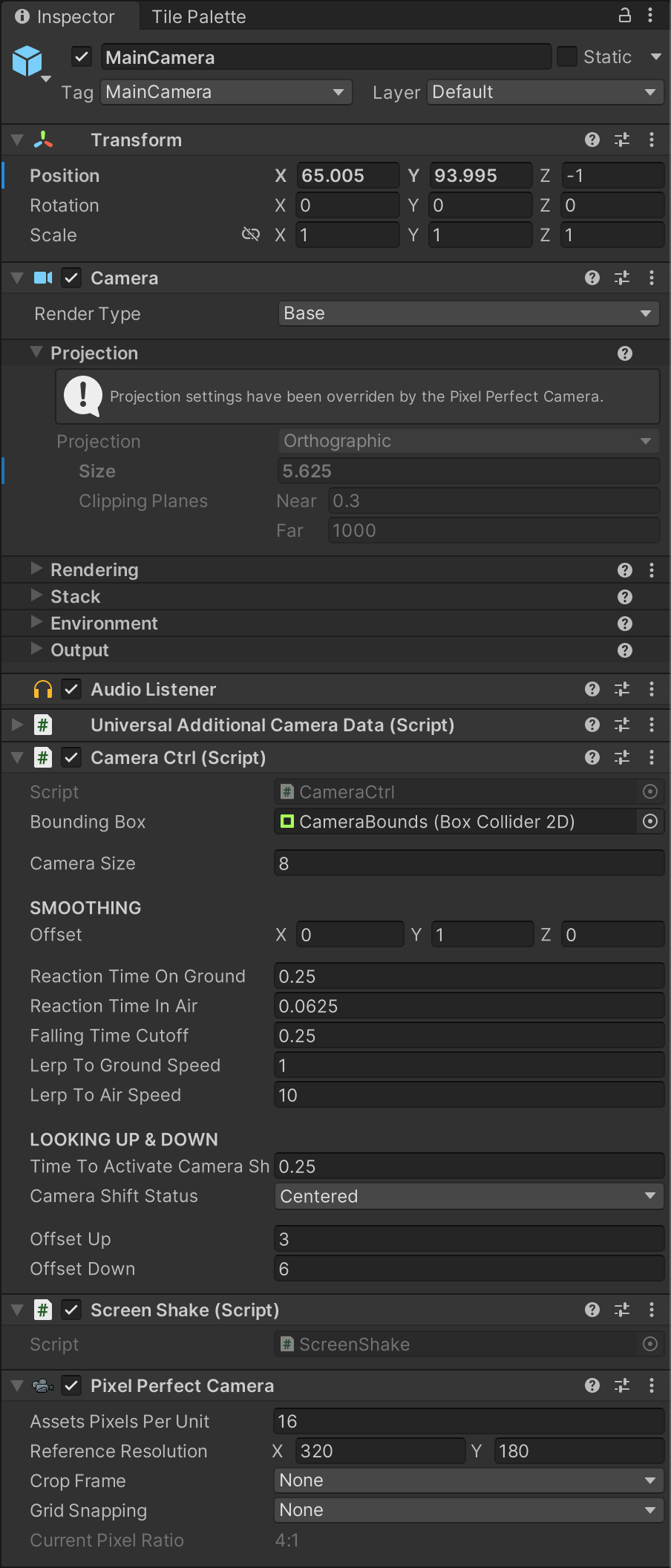
Could you post your camera’s pixel perfect settings?

Are you using exclusive or windowed fullcscreen?

Note that the graphics driver itself may force some form of upscaling or filtering. Maybe try resetting driver settings to defaults respectively use custom settings just for your executable.

Hey akita_engineer, thanks for responding! Here are the answers:

  • I used to have a wonky resolution that did not scale to most screens, so I changed my base resolution to 320x180 and the build resolution to 1280x720 and that scaled up to nice crispy pixel art graphics. However, I then decided to try building in 320x180 to avoid sub-pixels altogether, but then the blurriness returned. I tried 640x360 as well, but 1280x720 is the first one where I get the crispiness I need, though with sub-pixels which I would like to avoid.
  • Fullscreen option on - are you referring to “Allow Fullscreen Switch”? If yes then “yes”, if not - where can I find that option?
  • My OS is 3840x2160, but I read here somewhere that as long as the screen is an integer multiple of the game resolution the scale up should not be blurry… On the other hand, Unity editor is handling it nicely - I don’t get why is that a problem in the build then.

Hey CodeSmile, thank you for support :slight_smile: I’ve attached the screenshot of my PixelPerfectCamera settings. I am using the exclusive fullscreen (on MacOS, if that matters). What’s funny is that, when I switch from tiny 320x180 window to full screen the graphics are crisp for a second, and then it gets blurry, as if some kind of post-processing kicks in at that point. How could I reset the driver settings as you suggest?

Oh well … Macs are different in just about every way. I was thinking Windows. Macs don’t even have these graphics driver tools (for better or worse, but mostly the former).

Perhaps 3840x2160 isn’t your Mac’s native resolution?

PS: I can see from your Camera Inspector that you’re not using Cinemachine. Since pixel-perfect camera movement is tricky, you may want to use that because it also has a pixel perfect extension that works in harmony with PixelPerfectCamera.

Yeah, it does seem to be a MacOS issue, since the blur does not happen in Windows builds.

It’s in Project Settings -> Player -> Resolution and Presentation (in Unity 6 at least) -> Fullscreen Mode. Set it to Fullscreen Window or Exclusive Fullscreen.

I am on MacOS as well as it happens. Let me investigate if I can repro this

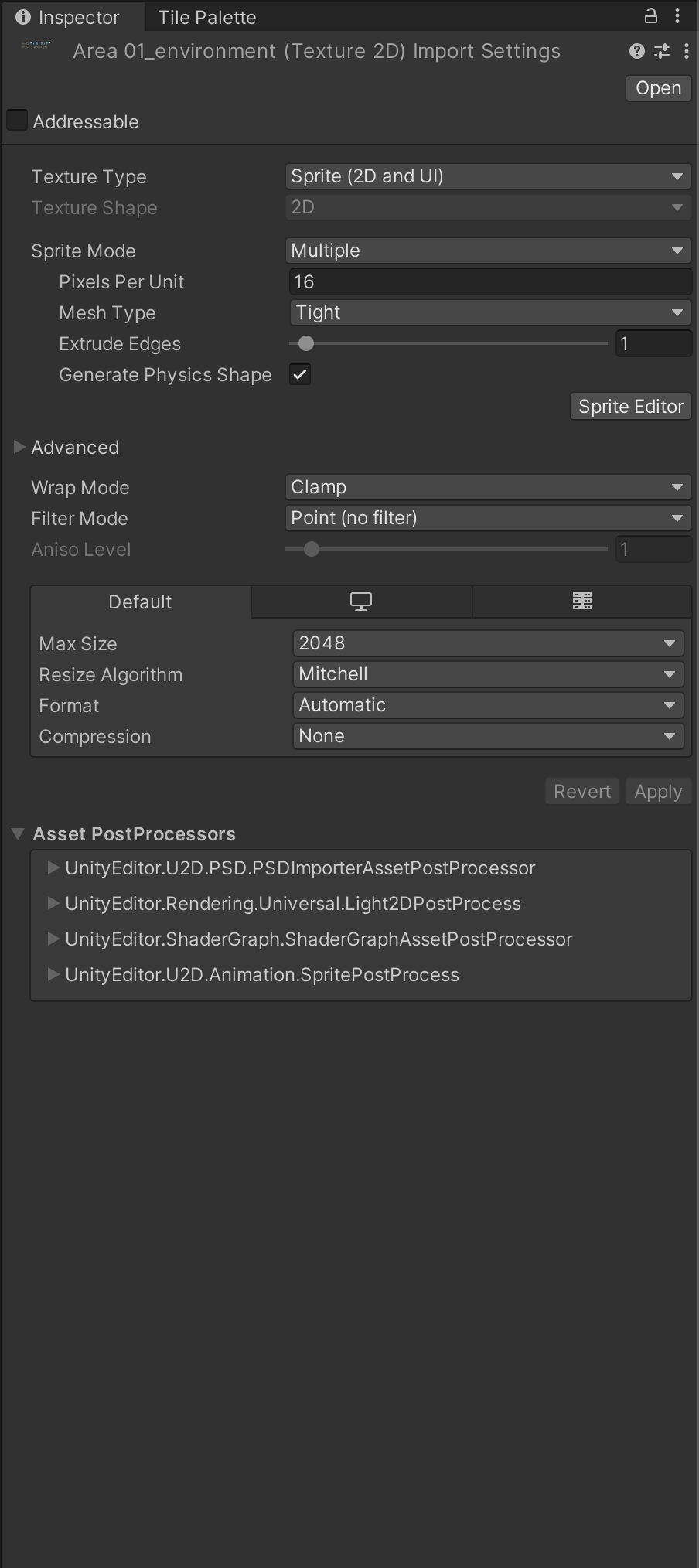
Edit: tested on Macbook Pro M2 Max and Unity 6 with the same pixel perfect camera settings and the fullscreen-windowed transitions work fine, I see no blur anywhere. Can you send your Texture 2D Import Settings?

Got it. Well, I tried fiddling with all the options in the Project Settings / Player without result. It doesn’t seem to have any effect on the problem I am having.

Sure, I’ve attached the Texture 2D import settings.

Here’s another thing - if I start the game in window mode and then do a fullscreen, then it takes a second before the blur (or rather AA, which I suspect the reason for the blur is) kicks in (see video): SODHARA_Blur.mov - Google Drive

Now, I am on Unity 2022.3.2f1. I could maybe try Unity 6 as a last resort…

I saw in my quick research that some say setting format to explicit RGBA 32 bit seems to resolve some weirdness around pixel art rendering, but nothing concrete.

I find it hard to see on the video the moment the blur kicks in.. however I do see that the menu is extremely blurry. I would recommend doing following:

  1. Try upgrading the project to latest Unity 2022 LTS (2022.3.61f1 as of the moment of writing). Generally speaking it’s safe to upgrade the minor version on the LTS stream since it includes various bug fixes and other improvements but your mileage may vary. If you’re not using source control, now would be a good time to do so to make sure you can always revert your changes (or try a new version on a branch). See if newer version magically resolves an issue, since you’re missing out on almost 2 years of updates. If nothing changes, you can try other newer unity versions for the sake of it, however I am not sure if that will be much help (doesn’t hurt to try).
  2. Start a new project, import your art and reconstruct that scene piece by piece, component by component to see when/what makes it fail and go blurry. If you see that right off the bat, with pixel perfect camera and some art in the project, everything goes blurry then the problem definitely lies within the engine or some sort of default project settings.
  3. If you feel comfortable sharing your project (maybe in a DM) or an isolated environment where the issue happens, I can help investigate it on my mac and see if we can arrive at an answer faster.

It’s called the “patch” version or level. :wink:

The versioning format is:
major.minor.patch
6000. 0. 47f1

Sorry for the late response, but my day job really sucked in all the time and energy I had so I couldn’t properly try this all out before yesterday.

I’ve upgraded to 2022.3.61f1 and luckily nothing broke. I’ll stick to 2022.3 for now, I have to concentrate on development a bit now :slight_smile:

As for the video, yeah, I think it got messed up when I compressed it - the blur kicks in during the Unity logo display at the beginning, though the exact moment is lost in the compressed version.

Now, regarding the initial problem - I didn’t manage to get it to work the way I want, but I figured out what is going on, sort of. Furthermore, I am not even sure my initial idea was all that good anyway.

For diagnostics I used this printout in my debug console:

    var currentRes = $"{Screen.currentResolution.width}x{Screen.currentResolution.height}";
    var mainWindow = $"{Screen.mainWindowDisplayInfo.width}x{Screen.mainWindowDisplayInfo.height}";
    var fullScreen = $"{Screen.width}x{Screen.height}";

    _commandHistory.Enqueue($"CurrRes {currentRes} | MainWin {mainWindow} | FullScr {fullScreen}");

I built the game for Windows in 1280x720 to start in full screen. When I got in, I called the cmd above and got full screen resolution as 1280x720, which was what I expected. However, if I would ALT-Enter to toggle the full screen mode, or if I would minimize/maximize the window, or if I would ALT-Tab to something else, the full screen resolution would change to 1920x1080 which was my screen’s native resolution.

On MacOS everything was fine since at 1280x720 the blur is not really visible in any case.

Then I built a script with which I could flip resolutions between 320x180, 640x360 and 1280x720 via a keyboard button, by means of Screen.SetResolution method. When I used it to switch to 320x180 on Windows I got the exact same blur as on Mac, which makes sense since the above example showed that the resolutions are tempered with on minimize/maximize, full screen toggle or changing window focus.

As to why that does not happen in the editor, I think it is due to Unity editor being an app that wraps around the game, i.e. the editor itself is using the display’s native mode, and then within it the game is rendered, thus bypassing the OS settings which blur the low res image when the game is run natively.

So there you have it. I wanted to force low resolution so as to get “true” retro feel, i.e. avoid any sub-pixel artifacts in the game which is mostly visible with particle systems. While that would be cool, what I also got was some not-as-pleasant artifacts such as jagged background scrolling and such, and for that reason I decided to build in and force 1280x720. As to how I did that, here is the code:

using UnityEngine;

public class ResolutionCtrl : MonoBehaviour
{
    #region State
    private bool HasScreenSizeChanged => Screen.width != _lastWidth || Screen.height != _lastHeight;
    private bool HasFullScreenChanged => Screen.fullScreen != _lastFullScreen;
    private bool HasFocusedChanged => Application.isFocused != _lastFocus;

    public int CurrWidth => WIDTH;
    #endregion

    #region Constants
    private readonly int WIDTH = 1280;
    private readonly int HEIGHT = 720;
    #endregion

    #region Fields
    public int _currModifierIdx = 2;

    private int _lastWidth;
    private int _lastHeight;
    private bool _lastFullScreen;
    private bool _lastFocus;
    #endregion

    private void Start()
    {
        _lastWidth = Screen.width;
        _lastHeight = Screen.height;
        _lastFullScreen = Screen.fullScreen;
        _lastFocus = Application.isFocused;
    }

    private void Update()
    {
#if !UNITY_EDITOR
    if (!HasWindowStateChanged())
        return;

    Screen.SetResolution(WIDTH, HEIGHT, Screen.fullScreen);
#endif
    }

    private bool HasWindowStateChanged()
    {
        var changed = false;

        if (HasScreenSizeChanged)
        {
            changed = true;
            _lastWidth = Screen.width;
            _lastHeight = Screen.height;
        }

        if (HasFullScreenChanged)
        {
            changed = true;
            _lastFullScreen = Screen.fullScreen;
        }

        if (HasFocusedChanged)
        {
            changed = true;
            _lastFocus = Application.isFocused;
        }

        return changed;
    }
}