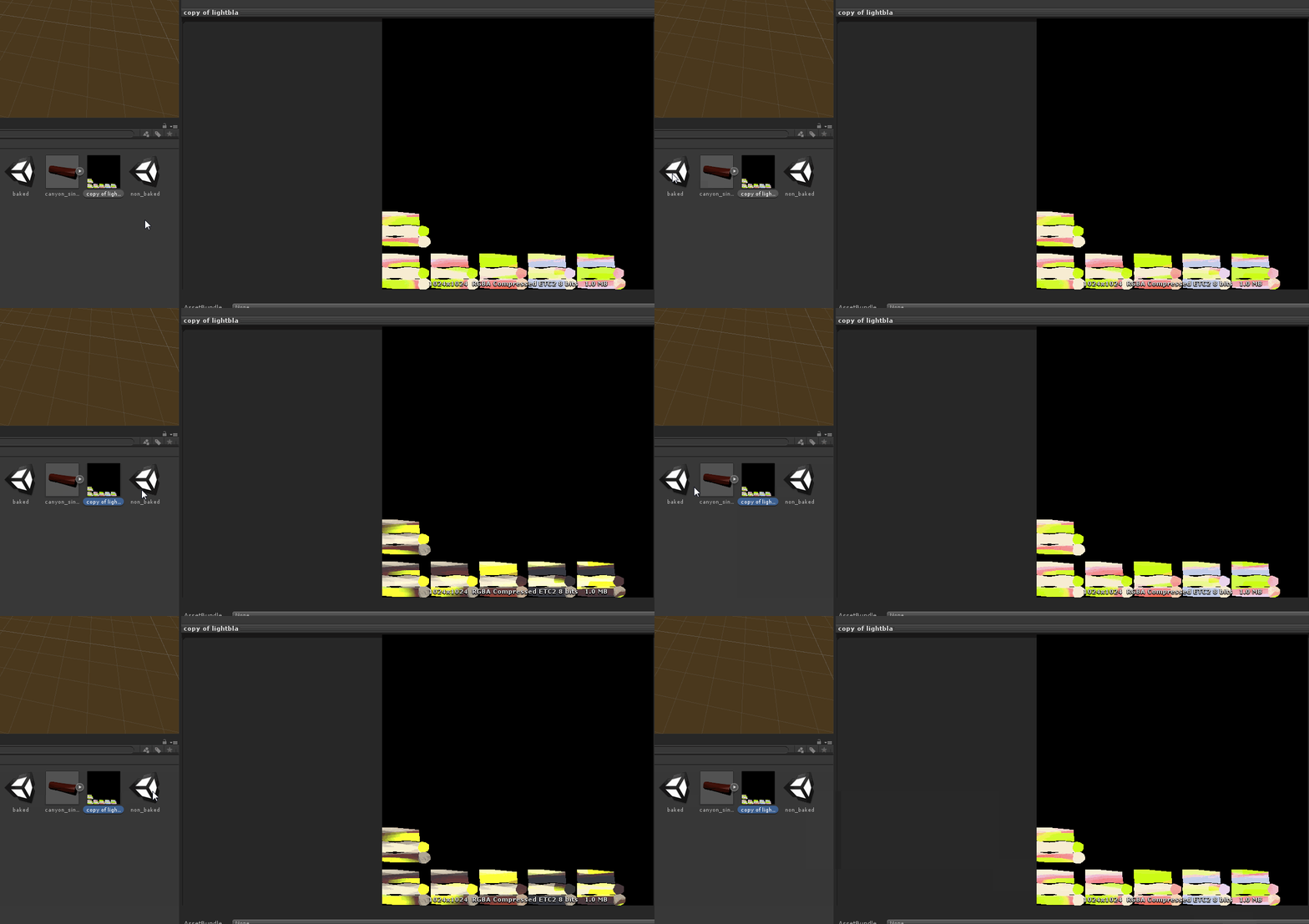
I noticed some differences in how .exrs are displayed in Unity 5s lightmapped and non-lightmapped scenes.
The issue happens in the inspector as well as in the scene. The issue happened even after I copy-pasted and renamed the lightmap.
Looks like an issue affecting all exrs in the project and it didn’t happen in Unity 4. My workaround for this was to convert it into a psd which solved the issue for now but I’d love to find a better solution for this since it’s a lot of work if I have to do it manually for many lightmaps.
Please, is there a proper solution to get a consistent behaviour or can this considered a bug?
Is there a setting you can recommend? I tried many different settings from “texture” to “lightmap” to “advanced” but it still happened no matter what I did. Even compression didn’t change anything. The texture still gets lighter in non-lightmapped scenes and stays normal in lightmapped scenes.
Just to make sure everyone understands the problem: All I do is switch the scene and the copy of my lightmap (currently set to “texture” under “texture type” in the inspector) seems to change its gamma settings or something like that. It didn’t happen in Unity 4, the file itself doesn’t seem to change since it stays normal when opening it in photoshop, and it doesn’t happen to any other file types, only exr. It also happens no matter if the project is set to gamma or linear color space.
The scenes that I switch between only differ from each other in one term: one of the scenes is lightmapped, the other one isn’t (which means one of them has its Baked Data Cleared inside the lighting window).
I think I fixed this recently - there was an issue with the lightmaps not getting the correct encoding in the Editor (it worked as expected on the device). The fix will be in Unity 5.0.0p4. I wasn’t able to reproduce your issue with the fix applied. Please file a bug report if your problem persists with 5.0.0p4.
I’m currently using Unity 5.0.0f4 and also had some gamma-like issues with my lightmaps. The thing was in new option in texture import settings “Encode to RGBM” by default set to “Auto”. As I understand now unity handles .exr files like HDR textures and by default encodes its color info according to rgbm algorithm and result textures looks like gamma-corrected. So the fix was to simple turn “Encode to RGBM” to “Off”.
I’m experiencing different kind of issues with exr files. But seems like they’re related to the same “exr import” problem described here.
I’ve just upgraded from unity 4.6 to unity 5 and suddenly all my exr textures (which I use a lot for FX) become really weird.
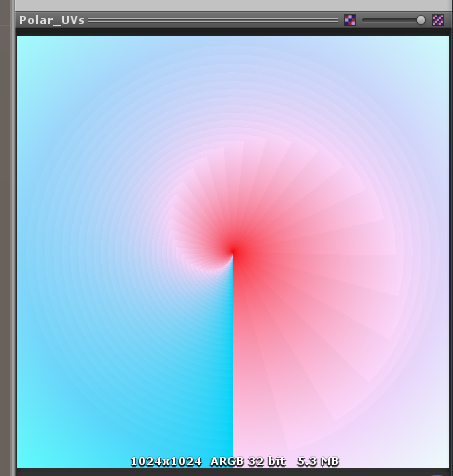
E.g., this is simple polar coordinates texture (captured in Nuke):
it has clockwise ramp in it’s R channel and radial ramps in it’s G and B channels.
It also has the “hide U-seam” mask in it’s alpha. I.e., channels are:
Obviously, there’s some Linear → sRGB visual difference. But besides that the texture is exactly the same as in Nuke.
And now here’s how this exactly same texture is imported to Unity 5:
First of all, you can see for some reason Unity lost alpha channel. And secondly, it imported this texture really weird way.
Here’s what RGB channels became in U5 (visualised with custom shader):
R:
G:
B:
Why does it happen? Is there a way I can overcome it?
I need some textures in true 32-bits per channel float-point mode (“real” truecolor, so PNG is not enough).
I tried to overcome this issue by converting the texture itself to 32-bit TIFF file format but Unity 5 doesn’t want to import them at all. Here’s how TIFF file is displayed in Unity:
With the following error in console:
Obviously, truecolor mode is enabled for the texture (both in U4.6 and U5).
Windows 7 64 bit, Unity 5.0.0p2
I think I might have a solution for you though. Please try something like this in your custom shader in the fragment part and see if that’ll fix the lightness:
@KEngelstoft
Is there any update on the issue? Or maybe you can suggest any other way to pass a 32-bit texture to Unity?
Right now my project is stuck because I can do nothing to make my effects look better. With 8-bit texture they look just horrible (8 bits are far from enough for polar coordinates) and I don’t know about any other way to pass some 32 bit data to shader.
There’s even no reply on the bugreport itself. Not even a confirmation that UT was able to reproduce this bug (it takes just a couple of seconds to do so: just open the same texture in Unity and in PhotoShop) and is going to fix it some day.
Hey guys, it seems like there’s this script to import point-clouds as 32bit EXRs, there’s a Github link in the code too.
// Pcx - Point cloud importer & renderer for Unity
// https://github.com/keijiro/Pcx

using UnityEngine;
using System.Collections.Generic;

namespace Pcx
{
    /// A container class for texture-baked point clouds.
    public sealed class BakedPointCloud : ScriptableObject
    {
        #region Public properties

        /// Number of points
        public int pointCount { get { return _pointCount; } }

        /// Position map texture
        public Texture2D positionMap { get { return _positionMap; } }

        /// Color map texture
        public Texture2D colorMap { get { return _colorMap; } }

        #endregion

        #region Serialized data members

        [SerializeField] int _pointCount;
        [SerializeField] Texture2D _positionMap;
        [SerializeField] Texture2D _colorMap;

        #endregion

        #region Editor functions

        #if UNITY_EDITOR

        public void Initialize(List<Vector3> positions, List<Color32> colors)
        {
            _pointCount = positions.Count;

            var width = Mathf.CeilToInt(Mathf.Sqrt(_pointCount));

            _positionMap = new Texture2D(width, width, TextureFormat.RGBAHalf, false);
            _positionMap.name = "Position Map";
            _positionMap.filterMode = FilterMode.Point;

            _colorMap = new Texture2D(width, width, TextureFormat.RGBA32, false);
            _colorMap.name = "Color Map";
            _colorMap.filterMode = FilterMode.Point;

            var i1 = 0;
            var i2 = 0U;

            for (var y = 0; y < width; y++)
            {
                for (var x = 0; x < width; x++)
                {
                    var i = i1 < _pointCount ? i1 : (int)(i2 % _pointCount);
                    var p = positions[i];

                    _positionMap.SetPixel(x, y, new Color(p.x, p.y, p.z));
                    _colorMap.SetPixel(x, y, colors[i]);

                    i1 ++;
                    i2 += 132049U; // prime
                }
            }

            _positionMap.Apply(false, true);
            _colorMap.Apply(false, true);
        }

        #endif

        #endregion
    }
}

 I’m currently using Unity 5.0.0f4 but will try with 5.0.0p4 when it’s released.