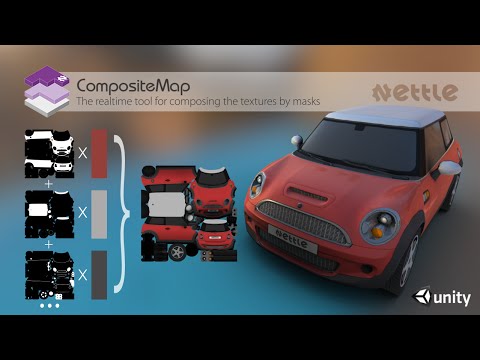
Let me introduce you CompositeMap, the utility for fast and easy texture processing in Unity Editor.
CompositeMap allows to create and edit the whole set of object textures and real-time evaluate the result of their joint applying. It allows customizing hard-visualizable textures like Reflection, Glossiness, Self-Illumination, etc.
CompositeMap edits the textures using the masks of materials similar to CompositeMap map in 3ds Max or Layered Texture in Maya.
Available at the Unity AssetStore UPD: Unity 5 supported now. The package include optimized low-poly model of Mini Cooper with full set of material masks
UPD2: Ingame usage supported. You can see this sample compiled for Unity Web Player here: http://nttl.ru/compositemap/ at the bottom of the page.
How it works:
Tutorial:
It is very easy to use the utility:
Create the asset CompositeMap and add the layers to it
Press Save button — the texture file with the same name as asset will be created
Apply the texture to the object of Unity scene
Return to the CompositeMap and tune the layers
In the Viewport you can real-time see the result of all your actions.
All the textures created with CompositeMap could be used by the third-party Unity 3D tools and plugins, which can significantly broaden the abilities of the Editor.
Thank you! ) The number of masks is irrelevant in this case. CompositeMap just composed the texture which could be applied to the model. It works in editor mode and don’t need to be included into the final build at all
Nice! Does it mean that I’ll get a one texture file as a result of plugin work and then could just remove the plugin from assembly and leave and further just this texture file?
Yes. You can create many textures of the object (Diffuse, Reflect, Self-illuminaton, etc), then apply all of them to the object and see the result of their joint applying. You can realtime edit these textures and see how will be looked your object with all shaders and scene settings. When you will satisfied you can just leave these textures and exclude tool code and masks from the project.
Does this support Unity5, and is it useful for making dirt texture (that will be applied ingame over the main texture) another usage is to let the player apply vinyl for his car, is that possible too?
Hi KhaledM, we are going to release Unity5 support in nearest time. What about changing texture: of course, you can use our code for ingame features. Our tool can mix different textures like layers in Photoshop and as a result generates the texture which could be applied to the object. You can reuse this mechanism in your application.
Hello,
I’m using Your plugin to bake glossiness texture into alpha channel of albeido texture. As a input to relief terrain pack.
But I’m fighting with one thing:
I create first layer with albeido texture I set it to normal, use mask.rgba, enable r,g,b.
Second layer with glosiness texture I set it to normal, use mask.r, enable alpha (use mask.rgb would be preferred)
Basicly this works. But it will only bake red channel of glosiness texture into alpha chanel of result texture. Would it be possible to enable use mask.rgb option?
Hello, Peter!
Could you provide us more information for clarifying the problem, please?
What do you want to get as a result? How many textures? Which shader do you use?
Okay, Peter!
Let’s do the following:
On the import of Glossiness texture please select Texture Type ‘Advanced’ and select Import type ‘Alpha from Grayscale’
Then create 2 layers: for Albedo and for Glossiness and use it like you see on this picture: put Albedo texture on the bottom layer an use it as usual (RGBA) and next set the Specular texture with the grayscale in Alpha for the top layer and it will just overwrite Alpha channel.
Thanks, yeah trick with alpha from grayscale make it works. Still not sure if I’m doing it wrong. But I get good result only with albeido on top? (if albeido is bottom layer result is too dark)