I’m switching a simple asset over from using [PreferenceItem] to using [SettingsProvider] instead. This seemed pretty simple, following the approaches show here: Unity - Scripting API: SettingsProvider
However, the issue I’m facing is that the values I enter into the Project Settings window aren’t saved to the settings asset. When I open Project Settings, I see the values loaded from the asset, but they aren’t saved back to the asset when I modify them in the settings window.
For example, here’s what it looks like when I open the Project Settings window:
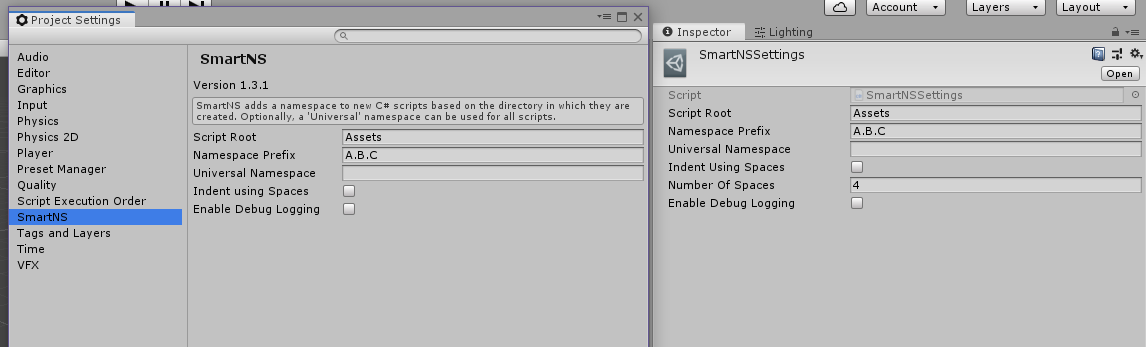
You can see that the values loaded into my SmartNS settings were pulled properly from the SmartNSSetting.asset which I’m showing on the right. I can type values into the Project Settings fields, but those values never get written back to the SmartNSSettings asset.
What am I missing?
The code I’m using for my SettingsProvider is here. It’s all just copy/paste from the Unity docs, with some different properties used than in the docs.
using System.IO;
using UnityEditor;
using UnityEngine;
using UnityEngine.UIElements;

namespace GraviaSoftware.SmartNS.Editor
{
    // Create a new type of Settings Asset.
    class SmartNSSettings : ScriptableObject
    {
#pragma warning disable 0414
        [SerializeField]
        private string m_ScriptRoot;
        [SerializeField]
        private string m_NamespacePrefix;
        [SerializeField]
        private string m_UniversalNamespace;
        [SerializeField]
        private bool m_IndentUsingSpaces;
        [SerializeField]
        private int m_NumberOfSpaces;
        [SerializeField]
        private bool m_EnableDebugLogging;
#pragma warning restore 0414

        internal static SmartNSSettings GetOrCreateSettings()
        {
            var settings = AssetDatabase.LoadAssetAtPath<SmartNSSettings>(SmartNSSettingsProvider.k_SmartNSSettingsPath);
            if (settings == null)
            {
                settings = ScriptableObject.CreateInstance<SmartNSSettings>();
                settings.m_ScriptRoot = "Assets";
                settings.m_NamespacePrefix = "";
                settings.m_UniversalNamespace = "";
                settings.m_IndentUsingSpaces = false;
                settings.m_NumberOfSpaces = 4;
                settings.m_EnableDebugLogging = false;
                AssetDatabase.CreateAsset(settings, SmartNSSettingsProvider.k_SmartNSSettingsPath);
                AssetDatabase.SaveAssets();
            }
            return settings;
        }

        internal static SerializedObject GetSerializedSettings()
        {
            return new SerializedObject(GetOrCreateSettings());
        }
    }

    // Create SmartNSSettingsProvider by deriving from SettingsProvider:
    class SmartNSSettingsProvider : SettingsProvider
    {
        public const string k_SmartNSSettingsPath = "Assets/SmartNS/SmartNSSettings.asset";

        private SerializedObject m_SmartNSSettings;

        class Styles
        {
            public static GUIContent ScriptRoot = new GUIContent("Script Root");
            public static GUIContent NamespacePrefix = new GUIContent("Namespace Prefix");
            public static GUIContent UniversalNamespace = new GUIContent("Universal Namespace");
            public static GUIContent IndentUsingSpaces = new GUIContent("Indent using Spaces");
            public static GUIContent NumberOfSpaces = new GUIContent("Number of Spaces");
            public static GUIContent EnableDebugLogging = new GUIContent("Enable Debug Logging");
        }

        public SmartNSSettingsProvider(string path, SettingsScope scope = SettingsScope.Project)
            : base(path, scope) { }

        public static bool IsSettingsAvailable()
        {
            return File.Exists(k_SmartNSSettingsPath);
        }

        public override void OnActivate(string searchContext, VisualElement rootElement)
        {
            // This function is called when the user clicks on the SmartNSSettings element in the Settings window.
            m_SmartNSSettings = SmartNSSettings.GetSerializedSettings();
        }

        public override void OnGUI(string searchContext)
        {
            // Use IMGUI to display UI:
            EditorGUILayout.LabelField(string.Format("Version {0}", SmartNS.SmartNSVersionNumber));

            // Preferences GUI
            EditorGUILayout.HelpBox("SmartNS adds a namespace to new C# scripts based on the directory in which they are created. Optionally, a 'Universal' namespace can be used for all scripts.", MessageType.None);

            EditorGUILayout.PropertyField(m_SmartNSSettings.FindProperty("m_ScriptRoot"), Styles.ScriptRoot);
            EditorGUILayout.PropertyField(m_SmartNSSettings.FindProperty("m_NamespacePrefix"), Styles.NamespacePrefix);
            EditorGUILayout.PropertyField(m_SmartNSSettings.FindProperty("m_UniversalNamespace"), Styles.UniversalNamespace);
            var useSpaces = EditorGUILayout.PropertyField(m_SmartNSSettings.FindProperty("m_IndentUsingSpaces"), Styles.IndentUsingSpaces);
            if (useSpaces)
            {
                EditorGUILayout.PropertyField(m_SmartNSSettings.FindProperty("m_NumberOfSpaces"), Styles.NumberOfSpaces);
            }
            EditorGUILayout.PropertyField(m_SmartNSSettings.FindProperty("m_EnableDebugLogging"), Styles.EnableDebugLogging);
        }

        // Register the SettingsProvider
        [SettingsProvider]
        public static SettingsProvider CreateSmartNSSettingsProvider()
        {
            if (IsSettingsAvailable())
            {
                var provider = new SmartNSSettingsProvider("Project/SmartNS", SettingsScope.Project);

                // Automatically extract all keywords from the Styles.
                provider.keywords = GetSearchKeywordsFromGUIContentProperties<Styles>();
                return provider;
            }

            // Settings Asset doesn't exist yet; no need to display anything in the Settings window.
            return null;
        }
    }
}