The Toggle-feature in Unity’s UI is very useful. At this moment however, there’s no way to use Toggles as is and make sure the Toggle-buttons are only deselected when pressing another toggle-button within the same toggle-group.
1. Any click outside will deselect: That means that if you have a toggle-group and press the screen anywhere outside the toggle it will deselect your original toggle-choice:
See example here:
possibledigitaldikkops
2. Having multiple toggle-groups deselects: Additionally, if you have more than one Toggle-group (say nested or just next to each other), pressing the button in one Toggle group will deselect the toggle in the other group:
See example here:
meekequalhatchetfish
I’ve understood that this is intended behaviour and not a bug. However, I have seen a lot of forum-posts that are looking for the setting to turn on “only deselect/change selected background/sprite when pressing toggle within toggle-group” and not finding it. Here is one example (forum from 2017, still active today in 2021):
How people solve it right now: Currently it seems the best way to get this desired behaviour (only change selected toggle when pressing button within same toggle-group) is to write a new and custom toggle/button script from scratch. I myself am doing that right now (and some in the thread above are sharing their custom toggles to help others). However, this toggle-behaviour is so commonly sought after I wanted to make a formal feature request to possibly add it as an option.
Feature request: Maybe the standard Toggle could contain a boolean-option, something like “Only change selected within group” or something similiar. I think that would help a lot of people who want to use Toggles. It would be awesome if the option to toggle the behaviour off/on existed in the future (to make the hurdle of using the Toggles smaller).
Thanks so much in advance! Hope this makes sense : )
Edit: I just realized that maybe UI Toolkit isn’t the place to make this request, if so I’m sorry! Does anyone know where I can post a formal feature-request?
Thank you for the quick reply! I will remove the post here and post in in UGUI instead, thanks for the heads up.
Also, unfortunately the “Deselect on background click” only solves the specific "1. Any click outside will deselect", using multiple toggle-groups will still cause deselect to happen when pressing other UI-elements, like other buttons/toggles (outside the group). Thank you for the suggestion anyway!
Edit: Darnit, I posted it on UGUI not realizing I cannot delete my own threads (this duplicate post here). And looking at your reply I realize that was also exactly what you meant.
Very sorry for the trouble!
Edit 2: Made a report asking them to help me move post/remove duplicate.
What do you exactly mean when you mention “Toggle-Button”? Because I just built a very quick test rig with two sets of toggles and two toggle groups and everything is working properly for me. When I select one from the left column, only that column changes, when from the right, only that. Now, of course in order to make them buttons, the checkmark have to be removed and the background should be expanded and the text moved a bit, but they can be made perfect buttons. (I don’t use UGUI for a while now, only UI Toolkit, so maybe I’m missing something obvious)
Thanks for testing this. Which Unity version are you on? (And did you add an InputSystemUIInputModule component, toggling the "Deselect On Background Click)?
Thanks! I’m on Unity 2020.3.22f1 and it’s not working like this for me.
Did you add a InputSystemUIInputModule component, toggling the "Deselect On Background Click)? Or is this a completely new, default project and you just added standard toggles to it?
For you the toggle-groups do not affect each other and clicking outside UI-elements will not deselect the toggles?
Edit: I just tried making a new Unity 2020.3.22f1 project and added toggles like you describe and it also works now for me with the checkmarkings staying in place. I think what’s happening has something to do with when we try to make them look like “regular buttons”. Thank you so much for testing this with me Lurking-Ninja, I’m going to investigate further.
Default project, did not switch to the new input system so didn’t toggle that option.
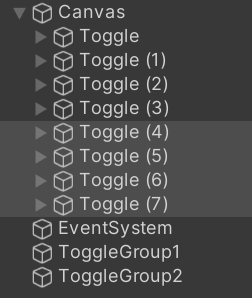
I just added a couple toggle UI elements, two empty game objects, each have a separate togglegroup and then I just dragged and dropped the first on the first column’s toggle’s toggle group slot and the second to the second column.
I did not test the background click deselection this time, so I do not have clickable background.
I entered play mode, clicked on various toggles, observed that they are switching as expected and tried just to click in the window and at one point on a separate, unrelated button, but none of these deselected the two active toggles.
So my crude test gave the result we would expect. Maybe something else causes your deselection?
I tried making a new Unity 2020.3.22f1 project like you and it works like you describe now with the check-marks (background-clicks won’t deselect and the other toggle-group’s checkmarks won’t be affected by each other). Like this:
everygoodivorygull
However, the problem arises when you try to make the toggles look like “buttons” (not with checkmarks). If you change the default toggle-state colors it becomes clearer. Here I’ve changed the “selected” button’s color to green. The deselection happens more clearly now. The button’s color becomes “deselected” when pressing anywhere else, including in another toggle group (the checkmark stays in place though).
shoddylikablegalapagossealion
I think that’s what’s happening to me (and probably to others in the thread I mention above). We customize the toggles to look like buttons (remove the check-marks, wanting just the color-shifting/sprite swap to happen etc.). But the default Toggle-behaviour will turn on deselected sprites/color-states when pressing anywhere outside the checkmarked button (but keep the checkmark in place).
Suggestion of possible future fix: It would be awesome if there was an easy option that when turned on keeps the color-states/sprite-states as “selected” if the user presses anything outside of the toggle-group (so that new toggle-selections occur only when pressing within their respective toggle-groups).
Maybe it could be solved with a booelan-option in the standard Toggles, or maybe it could be solved by making a new, specific UI element called “Toggle Button” (or something similair) that devs can choose from that works like a toggle/looks like a button but will only change selection if users press another button in the toggle-button-group.
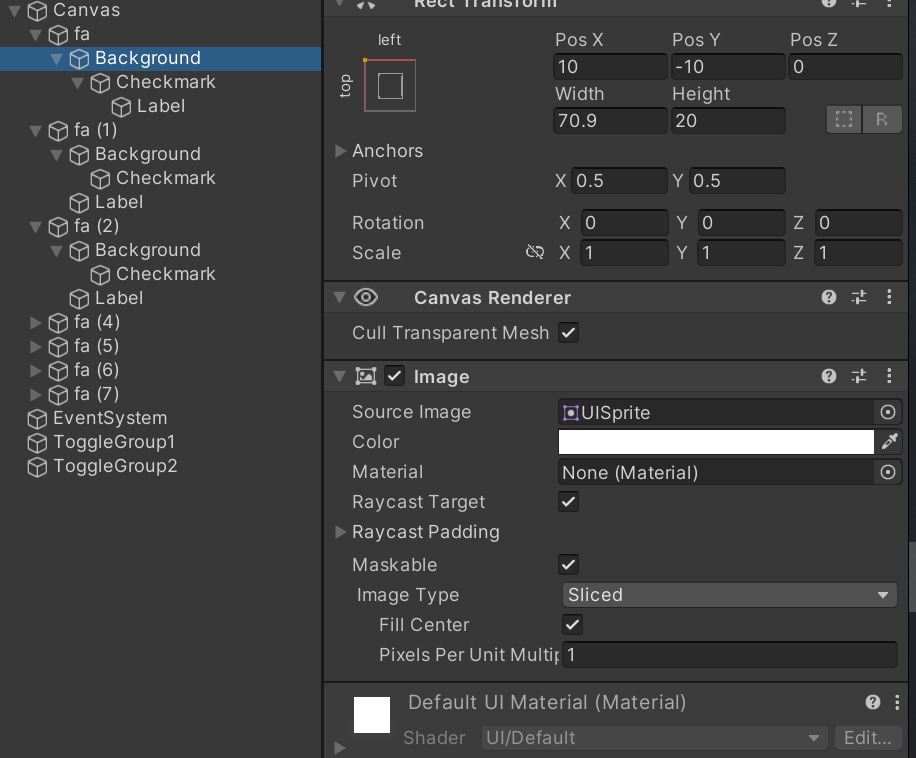
Here is a solution for you. This works exactly as intended. Obviously my positions and all are quick test, so widths and heights and all that are inaccurate and ugly, but when you click on a toggle (with all we said above!) it stays red until yuo click another toggle in the same group. Obviously you need to do this for all toggles (remove coloring and set the background color to basic color and the other image to red. And of course move the Label inside the other background (called Checkmark). I took advantage of the fact that the checkmarks stayed on meanwhile the coloring went away when you clicked away. Also pay attention to the background image of the “Checkmark” it’s a sliced image, so it can be colored red and can resized like a button. And I hope my explanation was clear enough. Let me know if I wasn’t.
Lurking-Ninja thank you so much, replacing the checkmark with an identical box-image of a different color did it for me!
The set up is not exactly like a regular button (with all sprites/color-shifts ordered in the script for easy overview, as the checkmark stands on its own), but it’s a solution that is easy and very quick to set up and it works. From what I can tell it fulfills the functionality a lot of people online are looking for (including in the thread I linked above), and it doesn’t require writing a custom button/toggle-script from scratch!
Brilliant, thank you so much or taking time out of your day just to help me/us! I will use this solution.
The Unity community is a great place because helpful people like you are around!