Hello. My grandson who is 10yrs old has been doing a project for a couple months. I installed an external hard drive for more room. I did not intentionally move anything with unity. The computer did crash was the same day. Now when he opens his project. He gets 109 errors saying this: a meta data file exists but its folder can’t be found and has been created. Empty directories cannot be stored in version control, so it is assumed the meta data file is for an empty directory in version control……I checked the folder and all the meta data files for the assets are still there on the computer. But unity can’t seem to find them. I’m not very good with computers and grand son is crushed. Could some one point out if reimporting all assets? Could fix this? Or something else to try. Much appreciated for the help
Could you post the actual messages from the console? Select all and ctrl+c/ctrl+v works. Alternatively attaching editor.log after opening the project would help.
The “meta data file exists but its folder can’t be found” should only be a warning, not an error, and is usually not concerning. But still it raises the question how a folder’s .meta file might exist but the folder is gone. It could indicate that either the project folders were deleted outside of Unity (eg via Explorer) or if the project was copied to the external drive, that copy process may have been interrupted (partial copy) or the project was opened before the copying was complete.
Btw running a Unity project from an external drive can severely slow things down since the external connectors (USB) are not nearly as fast as the internal connectors (SATA, PCIe).
Hello CodeSmile. Here is what the console shows. For the hard drive. I was just using for pictures/videos stuff like that. I never intentionally moved anything for unity.
A meta data file (.meta) exists but its folder ‘Assets/Animations’ can’t be found, and has been created. Empty directories cannot be stored in version control, so it’s assumed that the meta data file is for an empty directory in version control. When moving or deleting folders outside of Unity, please ensure that the corresponding .meta file is moved or deleted along with it.
A meta data file (.meta) exists but its folder ‘Assets/BrokenVector’ can’t be found, and has been created. Empty directories cannot be stored in version control, so it’s assumed that the meta data file is for an empty directory in version control. When moving or deleting folders outside of Unity, please ensure that the corresponding .meta file is moved or deleted along with it.
A meta data file (.meta) exists but its folder ‘Assets/Code’ can’t be found, and has been created. Empty directories cannot be stored in version control, so it’s assumed that the meta data file is for an empty directory in version control. When moving or deleting folders outside of Unity, please ensure that the corresponding .meta file is moved or deleted along with it.
A meta data file (.meta) exists but its folder ‘Assets/materials’ can’t be found, and has been created. Empty directories cannot be stored in version control, so it’s assumed that the meta data file is for an empty directory in version control. When moving or deleting folders outside of Unity, please ensure that the corresponding .meta file is moved or deleted along with it.
A meta data file (.meta) exists but its folder ‘Assets/Models’ can’t be found, and has been created. Empty directories cannot be stored in version control, so it’s assumed that the meta data file is for an empty directory in version control. When moving or deleting folders outside of Unity, please ensure that the corresponding .meta file is moved or deleted along with it.
A meta data file (.meta) exists but its folder ‘Assets/Photon’ can’t be found, and has been created. Empty directories cannot be stored in version control, so it’s assumed that the meta data file is for an empty directory in version control. When moving or deleting folders outside of Unity, please ensure that the corresponding .meta file is moved or deleted along with it.
A meta data file (.meta) exists but its folder ‘Assets/ProBuilder Data’ can’t be found, and has been created. Empty directories cannot be stored in version control, so it’s assumed that the meta data file is for an empty directory in version control. When moving or deleting folders outside of Unity, please ensure that the corresponding .meta file is moved or deleted along with it.
A meta data file (.meta) exists but its folder ‘Assets/Resources’ can’t be found, and has been created. Empty directories cannot be stored in version control, so it’s assumed that the meta data file is for an empty directory in version control. When moving or deleting folders outside of Unity, please ensure that the corresponding .meta file is moved or deleted along with it.
A meta data file (.meta) exists but its folder ‘Assets/Samples’ can’t be found, and has been created. Empty directories cannot be stored in version control, so it’s assumed that the meta data file is for an empty directory in version control. When moving or deleting folders outside of Unity, please ensure that the corresponding .meta file is moved or deleted along with it.
A meta data file (.meta) exists but its folder ‘Assets/Scenes’ can’t be found, and has been created. Empty directories cannot be stored in version control, so it’s assumed that the meta data file is for an empty directory in version control. When moving or deleting folders outside of Unity, please ensure that the corresponding .meta file is moved or deleted along with it.
A meta data file (.meta) exists but its folder ‘Assets/Scripts’ can’t be found, and has been created. Empty directories cannot be stored in version control, so it’s assumed that the meta data file is for an empty directory in version control. When moving or deleting folders outside of Unity, please ensure that the corresponding .meta file is moved or deleted along with it.
A meta data file (.meta) exists but its folder ‘Assets/TextMesh Pro’ can’t be found, and has been created. Empty directories cannot be stored in version control, so it’s assumed that the meta data file is for an empty directory in version control. When moving or deleting folders outside of Unity, please ensure that the corresponding .meta file is moved or deleted along with it.
A meta data file (.meta) exists but its folder ‘Assets/Textures’ can’t be found, and has been created. Empty directories cannot be stored in version control, so it’s assumed that the meta data file is for an empty directory in version control. When moving or deleting folders outside of Unity, please ensure that the corresponding .meta file is moved or deleted along with it.
A meta data file (.meta) exists but its folder ‘Assets/Tree_Textures’ can’t be found, and has been created. Empty directories cannot be stored in version control, so it’s assumed that the meta data file is for an empty directory in version control. When moving or deleting folders outside of Unity, please ensure that the corresponding .meta file is moved or deleted along with it.
A meta data file (.meta) exists but its folder ‘Assets/URP’ can’t be found, and has been created. Empty directories cannot be stored in version control, so it’s assumed that the meta data file is for an empty directory in version control. When moving or deleting folders outside of Unity, please ensure that the corresponding .meta file is moved or deleted along with it.
A meta data file (.meta) exists but its folder ‘Assets/XR’ can’t be found, and has been created. Empty directories cannot be stored in version control, so it’s assumed that the meta data file is for an empty directory in version control. When moving or deleting folders outside of Unity, please ensure that the corresponding .meta file is moved or deleted along with it.
A meta data file (.meta) exists but its folder ‘Assets/XRI’ can’t be found, and has been created. Empty directories cannot be stored in version control, so it’s assumed that the meta data file is for an empty directory in version control. When moving or deleting folders outside of Unity, please ensure that the corresponding .meta file is moved or deleted along with it.
A meta data file (.meta) exists but its folder ‘Packages/com.unity.burst/Editor’ can’t be found, and has been created. Empty directories cannot be stored in version control, so it’s assumed that the meta data file is for an empty directory in version control. When moving or deleting folders outside of Unity, please ensure that the corresponding .meta file is moved or deleted along with it.
A meta data file (.meta) exists but its folder ‘Packages/com.unity.burst/Runtime’ can’t be found, and has been created. Empty directories cannot be stored in version control, so it’s assumed that the meta data file is for an empty directory in version control. When moving or deleting folders outside of Unity, please ensure that the corresponding .meta file is moved or deleted along with it.
A meta data file (.meta) exists but its folder ‘Packages/com.unity.burst/Tests’ can’t be found, and has been created. Empty directories cannot be stored in version control, so it’s assumed that the meta data file is for an empty directory in version control. When moving or deleting folders outside of Unity, please ensure that the corresponding .meta file is moved or deleted along with it.
A meta data file (.meta) exists but its folder ‘Packages/com.unity.burst/Unity.Burst.CodeGen’ can’t be found, and has been created. Empty directories cannot be stored in version control, so it’s assumed that the meta data file is for an empty directory in version control. When moving or deleting folders outside of Unity, please ensure that the corresponding .meta file is moved or deleted along with it.
A meta data file (.meta) exists but its folder ‘Packages/com.unity.collab-proxy/Editor’ can’t be found, and has been created. Empty directories cannot be stored in version control, so it’s assumed that the meta data file is for an empty directory in version control. When moving or deleting folders outside of Unity, please ensure that the corresponding .meta file is moved or deleted along with it.
A meta data file (.meta) exists but its folder ‘Packages/com.unity.collab-proxy/Lib’ can’t be found, and has been created. Empty directories cannot be stored in version control, so it’s assumed that the meta data file is for an empty directory in version control. When moving or deleting folders outside of Unity, please ensure that the corresponding .meta file is moved or deleted along with it.
A meta data file (.meta) exists but its folder ‘Packages/com.unity.editorcoroutines/Editor’ can’t be found, and has been created. Empty directories cannot be stored in version control, so it’s assumed that the meta data file is for an empty directory in version control. When moving or deleting folders outside of Unity, please ensure that the corresponding .meta file is moved or deleted along with it.
A meta data file (.meta) exists but its folder ‘Packages/com.unity.ext.nunit/net35’ can’t be found, and has been created. Empty directories cannot be stored in version control, so it’s assumed that the meta data file is for an empty directory in version control. When moving or deleting folders outside of Unity, please ensure that the corresponding .meta file is moved or deleted along with it.
A meta data file (.meta) exists but its folder ‘Packages/com.unity.ide.rider/Rider’ can’t be found, and has been created. Empty directories cannot be stored in version control, so it’s assumed that the meta data file is for an empty directory in version control. When moving or deleting folders outside of Unity, please ensure that the corresponding .meta file is moved or deleted along with it.
A meta data file (.meta) exists but its folder ‘Packages/com.unity.ide.visualstudio/Editor’ can’t be found, and has been created. Empty directories cannot be stored in version control, so it’s assumed that the meta data file is for an empty directory in version control. When moving or deleting folders outside of Unity, please ensure that the corresponding .meta file is moved or deleted along with it.
A meta data file (.meta) exists but its folder ‘Packages/com.unity.ide.vscode/Editor’ can’t be found, and has been created. Empty directories cannot be stored in version control, so it’s assumed that the meta data file is for an empty directory in version control. When moving or deleting folders outside of Unity, please ensure that the corresponding .meta file is moved or deleted along with it.
A meta data file (.meta) exists but its folder ‘Packages/com.unity.inputsystem/InputSystem’ can’t be found, and has been created. Empty directories cannot be stored in version control, so it’s assumed that the meta data file is for an empty directory in version control. When moving or deleting folders outside of Unity, please ensure that the corresponding .meta file is moved or deleted along with it.
A meta data file (.meta) exists but its folder ‘Packages/com.unity.inputsystem/Tests’ can’t be found, and has been created. Empty directories cannot be stored in version control, so it’s assumed that the meta data file is for an empty directory in version control. When moving or deleting folders outside of Unity, please ensure that the corresponding .meta file is moved or deleted along with it.
A meta data file (.meta) exists but its folder ‘Packages/com.unity.mathematics/Tests’ can’t be found, and has been created. Empty directories cannot be stored in version control, so it’s assumed that the meta data file is for an empty directory in version control. When moving or deleting folders outside of Unity, please ensure that the corresponding .meta file is moved or deleted along with it.
A meta data file (.meta) exists but its folder ‘Packages/com.unity.mathematics/Unity.Mathematics.Editor’ can’t be found, and has been created. Empty directories cannot be stored in version control, so it’s assumed that the meta data file is for an empty directory in version control. When moving or deleting folders outside of Unity, please ensure that the corresponding .meta file is moved or deleted along with it.
A meta data file (.meta) exists but its folder ‘Packages/com.unity.mathematics/Unity.Mathematics’ can’t be found, and has been created. Empty directories cannot be stored in version control, so it’s assumed that the meta data file is for an empty directory in version control. When moving or deleting folders outside of Unity, please ensure that the corresponding .meta file is moved or deleted along with it.
A meta data file (.meta) exists but its folder ‘Packages/com.unity.performance.profile-analyzer/Editor’ can’t be found, and has been created. Empty directories cannot be stored in version control, so it’s assumed that the meta data file is for an empty directory in version control. When moving or deleting folders outside of Unity, please ensure that the corresponding .meta file is moved or deleted along with it.
A meta data file (.meta) exists but its folder ‘Packages/com.unity.performance.profile-analyzer/Tests’ can’t be found, and has been created. Empty directories cannot be stored in version control, so it’s assumed that the meta data file is for an empty directory in version control. When moving or deleting folders outside of Unity, please ensure that the corresponding .meta file is moved or deleted along with it.
A meta data file (.meta) exists but its folder ‘Packages/com.unity.postprocessing/PostProcessing’ can’t be found, and has been created. Empty directories cannot be stored in version control, so it’s assumed that the meta data file is for an empty directory in version control. When moving or deleting folders outside of Unity, please ensure that the corresponding .meta file is moved or deleted along with it.
A meta data file (.meta) exists but its folder ‘Packages/com.unity.postprocessing/Tests’ can’t be found, and has been created. Empty directories cannot be stored in version control, so it’s assumed that the meta data file is for an empty directory in version control. When moving or deleting folders outside of Unity, please ensure that the corresponding .meta file is moved or deleted along with it.
A meta data file (.meta) exists but its folder ‘Packages/com.unity.probuilder/Addons’ can’t be found, and has been created. Empty directories cannot be stored in version control, so it’s assumed that the meta data file is for an empty directory in version control. When moving or deleting folders outside of Unity, please ensure that the corresponding .meta file is moved or deleted along with it.
A meta data file (.meta) exists but its folder ‘Packages/com.unity.probuilder/AssetIdRemapUtility’ can’t be found, and has been created. Empty directories cannot be stored in version control, so it’s assumed that the meta data file is for an empty directory in version control. When moving or deleting folders outside of Unity, please ensure that the corresponding .meta file is moved or deleted along with it.
A meta data file (.meta) exists but its folder ‘Packages/com.unity.probuilder/Content’ can’t be found, and has been created. Empty directories cannot be stored in version control, so it’s assumed that the meta data file is for an empty directory in version control. When moving or deleting folders outside of Unity, please ensure that the corresponding .meta file is moved or deleted along with it.
A meta data file (.meta) exists but its folder ‘Packages/com.unity.probuilder/Editor’ can’t be found, and has been created. Empty directories cannot be stored in version control, so it’s assumed that the meta data file is for an empty directory in version control. When moving or deleting folders outside of Unity, please ensure that the corresponding .meta file is moved or deleted along with it.
A meta data file (.meta) exists but its folder ‘Packages/com.unity.probuilder/External’ can’t be found, and has been created. Empty directories cannot be stored in version control, so it’s assumed that the meta data file is for an empty directory in version control. When moving or deleting folders outside of Unity, please ensure that the corresponding .meta file is moved or deleted along with it.
A meta data file (.meta) exists but its folder ‘Packages/com.unity.probuilder/Runtime’ can’t be found, and has been created. Empty directories cannot be stored in version control, so it’s assumed that the meta data file is for an empty directory in version control. When moving or deleting folders outside of Unity, please ensure that the corresponding .meta file is moved or deleted along with it.
A meta data file (.meta) exists but its folder ‘Packages/com.unity.profiling.core/Runtime’ can’t be found, and has been created. Empty directories cannot be stored in version control, so it’s assumed that the meta data file is for an empty directory in version control. When moving or deleting folders outside of Unity, please ensure that the corresponding .meta file is moved or deleted along with it.
A meta data file (.meta) exists but its folder ‘Packages/com.unity.render-pipelines.core/Editor’ can’t be found, and has been created. Empty directories cannot be stored in version control, so it’s assumed that the meta data file is for an empty directory in version control. When moving or deleting folders outside of Unity, please ensure that the corresponding .meta file is moved or deleted along with it.
A meta data file (.meta) exists but its folder ‘Packages/com.unity.render-pipelines.core/Runtime’ can’t be found, and has been created. Empty directories cannot be stored in version control, so it’s assumed that the meta data file is for an empty directory in version control. When moving or deleting folders outside of Unity, please ensure that the corresponding .meta file is moved or deleted along with it.
A meta data file (.meta) exists but its folder ‘Packages/com.unity.render-pipelines.core/ShaderLibrary’ can’t be found, and has been created. Empty directories cannot be stored in version control, so it’s assumed that the meta data file is for an empty directory in version control. When moving or deleting folders outside of Unity, please ensure that the corresponding .meta file is moved or deleted along with it.
A meta data file (.meta) exists but its folder ‘Packages/com.unity.render-pipelines.core/Tests’ can’t be found, and has been created. Empty directories cannot be stored in version control, so it’s assumed that the meta data file is for an empty directory in version control. When moving or deleting folders outside of Unity, please ensure that the corresponding .meta file is moved or deleted along with it.
A meta data file (.meta) exists but its folder ‘Packages/com.unity.render-pipelines.universal/Editor’ can’t be found, and has been created. Empty directories cannot be stored in version control, so it’s assumed that the meta data file is for an empty directory in version control. When moving or deleting folders outside of Unity, please ensure that the corresponding .meta file is moved or deleted along with it.
A meta data file (.meta) exists but its folder ‘Packages/com.unity.render-pipelines.universal/Runtime’ can’t be found, and has been created. Empty directories cannot be stored in version control, so it’s assumed that the meta data file is for an empty directory in version control. When moving or deleting folders outside of Unity, please ensure that the corresponding .meta file is moved or deleted along with it.
A meta data file (.meta) exists but its folder ‘Packages/com.unity.render-pipelines.universal/ShaderLibrary’ can’t be found, and has been created. Empty directories cannot be stored in version control, so it’s assumed that the meta data file is for an empty directory in version control. When moving or deleting folders outside of Unity, please ensure that the corresponding .meta file is moved or deleted along with it.
A meta data file (.meta) exists but its folder ‘Packages/com.unity.render-pipelines.universal/Shaders’ can’t be found, and has been created. Empty directories cannot be stored in version control, so it’s assumed that the meta data file is for an empty directory in version control. When moving or deleting folders outside of Unity, please ensure that the corresponding .meta file is moved or deleted along with it.
A meta data file (.meta) exists but its folder ‘Packages/com.unity.render-pipelines.universal/Tests’ can’t be found, and has been created. Empty directories cannot be stored in version control, so it’s assumed that the meta data file is for an empty directory in version control. When moving or deleting folders outside of Unity, please ensure that the corresponding .meta file is moved or deleted along with it.
A meta data file (.meta) exists but its folder ‘Packages/com.unity.render-pipelines.universal/Textures’ can’t be found, and has been created. Empty directories cannot be stored in version control, so it’s assumed that the meta data file is for an empty directory in version control. When moving or deleting folders outside of Unity, please ensure that the corresponding .meta file is moved or deleted along with it.
A meta data file (.meta) exists but its folder ‘Packages/com.unity.searcher/Editor’ can’t be found, and has been created. Empty directories cannot be stored in version control, so it’s assumed that the meta data file is for an empty directory in version control. When moving or deleting folders outside of Unity, please ensure that the corresponding .meta file is moved or deleted along with it.
A meta data file (.meta) exists but its folder ‘Packages/com.unity.searcher/Tests’ can’t be found, and has been created. Empty directories cannot be stored in version control, so it’s assumed that the meta data file is for an empty directory in version control. When moving or deleting folders outside of Unity, please ensure that the corresponding .meta file is moved or deleted along with it.
A meta data file (.meta) exists but its folder ‘Packages/com.unity.settings-manager/Content’ can’t be found, and has been created. Empty directories cannot be stored in version control, so it’s assumed that the meta data file is for an empty directory in version control. When moving or deleting folders outside of Unity, please ensure that the corresponding .meta file is moved or deleted along with it.
A meta data file (.meta) exists but its folder ‘Packages/com.unity.settings-manager/Editor’ can’t be found, and has been created. Empty directories cannot be stored in version control, so it’s assumed that the meta data file is for an empty directory in version control. When moving or deleting folders outside of Unity, please ensure that the corresponding .meta file is moved or deleted along with it.
A meta data file (.meta) exists but its folder ‘Packages/com.unity.settings-manager/Tests’ can’t be found, and has been created. Empty directories cannot be stored in version control, so it’s assumed that the meta data file is for an empty directory in version control. When moving or deleting folders outside of Unity, please ensure that the corresponding .meta file is moved or deleted along with it.
A meta data file (.meta) exists but its folder ‘Packages/com.unity.shadergraph/Editor’ can’t be found, and has been created. Empty directories cannot be stored in version control, so it’s assumed that the meta data file is for an empty directory in version control. When moving or deleting folders outside of Unity, please ensure that the corresponding .meta file is moved or deleted along with it.
A meta data file (.meta) exists but its folder ‘Packages/com.unity.shadergraph/ShaderGraphLibrary’ can’t be found, and has been created. Empty directories cannot be stored in version control, so it’s assumed that the meta data file is for an empty directory in version control. When moving or deleting folders outside of Unity, please ensure that the corresponding .meta file is moved or deleted along with it.
A meta data file (.meta) exists but its folder ‘Packages/com.unity.shadergraph/Tests’ can’t be found, and has been created. Empty directories cannot be stored in version control, so it’s assumed that the meta data file is for an empty directory in version control. When moving or deleting folders outside of Unity, please ensure that the corresponding .meta file is moved or deleted along with it.
A meta data file (.meta) exists but its folder ‘Packages/com.unity.test-framework/UnityEditor.TestRunner’ can’t be found, and has been created. Empty directories cannot be stored in version control, so it’s assumed that the meta data file is for an empty directory in version control. When moving or deleting folders outside of Unity, please ensure that the corresponding .meta file is moved or deleted along with it.
A meta data file (.meta) exists but its folder ‘Packages/com.unity.test-framework/UnityEngine.TestRunner’ can’t be found, and has been created. Empty directories cannot be stored in version control, so it’s assumed that the meta data file is for an empty directory in version control. When moving or deleting folders outside of Unity, please ensure that the corresponding .meta file is moved or deleted along with it.
A meta data file (.meta) exists but its folder ‘Packages/com.unity.testtools.codecoverage/Editor’ can’t be found, and has been created. Empty directories cannot be stored in version control, so it’s assumed that the meta data file is for an empty directory in version control. When moving or deleting folders outside of Unity, please ensure that the corresponding .meta file is moved or deleted along with it.
A meta data file (.meta) exists but its folder ‘Packages/com.unity.testtools.codecoverage/lib’ can’t be found, and has been created. Empty directories cannot be stored in version control, so it’s assumed that the meta data file is for an empty directory in version control. When moving or deleting folders outside of Unity, please ensure that the corresponding .meta file is moved or deleted along with it.
A meta data file (.meta) exists but its folder ‘Packages/com.unity.textmeshpro/Editor Resources’ can’t be found, and has been created. Empty directories cannot be stored in version control, so it’s assumed that the meta data file is for an empty directory in version control. When moving or deleting folders outside of Unity, please ensure that the corresponding .meta file is moved or deleted along with it.
A meta data file (.meta) exists but its folder ‘Packages/com.unity.textmeshpro/Package Resources’ can’t be found, and has been created. Empty directories cannot be stored in version control, so it’s assumed that the meta data file is for an empty directory in version control. When moving or deleting folders outside of Unity, please ensure that the corresponding .meta file is moved or deleted along with it.
A meta data file (.meta) exists but its folder ‘Packages/com.unity.textmeshpro/Scripts’ can’t be found, and has been created. Empty directories cannot be stored in version control, so it’s assumed that the meta data file is for an empty directory in version control. When moving or deleting folders outside of Unity, please ensure that the corresponding .meta file is moved or deleted along with it.
A meta data file (.meta) exists but its folder ‘Packages/com.unity.textmeshpro/Tests’ can’t be found, and has been created. Empty directories cannot be stored in version control, so it’s assumed that the meta data file is for an empty directory in version control. When moving or deleting folders outside of Unity, please ensure that the corresponding .meta file is moved or deleted along with it.
A meta data file (.meta) exists but its folder ‘Packages/com.unity.timeline/DocCodeExamples’ can’t be found, and has been created. Empty directories cannot be stored in version control, so it’s assumed that the meta data file is for an empty directory in version control. When moving or deleting folders outside of Unity, please ensure that the corresponding .meta file is moved or deleted along with it.
A meta data file (.meta) exists but its folder ‘Packages/com.unity.timeline/Editor’ can’t be found, and has been created. Empty directories cannot be stored in version control, so it’s assumed that the meta data file is for an empty directory in version control. When moving or deleting folders outside of Unity, please ensure that the corresponding .meta file is moved or deleted along with it.
A meta data file (.meta) exists but its folder ‘Packages/com.unity.timeline/Runtime’ can’t be found, and has been created. Empty directories cannot be stored in version control, so it’s assumed that the meta data file is for an empty directory in version control. When moving or deleting folders outside of Unity, please ensure that the corresponding .meta file is moved or deleted along with it.
A meta data file (.meta) exists but its folder ‘Packages/com.unity.ugui/Editor’ can’t be found, and has been created. Empty directories cannot be stored in version control, so it’s assumed that the meta data file is for an empty directory in version control. When moving or deleting folders outside of Unity, please ensure that the corresponding .meta file is moved or deleted along with it.
A meta data file (.meta) exists but its folder ‘Packages/com.unity.ugui/Runtime’ can’t be found, and has been created. Empty directories cannot be stored in version control, so it’s assumed that the meta data file is for an empty directory in version control. When moving or deleting folders outside of Unity, please ensure that the corresponding .meta file is moved or deleted along with it.
A meta data file (.meta) exists but its folder ‘Packages/com.unity.ugui/Tests’ can’t be found, and has been created. Empty directories cannot be stored in version control, so it’s assumed that the meta data file is for an empty directory in version control. When moving or deleting folders outside of Unity, please ensure that the corresponding .meta file is moved or deleted along with it.
A meta data file (.meta) exists but its folder ‘Packages/com.unity.visualscripting/Editor’ can’t be found, and has been created. Empty directories cannot be stored in version control, so it’s assumed that the meta data file is for an empty directory in version control. When moving or deleting folders outside of Unity, please ensure that the corresponding .meta file is moved or deleted along with it.
A meta data file (.meta) exists but its folder ‘Packages/com.unity.visualscripting/Graphics’ can’t be found, and has been created. Empty directories cannot be stored in version control, so it’s assumed that the meta data file is for an empty directory in version control. When moving or deleting folders outside of Unity, please ensure that the corresponding .meta file is moved or deleted along with it.
A meta data file (.meta) exists but its folder ‘Packages/com.unity.visualscripting/Runtime’ can’t be found, and has been created. Empty directories cannot be stored in version control, so it’s assumed that the meta data file is for an empty directory in version control. When moving or deleting folders outside of Unity, please ensure that the corresponding .meta file is moved or deleted along with it.
A meta data file (.meta) exists but its folder ‘Packages/com.unity.xr.core-utils/Editor’ can’t be found, and has been created. Empty directories cannot be stored in version control, so it’s assumed that the meta data file is for an empty directory in version control. When moving or deleting folders outside of Unity, please ensure that the corresponding .meta file is moved or deleted along with it.
A meta data file (.meta) exists but its folder ‘Packages/com.unity.xr.core-utils/Runtime’ can’t be found, and has been created. Empty directories cannot be stored in version control, so it’s assumed that the meta data file is for an empty directory in version control. When moving or deleting folders outside of Unity, please ensure that the corresponding .meta file is moved or deleted along with it.
A meta data file (.meta) exists but its folder ‘Packages/com.unity.xr.core-utils/Tests’ can’t be found, and has been created. Empty directories cannot be stored in version control, so it’s assumed that the meta data file is for an empty directory in version control. When moving or deleting folders outside of Unity, please ensure that the corresponding .meta file is moved or deleted along with it.
A meta data file (.meta) exists but its folder ‘Packages/com.unity.xr.interaction.toolkit/Editor’ can’t be found, and has been created. Empty directories cannot be stored in version control, so it’s assumed that the meta data file is for an empty directory in version control. When moving or deleting folders outside of Unity, please ensure that the corresponding .meta file is moved or deleted along with it.
A meta data file (.meta) exists but its folder ‘Packages/com.unity.xr.interaction.toolkit/Runtime’ can’t be found, and has been created. Empty directories cannot be stored in version control, so it’s assumed that the meta data file is for an empty directory in version control. When moving or deleting folders outside of Unity, please ensure that the corresponding .meta file is moved or deleted along with it.
A meta data file (.meta) exists but its folder ‘Packages/com.unity.xr.interaction.toolkit/Tests’ can’t be found, and has been created. Empty directories cannot be stored in version control, so it’s assumed that the meta data file is for an empty directory in version control. When moving or deleting folders outside of Unity, please ensure that the corresponding .meta file is moved or deleted along with it.
A meta data file (.meta) exists but its folder ‘Packages/com.unity.xr.legacyinputhelpers/Editor’ can’t be found, and has been created. Empty directories cannot be stored in version control, so it’s assumed that the meta data file is for an empty directory in version control. When moving or deleting folders outside of Unity, please ensure that the corresponding .meta file is moved or deleted along with it.
A meta data file (.meta) exists but its folder ‘Packages/com.unity.xr.legacyinputhelpers/Prefabs’ can’t be found, and has been created. Empty directories cannot be stored in version control, so it’s assumed that the meta data file is for an empty directory in version control. When moving or deleting folders outside of Unity, please ensure that the corresponding .meta file is moved or deleted along with it.
A meta data file (.meta) exists but its folder ‘Packages/com.unity.xr.legacyinputhelpers/Runtime’ can’t be found, and has been created. Empty directories cannot be stored in version control, so it’s assumed that the meta data file is for an empty directory in version control. When moving or deleting folders outside of Unity, please ensure that the corresponding .meta file is moved or deleted along with it.
A meta data file (.meta) exists but its folder ‘Packages/com.unity.xr.legacyinputhelpers/Tests’ can’t be found, and has been created. Empty directories cannot be stored in version control, so it’s assumed that the meta data file is for an empty directory in version control. When moving or deleting folders outside of Unity, please ensure that the corresponding .meta file is moved or deleted along with it.
A meta data file (.meta) exists but its folder ‘Packages/com.unity.xr.management/Editor’ can’t be found, and has been created. Empty directories cannot be stored in version control, so it’s assumed that the meta data file is for an empty directory in version control. When moving or deleting folders outside of Unity, please ensure that the corresponding .meta file is moved or deleted along with it.
A meta data file (.meta) exists but its folder ‘Packages/com.unity.xr.management/Runtime’ can’t be found, and has been created. Empty directories cannot be stored in version control, so it’s assumed that the meta data file is for an empty directory in version control. When moving or deleting folders outside of Unity, please ensure that the corresponding .meta file is moved or deleted along with it.
A meta data file (.meta) exists but its folder ‘Packages/com.unity.xr.management/Tests’ can’t be found, and has been created. Empty directories cannot be stored in version control, so it’s assumed that the meta data file is for an empty directory in version control. When moving or deleting folders outside of Unity, please ensure that the corresponding .meta file is moved or deleted along with it.
A meta data file (.meta) exists but its asset ‘Packages/com.unity.xr.management/xrmanifest.androidlib’ can’t be found. When moving or deleting files outside of Unity, please ensure that the corresponding .meta file is moved or deleted along with it.
Couldn’t delete Packages/com.unity.xr.management/xrmanifest.androidlib.meta because it’s in an immutable folder.
A meta data file (.meta) exists but its folder ‘Packages/com.unity.xr.mock-hmd/Editor’ can’t be found, and has been created. Empty directories cannot be stored in version control, so it’s assumed that the meta data file is for an empty directory in version control. When moving or deleting folders outside of Unity, please ensure that the corresponding .meta file is moved or deleted along with it.
A meta data file (.meta) exists but its folder ‘Packages/com.unity.xr.mock-hmd/Runtime’ can’t be found, and has been created. Empty directories cannot be stored in version control, so it’s assumed that the meta data file is for an empty directory in version control. When moving or deleting folders outside of Unity, please ensure that the corresponding .meta file is moved or deleted along with it.
A meta data file (.meta) exists but its folder ‘Packages/com.unity.xr.mock-hmd/Tests’ can’t be found, and has been created. Empty directories cannot be stored in version control, so it’s assumed that the meta data file is for an empty directory in version control. When moving or deleting folders outside of Unity, please ensure that the corresponding .meta file is moved or deleted along with it.
A meta data file (.meta) exists but its folder ‘Packages/com.unity.xr.oculus/Editor’ can’t be found, and has been created. Empty directories cannot be stored in version control, so it’s assumed that the meta data file is for an empty directory in version control. When moving or deleting folders outside of Unity, please ensure that the corresponding .meta file is moved or deleted along with it.
A meta data file (.meta) exists but its folder ‘Packages/com.unity.xr.oculus/Runtime’ can’t be found, and has been created. Empty directories cannot be stored in version control, so it’s assumed that the meta data file is for an empty directory in version control. When moving or deleting folders outside of Unity, please ensure that the corresponding .meta file is moved or deleted along with it.
A meta data file (.meta) exists but its folder ‘Packages/com.unity.xr.openxr/ConformanceAutomation’ can’t be found, and has been created. Empty directories cannot be stored in version control, so it’s assumed that the meta data file is for an empty directory in version control. When moving or deleting folders outside of Unity, please ensure that the corresponding .meta file is moved or deleted along with it.
A meta data file (.meta) exists but its folder ‘Packages/com.unity.xr.openxr/Editor’ can’t be found, and has been created. Empty directories cannot be stored in version control, so it’s assumed that the meta data file is for an empty directory in version control. When moving or deleting folders outside of Unity, please ensure that the corresponding .meta file is moved or deleted along with it.
A meta data file (.meta) exists but its folder ‘Packages/com.unity.xr.openxr/MetaQuest’ can’t be found, and has been created. Empty directories cannot be stored in version control, so it’s assumed that the meta data file is for an empty directory in version control. When moving or deleting folders outside of Unity, please ensure that the corresponding .meta file is moved or deleted along with it.
A meta data file (.meta) exists but its folder ‘Packages/com.unity.xr.openxr/MockRuntime’ can’t be found, and has been created. Empty directories cannot be stored in version control, so it’s assumed that the meta data file is for an empty directory in version control. When moving or deleting folders outside of Unity, please ensure that the corresponding .meta file is moved or deleted along with it.
A meta data file (.meta) exists but its folder ‘Packages/com.unity.xr.openxr/OculusQuest’ can’t be found, and has been created. Empty directories cannot be stored in version control, so it’s assumed that the meta data file is for an empty directory in version control. When moving or deleting folders outside of Unity, please ensure that the corresponding .meta file is moved or deleted along with it.
A meta data file (.meta) exists but its folder ‘Packages/com.unity.xr.openxr/Runtime’ can’t be found, and has been created. Empty directories cannot be stored in version control, so it’s assumed that the meta data file is for an empty directory in version control. When moving or deleting folders outside of Unity, please ensure that the corresponding .meta file is moved or deleted along with it.
A meta data file (.meta) exists but its folder ‘Packages/com.unity.xr.openxr/RuntimeDebugger’ can’t be found, and has been created. Empty directories cannot be stored in version control, so it’s assumed that the meta data file is for an empty directory in version control. When moving or deleting folders outside of Unity, please ensure that the corresponding .meta file is moved or deleted along with it.
A meta data file (.meta) exists but its folder ‘Packages/com.unity.xr.openxr/RuntimeLoaders’ can’t be found, and has been created. Empty directories cannot be stored in version control, so it’s assumed that the meta data file is for an empty directory in version control. When moving or deleting folders outside of Unity, please ensure that the corresponding .meta file is moved or deleted along with it.
A meta data file (.meta) exists but its folder ‘Packages/com.unity.xr.openxr/Shared’ can’t be found, and has been created. Empty directories cannot be stored in version control, so it’s assumed that the meta data file is for an empty directory in version control. When moving or deleting folders outside of Unity, please ensure that the corresponding .meta file is moved or deleted along with it.
A meta data file (.meta) exists but its folder ‘Packages/com.unity.xr.openxr/Tests’ can’t be found, and has been created. Empty directories cannot be stored in version control, so it’s assumed that the meta data file is for an empty directory in version control. When moving or deleting folders outside of Unity, please ensure that the corresponding .meta file is moved or deleted along with it.
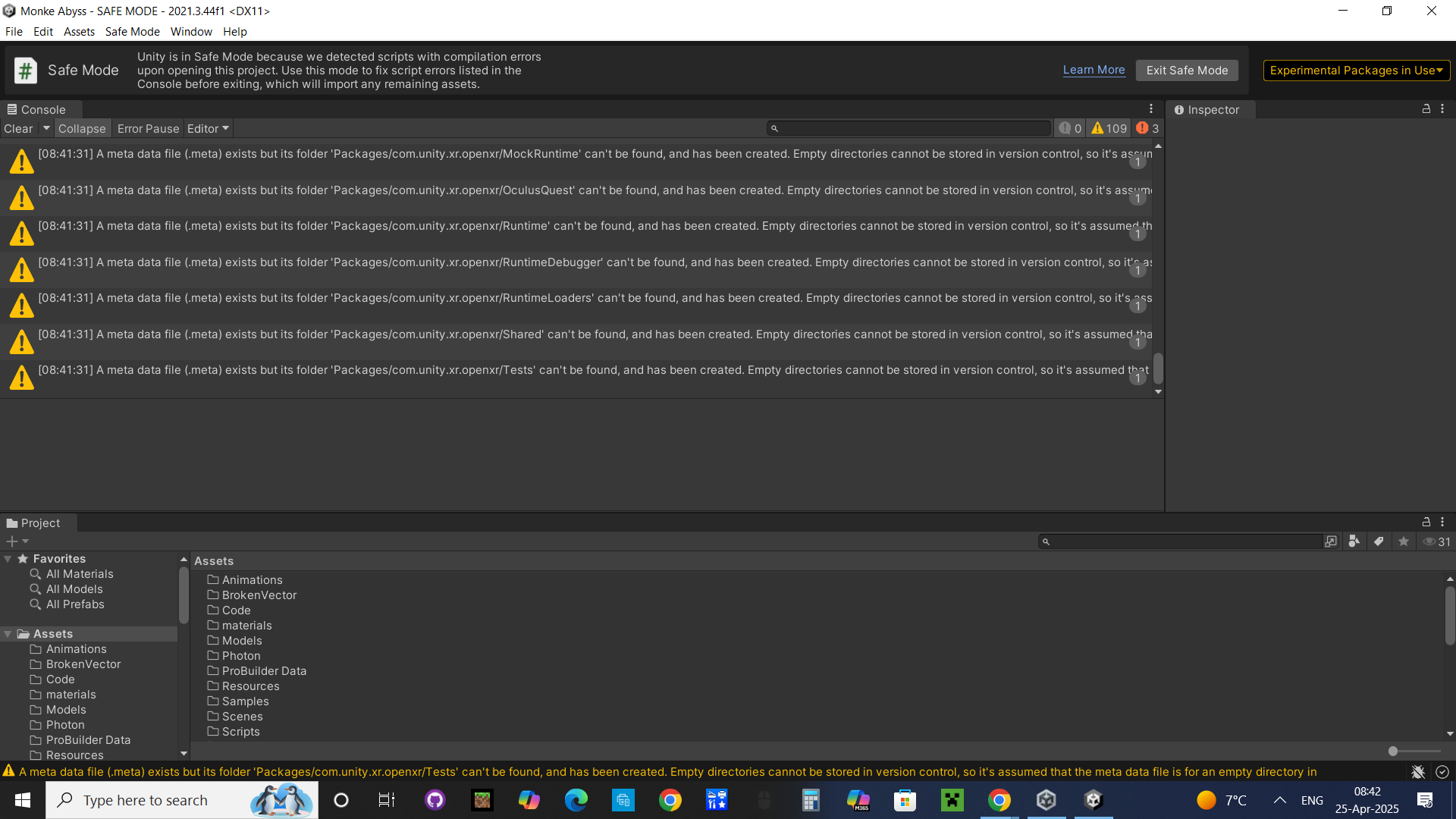
Also. I have checked the folder for the project on the hard drive . The meta files under the assets are there. So I’m not sure why unity is not connecting with them
The problem isn’t that the .meta files are missing… or that Unity can’t connect them. The problem is that the folders are (supposedly) gone.
For instance:
There should have been a folder named Animations under Assets, but it somehow vanished. The .meta file for it was still there and so Unity created a new, empty folder named Animations. And that eventually happened with all the other missing folders.
Did your son ever use Version Control while developing his project?
Thankyou for the reply. I checked in explorer where the project is. And for all files under assets. It looks like everything is still there for animations and every other folder. He says he did not use version control. But if he did. Or did something else. Could it be that it’s being saved into a different folder. When the project initially loads. I have confirmed it’s loading from the explorer folder that has his project
One thing you could check is Windows’ Recycle Bin. See if any project-related files ended up there accidentally and restore them if they did.
You could also try searching for e. g. “BrokenVector” via File Explorer (click on “This PC” and enter “BrokenVector” in the Search bar) to see if those files went somewhere else. If only the “BrokenVector” folder from the project folder shows up, then we may have a problem…
Mauri, I checked the recycle bin and nothing was there. I did the broken vector search and had 3 hits. All were for the project
I am just guessing. But when I open the project. Its shows the list of assets on the bottom left of the screen. If I click on any asset. Nothing populates in the Asset on the right side. Says Folder is empty. I read that maybe needed to ReImport all assets might be required. But im not 100% sure. Dont want to do anything I cant recover from yet
You can ignore those warnings. The problem and why Unity entered “safe mode” as seen at the top is due to three errors.
Those errors aren’t shown in the Console because they are hidden:

Click the red exclamation mark to show the errors. You can do the same to hide the warnings. We’ll need to see the errors specifically as those are preventing the project from working correctly.
Here is what the errors bring up:
UnauthorizedAccessException: Access to the path “C:\Users\rigpi\Monke Abyss\Library\Bee\fullprofile.json” is denied.
System.IO.FileStream..ctor (System.String path, System.IO.FileMode mode, System.IO.FileAccess access, System.IO.FileShare share, System.Int32 bufferSize, System.Boolean anonymous, System.IO.FileOptions options) (at <688f272cc27c4df98c503f9d1f1267d0>:0)
System.IO.FileStream..ctor (System.String path, System.IO.FileMode mode, System.IO.FileAccess access, System.IO.FileShare share, System.Int32 bufferSize, System.IO.FileOptions options) (at <688f272cc27c4df98c503f9d1f1267d0>:0)
(wrapper remoting-invoke-with-check) System.IO.FileStream..ctor(string,System.IO.FileMode,System.IO.FileAccess,System.IO.FileShare,int,System.IO.FileOptions)
System.IO.StreamWriter..ctor (System.String path, System.Boolean append, System.Text.Encoding encoding, System.Int32 bufferSize) (at <688f272cc27c4df98c503f9d1f1267d0>:0)
System.IO.StreamWriter..ctor (System.String path, System.Boolean append, System.Text.Encoding encoding) (at <688f272cc27c4df98c503f9d1f1267d0>:0)
(wrapper remoting-invoke-with-check) System.IO.StreamWriter..ctor(string,bool,System.Text.Encoding)
Bee.Core.TinyProfiler2.WriteChromeTrace (System.String file, Bee.Core.ChromeTraceOptions options) (at :0)
Bee.Core.TinyProfiler2.Write (System.String file, Bee.Core.ChromeTraceOptions options) (at :0)
Bee.BeeDriver.BeeDriver.Tick (System.Boolean block) (at :0)
UnityEditor.Scripting.ScriptCompilation.EditorCompilation.TickCompilationPipeline (UnityEditor.Scripting.ScriptCompilation.EditorScriptCompilationOptions options, UnityEditor.BuildTargetGroup platformGroup, UnityEditor.BuildTarget platform, System.Int32 subtarget, System.String extraScriptingDefines) (at <1264747966a74046b590a6f7f6863d89>:0)
UnityEditor.Scripting.ScriptCompilation.EditorCompilationInterface.TickCompilationPipeline (UnityEditor.Scripting.ScriptCompilation.EditorScriptCompilationOptions options, UnityEditor.BuildTargetGroup platformGroup, UnityEditor.BuildTarget platform, System.Int32 subtarget, System.String extraScriptingDefines) (at <1264747966a74046b590a6f7f6863d89>:0)
UnityEditor.Scripting.ScriptCompilation.EditorCompilationInterface:TickCompilationPipeline(EditorScriptCompilationOptions, BuildTargetGroup, BuildTarget, Int32, String)
Exception while writing inputdata: System.AggregateException: One or more errors occurred. (Access to the path “C:\Users\rigpi\Monke Abyss\Library\Bee\1300b0aE-inputdata.json” is denied.) —> System.UnauthorizedAccessException: Access to the path “C:\Users\rigpi\Monke Abyss\Library\Bee\1300b0aE-inputdata.json” is denied.
at System.IO.FileStream..ctor (System.String path, System.IO.FileMode mode, System.IO.FileAccess access, System.IO.FileShare share, System.Int32 bufferSize, System.Boolean anonymous, System.IO.FileOptions options) [0x0019e] in <688f272cc27c4df98c503f9d1f1267d0>:0
at System.IO.FileStream..ctor (System.String path, System.IO.FileMode mode, System.IO.FileAccess access, System.IO.FileShare share, System.Int32 bufferSize, System.IO.FileOptions options) [0x00000] in <688f272cc27c4df98c503f9d1f1267d0>:0
at (wrapper remoting-invoke-with-check) System.IO.FileStream..ctor(string,System.IO.FileMode,System.IO.FileAccess,System.IO.FileShare,int,System.IO.FileOptions)
at System.IO.StreamWriter..ctor (System.String path, System.Boolean append, System.Text.Encoding encoding, System.Int32 bufferSize) [0x00055] in <688f272cc27c4df98c503f9d1f1267d0>:0
at System.IO.StreamWriter..ctor (System.String path) [0x00008] in <688f272cc27c4df98c503f9d1f1267d0>:0
at (wrapper remoting-invoke-with-check) System.IO.StreamWriter..ctor(string)
at System.IO.File.WriteAllText (System.String path, System.String contents) [0x00026] in <688f272cc27c4df98c503f9d1f1267d0>:0
at NiceIO.NPath+SystemIOFileSystem.File_WriteAllText (NiceIO.NPath path, System.String contents) [0x00007] in :0
at NiceIO.NPath+WindowsFileSystem.File_WriteAllText (NiceIO.NPath path, System.String contents) [0x00012] in :0
at NiceIO.NPath.WriteAllText (System.String contents) [0x0000c] in :0
at Bee.Serialization.ObjectsToDisk.Write (System.String path) [0x00050] in :0
at Bee.BeeDriver.WriteBuildProgramDataPhase.b__4_0 () [0x0001b] in :0
at System.Threading.Tasks.Task.InnerInvoke () [0x0000f] in <688f272cc27c4df98c503f9d1f1267d0>:0
at System.Threading.Tasks.Task.Execute () [0x00000] in <688f272cc27c4df98c503f9d1f1267d0>:0
— End of inner exception stack trace —
—> (Inner Exception #0) System.UnauthorizedAccessException: Access to the path “C:\Users\rigpi\Monke Abyss\Library\Bee\1300b0aE-inputdata.json” is denied.
at System.IO.FileStream..ctor (System.String path, System.IO.FileMode mode, System.IO.FileAccess access, System.IO.FileShare share, System.Int32 bufferSize, System.Boolean anonymous, System.IO.FileOptions options) [0x0019e] in <688f272cc27c4df98c503f9d1f1267d0>:0
at System.IO.FileStream..ctor (System.String path, System.IO.FileMode mode, System.IO.FileAccess access, System.IO.FileShare share, System.Int32 bufferSize, System.IO.FileOptions options) [0x00000] in <688f272cc27c4df98c503f9d1f1267d0>:0
at (wrapper remoting-invoke-with-check) System.IO.FileStream..ctor(string,System.IO.FileMode,System.IO.FileAccess,System.IO.FileShare,int,System.IO.FileOptions)
at System.IO.StreamWriter..ctor (System.String path, System.Boolean append, System.Text.Encoding encoding, System.Int32 bufferSize) [0x00055] in <688f272cc27c4df98c503f9d1f1267d0>:0
at System.IO.StreamWriter..ctor (System.String path) [0x00008] in <688f272cc27c4df98c503f9d1f1267d0>:0
at (wrapper remoting-invoke-with-check) System.IO.StreamWriter..ctor(string)
at System.IO.File.WriteAllText (System.String path, System.String contents) [0x00026] in <688f272cc27c4df98c503f9d1f1267d0>:0
at NiceIO.NPath+SystemIOFileSystem.File_WriteAllText (NiceIO.NPath path, System.String contents) [0x00007] in :0
at NiceIO.NPath+WindowsFileSystem.File_WriteAllText (NiceIO.NPath path, System.String contents) [0x00012] in :0
at NiceIO.NPath.WriteAllText (System.String contents) [0x0000c] in :0
at Bee.Serialization.ObjectsToDisk.Write (System.String path) [0x00050] in :0
at Bee.BeeDriver.WriteBuildProgramDataPhase.b__4_0 () [0x0001b] in :0
at System.Threading.Tasks.Task.InnerInvoke () [0x0000f] in <688f272cc27c4df98c503f9d1f1267d0>:0
at System.Threading.Tasks.Task.Execute () [0x00000] in <688f272cc27c4df98c503f9d1f1267d0>:0 <—
UnauthorizedAccessException: Access to the path “C:\Users\rigpi\Monke Abyss\Library\Style.catalog” is denied.
System.IO.FileStream..ctor (System.String path, System.IO.FileMode mode, System.IO.FileAccess access, System.IO.FileShare share, System.Int32 bufferSize, System.Boolean anonymous, System.IO.FileOptions options) (at <688f272cc27c4df98c503f9d1f1267d0>:0)
System.IO.FileStream..ctor (System.String path, System.IO.FileMode mode, System.IO.FileAccess access, System.IO.FileShare share) (at <688f272cc27c4df98c503f9d1f1267d0>:0)
(wrapper remoting-invoke-with-check) System.IO.FileStream..ctor(string,System.IO.FileMode,System.IO.FileAccess,System.IO.FileShare)
UnityEditor.Experimental.EditorResources.SaveCatalogToDisk (UnityEditor.StyleSheets.StyleCatalog catalog, System.String hash, System.String savePath) (at <1264747966a74046b590a6f7f6863d89>:0)
UnityEditor.Experimental.EditorResources.BuildCatalog () (at <1264747966a74046b590a6f7f6863d89>:0)
UnityEditor.Experimental.EditorResources.get_styleCatalog () (at <1264747966a74046b590a6f7f6863d89>:0)
UnityEditor.Experimental.EditorResources.CanEnableExtendedStyles () (at <1264747966a74046b590a6f7f6863d89>:0)
UnityEditor.Experimental.EditorResources.RefreshSkin () (at <1264747966a74046b590a6f7f6863d89>:0)
UnityEditor.EditorStyles.UpdateSkinCache (System.Int32 skinIndex) (at <1264747966a74046b590a6f7f6863d89>:0)
UnityEditor.EditorStyles.UpdateSkinCache () (at <1264747966a74046b590a6f7f6863d89>:0)
UnityEditor.EditorGUIUtility.SkinChanged () (at <1264747966a74046b590a6f7f6863d89>:0)
UnityEngine.GUISkin.MakeCurrent () (at <3aef5ff30470476b913a9ccbcf8e8a9b>:0)
UnityEngine.GUI.DoSetSkin (UnityEngine.GUISkin newSkin) (at <3aef5ff30470476b913a9ccbcf8e8a9b>:0)
UnityEngine.GUI.set_skin (UnityEngine.GUISkin value) (at <3aef5ff30470476b913a9ccbcf8e8a9b>:0)
UnityEngine.GUIUtility.ResetGlobalState () (at <3aef5ff30470476b913a9ccbcf8e8a9b>:0)
UnityEngine.UIElements.UIElementsUtility.BeginContainerGUI (UnityEngine.GUILayoutUtility+LayoutCache cache, UnityEngine.Event evt, UnityEngine.UIElements.IMGUIContainer container) (at :0)
UnityEngine.UIElements.IMGUIContainer.DoOnGUI (UnityEngine.Event evt, UnityEngine.Matrix4x4 parentTransform, UnityEngine.Rect clippingRect, System.Boolean isComputingLayout, UnityEngine.Rect layoutSize, System.Action onGUIHandler, System.Boolean canAffectFocus) (at :0)
UnityEngine.UIElements.IMGUIContainer.HandleIMGUIEvent (UnityEngine.Event e, UnityEngine.Matrix4x4 worldTransform, UnityEngine.Rect clippingRect, System.Action onGUIHandler, System.Boolean canAffectFocus) (at :0)
UnityEngine.UIElements.IMGUIContainer.DoIMGUIRepaint () (at :0)
UnityEngine.UIElements.UIR.RenderChainCommand.ExecuteNonDrawMesh (UnityEngine.UIElements.UIR.DrawParams drawParams, System.Single pixelsPerPoint, System.Exception& immediateException) (at :0)
Rethrow as ImmediateModeException
UnityEngine.UIElements.UIR.RenderChain.Render () (at :0)
UnityEngine.UIElements.UIRRepaintUpdater.Update () (at :0)
UnityEngine.UIElements.VisualTreeUpdater.UpdateVisualTreePhase (UnityEngine.UIElements.VisualTreeUpdatePhase phase) (at :0)
UnityEngine.UIElements.Panel.UpdateForRepaint () (at :0)
UnityEngine.UIElements.Panel.Repaint (UnityEngine.Event e) (at :0)
UnityEngine.UIElements.UIElementsUtility.DoDispatch (UnityEngine.UIElements.BaseVisualElementPanel panel) (at :0)
UnityEngine.UIElements.UIElementsUtility.UnityEngine.UIElements.IUIElementsUtility.ProcessEvent (System.Int32 instanceID, System.IntPtr nativeEventPtr, System.Boolean& eventHandled) (at :0)
UnityEngine.UIElements.UIEventRegistration.ProcessEvent (System.Int32 instanceID, System.IntPtr nativeEventPtr) (at :0)
UnityEngine.UIElements.UIEventRegistration+<>c.<.cctor>b__1_2 (System.Int32 i, System.IntPtr ptr) (at :0)
UnityEngine.GUIUtility.ProcessEvent (System.Int32 instanceID, System.IntPtr nativeEventPtr, System.Boolean& result) (at <3aef5ff30470476b913a9ccbcf8e8a9b>:0)
Apparently the editor process does not have the privilege to access the above path (the same error repeats for various files). This could happen if the logged-in user isn’t “rigpi” since those “home” directories are user-specific, locking out access from other users.
If “rigpi” is the logged-in user there are other reasons why this could occur, for instance incorrect permissions on that folder but unless you changed permissions manually this should not occur.
Try to copy/paste (duplicate) that “Monke Abyss” folder with the editor closed. If this copies without any errors, try opening the copy. I’m hoping that doing so should fix any permission issues, or at least may also bring up “permission denied” errors which would indicate incorrect permissions set on the folder.
The rigpi is the logged in user. I rebooted. Logged out and logged back in just to confirm no issues there. I completed the copy/paste w/ editor closed. No errors came up when I pasted. I attempted to reopen the copied project with unity and I have the same errors.
Maybe try manually opening C:\Users\rigpi\Monke Abyss\Library\Bee\fullprofile.json from the file browser to see if you have access to it outside of Unity. I’m guessing you won’t be able to open it. If it’s been moved to another drive it might have been an encrypted folder.
Hello, I clicked on it and it opened
That is odd, maybe it doesn’t have write access. If you right click the file and select security do you have read and write permissions? It shouldn’t be related to access issues but sometimes if Unity is acting odd I need to reimport all assets. It might be worth just making a new Unity project and copying the files over.
When I right click the fullprofile.json. Go to properties. Security tab. Every thing is set to allow for read and write…I will try creating a new unity project. Then if I understand correctly. I will copy the entire folder for Monke Abyss and paste put it in the new project?
I just noticed that the files are in the library folder (it’s mainly pre-calculated/cached data and isn’t committed to source control). I’ve had a few cases in the past where I’ve had to delete the library folder to get Unity to compile. Maybe make a copy, close Unity, delete the library folder in the copy and open the copy in Unity again. It should have the same effect as a new project. It’s probably worth making a zipped backup as well before any changes.
Ok, I have created the new project and pasting the folders over. Will try that first. If same issue will try the Library possibility. Much appreciated for your help