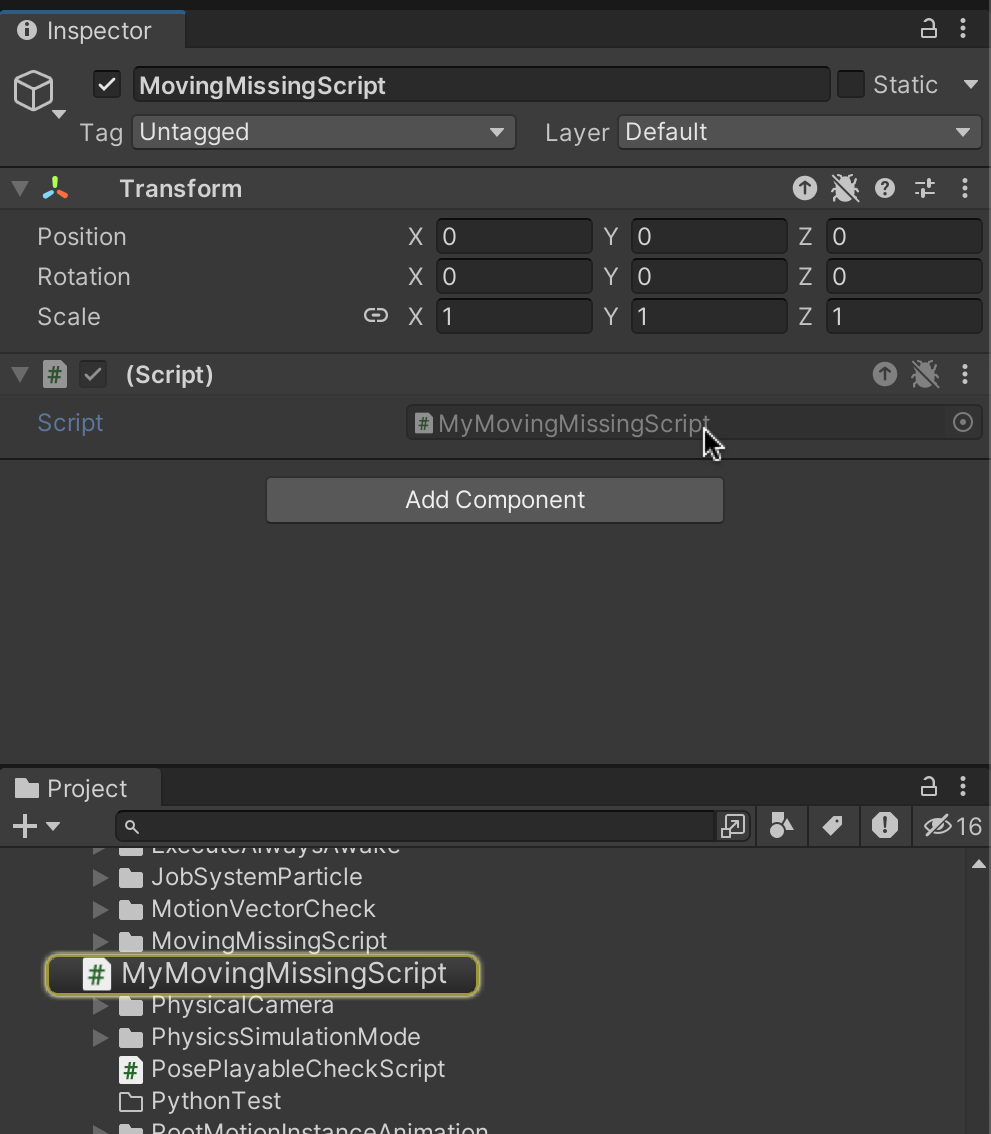
In recent Unity Editor versions, if I move any MonoBehaviour script file without using editor, the editor suddenly cannot recognize the script file as a MonoBehaviour, until I modify the script or reimport it. What’s worse, there’s no compile error, so I can’t know if there are missing scripts until I actually played the game, instantiate a GameObject that attaches the MonoBehaviour, and try to access it.
Here’s the import settings of the script that isn’t recognized by Editor:
Here’s the script that is attached to an prefab. (not “missing”! but just empty script; you can still click on the script to locate it in project. However, sometimes the script field would be None (MonoScript) )
You may say “why do you want to move it manually?”, but it also happens if I’m using version control tools like git. If somebody moved the MonoBehaviour script (even if moved inside UnityEditor), commit the modifications, and other people checked out to that branch, the MonoBehaviour wouldn’t be recognize by Editor, too.
Here’s the steps to reproduce the bug:
Create Any MonoBehaviour script
Close the editor (optional)
In Explorer/Finder, Move the script file and its .meta file to another folder under Assets
Come back to Editor, and Unity indeed move the script file to the new folder, but since then it cannot recognize it as an MonoBehaviour again (unless you modifiy the script file, or reimport it)
Is there any way to solve this, or at least a way detect that some script is not recognized by the Editor?
(I’m using 2022.3.4, but recent versions (2022.1~2022.3) had this problem too)
You should NEVER move any files outside of Unity. That’s always been true. Here’s why: the meta file.
SCRIPTS OR ASSETS ARE MISSING OR BLANK
ALWAYS move all Unity assets by using the Unity Editor. Any other way risks disconnecting the GUID in the meta file from the original file, and this will result in all connections to that asset being broken.
Some info about Missing script warnings, broken prefabs, GUIDs, renaming GUIDs, etc:
EVERYTHING in Unity is connected to the above GUID, which is stored ONLY in the metafile, and hence why the metafiles ALWAYS MUST be source-controlled.
When Renaming: It is super-easy to inadvertently change the GUID by renaming outside of Unity. Don’t do that. Instead:
close Visual Studio (important!)
rename the file(s) in Unity
in Unity do Assets → Open C# Project to reopen Visual Studio
now rename the actual classes, and MAKE SURE THE FILE NAMES DO NOT CHANGE!
If you are NOT using source control while you do this, renaming files is an EXTREMELY dangerous process. Use source control at all times so that you can trivially revert if you miss a critical step and damage your project.
You must source control the meta files ALWAYS.
PROPERLY CONFIGURING AND USING ENTERPRISE SOURCE CONTROL
I’m sorry you’ve had this issue. Please consider using proper industrial-grade enterprise-qualified source control in order to guard and protect your hard-earned work.
Personally I use git (completely outside of Unity) because it is free and there are tons of tutorials out there to help you set it up as well as free places to host your repo (BitBucket, Github, Gitlab, etc.).
You can also push git repositories to other drives: thumb drives, USB drives, network drives, etc., effectively putting a complete copy of the repository there.
As far as configuring Unity to play nice with git, keep this in mind:
Generally the ONLY folders you should ever source control are:
Assets/
ProjectSettings/
Packages/
NEVER source control Library/ or Temp/ or Logs/
NEVER source control anything from Visual Studio (.vs, .csproj, none of that noise)
Setting git up with Unity (includes above .gitignore concepts):
It is only simple economics that you must expend as much effort into backing it up as you feel the work is worth in the first place. Digital storage is so unbelievably cheap today that you can buy gigabytes of flash drive storage for about the price of a cup of coffee. It’s simply ridiculous not to back up.
If you plan on joining the software industry, you will be required and expected to know how to use source control.
“Use source control or you will be really sad sooner or later.” - StarManta on the Unity3D forum boards
Yes, I (and my team) is using git and Github to source controlling, including the force-text visible meta files. I’ve compared the component inside prefab file and the script’s meta file, and the GUID is actually the same.
Here’s the guid of the above example.
Even though they are the same GUID, editor still can’t load the MonoBehaviour script until reimport the script file or any changes to the script.
When you switch back to the editor, it should automatically reimport the changes made outside the editor.
It seems to be not doing that for you. So I‘m guessing you have either actively or inadvertently disabled asset auto-refresh (possible via script and I believe this also has a flag in settings/preferences) or you are using the AssetDatabase.Start/StopAssetEditing methods without enclosing them in try/catch/finally as the manual example states with a cautionary note.
You’re right!
I checked the import activity, and indeed the last import time was not the time I moved the script.
(That would be weird, because the application actually recompiled & reloaded the domain after moving, so I thought the script was reimported)
I will keep on finding the real reason from this way.