Hey,
Unity ver: 2019.2.6f1
ProBuilder: 4.0.5
I just activated probuilder and when i add a new shape then a couple of the face are black.

I have tried disabling light mapping, but nothing seems to work.
any help appreciated and thanks in advance.
Hey,
Unity ver: 2019.2.6f1
ProBuilder: 4.0.5
I just activated probuilder and when i add a new shape then a couple of the face are black.
I have tried disabling light mapping, but nothing seems to work.
any help appreciated and thanks in advance.
Any one
Is there a light source that would affect those faces?
Sorry for the late reply, but no there is not a light source. 
Also I have just checked that I removed the scene light and it turned the whole cube black
I’d guess that the faces are black because there is no light source. Try adding some lights to your scene.
I have got a light on my scene, but there is no change.

If you go into Window/Rendering/Lighting Settings, it will open the lighting window. At the bottom of this window, you should see a button called Generate Lighting. Clicking this should fix your issue. The faces will stay dark grey in this case because it’s in the shadow of your Directional Light but won’t be completely black. You can also toggle Auto Generate if you want your lighting to be auto generated when a change is made.
If this doesn’t fix your issue, I’d need to see a screenshot of your lighting window to get an idea of what might be causing the issue.
Exactly.
Thank you bro it fixed my issue <3
I still have the same issue do you know how to fix it?
On the top bar in the unity editor navigate to: Window > Rendering > Lighting Settings
Your screenshot does not show this window. Thanks!
@Xbionic93 Try setting “Tangents” to “None” in the model import settings in Unity.
1- go to lighting: Window / Rendering / Lighting
2- Click on “New Lighting Settings”
3- select “New Lighting Settings” and check the “Auto Generate” in the inspector
it worked for me
After re-importing, upgrading ProBuilder from 3.x to 5.x, I’ve got these black faces that I can’t get rid of, generating new lighting settings does nothing, still working on fixing it…
In the past upgrading probuilder was tricky. I generally stay away from upgrading Probuilder directly in a project. Sometimes there are very large updates between versions. Just had to do this yesterday actually:
Lastly, there is another option that “might” work: Remove all probuilder scripts from the scene, parent your probuilder objects into a prefab and then export that prefab as a unity package. This might be faster or better depending on your needs.
Otherwise, I would avoid upgrading mid project. The older versions of probuilder are very solid for most level building needs. imho
You can also “rebuild probuilder objects” under “actions”. This also might work in some situations
You can also try to regenerate the auto lightmaps that probuilder makes. You can check to see if this is turned on under preferences > probuilder. You can manually generate lightmaps under the main probuilder toolpanel.
Hope one of these helps! The numbered list is the most sure-fire way though and it’s good to have an additional backup of your prefabs anyways.
Friendly reminder to anyone who might read always backup before upgrading or performing the above steps.

Here’s what I’ve got.
@ron-bohn I’ve tried and tried, but pretty much the only thing that works is to export the mesh, then re-import the mesh. This most of the time fixes the problem, but every now and again a 3d model will still have these black faces.
I can’t delete the faces and try to reconnect the vertices either. The only way to get this to not happen is to build the game object in probuilder from scratch, and it’s not as convenient as using Blender.
One key thing also, I don’t want to generate static/baked lighting, it takes up my hard drive memory and makes a game’s scene bulkier, and baking lighting takes a lot of time per scene to generate a lightmap with little precise control over lighting.
I made a video of what’s happening here:
Thanks again for your patience. Just wanted to let you know I’m working on figuring this out. I started to reply and then realized I was about to give advice for Unity 5.6 interface…many things have changed and made some solutions I might suggest are now obsolete. It seems to be working with unlit shader but not with lit shaders. I was going to suggest to rebuild the lightmap uv’s, then saw you checked that box and it did nothing. Dang. It also looks like you might have a combination of quad and triangular faces, so it “might” be possible that has something to do with it. I’m not certain though.
Yeah this is not an ideal workflow and I understand you on this.
I also understand and agree with you on this. I’m trying to be optimistic about changes in unity lighting interface.
Before probuilderizing, you might re-generate the lightmap UV’s on the actual model. It sounds like you already tried a lot of other things like this I might suggest, not sure. I realize you’ve done alot already and I would be nearing frustration if in your shoes. If nothing in this message helps further, you’re welcome to pm me a link to a unity package of the scene and I’ll take a look.
There is one last thing that I’ve run into a lot actually and I sort of work around it when making meshes. It’s intersecting or overlapping vertices (might not be the right lingo). For example, in quad editing in probuilder… whenever make a triangle out of a square, and you bring the vertice or edge past the edge threshold what would be of the “side” of the triangle, it will turn completely black like your model is showing. This might require making an adjustment, even when you’re creating models in blender for use in Unity.
Lit shader (standard shader)
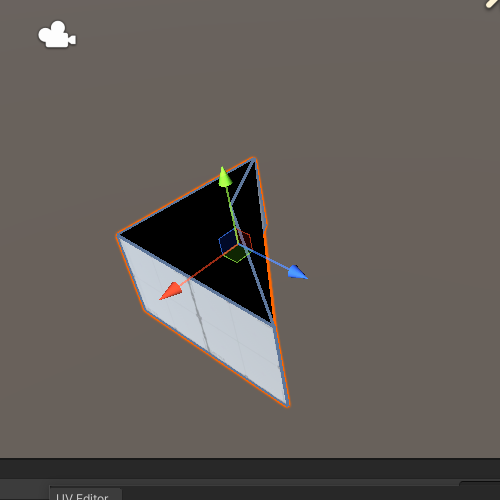
unlit shader
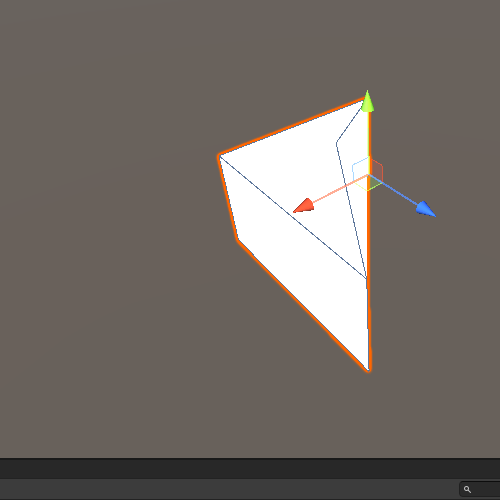
You go over this in your video, but hopefully these images help show functionally what is causing this 