[Free] Using Presets at runtime

What are (runtime) presets?

Presets are a way to store a components values to an asset file that can be reapplied to other components either in the editor or by scripting.

Presets have one downside though: They are placed in the UnityEditor namespace and can therefore not be used in your compiled game. Loading presets at runtime is unfourtunately not possible. This plug-in intends solve this problem.

Runtime presets are an alternative to the Unity presets by storing components as prefabs that can then be reapplied at runtime. Using runtime presets is nearly identical to using the default Unity presets:

public class ApplyPreset : MonoBehaviour
{
    public Preset _preset;
    public Light _light;

    private void Awake()
    {
        _preset.ApplyTo(_light);
    }
}

Setup

If you want to get a quick overview you should check out the :arrow_down: demo project.
You can also download the :arrow_down: package containing only the essential scripts.

After downloading and importing the package, you will find a new entry Create Runtime Preset in the gear menu of a component.

Creating a runtime preset

Open the gear menu on any GameObjects component and click Create Runtime Preset.

The plug-in will then create the preset in the Assets folder. A newly created preset will always have the default name New Preset. Rename it after creation to prevent it from being overwritten.

The preset is simply a prefab with a copy of your selected component. It also has an additional component called Preset. Keep this in mind as we’ll need it in the next step.

Loading runtime presets

Presets can be set in the inspector once you expose a variable of the Preset type.

public class ApplyPreset : MonoBehaviour
{
    //A preset which needs to be set in the inspector
    public Preset _preset;
    //A light component that we want to modify
    public Light _light;

    private void Awake()
    {
        //Presets store values of a specific component type
        //Checking whether the values can be applied may be helpful
        if(_preset.CanBeAppliedTo(_light))
        {
            //Transfers the values from the preset onto the _light component
            _preset.ApplyTo(_light);
        }
    }
}

After compiling the script you can now set the preset and reference the light component. The preset field is restricted to only accepting presets. You won’t accidentally reference something else than a preset.

Creating presets during runtime

Presets can also be created during runtime. You will need any component to initialize the preset with. The preset can then be used to apply the values to any component of the same type.

public class CreatePreset : MonoBehaviour
{
    //A reference to a light from another gameObject
    public Light otherLight;
    //The preset we want to store the lights values in 
    private Preset _preset;

    void Start()
    {
        //Getting the light component of this gameObject
        var light = GetComponent<Light>();
        //Create a new preset from "otherLight" and apply its values to "light"
        _preset = Preset.From(otherLight);
        _preset.ApplyTo(light);
        //Removes the temporary object created to store the runtime preset
        //This is optional
        _preset.Free();     
    }
}

The examples might be a bit forced, but I often find myself in more complex situations where runtime presets can be a real life saver.
I hope I can save you some time with this plug-in. Feel free to contact me if you have any questions.

12 Likes

Thank you. I was looking for something like this.

thanks man!

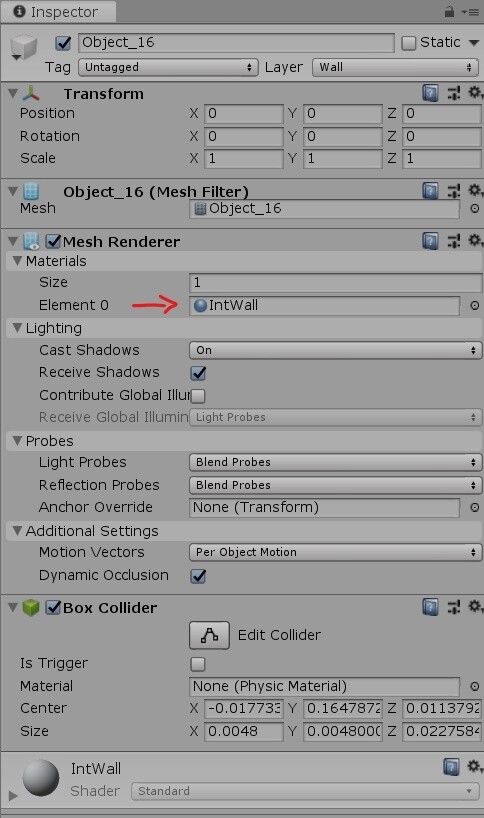
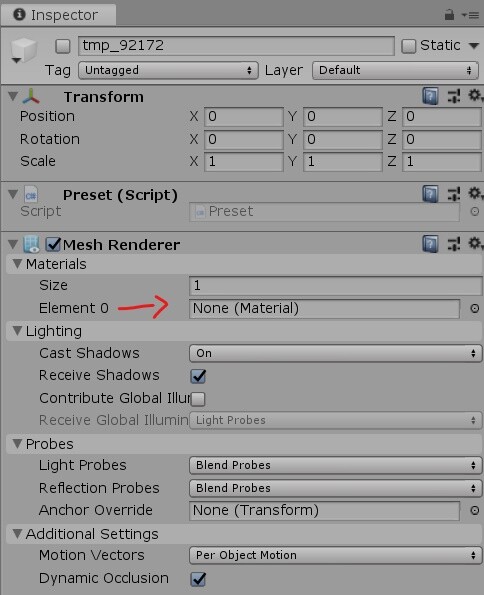
Hi there MalteWeiss! Great work! I have an issue though… when I come to create a preset of a MeshRenderer instead of the Light in your example, all the values are set to default values, and even those are not applied to the target. Any idea why that might be?

I took screenshots of the source, tempObject, and target to show you what I mean.

Source

Temp Target

It should work now. I’ve added two additional example scenes: MeshRendererExample and TransferComponentValues.
If you only want to copy values once, you can use my extension method TransferValuesFrom.
```csharp
*using RuntimePresets;
using UnityEngine;

public class TransferComponentValues : MonoBehaviour
{
public MeshRenderer otherComponent;

void Start()
{
    var thisComponent = GetComponent<MeshRenderer>();
    thisComponent.TransferValuesFrom(otherComponent);
}

}*
```

Please let me know if the fix works for you.

1 Like

Thank you so much! Works like a charm. Thanks for the very fast reply as well, greatly appreciated!

N.B. The TransferComponentValues scene is identical to MeshRendererExample, I switched the scripts though and it works too, just thought I’d tell you if you’d like to adjust the scenes.

Thanks once again.

Oops, you’re right. It’s now fixed.

Glad I could help.

This has been really useful!

Will this work for scriptable objects?

Nice work MalteWeiss! Did you consider putting this on GitHub?

No currently it won’t. The TransferValuesFrom method only works on classes that inherit from Component.

It’s already on GitHub: https://github.com/Moolt/UnityRuntimePresets
Sorry it took me so long to answer

2 Likes

Thank bro!!!

This is pretty useful, the only disavantage is that I had to make the variables public, but other than that works like a charm, thank you !

I was looking through a few different solutions and I wanted to inform the community: there is a Unity-method now!!!

You will have to install the runtime scene serialization package. It is still in experimental so you’ll have to go to your project on disk and open ProjectSettings > manifest.json to add the following line:
"com.unity.runtime-scene-serialization": "1.0.0-exp.3",

To test it out, create a gameobject with 2 capsule colliders and add a script with the following script:

public class SerializationTest : MonoBehaviour
{
    [ContextMenu("Try Json Serialization")]
    public void TryJsonSerialization()
    {
        var capsuleColliders = GetComponents<CapsuleCollider>();
        var json = SceneSerialization.ToJson(capsuleColliders[0]);
        SceneSerialization.FromJsonOverride(json, ref capsuleColliders[1]);
    }
}

And finally, you can push data from a file onto another.

The application for “RuntimePresets” here would be to store Json files with the settings you want. This has a few advantages over the proposed solution:

  1. supposedly works for ScriptableObjects (though untested).
  2. doesn’t use reflection, which is slow and can cause some serious issues to go unnoticed.
  3. json files take much less memory to store than prefabs.
  4. you can omit settings if you like.
  5. translates better to version control.

Demonstration:
Rewrite “SerializationTest” to the following:

public class SerializationTest : MonoBehaviour
{
    public TextAsset lolStateXD;

    [ContextMenu("Try Json Serialization")]
    public void TryJsonSerialization()
    {
        var capsuleCollider = GetComponent<CapsuleCollider>();
        SceneSerialization.FromJsonOverride(lolStateXD.text, ref capsuleCollider);
    }
}

Then add a json file inside your assets folder with the following text:

{
    "$type": "UnityEngine.CapsuleCollider, UnityEngine.PhysicsModule",
    "center": {
        "x": 0,
        "y": 0,
        "z": 2
    },
    "radius": 0.2,
    "height": 0.4,
    "direction": 2
}

Now reference it in your lolStateXD and watch the magic happen!
8995669--1238887--Before.png
Before

8995669--1238890--After.png
After

As you can see it edited the settings we wanted and only the settings we wanted. Enabled, IsTrigger, Material, all stay intact since we didn’t reference them.

I hope to work a little on making some QoL improvements e.g. saving settings in-editor through the context menu, but until I do I wanted to share this find with everyone on the forums. Not a lot of people seem to know about it and it’s really great that Unity is FINALLY getting a save solution like this.

6 Likes