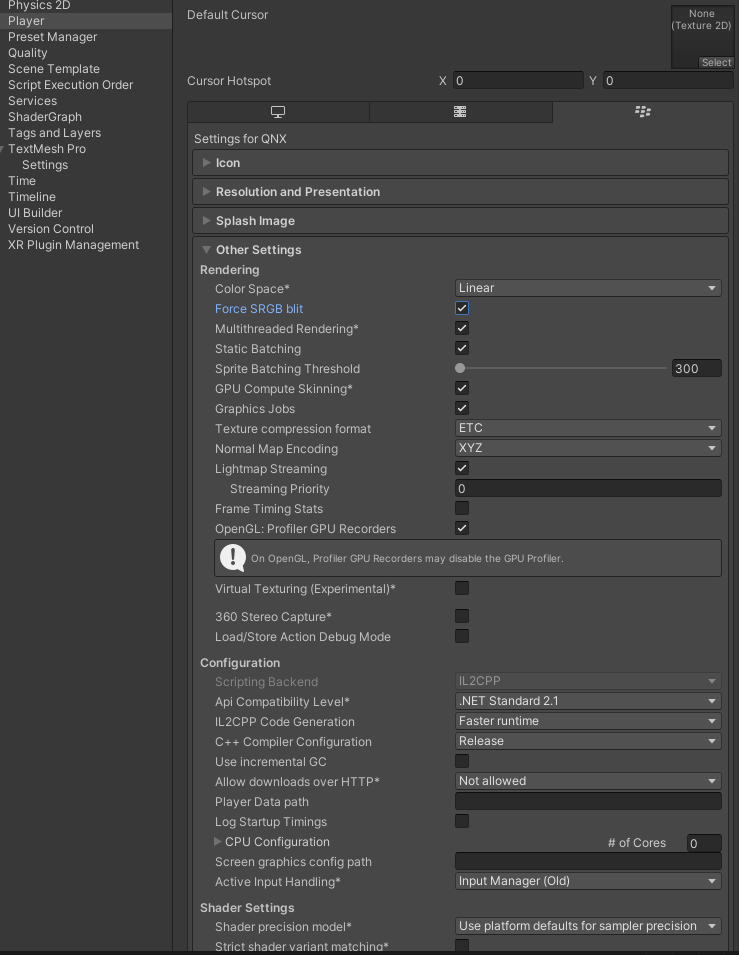
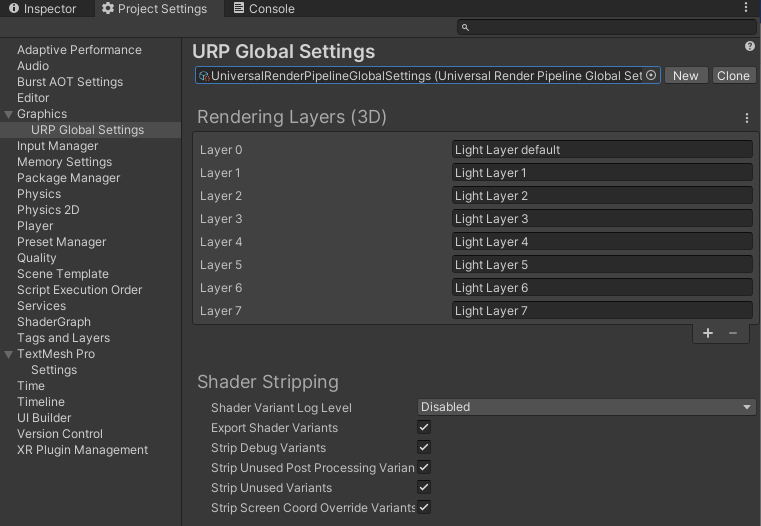
We are facing a graphic issue in QNX display. In windows simulation, it looks as expected, but after a flash in the QNX display, it shows a different graphic effect, like all the colors are very dull and some colors are not visible.
Please check the screenshots attached.
What is the setting you need to use for QNX to see, for example, the same as a simulation or a Unity editor graphic?
We use default Quality setting and project settings
Could you check if the color space set to linear or gamma? (just to make sure).
If still on default/linear, could you try to enable “force SRGB blit” in the settings as described in the docs here?
Already, by default ‘force SRGB blit’ enabled.
for your reference I have attached all screen-shot of the settings.
Hi!
The embedded team was able to reproduce the issue.
Here are two things you can try, but success will depend on hardware/driver specifics:
- if your hardware supports SRGB frame buffers, please try to turn off “force sRGB blit”
- If that doesn’t work: could you, in the cluster scene, select the “Visualization/UI Camera” and enable “Post Processing” Under Camera/Rendering? That should switch to a different rendering path that doesn’t have this issue.
Thanks, Romano, it works, it was also tested in our project. I was wondering why we need to enable post processing even though we are not using post processing volume (URP).
Enabling post processing in this case just makes sure that everything is rendered to a texture with a different format, to ensure that it then gets blitted correctly in the end. This is a workaround since something in your driver and/or the way your chip blends certain things isn’t as expected when we render directly to “screen”.
There’s a certain performance drawback to that and we’re working on a solution so you can, if you end up not using it, disable post-processing again in the future. But this should get you going for now