I am currently working on a tutorial for my game. I want to show an overlay with a cutout circle to put some focus on the tutorial step. I am trying to get this working with the following setup:
Canvas
Panel (gray background)
Image (Circle) with Mask or Sprite Mask
I can’t get it to work with this setup. Can anyone give me insight how to achieve this effect?
UI > Image, then add the Mask component and use the Image on that object as the mask, put the objects that you want as child of the object that has the Mask component and select it as Maskable in the image component of each child.
Unfortunately, I didn’t get it to work yet. The difference with the video is that I have a canvas (I want to have it fullscreen and scale it with the screen), so I need a Image instead of a Canvas Renderer. An image doesn’t have the “Mask Interaction” shown in the video. The only relatable option an image has is “Maskable” but that doesn’t help me in this situation.
Here are the steps to have a mask on UI to make a tutorial overlay:
Create a canvas (You can set the Renderer to “Screen Space - Camera” to see the result in the scene)
Right-click on your canvas and Create 2D Object > Sprite under it. Give it a square sprite as “Sprite” (make one by right-clicking on asset folder > Create > Sprite > Square if you don’t have any). Scale-up this object to cover your whole screen and even bigger to not have any problems with different screen resolutions. Change “Mask Interaction” to “Visible Outside Mask”. Change color alpha and Sorting Layer if it is needed.
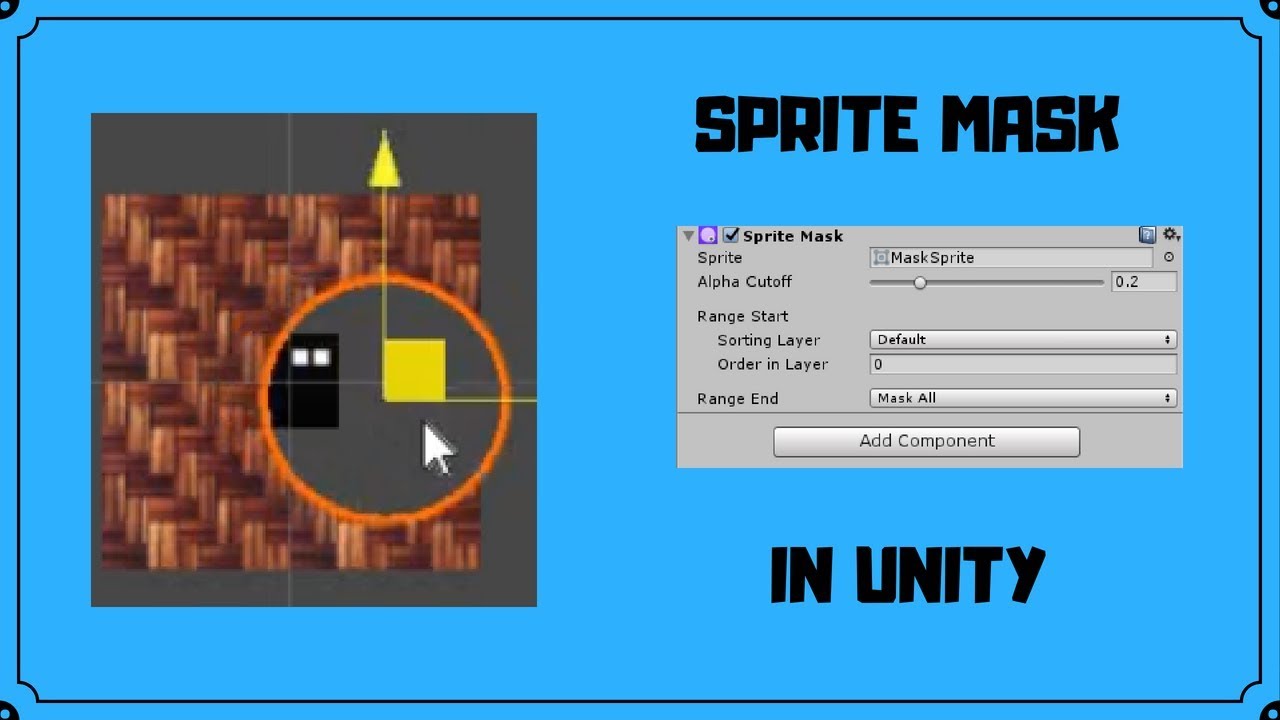
Right-click on your canvas and select “Create Empty”. Add component “Sprite Mask”. Give it a circle sprite as “Sprite” (Create one if you don’t have any). Scale-up the object to see the mask.
The video from the unity_EfGoW0qPNcl2RA replay should work. Here’s a summary of this video:
Create a first GameObject with a Image component which will be your mask. Set a sprite or leave it empty if you want to have a square mask.
Add the “Mask” component to this mask GameObject
Create a new child GameObject to the “Mask” GameObject. This will be the image cutout by the mask.
Create and add the following script to the GameObject :
using UnityEngine;
using UnityEngine.Rendering;
using UnityEngine.UI;

public class CutoutMaskUI : Image
{
    public override Material materialForRendering
    {
        get
        {
            Material material = new Material(base.materialForRendering);
            material.SetInt("_StencilComp", (int)CompareFunction.NotEqual);
            return material;
        }
    }
}