This is a situation I keep running into while working in the Unity editor:
-I decide to create a child class of a component in C# in order to differentiate it from other GameObjects using the same component class.
-I remove the old component from the GameObject in question, add the new child component, and have to reenter all the individual values that this new component shared with the old one within the editor.
I’ve tried copying the old component and then pasting in the values to the new one, but that option is greyed out.
Is there any way to quickly perform this operation, to retain the values from the old parent component and use them in the new child? Manually reentering values over and over again is becoming a bit of a pain.
Yikes, thanks for the response, but that’s rather hacky isn’t it? There’s seriously no built-in editor functionality for switching to a child class of a component? This seems to me like it would be an extremely common task.
It’s just data my dear Lord Fluffy One, just ones and zeroes.
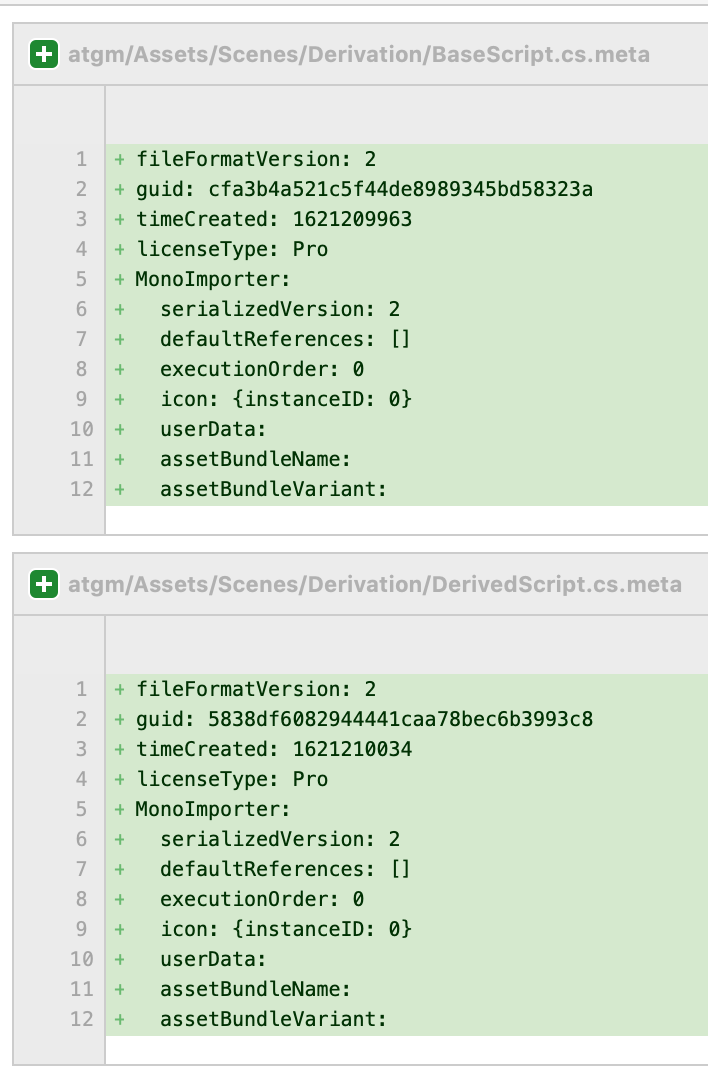
F’rinstance, here’s the two .meta files I just made for BaseScript.cs and DerivedScript.cs:
I made a prefab with the script on the root and a Target child object dragged into the “Bat” field:
Using the Unity Editor the way you are and REMOVING the old script and ADDING the new script, then populating all fields, this was the total diff generated by source control:
The actual diff is only the final of the three. The first two huge numerics are internal-to-the-asset linkages, which got recreated but do not actually impact what GUID is connected. They only correlate to each other, nothing else, so it is not necessary to change them when you change the guid.
So then I reverted that work and did my single-point GUID-change “hack” with vi
And for the final piece de resistance in all of its derived resplendent glory,
Sure, but in most cases I suspect this is going to be more trouble than it’s worth, so I’ll just keep punching the values in manually over and over again to avoid it. Plus, good luck passing this on to level designers and such.
So I take it that’s a no on there being an integrated editor function for reassigning a component to a child of the same class?
Your method is very cool and all, and I appreciate the detailed response, but I was hoping there might be some editor functionality that would help with this task.
  public class CopyComponentValues : MonoBehaviour
  {
    [SerializeField]
    private Component m_Src;


    [SerializeField]
    private Component m_Dst;

    [InspectorButton("Copy Values From Src To Dst", true)]
    public void CopyValues( )
    {
      Type srcType = m_Src.GetType( );
      Type dstType = m_Dst.GetType( );

      Assert.IsTrue ( dstType.IsAssignableFrom ( srcType ), $"DstType ({dstType}) must be assignable from SrcType ({srcType})" );

      FieldInfo [] sourceFields = dstType.GetFields ( BindingFlags.NonPublic | BindingFlags.Public | BindingFlags.Instance );


      foreach ( FieldInfo field in sourceFields )
      {
        field.SetValue ( m_Dst, field.GetValue ( m_Src ) );
      }
    }
  }
This is quick and dirty but you could probably do something like the above code. You can evolve the implementation as I implemented this without much effort. The functionality is probably better served as a EditorWindow (see below) It works well assuming you just have fields and not properties that need to be copied over, deep copy vs shallow copy considerations, etc.
In any case, the solution uses reflection. There are two parameters, Src and Dst. In the implementation Dst must be a base class of Src. All common fields are copied from src to dst.
Fidelity could be added to this solution by allow the user to select the coponent type they want to add, and deleting the old component via the script. Pseudo code:
PSEUDO CODE:
ReplaceComponentEditorWindow : EditorWindow
{
OnGUI(){
  m_ComponentToReplace =  ObjectField(m_ComponentToReplace);
  if ( Button("Select Component Type"))
  {
//-- select the new type we want to use from a list of component types (types shown are base types to ComponentToReplace )
     m_SelectedComponentTypeToCreate = ShowComponentTypeMenu(m_ComponentToReplace.GetType());
  }
  if (Button("Do Component Replace"))
  {
      ReplaceComponentWithNewComponentOfType (  m_SelectedComponentTypeToCreate,   m_ComponentToReplace  );
  }
}

ReplaceComponentWithNewComponentOfType(Type p_NewComponentType, Component p_ComponentToReplace)
{
  GameObject theParent = p_CompoentToReplace.parent;
  Component newComponentInstance = theParent.AddComponent(p_NewComponentType)
  CopyValues(p_ComponentToReplace, newComponentInstance)
  Destroy(p_ComponentToReplace)
}
}
I had the same problem today and discovered by accident that switching the properties to Debug mode makes the Script property of the Component editable and you can drag and drop the new script into it. This saved me so much time, hope it helps someone as well.
We used to do this as well, but it looks like Unity has removed this workaround (at least as of 2022.2) as the script field is readonly in the debug view now.
Added a little script as a new workaround. Unfortunately it’s not as speedy as swapping values in debug mode, but certainly beats updating an asset and possible variants manually
using System.IO;
using UnityEngine;

#if UNITY_EDITOR

using UnityEditor;

#endif

public static class MonoBehaviourExtensions
{
#if UNITY_EDITOR

    [UnityEditor.MenuItem("CONTEXT/MonoBehaviour/Change Script")]
    public static void ChangeScript(MenuCommand command)
    {
        if (command.context == null) return;

        var monoBehaviour = command.context as MonoBehaviour;
        var monoScript = MonoScript.FromMonoBehaviour(monoBehaviour);

        var scriptPath = AssetDatabase.GetAssetPath(monoScript);
        var directoryPath = new FileInfo(scriptPath).Directory?.FullName;

        // Allow the user to select which script to replace with
        var newScriptPath = EditorUtility.OpenFilePanel("Select replacement script", directoryPath, "cs");

        // Don't log anything if they cancelled the window
        if (string.IsNullOrEmpty(newScriptPath)) return;

        // Load the selected asset
        var relativePath = "Assets\\" + Path.GetRelativePath(Application.dataPath, newScriptPath);
        var chosenTextAsset = AssetDatabase.LoadAssetAtPath<TextAsset>(relativePath);

        if (chosenTextAsset == null)
        {
            Debug.LogWarning($"Selected script couldn't be loaded ({relativePath})");
            return;
        }

        Undo.RegisterCompleteObjectUndo(command.context, "Changing component script");

        var so = new SerializedObject(monoBehaviour);
        var scriptProperty = so.FindProperty("m_Script");
        so.Update();
        scriptProperty.objectReferenceValue = chosenTextAsset;
        so.ApplyModifiedProperties();
    }

#endif
}
Hey there I know this has pretty much been solved already but I took inspiration from your code and wrote a simple helper function.
As you can see it performs a search and returns the corresponding TextAsset for that script. So make sure your file name matches. Then again Unity wants that from all components anyway.
Hope this helps someone out there! Thanks for the inspiration!
        private static void EditorConvertComponentTo<T>(Component component) where T : Component
        {
            var typeName = typeof(T).Name;
            var imageThemed = AssetDatabase.FindAssets($"t:Script {typeName}");
            var rightPath = imageThemed.First(x => AssetDatabase.GUIDToAssetPath(x).Split('/')[^1].Equals($"{typeName}.cs"));

            var scriptAsset = AssetDatabase.LoadAssetAtPath<MonoScript>(AssetDatabase.GUIDToAssetPath(rightPath));

            var serializedObject = new SerializedObject(component);
            var scriptProperty = serializedObject.FindProperty("m_Script");
            serializedObject.Update();
            scriptProperty.objectReferenceValue = scriptAsset;
            serializedObject.ApplyModifiedProperties();
        }

        [MenuItem("CONTEXT/Image/Convert To Image Themed", false, 1)]
        public static void ConvertToImageThemed(MenuCommand menuCommand)
        {
            var component = (Component)menuCommand.context;
            EditorConvertComponentTo<ImageThemed>(component);
        }

        [MenuItem("CONTEXT/ImageThemed/Convert To Image", false, 1)]
        public static void ConvertToImage(MenuCommand menuCommand)
        {
            var component = (Component)menuCommand.context;
            EditorConvertComponentTo<Image>(component);
        }