Cinemachine Confiner makes sure that the camera is not going over the area that I can define with Polygon Collider 2D. But what I need here is almost opposite.
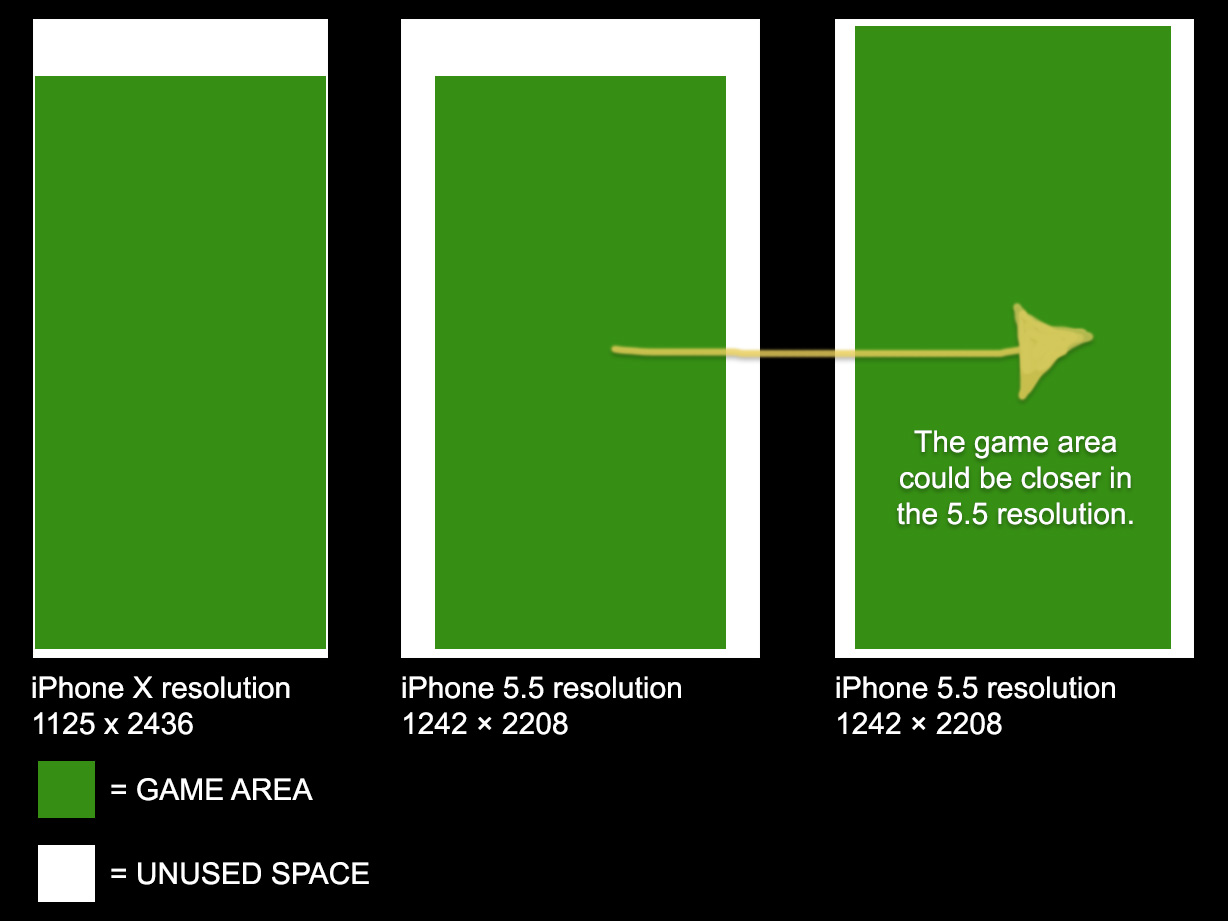
So the green area here is where the game action is. It’s always the same size. I’m making a 2D mobile game and depending on the device resolution I would like the green area to be as close as possibe.
Right now I have set the camera so the green area fits for iPhone X resolution so nothing is gets cut out of the image. But when I switch to iPhone 5.5 or iPad resolution there will be big margin and unused space the sides.
Is there any way to do this with Cinemachine?
With Unity’s UI I can do the similar thing by streching the Rect Transform to 0 (left, right, top and bottom). But how could I do this with the camera?
World space units. Imagine the green area is a 2d (or 3d) maze of a game. The camera somehow should always to cover the area as close as possible on all resolutions. If I could define the borders (like in Cinemachine Confiner) and it would move the camera to those borders making sure camera is close as possible to the maze and that you can see the whole maze.
I actually did something like this to my old game years ago by raycasting the sides of a screen and a messy skript that moved the camera.
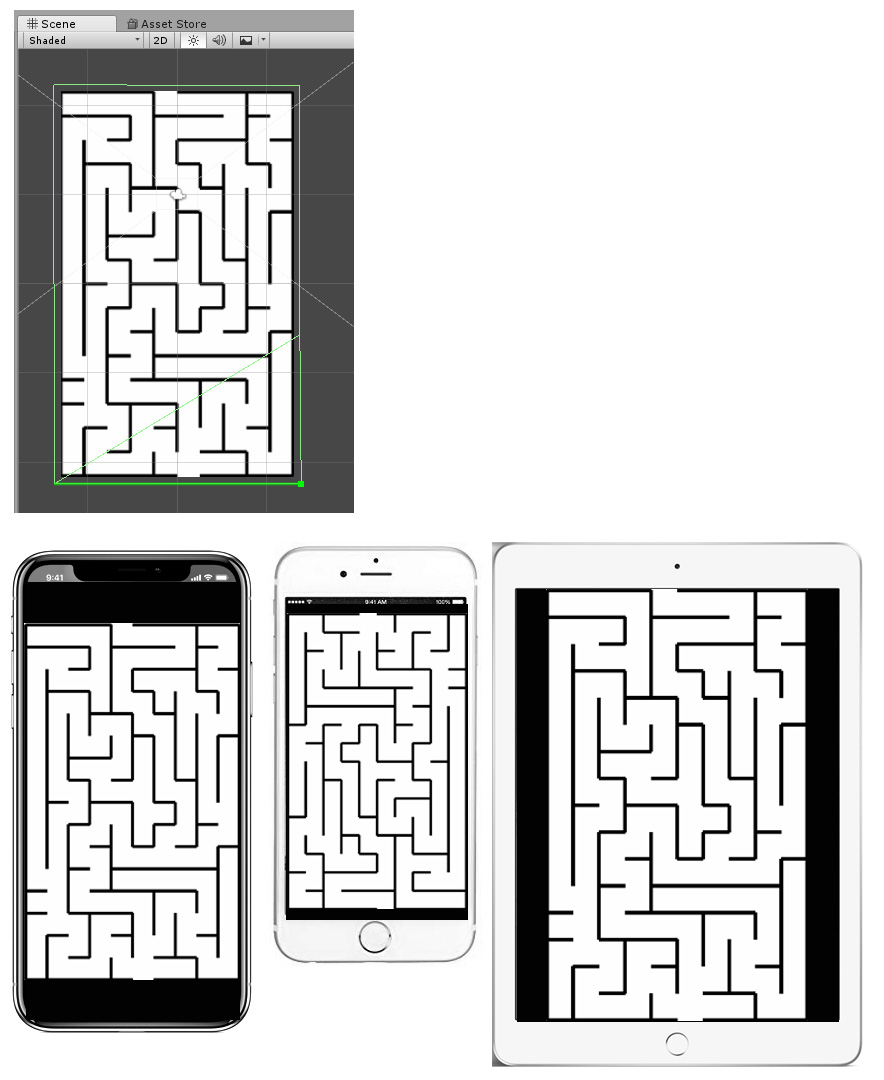
Mabe this image makes more sense on what I’m trying to say. So here I have defined the area with Polygon Collider 2D for the camera and below the camera shows the game maze as close as possible without cutting anything out on different resolutions with different aspect ratios on different devices.
If this is an orthographic camera and you’re not worrying about PixelPerfect, then it’s just a case of getting a tight fit with mismatched aspect ratios. If board aspect is smaller than screen aspect, then set your camera’s orthographicSize = boardHeight/2. Otherwise, set orthographicSize = boardWidth / (screenAspect * 2).
I found out that there is a free asset on the Asset Store called Auto Letterbox by Hexdragonal Games that solves the problem. You set target Aspect-Ratio and it handles the rest. It works out of the box with Cinemachine too.
"Whether you’re creating a Split-Screen effect or managing Aspect-Ratios, you can guarantee that every user will see the same screen ratio every time in every view port. "
Hexdragonal Games also has the best promotional video I’ve seen on the Asset Store so far.
Auto Letterbox changed the camera rect and that is not what I wanted.
So this script changes the orthographic camera like you suggested. You can give it a sprite that is the game area and it will be shown right on all devices.
using System.Collections;
using System.Collections.Generic;
using UnityEngine;
using Cinemachine;

public class FitAreaToDevice : MonoBehaviour {

    public CinemachineVirtualCamera vcam;
    public SpriteRenderer GameArea;

    void Start ()
    {

        float screenRatio = (float)Screen.width / (float)Screen.height;
        float targetRatio = GameArea.bounds.size.x / GameArea.bounds.size.y;

        if(screenRatio >= targetRatio)
        {
            vcam.m_Lens.OrthographicSize = GameArea.bounds.size.y / 2;
        }
        else
        {
            float differenceInSize = targetRatio / screenRatio;
            vcam.m_Lens.OrthographicSize =  GameArea.bounds.size.y / 2 * differenceInSize;
        }

    }

}