Hey all,
I have been working with UI Toolkit for some time, but still trying to grasp some finer details on how to properly get some stuff done. One such thing has to do with positioning visual elements.
There are 2 things I am trying to accomplish, but without 100% success. They are similar in that I want to “parent” something relative to another visual element, but it seems something always gets in the way.
First example:
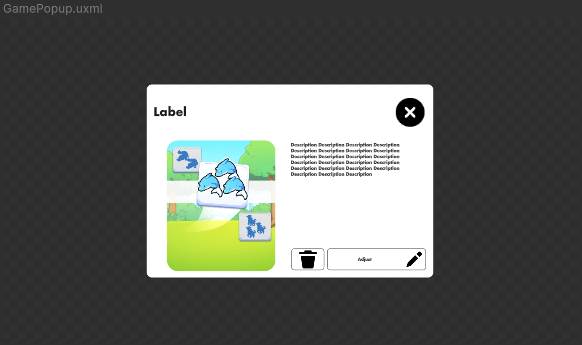
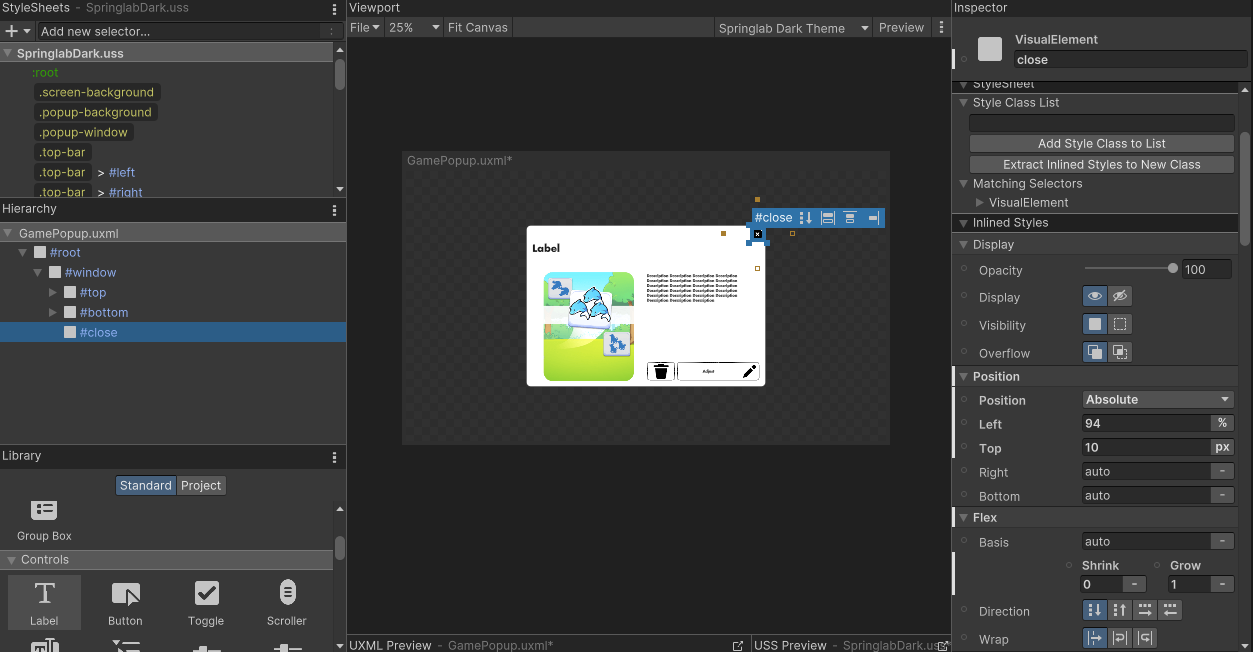
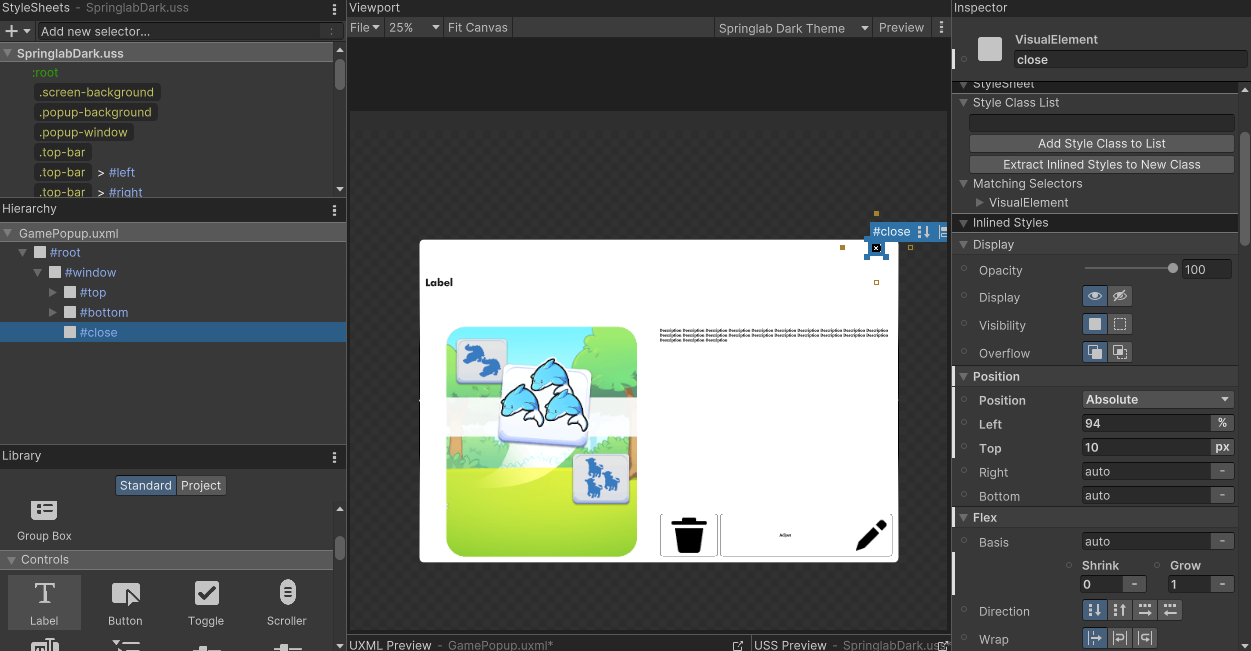
I have a popup that appears on top of the main screen, with in the top right corner a button to close the popup. The way I have it working now is to have to top of the popup be a visual element that also contains 2 other visual elements that, on the left has the label and on the right the close button.
This sort of works, but here is still some spacing on the top I want to get rid off, but can’t.

For some other popup I have a similar situation where I want the label to be in the center of the screen, but can’t get it to work properly, in the way I had the first pop up, so I inserted the close button as the top most position, but now I have some dead space on the top, due to the close button being there.
Last example is a bit more complicated, as I am also using the Text Field control, of which I cannot (in the UI Builder at least) the child elements.
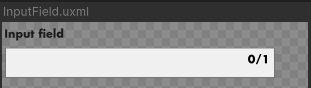
I want to have a custom input field, that also visually shows the active character count (and how much remains) inside the input field. I have it sort of working by placing a label as a child on the text field control, and adjusted the position field like so:
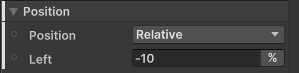
However, when I adjust the width of the field, the counter doesn’t stay in the top right corner.
So basically, a TL;DR:
How can I parent another visual element so that it always remains anchored (relatively) to that position and doesn’t interfere with other elements?