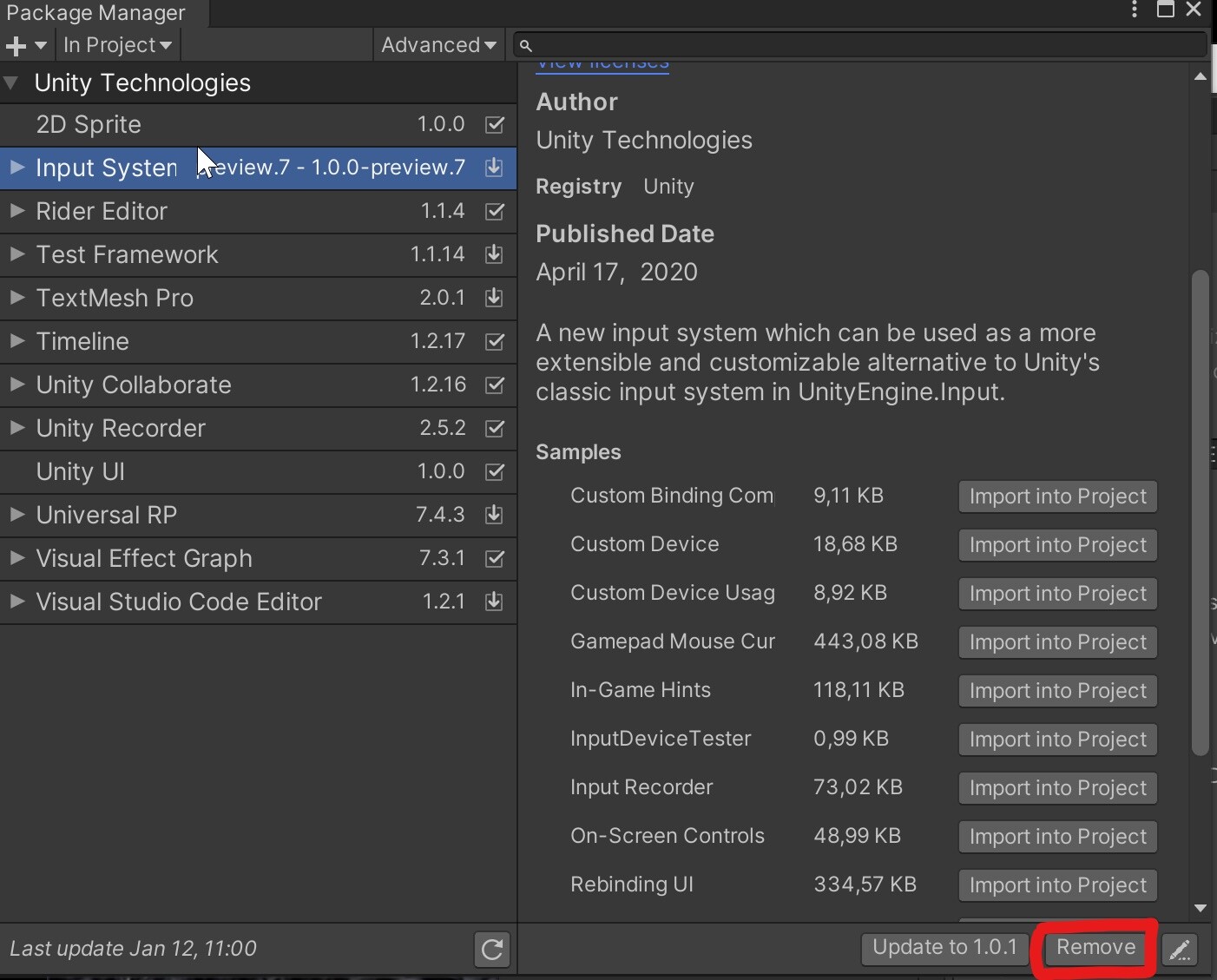
I recently installed the new Input System and updated bits and bobs in my development, however, I have found some characteristics of the new system don’t meet my requirements and have ‘broken’ a couple of things.
I basically want to go back to the old input system, and I have deleted the package from the assets folder. However, every time I open my project, the first thing I see is a message telling me the project uses the new system but it isn’t enabled, would I like to enable it? (or something like that). I click no, and move on.
However, the new input system is then re-installed, even though it’s not being used.
I also had a weird one yesterday; I made a dev build of the game which is playing fine in the editor, but when I opened the build to play it, none of the keys were working. It’s almost like the new input system has taken priority at the build, even though it’s not being used.
Is there a way I can completely remove all traces of the new system, and not have to keep seeing that message at Unity boot-up?
The new system does look great, and after this project I will switch over probably, but right now I need it removed as it’s being weird.
Hi, I have the same issue: tried out the new input system, but wanted to go back to the old one. Removed the package and now I got these errors and the old one doesn’t work anymore.
How can we make the old system work again after deleting the new one?
Other than removing the package, the only other thing is reenabling the old input backends. That’s probably where the errors you’re seeing are coming from. In the Player project settings, set “Active Input Handling” to “Input Manager (old)”.
Sadly this is not enough. I have set this settings, I have removed new input system in package manager, and still getting message at Unity start that new system settings is in use (and offereing transition to new input system). I like new input system but it does not work with XR Interaction Manager well. So I need to remove it.
Same issue here. But removing it from the project solved it for me.
Window>Package Manager and remove the package from your project.
In case that works out for some of you guys too
Thanks,
removing the package and setting the configuration to Input Manager (Old) worked.
The setting has moved slightly for Unity 2021 (2021.02.13f1 in my case) to:
I had trouble removing the new Input System in Unity 2021.3. The Package Manager showed me that the InputSystem was not installed, but the scripting symbol ENABLE_INPUT_SYSTEM was defined so lots of 3rd-party integration scripts were complaining, but I couldn’t find where it was being defined (it wasn’t set in scripting symbols in player settings), and I didn’t want to modify the problematic source files with #undef.
What I did to fix it was to checkout a previously working git commit (effectively re-adding the input system package), recompile the project to a valid state, close unity editor, checkout the commit I want to be at, re-open the project, answer ‘no’ when unity prompts to enable the native input backends, then use the package manager to remove the InputSystem package.
It’s controlled by the option highlighted above the other symbols. I kinda agree it should show up there, but it’s easy enough to select the one you want.