It’s a shame to create a new topic just for this but I don’t understand how to use List View, I’ve search inside the UI Toolkit, inside the sample project and it’s just seems impossible to add element to a List view or scroll view in UI-Toolkit via UI Builder. From what’ve seen the content should go inside Unity-content-container but it’s impossible to drag and drop something inside it.
If someone know how to do it. Thanks
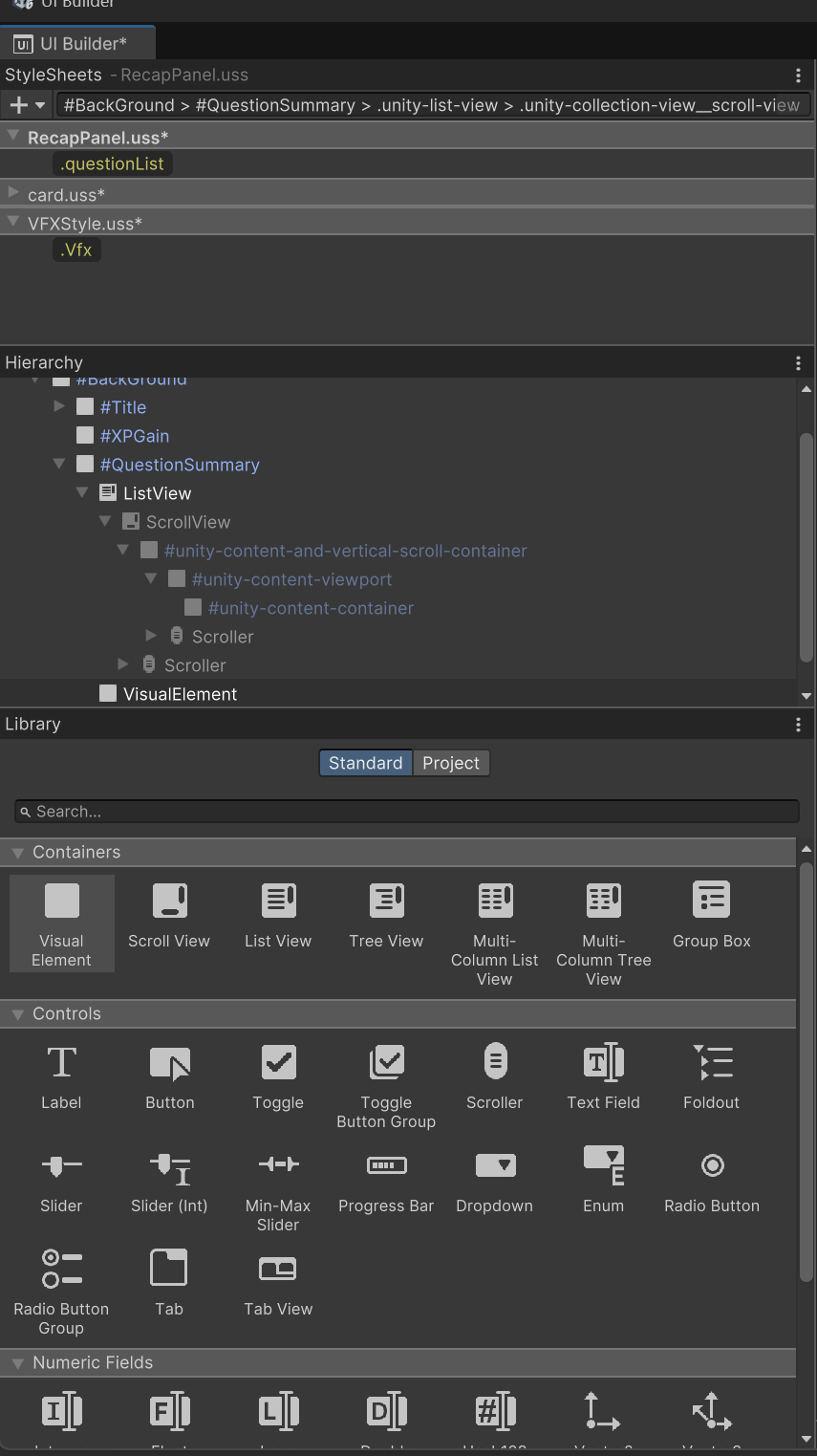
So it seems actually that scroll view work but list view should only be populated via script. I’m not sure what’s the difference though
ListView’s need a data source and potentially an item template to be populated without code. They are data driven, not something you manually add elements to.
Otherwise you drag child elements onto outer-element (eg: the ScrollView) and they will be added to the content container.
I see. Thank you for your answer. In my case It will definitely be populated by code since the number of element will not be constant. But I’m still not sure which problem I will encounter if I’m using ScrollView instead of List View. I’ll see.
ListView is better in general as it pools/virtualises the list elements, which gets you substantially better performance when dealing with large data sets.
My list shouldn’t have more than 20 elements. My concern was more about the visibility of the content. I think it should be fine as is then. Thank you for your answer.
Just had the same problem, this is actually why I find UI toolkit to just plain suck, with UGUI you could create the item that goes in the list with UGUI elements make it a prefab and duplicate it as many times as you wanted in the list view to see how it would look. Yeah you’d still need to code things but visually it was quicker to flesh things out.
In UI Toolkit you need to go find a dozen tutorials all covering the basics of buttons and layouts, and absolutely sod all on listviews or anything more than the absolute basics.
I’m still new to UI Toolkit it is far from intuitive, if someone has a good tutorial covering the more advanced containers and a way of making custom item with there own elements etc and having them show in the list/tree etc views in UI Toolkit or binding them to a datasource that can show without runtime that would be good.
I understand your frustration. I was exactly in the same situation.
But it’s been now 2 months that I’m using it everyday. And I start to feel confortable. But it’s true that I just stopped trying to use complex containers. When I need more complex behaviour I do everything by code using simpler element. And for now I was able to do everything I wanted. But I agree some things are really not intuitive at first. But overall the tool is very powerful. But It should have better documentation with clear exemple of what each container is supposed to do and supposed to be implement. I pretty much had to find everything on forum or by myself.
Far as I’m aware we can’t preview ListView items through the UI Builder without having some code to do it outside of runtime (which isn’t difficult).
At the very least all examples in the manual assign the itemsSource via code. I believe this restriction is the case because ListView.itemsSource is an IList which isn’t support as a serializable type by UXML attributes.
I use custom C# visual elements to do most of my UI Toolkit stuff so I just test Application.isPlaying == false in the constructor, and if so, fill the ListView with mock data.
But so much of UI Toolkit is covered in the manual.
Okay I lied, it is possible to do it entirely through the UI Builder. Just that the issue is the aforementioned issue with ListView.itemsSource not being editable via the UI Builder inspector. You can manually type the binding in the uxml and it works no problem.
I tried this before and it didn’t work… only to realise the binding in the UXML was in the wrong place.
So for example, a simple asset and some data:
public class UIToolkitTestScriptableObject : ScriptableObject
{
	public List<ExampleClass> ExampleClassList = new();
}

[System.Serializable]
public sealed class ExampleClass
{
	public int SomeInt;

	public bool SomeBool;
}
And in the UI builder, I assign an instance of the asset as the data source:
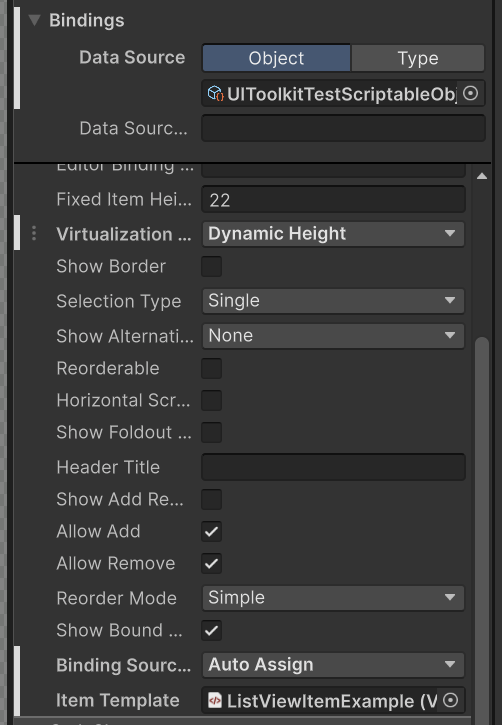
We also have dynamic height, auto-assign binding source, and a template for the list item elements.
With the binding, we put that into the uxml itself:
<engine:UXML xmlns:xsi="http://www.w3.org/2001/XMLSchema-instance" xmlns:engine="UnityEngine.UIElements" xmlns:editor="UnityEditor.UIElements" noNamespaceSchemaLocation="../../../UIElementsSchema/UIElements.xsd" editor-extension-mode="False">
<Style src="project://database/Assets/Testing/UI%20Toolkit/ExampleStyleSheet.uss?fileID=7433441132597879392&guid=09f39e6995f375d4588916057b3c6dfb&type=3" />
<engine:VisualElement name="root">
<engine:ListView data-source="project://database/Assets/Testing/UI%20Toolkit/UIToolkitTestScriptableObject.asset?fileID=11400000&guid=7c0ef1caea69e8f4ba8cb0e106d77c4b&type=2#UIToolkitTestScriptableObject" binding-source-selection-mode="AutoAssign" virtualization-method="DynamicHeight" item-template="project://database/Assets/Testing/UI%20Toolkit/ListViewItemExample.uxml?fileID=9197481963319205126&guid=cfc817222c6a30744946c314853048e9&type=3#ListViewItemExample">
<Bindings>
<engine:DataBinding property="itemsSource" data-source-path="ExampleClassList" binding-mode="ToTarget" />
</Bindings>
</engine:ListView>
</engine:VisualElement>
</engine:UXML>
My ListView is the child of a visual element called ‘root’ (I always have one) in the example above.
With the item template, it’s just a simple element + a int field and a toggle, with bindings assigned the UI builder:
<ui:UXML xmlns:xsi="http://www.w3.org/2001/XMLSchema-instance" xmlns:ui="UnityEngine.UIElements" xmlns:uie="UnityEditor.UIElements" noNamespaceSchemaLocation="../../../UIElementsSchema/UIElements.xsd" editor-extension-mode="False">
    <ui:VisualElement name="list-view-item__root">
        <ui:IntegerField label="Integer Field">
            <Bindings>
                <ui:DataBinding property="value" data-source-path="SomeInt" binding-mode="ToTarget" />
            </Bindings>
        </ui:IntegerField>
        <ui:Toggle label="Toggle">
            <Bindings>
                <ui:DataBinding property="value" data-source-path="SomeBool" binding-mode="ToTarget" />
            </Bindings>
        </ui:Toggle>
    </ui:VisualElement>
</ui:UXML>
Nothing fancy.
And with that, the binding works in UI builder with zero code:
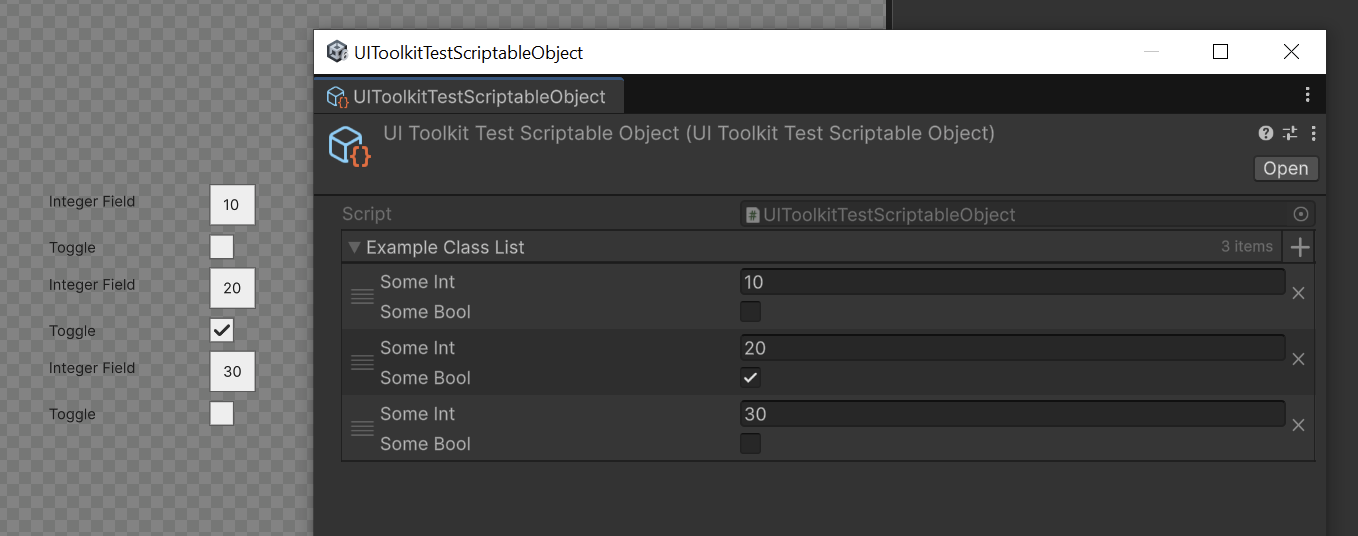
Seems like a few steps to jump through, but there’s nothing here that’s that outside the standard principles for runtime binding, save perhaps needing to write the binding via uxml.
Yes if you’re new to UI Toolkit then this reasoning won’t come to you immediately. It’s just something that takes time to understand.
I shall take a look at it, has there not been any video covering this type container of binding?
What about Type binding and having List<>? I just don’t do scriptable objects much, the idea of having to make one just to see dummy data seems silly… I hate the snail compile times as it is. And I really don’t get why there isn’t some way to have the item template show in the list view without any binding data source.. ie just to see the item template in the list view as a preview in this semi ui builder that is kinda falling short in being abstracted away from how ugui and canvas gameobjects worked visual ui building.
Don’t know about videos. I read the manual. It’s covered in the manual. Unity writes the manual for a reason.
Like I said, ListView is driven by data. If there’s no data, there’s nothing in the ListView. You can always just throw mock data into it to get a preview via a scriptable object. And scriptable objects are the bread and butter of Unity; they’re not something to be overlooked.
I finally got it working.. what a mission after a whole lot of guess work and trial and error trying different things, there nothing simple about that setup and a video going over the data binding setup in UI Builder (which I must say I find awful isn’t even a recent file menu to go back and forth between different uxml documents, still doing single document handling I just don’t get it this has been years in development and I’ve got to mess around with ancient project window to go back and forth between uxml docs  ) surprised I never found a single video on this container stuff I guess everyone just did it in code and never bothered with the UI builder, haven’t even got to tree view and column list stuff. As for Unity documentation usually left filling in the gaps like you were meant to know, made worse when it is covering UI and steps get missed in writing and not just a quick video.
Its literally only four steps. And its the same steps as you would do with any other runtime data binding.
Just because it’s called ListView doesn’t mean you have to use it for all lists of items.
UGUI doesn’t have a virtualized list view, it has layout components. UITK’s layout is automated.
So, if you just want to emulate UGUI’s non-virtualized behaviour and drag a few items into a list then use a ScrollView.
Hi, I followed your steps and it works exactly the same like I used to use in a XAML project, thank you so much, for both the scripts and your intuitive way to solve this :]
Thanks for the explanations.
Has one of you been able to actually do something useful with that ListView? E.g. add a Clickable handler? I don’t understand where I would do that from. Usually I would make a new script that matches the UXML name, add a constructor there and set up events/clickables/manipulators. But I can’t figure out how to do that with a list template set up via UIBuilder.
You’d probably have to do so through a parent visual element rather than directly through the ListView itself. In general, with UI Toolkit you’ll be doing a lot of ‘wrapping’.
Thanks – to make it a bit more concrete:
Say I have a list item like this:
MyListItem.uxml: [ string name | Button myButton ]
I can set up the complete list via UXML, but – how do I get something to happen when clicking that button?
Usually I would create an encapsulation via code, e.g.
[UxmlElement] class MyListItem: VisualElement,
and then set up handlers etc. there.
But that doesn’t seem to be supported for list templates – it always uses the UXML, never the “encapsulation”.
And making a custom list like
[UxmlElement] class MyListView: ListView
does not have any overridable methods for item creation as far as I can see. My understanding is I would need to be able to “react” to the creation of each new item in the virtual list and add/remove click handlers for the button there.