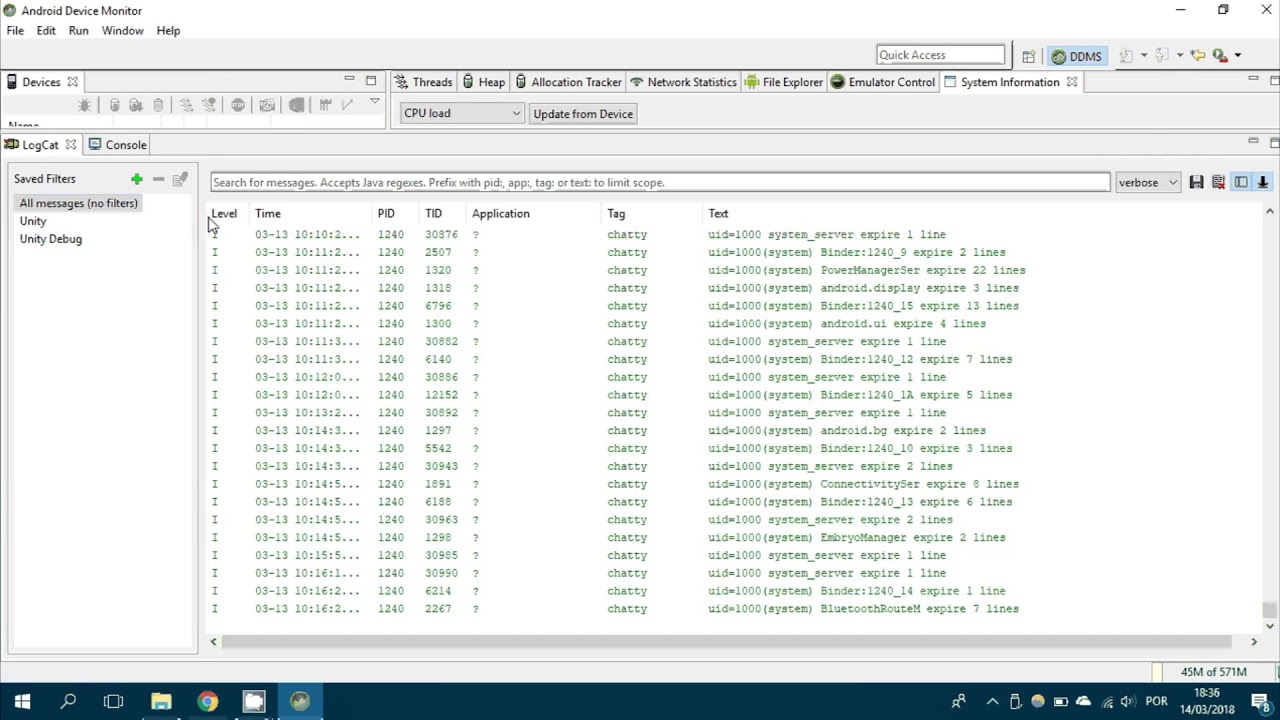
Is there any way to view the console in a build?

Hello, I always have issues debugging my multilayer games becuase I don’t know how to view console debug logs and log-errors in a Unity build.

Is there any way to do this? Or simply a way to access existing debug log messages through runtime scripts?

Thanks.

1 Like

2020, It's now very easy to do this example https://forum.unity.com/threads/player-log-file-location-changed-is-there-an-option-in-settings-somewhere-to-change-it-back.500955/#post-6257543 Just write to any UI or even GUI box you wish on screen

You can use GameLog. Here's the link: https://github.com/Kiarash-Parvizi/GameLog Its free and easy to use

If you have Android Studio installed, then you see all the logs in the Android Studio's Logcat.

I have a solution in my new video :) https://youtu.be/55rkbsjhA3U

A very comfortable way of displaying your logs at runtime is [KGFDebug][1]. Check it out. [1]: http://u3d.as/content/kolmich-creations/kgfdebug/2Yy

13 Answers

13

An even simpler way to do it.

Just attach this script to any scene gameObject:

This works perfectly with ANY build (debug, production) and ANY platform.

It shows EXACTLY what you would see on the console (Debug.Log, Debug.Error, errors, crashes etc)

    using UnityEngine;
    
    namespace DebugStuff
    {
        public class ConsoleToGUI : MonoBehaviour
        {
    //#if !UNITY_EDITOR
            static string myLog = "";
            private string output;
            private string stack;
    
            void OnEnable()
            {
                Application.logMessageReceived += Log;
            }
    
            void OnDisable()
            {
                Application.logMessageReceived -= Log;
            }
    
            public void Log(string logString, string stackTrace, LogType type)
            {
                output = logString;
                stack = stackTrace;
                myLog = output + "

" + myLog;
if (myLog.Length > 5000)
{
myLog = myLog.Substring(0, 4000);
}
}

            void OnGUI()
            {
                //if (!Application.isEditor) //Do not display in editor ( or you can use the UNITY_EDITOR macro to also disable the rest)
                {
                    myLog = GUI.TextArea(new Rect(10, 10, Screen.width - 10, Screen.height - 10), myLog);
                }
            }
    //#endif
        }
    }

Here’s another version in which you can

toggle with the space bar

it also creates a full log file anywhere you want (in the example, on the desktop)

it “corrects” the simple GUI window so the text size is always readable on all screens and all platforms

using UnityEngine;

public class ConsoleToGUI : MonoBehaviour
{
    string myLog = "*begin log";
    string filename = "";
    bool doShow = true;
    int kChars = 700;
    void OnEnable() { Application.logMessageReceived += Log; }
    void OnDisable() { Application.logMessageReceived -= Log; }
    void Update() { if (Input.GetKeyDown(KeyCode.Space)) { doShow = !doShow; } }
    public void Log(string logString, string stackTrace, LogType type)
    {
       // for onscreen...
        myLog = myLog + "

" + logString;
if (myLog.Length > kChars) { myLog = myLog.Substring(myLog.Length - kChars); }

        // for the file ...
        if (filename == "")
        {
            string d = System.Environment.GetFolderPath(
               System.Environment.SpecialFolder.Desktop) + "/YOUR_LOGS";
            System.IO.Directory.CreateDirectory(d);
            string r = Random.Range(1000, 9999).ToString();
            filename = d + "/log-" + r + ".txt";
        }
        try { System.IO.File.AppendAllText(filename, logString + "

"); }
catch { }
}

    void OnGUI()
    {
        if (!doShow) { return; }
        GUI.matrix = Matrix4x4.TRS(Vector3.zero, Quaternion.identity,
           new Vector3(Screen.width / 1200.0f, Screen.height / 800.0f, 1.0f));
        GUI.TextArea(new Rect(10, 10, 540, 370), myLog);
    }
}

Obviously, if you prefer to use Unity.UI rather than the legacy “GUI”, it is completely trivial to write it to a UI.Text in your Canvas.

It's amazing this doesn't have 100,000,000 votes

Game changer. Thanks so much!

This is good, however it does not capture logs produced on a thread. Is there a solution for this?

It don't work with logs produced by Unity Jobs threads. (and ECS)

While a good starting point, I believe this solution is inferior to [my answer][1] which is more performant, able to silence duplicate log messages, able to hold the most recent N logs in memory while not causing memory overload, and able to collect all logs, even from different threads. [1]: https://answers.unity.com/questions/125049/is-there-any-way-to-view-the-console-in-a-build.html?childToView=1874177#answer-1874177

Sorry for necro-ing the post but in Unity 2017.1 you can connect your device to Unity and then look at the log from your computer. I found this better than trying to print the log on your device’s screen. On the downside it prints a bit more than you want (it includes Android system message sometimes, for example.)

If you Build and Run a development build, it will also automatically connect to it. Won't work with Release build. On Windows, you may need to confirm that you accept private network connections in the warning popup that appears on launch.

[https://msdn.microsoft.com/en-us/library/xfhwa508(v=vs.110).aspx][1] [1]: https://msdn.microsoft.com/en-us/library/xfhwa508(v=vs.110).aspx

An easy way is to set your build to a Development Build (in the build settings) and then use Debug.LogError(). This will show up in the console build.

Note that you indeed have to log an error to make the console visible, i.e. Debug.LogError("This message will make the console appear in Development Builds"); Although you can hide the console using Debug.developerConsoleVisible = false it's not possible to show the console by settings the value to true. This is documented in https://docs.unity3d.com/ScriptReference/Debug-developerConsoleVisible.html

For standalone builds, the console output is dumped to the file …_Data/output_log.txt It looks a bit more unintuitive than the editor’s console log, since for every message printed, the callstack is also dumped.

Or you could use http://wiki.unity3d.com/index.php/DebugConsole which lets you print normal debug messages (DebugConsole.Log(“…”):wink: in the GUI layer of your game view.

EDIT: for a very convenient way that works in-app on all platforms, see @cybervaldez’ answer

Came looking for this answer, none of these answers are correct, found the correct answer in the uLinkConsoleGUI script:

UnityEngine.Application.RegisterLogCallback(CaptureLog);
https://docs.unity3d.com/ScriptReference/Application.LogCallback.html

I came looking for the same information as the original post, none of the answers were what I was looking for. Which was a specific API that gives "a way to access existing debug log messages through runtime scripts". The accepted solution proposes to completely bypass the built in logging engine. This is bad practice in my opinion

Hm, the current wiki version of DebugConsole does indeed log on-screen only, not in the actual console, which doesn't make much sense. In the version we're using, there's a simple call to Debug.Log to fix this. I'd update the wiki myself, but I don't have my login with me, and registering a new account apparently is a buggy PITA...

Obviously this is the correct answer - fortunately it's now easy to do this in Unity, at last.

Fortunately nowadays (2020) it is now quite easy to do this

toggle with the space bar

it also creates a full log file anywhere you want (in the example, on the desktop)

it “corrects” the simple GUI window so the text size is always readable on all screens and all platforms

using UnityEngine;

public class ConsoleToGUI : MonoBehaviour
{
    string myLog = "*begin log";
    string filename = "";
    bool doShow = true;
    int kChars = 700;
    void OnEnable() { Application.logMessageReceived += Log; }
    void OnDisable() { Application.logMessageReceived -= Log; }
    void Update() { if (Input.GetKeyDown(KeyCode.Space)) { doShow = !doShow; } }
    public void Log(string logString, string stackTrace, LogType type)
    {
       // for onscreen...
        myLog = myLog + "

" + logString;
if (myLog.Length > kChars) { myLog = myLog.Substring(myLog.Length - kChars); }

        // for the file ...
        if (filename == "")
        {
            string d = System.Environment.GetFolderPath(
               System.Environment.SpecialFolder.Desktop) + "/YOUR_LOGS";
            System.IO.Directory.CreateDirectory(d);
            string r = Random.Range(1000, 9999).ToString();
            filename = d + "/log-" + r + ".txt";
        }
        try { System.IO.File.AppendAllText(filename, logString + "

"); }
catch { }
}

    void OnGUI()
    {
        if (!doShow) { return; }
        GUI.matrix = Matrix4x4.TRS(Vector3.zero, Quaternion.identity,
           new Vector3(Screen.width / 1200.0f, Screen.height / 800.0f, 1.0f));
        GUI.TextArea(new Rect(10, 10, 540, 370), myLog);
    }
}

Obviously, if you prefer to use Unity.UI rather than the legacy “GUI”, it is completely trivial to write it to a UI.Text in your Canvas.

This is 100% plagiarized from the accepted answer (2nd code snippet), even including the info preceding and following the code snippet! I don't understand what value this brings.

Unfortunately the docs are lacking, or at least missing this information. I still find weird that a animation going from 0 to 59 last ~1.9 seconds at 30 fps instead of 2. Since you need at least 2 point to interpolate one can imagine that Unity uses those 60 keyframes in pairs (meaning 59 couples and 59/30 is equals to 1.96666... exactly the length that Unity shows) so adding one more keyframe result in 60 2-points pairs. I don't know if I explained my self, I can try to clarify if needed.

I know this is old thread but this is still a valid question now. I was looking for a quick answer without any extra code, this is the easiest way.

I found that console Debug.Log messages are by default written to a file.
If not, you can enable this in the Project Setting → Player → Standalone Player Options
For Uunity 2020.3:

Linux	~/.config/unity3d/CompanyName/ProductName/Player.log
macOS	~/Library/Logs/Company Name/Product Name/Player.log
Windows	%USERPROFILE%\AppData\LocalLow\CompanyName\ProductName\Player.log

See Unity - Manual: Log files for the latest locations, it seems that the location has been changed in different unity versions.

I hope that helps.,I know this is old thread but this is still a valid question now. I was looking for a quick answer without any extra code, this is the easiest way.

I found that console Debug.Log messages are by default written to a file.
If not, you can enable this in the Project Setting → Player → Standalone Player Options
For Uunity 2020.3:

Linux	~/.config/unity3d/CompanyName/ProductName/Player.log
macOS	~/Library/Logs/Company Name/Product Name/Player.log
Windows	%USERPROFILE%\AppData\LocalLow\CompanyName\ProductName\Player.log

See Unity - Manual: Log files for the latest locations, it seems that the location has been changed in different unity versions

A very comfortable way of displaying your logs at runtime is KGFDebug.
Check it out.

Hi @NinjaSquirrel !

The easiest way is to use the Debug.LogAssertion.

Debug.LogAssertion("Message to show in Development Build/Console");

If you want you can also create a simple log file to save your debug using some WebService or even saving in your computer (if standalone builds).

You do something like:

private void MyDebug(string message){
        Debug.Log(message);
        Debug.LogAssertion (message); //you can see in game console

        WWWForm form = new WWWForm();
        form.AddField("newMessage", message);
        string url = "http://yourserver/saveUnityLog.php";
        WWW download = new WWW(url, form);
}

In the file saveUnityLog.php you just need to add a new line in some file like myLog.txt. :wink:

NOTE: If in standalone you can use the localhost for sure. Also is a good idea add a datetime for each message.

Good luck.

A dictionary? I will look in to this quickly, thank you.

I have a solution in my new video :slight_smile:

Thank you, I looked in to it, and I can achieve the same result using a Dictionary, but I discovered that it was just much easier to do what I was doing in the form of arrays.

If you have Android Studio installed, then you see all the logs in the Android Studio’s Logcat.

You can use GameLog.
Here’s the link: GitHub - Kiarash-Parvizi/GameLog: High-Performance Portable Log System for unity

Its free and easy to use

I spent a couple of hours creating a logging system which:

  1. Works on all platforms
  2. Reasonably performant
  3. Has the option to silence duplicate log messages
  4. Does not cause memory overload
  5. Holds the most recent N logs in memory
  6. Collects all logs, even from different threads (using logMessageReceivedThreaded. See: Unity Document)
  7. Allows me to copy log chunks to the clipboard when clicking a custom button on the SRDebugger Options tab.

You can turn this into a Singleton if you want as well. If you do not have SRDebugger added into your project, simply delete lines that start with “SROptions”.

    using System.Collections.Generic;
    using System.Linq;
    using System.Text;
    using UnityEngine;
    public class LogRecordService : MonoBehaviour //WARNING: Do not Debug.Log() inside this class, it might create an endless loop.
    {

    #region SingletonImplementation
    public static LogRecordService instance;

    void Awake()
    {
        if (instance != null)
        {
            Destroy(gameObject);
        }
        else
        {
            instance = this;
            DontDestroyOnLoad(gameObject);
        }
    }
    #endregion

        const int INITIAL_CHARACTER_CAPACITY = 15000;
        const int MAXIMUM_NUMBER_OF_RECORDED_LOGS = 300;

        private List<LogEntry> _logEntries;
        private StringBuilder _stringBuilder;
        
        public void Start() //WARNING: If you won't use Singleton, you better unsubscribe from those events, for instance within OnDestroy()
        {
            _logEntries = new List<LogEntry>();

            Application.logMessageReceivedThreaded += HandleLogMessageReceived;
            SROptions.OnCopyAllLogsButtonPressed += HandleCopyAllLogsButtonPressed;
            SROptions.OnCopyAllDistinctLogsButtonPressed += HandleCopyAllDistinctLogsButtonPressed;
        }

        private void HandleCopyAllLogsButtonPressed()
        {
            CopyLogEntryListToClipboard(_logEntries);
        }     
        
        private void HandleCopyAllDistinctLogsButtonPressed()
        {
            List<LogEntry> _logEntriesWithoutDuplicates = _logEntries.Distinct(new LogEntryComparer()).ToList();

            CopyLogEntryListToClipboard(_logEntriesWithoutDuplicates);
        }
        
        private void CopyLogEntryListToClipboard(List<LogEntry> logEntries)
        {
            _stringBuilder = new StringBuilder(INITIAL_CHARACTER_CAPACITY);

            foreach (LogEntry logEntry in logEntries)
            {
                _stringBuilder.Append(logEntry.LogString + "

" + logEntry.StackTrace + "
");
}

            GUIUtility.systemCopyBuffer = _stringBuilder.ToString();
        }     
            
        public void HandleLogMessageReceived(string logString, string stackTrace, LogType type)
        {
             //#if !UNITY_EDITOR //You can make the functions only work outside UNITY_EDITOR to get a small performance boost while working on other stuff if you want.

            LogEntry newLogEntry = new LogEntry(logString, stackTrace, type);
            _logEntries.Add(newLogEntry);

            if (_logEntries.Count > MAXIMUM_NUMBER_OF_RECORDED_LOGS)
            {
                _logEntries.RemoveAt(0);
            }

            //#endif

        }

    }

    internal class LogEntry
    {
        public string LogString { get; }
        public string StackTrace { get; }
        public LogType Type { get; }

        public LogEntry(string logString, string stackTrace, LogType type)
        {
            LogString = logString;
            StackTrace = stackTrace;
            Type = type;
        }
    }
    
    internal class LogEntryComparer : IEqualityComparer<LogEntry>
    {
        public int GetHashCode(LogEntry logEntry)
        {
            return 0;
        }
        
        public bool Equals(LogEntry x, LogEntry y)
        {
            return x != null 
                   && y != null                    
                   && x.LogString.Equals(y.LogString)
                   && x.StackTrace.Equals(y.StackTrace)
                   && x.Type.ToString().Equals(y.Type.ToString());
        }
    }

Here is the SRDebugger related code that I added (The name of the class is not SROptions but SROptions.Debug.cs in the file system, since it is a partial class.):

using System;
using System.ComponentModel;
using UnityEngine;
    
public partial class SROptions
{
    public static event Action OnCopyAllLogsButtonPressed;
    public static event Action OnCopyAllDistinctLogsButtonPressed;
    
    [Category("Utilities")]
    public void CopyAllLogs()
    {
        OnCopyAllLogsButtonPressed();
    }   
    
    [Category("Utilities")]
    public void CopyAllDistinctLogs()
    {
        OnCopyAllDistinctLogsButtonPressed();
    }
    
    [Category("Utilities")]
    public void ClearPlayerPrefs() {
        Debug.Log("Clearing PlayerPrefs"); 
        PlayerPrefs.DeleteAll();
    }
    
    [Category("Utilities")]
    public void CopyDeviceUniqueID() { 
        GUIUtility.systemCopyBuffer = SystemInfo.deviceUniqueIdentifier;
    }
}