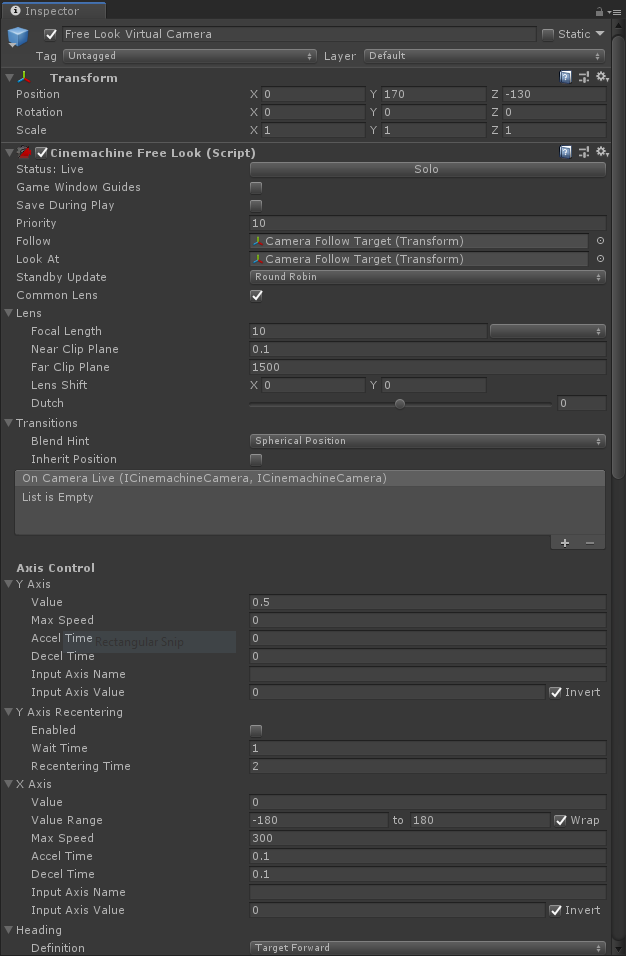
Hi all,
I’m having an issue when blending between two cameras whereby my camera flips around to point in the opposite direction as it transitions over long distances. For example, in the video linked below, the first blend transition works well (short distance). In the second transition (medium distance), you can see the camera begin to rotate at the transition’s midpoint. In the third transition (long distance), you can see the camera rotate backwards at the transition’s midpoint.
https://drive.google.com/open?id=1qS6-Hp4lcR5iG-Q_a_iWggfbxfGvmOSp
My question is how can I prevent the camera from rotating like this during a blend so that all the transitions look like the first one?
Some of my settings that may be relevant (?!):
- I am using a Free Look Camera, transitioning into a Virtual Camera.
- Both cameras have a Blend Hint of Spherical Position.
- The Free Look camera has both a Follow transform and a Look At transform (which doesn’t move during the transition).
- The Free Look camera has its Heading Definition set to Target Forward.
- The Free Look camera has all Aim rigs set to Hard Look At with no Look At Override.
- The Virtual camera has a Look At target transform but no Follow transform.
- The Virtual camera has its Aim set to Composer.
What I have tried:
- Adjusting the Blend Hint of both cameras (Spherical Position/Cylindrical Position). Whilst changing this setting does affect the transition somewhat, it still has the issue described above.
- Using a Custom Blend asset on the Brain but this only appears to control the easing.
Any advice is much appreciated, thanks!
-andy.
It’s always tricky to get a good blend when the LookAt target changes. Try setting the blend hint to this:

Also: what version of Cinemachine are you using?
1 Like
Thanks for the response @Gregoryl .
I get the same issue with the Screen Space Aim Blend Hint I’m afraid (I set it on both the Free Look cam and Virtual cam). I’m using Cinemachine v2.2.7 installed via the Package Manager in Unity 2018.3.0b12.
hmmm… this is puzzling. I’d like to try to repro this and see what’s going on. Can you please post here:
- the world positions of the 4 targets: initial, close, medium, and far
- Inspectors for the FreeLook and the vcam, showing all relevant settings
I will try to recreate this scenario with simple objects.
Thanks
Ok great, thanks a lot @Gregoryl !
Here are all the settings, let me know if you need anything else.
Free Look Camera (Initial)
Position: X: 0 Y: 170 Z: -130
Rotation: X: 0 Y: 0 Z: 0
Free Look Camera Settings
The Follow and Look At transform of the Free Look Camera is a game object positioned at:
Follow and Look At Transform
Position: X: 0 Y: 40 Z: 0
Rotation: X: 0 Y: 0 Z: 0
The three Virtual Cameras that are transitioned to all have identical camera settings with one exception - their Look At transform. So I have included the position of each Virtual Camera’s Look At transform too.
Near Virtual Camera
Position: X: 0 Y: 30 Z: -60
Rotation: X: 30 Y: 0 Z: 0
Look At Transform Position: X: 0 Y: 0 Z: 0
Mid Virtual Camera
Position: X: -150 Y: 30 Z: 140
Rotation: X: 30 Y: 0 Z: 0
Look At Transform Position: X: -150 Y: 0 Z: 200
Far Virtual Camera
Position: X: -300 Y: 30 Z: 340
Rotation: X: 30 Y: 0 Z: 0
Look At Transform Position: X: -300 Y: 0 Z: 400
Virtual Camera Settings
-andy.
Thanks for that.
I get the best results with Blend hint = None on the vcams, and blend hint = ScreenScreenSpaceAimWhenTrargetsDiffer on the FreeLook, and no InheritPosition on anything.
What’s happening is that the camera positions and lookAt targets are being lerped independently, and because of the layout of things, one passes by the other, causing the camera to swing.
The only way, at present, to make that effect go away is to remove the LookAt target from the vcams, and just hardwire the vcam rotations, the same as you did for the positions. Without a LookAt target, the vcam will have no lookAt position to lerp, so it will have no choice but to slerp the rotations, which is what you’re looking for, I think.
Ahh thanks a lot - removing the vcams LookAt target resolves the issue!
I was using the Composer with a LookAt on the vcams so I could dynamically position the focal point in the left side of the screen with any aspect ratio (Screen X: 0.25), but without this I can still just about get away with having a fixed vcam lookAt rotation.
Thanks so much for your help @Gregoryl – much appreciated!
But why? Whyyyy?
I have the same problem: transitioning between 2 cameras makes them rotate without any reason!? I have no LookAt target, and tried several options to prevent these virtual cams from rotating - here is a video of that:
https://drive.google.com/file/d/1hs7TuRcqEHfMH2P8x2CCLsD1Y_z_9ipb/view?usp=sharing
Still no solution?
@aesi_aes Could you send us a repro project? You can send a direct message to me or submit an official bug report (> How to report bugs <).
It’s a little unclear from the video, but if all the vcams have Framing Transposer in the Body and Do Nothing in the aim, then the problem is likely to be in the Transform component. Cinemachine is not modifying the vcam rotations, it’s just blending between them. Try setting all the rotations of the vcams to the same thing.
1 Like
“Try setting all the rotations of the vcams to the same thing.”
But that is actually what I want to achieve… blending between these two cameras with different angles.
I already have a “solution” where I only have one VirtualCam: here I do transition to different rotations in my own script (VirtualCamController).
But now I want to set Confiners in some rooms… when I set a new confiner, the VirtualCam just snaps to that confiner…
So my newest idea was to go back to “blending between two cameras with different angles” where some of these cameras have a confiner already set up. My hope was to blend smoothly between these.
Your comment tells me that won’t work, as there will always be some kind of angular tilting / flipping involved?
Next idea: I now have a DynamicConfiner script, which sets the confiner to player position on enable, and then smoothly transitions to the actual Confiner position… let’s see where we get with that…
Maybe you need to explain again what you are trying to make, and what is going wrong. It’s hard for me to tell from the video. You have many cameras, I don’t know where they are placed, or what triggers the blends, or what they are supposed to look like.
Let’s leave the confiner aside for the moment, and try to get the unconfined cameras to blend correctly. In the absence of a LookAt target, the blending algorithm just slerps the angles. That will take the shortest angular path. You should never get spins of more than 180 degrees, or pops. You have both in the video. We need to understand why that is happening.
Can you describe to me the camera behaviour you are trying to get?
Even better, as @gaborkb suggested, can you make a toy project that reproduces the spinning issue? If you can post that, it will be much faster to narrow this down.
Hey, thanks for your fast replies 
I made a small test project plus a video where you can see what is happening:
https://drive.google.com/file/d/1O4gNpxbKTFKdRryWLysnpPFWCdyWXlwe/view?usp=sharing
https://drive.google.com/file/d/1Ptd0a0ofdAoCsr3SD4lXDw7EdzEPRgp2/view?usp=sharing
Basically I transition between a camera with rotation (70, 0, 0) and a camera with rotation (105, 0, 0)…
Hope that helps
Greetings
Interesting… if you turn off the noise component on the virtual cams, the transition even more shambles around…
https://drive.google.com/file/d/1_wes2-h6QX8ZzIQFCZpVcuuW8D76Me5g/view?usp=sharing
Thank you for the upload. Using it I was able to confirm that you are tripping over a bug in Cinemachine that was fixed last week. The fix will be shipped with the next CM release. If you don’t want to wait for it and if you feel comfortable embedding and modifying package code, I can send you a patch.
1 Like
Woah, that would be nice if you could send me a patch…
But actually it’s not that urgent… if you say the next release is let’s say next week, that would be enough for me
Then of course, it would be great if you could send me that patch 
Thanks!
First, you have to embed Cinemachine into your project so that it becomes writable. Do this by moving the “com.unity.cinemachine” folder from the package cache to your project’s “Packages” folder. Make sure it’s called “com.unity.cinemachine” in the destination (i.e. without the version identifier).
Then, find CameraState.cs in there and replace it with the attached file. Let me know if it works for you.
7155274–856540–CameraState.cs (22.3 KB)
Hm I moved the “com.unity.cinemachine” from the Package Cache to the Assets/Packages, renamed it (version number), and removed the reference from both manifest.json and packages-lock.json… but when I start the editor now, the editor shows a “Hold on (busy for x:xx)” indicator with message “EditorApplication.update”, and Unity UI doesn’t react anymore (apart from the indicator bar “updating the time”).
Didn’t find anything on that topic in the webz…
But as I said, it’s not that urgent…