Method called by UI button fails but works when called from script

This has been solved. I deleted and recreated the buttons that were causing my issues. After creating the new ones, my issue went away. I am not sure what could have caused irregular button behavior with the previous buttons.

Hello,

I have a class with some methods in it that I call from buttons on a Canvas–>Panel–.>HorizLayoutGroup.

When I call the method directly from a script it works as intended. When I call it from the buttons (Button - TextMeshPro) it turns every variable in the method to 0 (int, float,etc), or (0,0,0) in the case of a Vector3. Those same buttons also call a method to close the menu, which works fine, I am assuming because there is not data to manipulate.

So I am at a loss. Clearly the buttons have access to the script and methods since all the other ones work. I have created new global private and public variables in the script purely for testing so I know they are not being altered anywhere else. And finally I also can see that even though my debug.log shows the variables are 0, at runtime in the inspector I have exposed them and they read the correct values. I have also tried creating other methods to call from the buttons with variables and they all fail the same way.

The method that is failing is: public void BuildSelectedTower(int choice)

I am stumped. Here is my relevant code. Would love some help. Thanks so much!

using System.Collections;
using System.Collections.Generic;
using UnityEngine;
using UnityEngine.UI;

public class BuildableMenu : MonoBehaviour
{
    public Vector3 towerBuildPosition = new Vector3(2, 2, 2); //Assignment just for testing to see the values change.
    public Vector3 assignmentCheck;


    void Start()
    {
        Debug.Log(towerBuildPosition); //valid
   
        //This works as intended
        GameObject newTower = Instantiate(GameManager.instance.availableTowers[0], new Vector3(2, 2,2), Quaternion.identity);


    }

    void Update()
    {
        // Check for left mouse button click
        if (Input.GetMouseButtonDown(0) && LevelUI.instance.towerSelectionPanel.activeInHierarchy == false)
        {
            // Cast a ray from the mouse position in 2D space
            Vector2 raycastPosition = Camera.main.ScreenToWorldPoint(Input.mousePosition);
            RaycastHit2D hit = Physics2D.Raycast(raycastPosition, Vector2.zero);

            // Check if the ray hits a GameObject with the "Buildable" tag
            if (hit.collider != null && hit.collider.CompareTag("Buildable"))
            {
                //Set the location for building
                towerBuildPosition = hit.collider.gameObject.transform.position;
                assignmentCheck = towerBuildPosition; //Testing var, shouldn't be needed after solution is found
                Debug.Log("The position of the collider is: " + towerBuildPosition); //valid
                Debug.Log("In the family is is: " + towerBuildPosition); //valid
                // Open the menu for the buildable object
                OpenTowerChoiceMenu();
            }
        }

        if (Input.GetMouseButtonDown(1))
        {
            OpenTowerChoiceMenu();
        }
    }

    //This method changes or something has changed assignment check to (0,0,0) by the time it gets here in execution.
    public void BuildSelectedTower(int choice)
    {

        Debug.Log("In the family is is 2: " + assignmentCheck);
        GameObject newTower1 = Instantiate(GameManager.instance.availableTowers[choice], assignmentCheck, Quaternion.identity);
        CloseTowerChoiceMenu();
    }

    public void BuildSelectedSupportTower(int choice)
    {

    }

    public void OpenTowerChoiceMenu()
    {
        LevelUI.instance.towerSelectionPanel.SetActive(true);

    }

    public void CloseTowerChoiceMenu()
    {
        LevelUI.instance.towerSelectionPanel.SetActive(false);
    }
}

The TMP button in use, I have multiple, all the same other than the passing parameter.
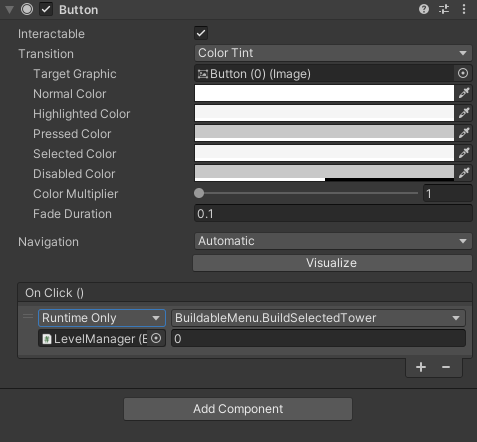
9554326--1350403--upload_2023-12-30_9-56-31.png

If you post a code snippet, ALWAYS USE CODE TAGS:

How to use code tags: Using code tags properly

  • Do not TALK about code without posting it.
    - Do NOT post unformatted code.
  • Do NOT retype code. Use copy/paste properly using code tags.
  • Do NOT post screenshots of code.
  • Do NOT post photographs of code.
  • Do NOT attach entire scripts to your post.
    - ONLY post the relevant code, and then refer to it in your discussion.

If you need more information about what your program is doing as well as how and where it is deviating from your expectations, that means it is…

Time to start debugging!

By debugging you can find out exactly what your program is doing so you can fix it.

Here is how you can begin your exciting new debugging adventures:

You must find a way to get the information you need in order to reason about what the problem is.

Once you understand what the problem is, you may begin to reason about a solution to the problem.

What is often happening in these cases is one of the following:

  • the code you think is executing is not actually executing at all
  • the code is executing far EARLIER or LATER than you think
  • the code is executing far LESS OFTEN than you think
  • the code is executing far MORE OFTEN than you think
  • the code is executing on another GameObject than you think it is
  • you’re getting an error or warning and you haven’t noticed it in the console window

To help gain more insight into your problem, I recommend liberally sprinkling Debug.Log() statements through your code to display information in realtime.

Doing this should help you answer these types of questions:

  • is this code even running? which parts are running? how often does it run? what order does it run in?
  • what are the names of the GameObjects or Components involved?
  • what are the values of the variables involved? Are they initialized? Are the values reasonable?
  • are you meeting ALL the requirements to receive callbacks such as triggers / colliders (review the documentation)

Knowing this information will help you reason about the behavior you are seeing.

You can also supply a second argument to Debug.Log() and when you click the message, it will highlight the object in scene, such as Debug.Log("Problem!",this);

If your problem would benefit from in-scene or in-game visualization, Debug.DrawRay() or Debug.DrawLine() can help you visualize things like rays (used in raycasting) or distances.

You can also call Debug.Break() to pause the Editor when certain interesting pieces of code run, and then study the scene manually, looking for all the parts, where they are, what scripts are on them, etc.

You can also call GameObject.CreatePrimitive() to emplace debug-marker-ish objects in the scene at runtime.

You could also just display various important quantities in UI Text elements to watch them change as you play the game.

Visit Google for how to see console output from builds. If you are running a mobile device you can also view the console output. Google for how on your particular mobile target, such as this answer for iOS: How To - Capturing Device Logs on iOS or this answer for Android: How To - Capturing Device Logs on Android

If you are working in VR, it might be useful to make your on onscreen log output, or integrate one from the asset store, so you can see what is happening as you operate your software.

Another useful approach is to temporarily strip out everything besides what is necessary to prove your issue. This can simplify and isolate compounding effects of other items in your scene or prefab.

If your problem is with OnCollision-type functions, print the name of what is passed in!

Here’s an example of putting in a laser-focused Debug.Log() and how that can save you a TON of time wallowing around speculating what might be going wrong:

If you are looking for how to attach an actual debugger to Unity: Unity - Manual: Debugging C# code in Unity

“When in doubt, print it out!™” - Kurt Dekker (and many others)

Note: the print() function is an alias for Debug.Log() provided by the MonoBehaviour class.

If you learn more by debugging and things still seem mysterious…

How to report your problem productively in the Unity3D forums:

http://plbm.com/?p=220

This is the bare minimum of information to report:

  • what you want
  • what you tried
  • what you expected to happen
  • what actually happened, log output, variable values, and especially any errors you see
    - links to actual Unity3D documentation you used to cross-check your work (CRITICAL!!!)

The purpose of YOU providing links is to make our job easier, while simultaneously showing us that you actually put effort into the process. If you haven’t put effort into finding the documentation, why should we bother putting effort into replying?

Thanks for the formatting tip Kurt, I have edited that.

I originally had debug.log statements in every spot I could think of. That’s how I know there is unwanted functionality only on the button onClick(). All my vars are correct up until clicking the button, at which they are temporarily set to 0 for the frame that runs the method and then they go back to the correct values without anything setting them again.

This issue has been solved. See the top of the first post for what I did to correct it.

Thanks.

Hey thanks for doing that.

One of the ways buttons (or these events in general) can get borked is by renaming, either renaming the variable, changing the type of it, or other whackiness like that.

Your approach of “delete and rebuild” is often the fastest and simplest way to get to the bottom of things.

Here’s some more button-event reading for your pleasure:

Unity button onclick function script callback gameobject notes:

https://discussions.unity.com/t/741309/6

For sliders and dropdowns and other value-returning UI elements:

https://discussions.unity.com/t/855879/2

And passing “more interesting” things when buttons are pressed:

https://discussions.unity.com/t/883461/8