I’ve created a simple model in cinema 4D, uvmapped it, textured (png file with alpha channel) - so far everythings looks decent.
When I import my model into unity, png file loses transparency and shows some dark colours that aren’t present in png file
But when instead png file I import psd file (from which png was generated) - texture looks good (but still no transparency).
Trying to get my transparency back i changed material type to transparent diffuse, but result was… strange
and when I looked at the object from the other side it looked like this (invisible part is one-sided plane)
I tried to look for answers on the web, but I found some workarounds requiring shaders, which is black-magic to me, way above my understanding of unity
Thanks in advance for any help
First off be sure you’re rendering with the correct Shader. When importing a textured model Unity puts on a default shader that doesn’t support transparency. You should definitely use one of the Transparent Shaders, “Transparent\Diffuse” seems like the right one based on the images I see.
About the white or black regions of transparency, that is something you need to look into cause it will give artifacts on the mipmaps. Many 2D drawing programs does not see a difference between transparent black and transparent white… cause in their world there is nothing there! Most will preserve the color that it held before being transparent, to get the best results fill with the same colors as the texture uses. So you should aim for a brown hue in your transparent pixels. However in some programs, using some export filters you’re unfortunetely forced to set transparency to as 1/256 for it to preserve your color. Being a developer I never use Photoshop, I got my good old Paint.Net and that does the trick for me.
I use the Transparent/Diffuse shader often and assuming your texture is correct the error could also be the Main Color, be sure to use White with full Alpha, as this gets “multiplied” in by the shader.
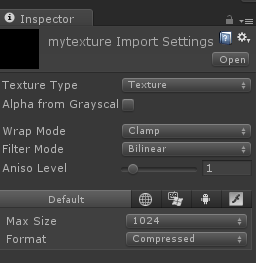
Also in the Texture Importer make sure you stay away from settings like Alpha from Grayscale… You already have an alpha channel. Similarly just use the “Texture” texture type.
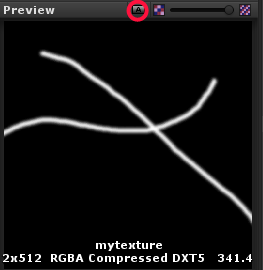
Tip of the Day: Use this little button to toggle between color view and alpha view when playing with the Texture Importer.
Remember to press the “Apply” button when you make changes!
I seem to find solution to my partially opaque/black texture. The problem was caused by the fact, that texture was PNG file exported from photoshop via “save for web” with no alpha channel embedded (although “transparent” was checked in export options"). Cinema 4D, my modelling tool is smart enough to handle such textures, but Unity seems to need a texture with separate alpha channel. TGA file did the trick
“Semi-transparent object effect” was caused by using wrong shader. Transparent/diffuse creates partially transparent areas, so my object looked kinda X-ray. Switching to transparent-cutout/diffuse solved the problem.