Dear Unity Community,
We’re thrilled to announce that you now have access to a library of 1,408 stunning, realistic materials, generously provided by our partner Twinbru, to use in your HDRP projects.
With Unity Asset Manager, you can access our external libraries with ease, and seamlessly integrate them into your projects. Best of all, these libraries are completely free with your Unity subscription and can be used as often as you like.
Note from Twinbru:
Twinbru brings your projects to life with digital twins—perfect replicas of real fabrics designed for unparalleled realism. Our fabrics, available globally under FibreGuard, FR-One, and Bru Wide, boast European quality, perfect for residential and commercial drapery and upholstery. You can freely use our textures in your Unity projects and request physical samples and product info by clicking the texture info tab in the Unity asset manager and click the “Request Physical Sample” link.

Here’s how you can explore and utilize the Twinbru library:
- Browse collections : Head Asset Manager to explore the Twinbru library and browse its collections to find the perfect material, whether you’re searching for a specific color (like yellow/gold) or a particular design type (such as geometric).
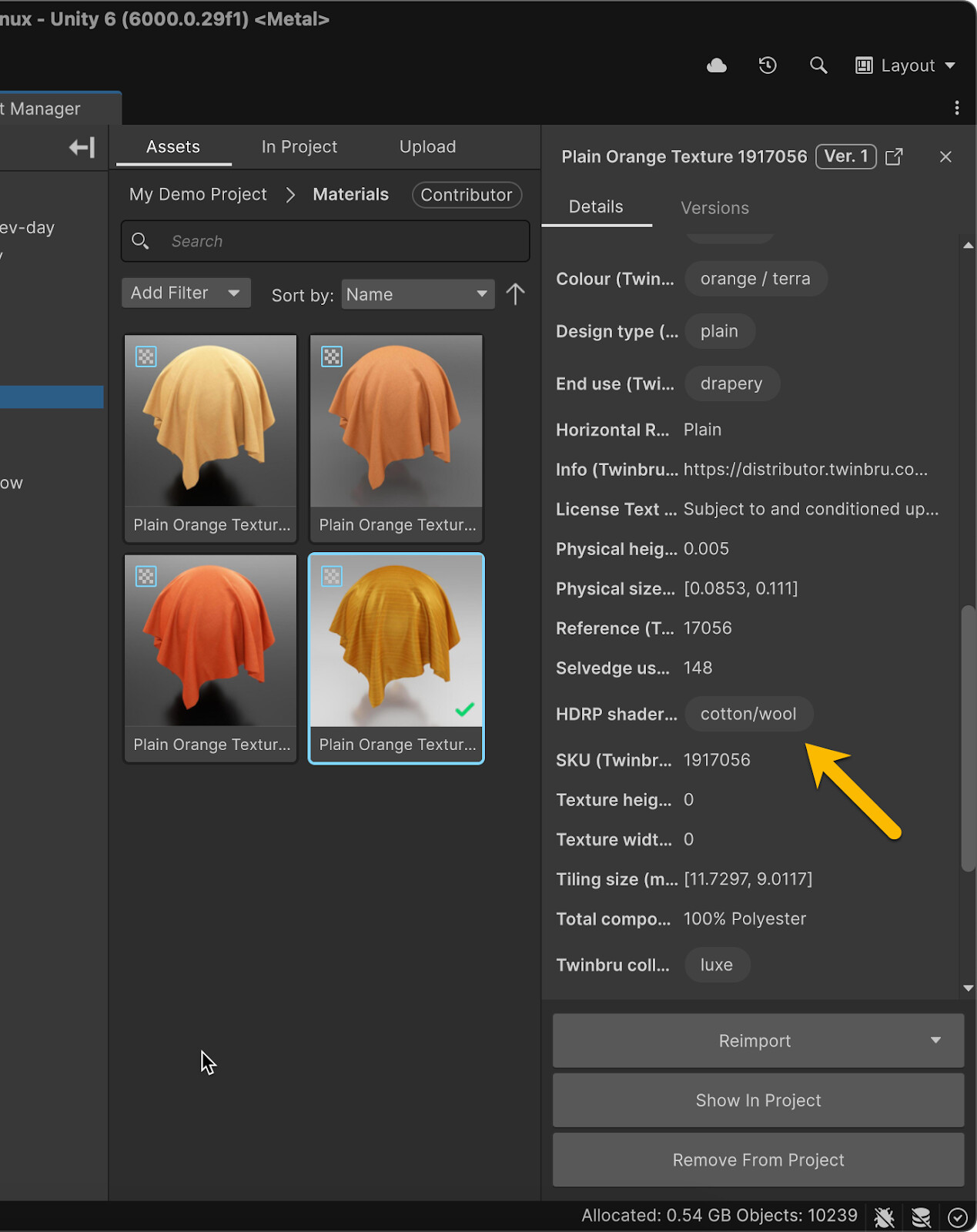
- Get access to Twinbru shader graphs: Twinbru materials require an HDRP shader graph provided within the library, which you can find in the shader graph collection. There are two types to choose from: the Silk shader and the Cotton/Wool shader. Look at the HDRP shader metadata within each material to determine which one to apply.
How to use these materials in your Unity HDRP project:
- Connect to Asset Manager. Then, from the External Libraries section, browse the Twinbru Assets library.
- Browse and search by Characteristics, Colour, Design type or Twinbru collection

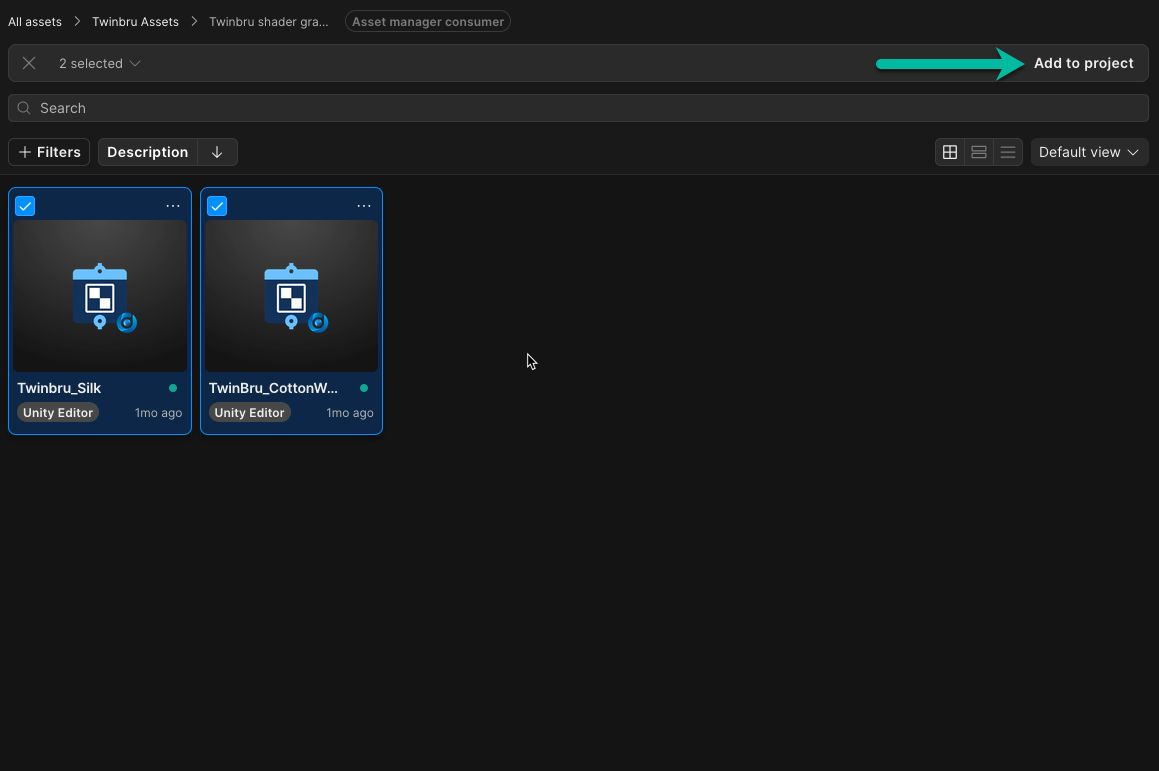
- Choose the materials you want and click ‘Add to Project’ from the multibar to add them to your selected Asset Manager project.

Note: All materials added to your projects will count against your storage allocation.
- Select both shader graphs and add them to your project.
- Open your Unity HDRP project.
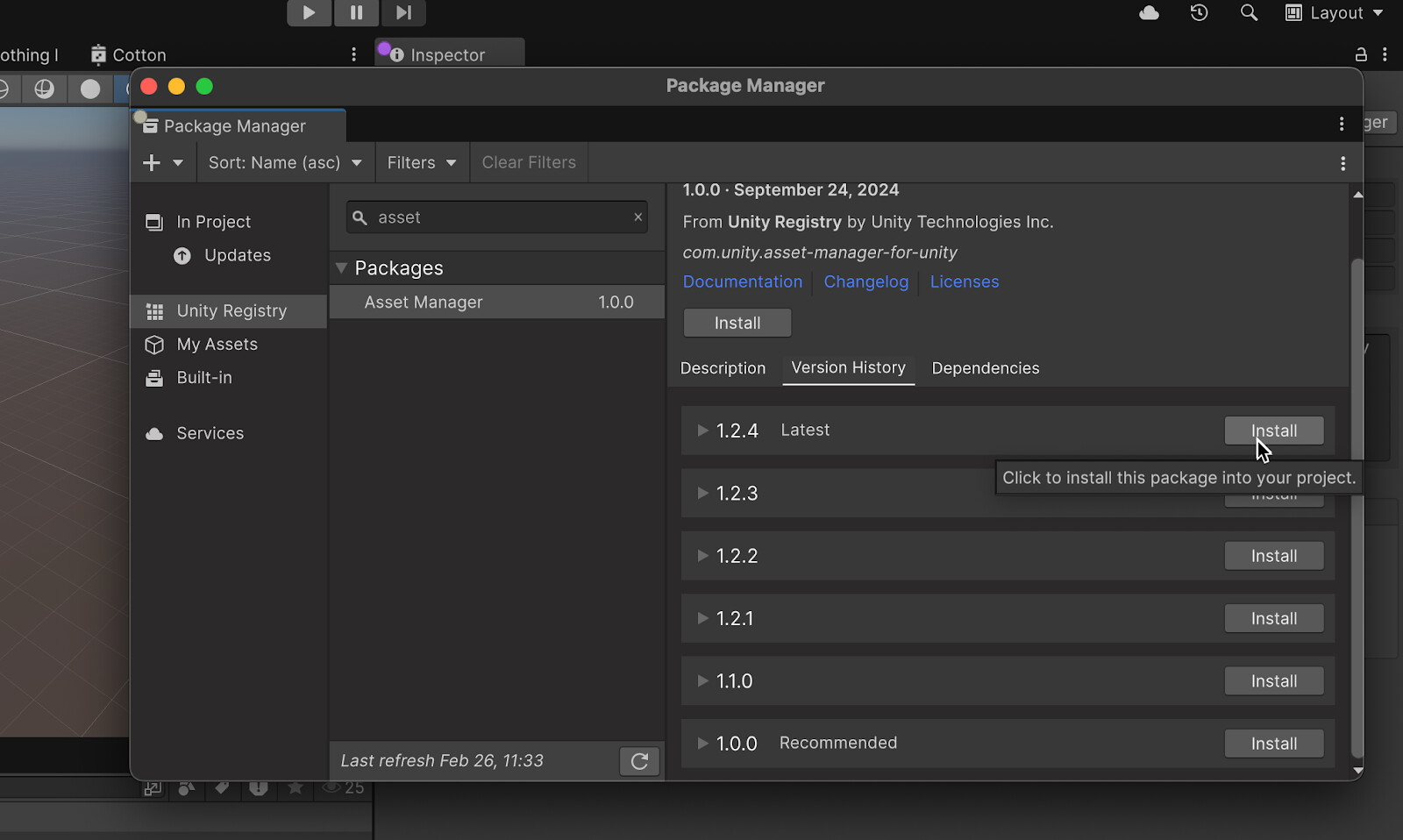
- Install the Asset Manager package (from Unity Registry) (from Version history tab, display other versions to access the latest and most debugged one).
- Connect your project to an Asset Manager project. (If it was not already the case)
- Browse your Asset Manager project and find your material(s).

- Import them into your project and update the import settings of your textures.
- For the msk and specular: remove the sRGB (Color Texture) parameter (turn it to false).
- For the Normal: Ensure the Texture Type is set to Normal Map.


- Look at the custom metadata of the material and import the appropriate shader graph.

- Create your Twinbru material within Unity Editor
- Select the Twinbru Shader graph as the material shader

- Map the imported textures to the correct channels of the material.

Note: Bear in mind that the preview of the material in the inspector is broken. It’s a known issue.
-
Update the Physical Size and the Physical height with the corresponding value given by the asset custom metadata.
-
Use the material in your project to make your scene looks even more realistic (you can play with the Tilling to get the best result)

Feel free to reach out to our support team if you have any questions or need further guidance. Happy creating!
Basile
 Nice additions. Any plans to get them to URP too?