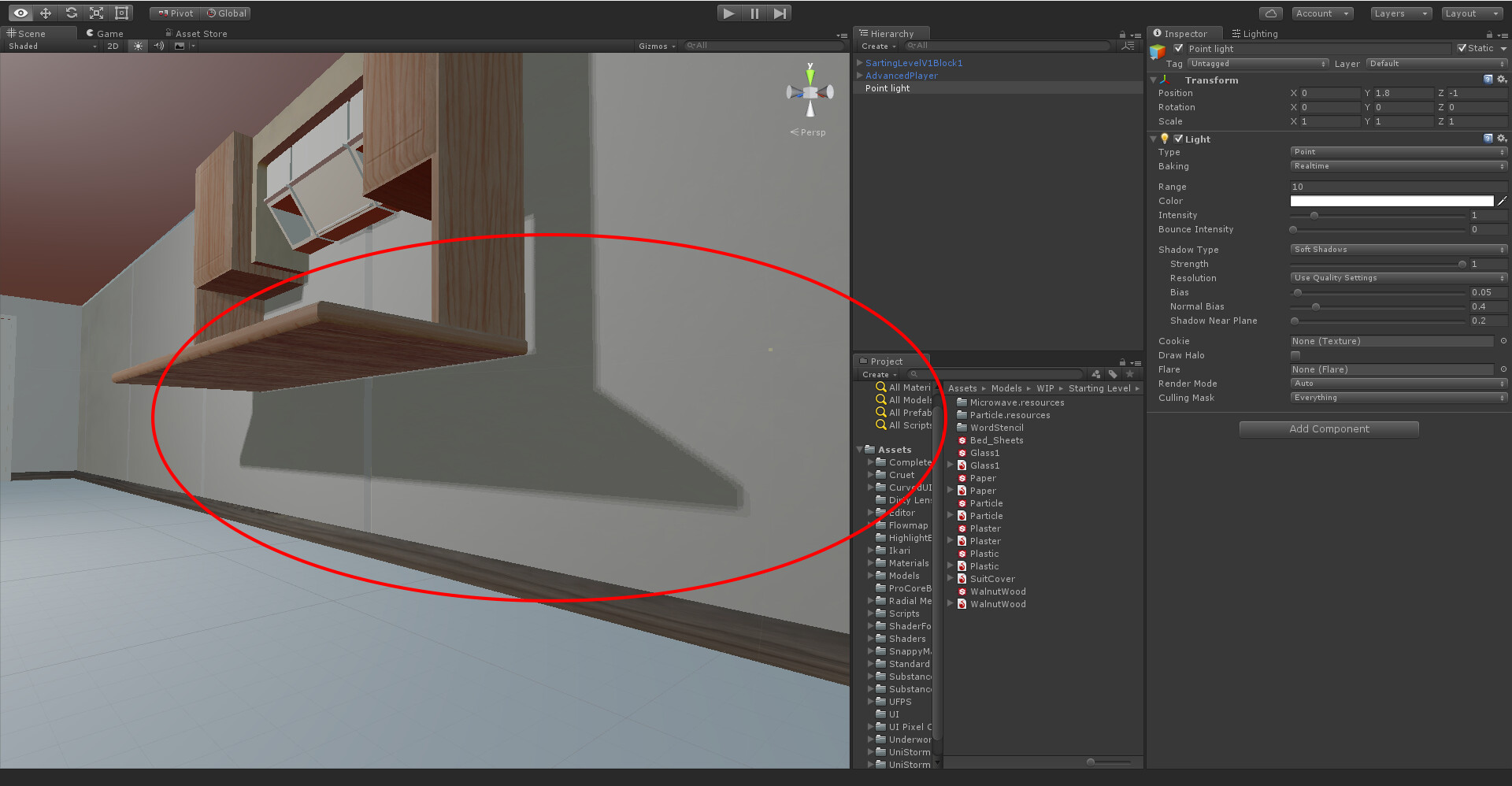
I have to admit, I haven’t concentrated on lighting at all over the past month so I didn’t notice this, but now I am trying to set up the lighting, I am having a lot of trouble getting anything even remotely passable for a game.
What exactly is going on here? Why are my quality settings at the highest, the DX version at 11 and the shadows are so far away from the object and look so…layered and bad in general?
It looks like like the sheves are not flush against the wall (unrelated?).
It looks like there are three different light sources. Are you sure there’s only one light in the scene?
The shelf (meant to be a desk, no legs yet), is flush with the wall perfectly (vertices exactly on the mark).
There is only 1 light in the entire scene, so it can’t be that.
The fact that the desk doesnt looks like it is flush against the wall is what puzzles me. It looks like it is floating infront of the wall. I don’t think you should see any white light around the edges of the shelf. It leads me to suspect something is wrong with the 3d model.
That light around it is shadow bias, the accuracy of the shadow cast.
The problem with Unity lighting in general, and the reason it is way behind most other engines of it’s size, is it’s inaccurate.
Put the bias down too low and it starts casting shadows on the face of a flat object, so a face can actually shadow itself in Unity which I have always thought is a kind of dumb setup.
But that it there even if I drag it all the way down to 0.
Sorry. I tried it on a scene and you are right, for point lights normal bias does nothing.
Also, 0 bias is not enough if the light is a little far from the object. This is very bad…
Yep I’m having a similar issue, the shadow is not starting at the legs of my character, and it also looks very blocky, the blockyness I can live with, but the fact its not starting at its feet makes him look floaty and that is actually a big problem, I’m also using a point light to lit him, all the possible quality settings for shadows on the light and on the quality setting tab are maxed out, now if I make him bigger, 10 times as big, then the shadows work as expected, but then I’m no longer working on a real world scale, where he is 1.80 meters, and the camera on the level moves very slow to be practical to have all the meshes being that big, so I’m kind of stuck not knowing what to do.
Funny thing is, that I can’t lower the bias lower enough to even get those artifacts, the dialer goes to 0, but unlike the directional lights, where you can decide for your self i you want to be borderline on the verge of having artifacts or not, with point lights this decision is taken away from you.
Has anyone found a solution to this?
I’m facing the same problem with my main character.
As you can see in the screenshot, the character seems to be floating, but it’s not. His feet are touching the ground - even passing through it a little bit.
For walls and pillars, which are thicker, the shadow still starts under the mesh, so this is not a problem. For the feet of the character, however, that is quite disconcerting. It makes the illusion that the character is always above the ground when walking, never touching it.
PS.: Bias and Normal Bias for all the point lights in my game are at Zero.
Currently, there are no real solutions for this yet but it will be addressed with new and advanced shadow techniques in Scriptable Render Pipeline.
Until then, there is a suggested approach by our developer @fguinier
You can try tweaking or commenting out mydist parameter in UnityShadowLibrary.cginc built-in shader:
1- Find mydist in UnityShadowLibrary.cginc, comment it as //mydist *= 0.97;
or reduce the amount of hardcoded bias, such as:
mydist *= 0.99;
2- delete the Library folder in the unity project
3- restart unity to force a shader recompilation
4- play with the bias setting to counter act the newly added shadow acne
This doesn’t completely eliminate the problem but improves the result, could be tweaked more based on your use case. This solution is suggested for point light.
I also found that this is sadly how Unity displays point light shadows. Only directional shadows look nice (unless you want to use MSAA, then you run into problems as well).
I’ve lightly tested a shadow replacement asset, but only had mixed results from it so far (it’s supposed to also fix the floating effect that others in this thread get… so for those people I recommend looking up something called NGSS to try).
Looking forward to the “new and advanced shadow techniques” mentioned in the previous post…
It has been over a year since you’d mentioned new approach to point lights. There is new Unity 2017, but these point lights’ shadows don’t seem to work fine (actually these lights are useless with shadows turned on). Any new solutions?
Well, currently it’s still in beta and things are still changing quite drastically but there are new solutions added to Scriptable Render Pipeline. It’s just not very user friendly to try at the moment. Nevertheless, you can download 2018.1 beta and use HD Render Pipeline template to benefit from new render pipeline and shadow solutions.