[Released]Pixel Perfect Camera

Pixel Perfect Camera
Asset Store Page
[HTML5 demo]
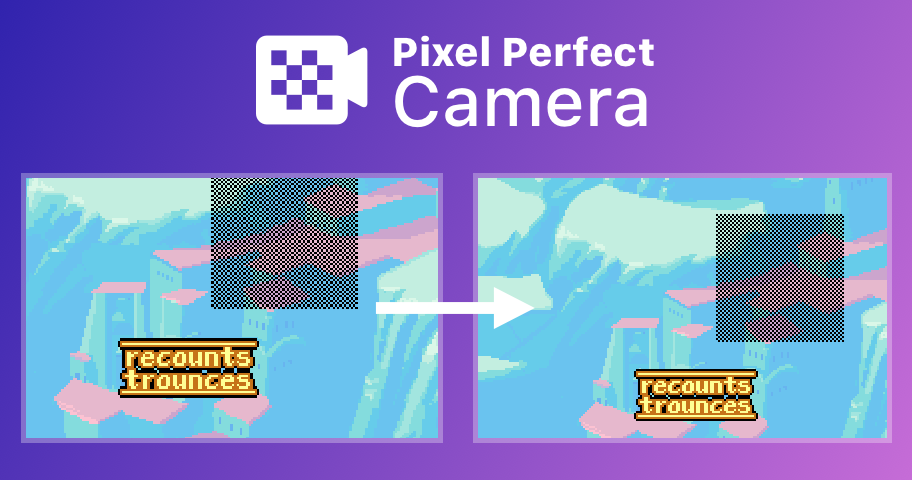

It’s a camera script which gives more control over the camera size and enables pixel perfect rendering for pixel art sprites.

Features

Pixel perfect: adjusts the camera size so that each sprite pixel is rendered to an integer number of screen pixels. This is very important when you render pixel art using “point sampling”.

Camera width: specify the camera width instead of height (the default Unity camera allows you to set only the camera height).

Size constraints: you can optionally set the maximum allowed camera width or height. This is useful if for example the user has an ultra wide monitor and you don’t want your camera’s width to be wider than some amount. The script will choose a camera size that respects all constraints.

Retro snap:enabling pixel snapping makes sprites snap to the artwork’s pixel grid producing a snappy retro motion.

How it works

In contrast to other camera solutions, this script uses a very simple way (which will most probably not have any side-effects in your project) to achieve pixel perfection. The only thing it does is that it adjusts the camera’s orthographic size.

The script makes sure that each sprite pixel gets rendered in an integer amount of screen pixels. You can read more about the rational in my blog post.

If you enable retroSnap, each sprite will snap in the asset’s pixel grid. Thus, when a sprite is translated, it will move multiple screen pixels at once in order to snap to the artwork’s pixel grid.

Note that if you change the scale of your sprite or you rotate it, you won’t get the blocky result you may expect. So, sprite scaling and rotating should probably not be used.

How to use

Create an orthographic camera and use the script on it. You can watch this video for more information.

If you want to use the pixel snap functionality, you’ll have to use the pixelSnap script on every sprite.

Project set-up

If you want to enable the pixel-perfect mode, make sure that your project has the following set-up:

  • Use an orthographic camera and throw the Pixel Perfect Camera script on it
  • Leave the sprite’s scale to 1.
  • The textures of your sprites should use: point filtering, disable mip-mapping, compression to “none” (Truecolor format in older Unity versions)
  • All your textures should have the same Pixels Per Unit
  • Make sure that the player settings of the platform(s) you are targeting don’t reduce the texture size
  • In your project’s quality settings: set “Full res” in Texture quality and disable Anti-Aliasing for the platform you are targeting**.**
  • For best results use the sprite editor to set a pivot point of [0.5, 0.5] to your sprites (the default one).
  • Place your game objects in positions with coordinates that are either integer or multiples of [1 / Pixels Per Unit]. For example, if Pixels Per Unit is 100, have the initial position of your game objects be at multiples of 0.01 such as 2.04, 4.32 but not 2.043 nor 0.001 etc.

UPDATE: In order to continue the support and development of Pixel Perfect Camera further, we decided to put a price tag on the addon.

7 Likes

Hey,

Just tried the plugin and it seems to work well, however i need the camera size to be static or else we can see outside the boundaries in some of my rooms, what are my solutions?

I’ve checked some other pixel art games and they all seem to be pixel perfect and to keep the same camera sizes, what’s the secret?

Here’s an example of the issue, at some resolutions we can’t even see the doors in this room where the camera doesn’t move.

Hello,

Pixel perfect rendering and “static” camera size for different screen resolutions can’t work together unfortunately. It’s only logical that a specific screen resolution allows for specific pixel perfect camera sizes.

The other pixel art games that you checked are most probably not pixel perfect. Note that if the ratio of screen pixels per asset pixel is quite large (very blocky pixel art), you can disable pixel-perfect mode and the user may not ever notice it.

Also, if the game is a pc game, you could add black bars on the sides and render the same camera size in a pixel perfect way. PixelPerfectCamera does not offer this capability but it can be tweaked. Alternatively, some games may render to a render texture in a pixel perfect way and scale that to the screen. It will not be 100% pixel perfect but it’s ok.

If you want to stick to PixelPerfectCamera, as it is right now, you can play with max size to restrict the possible camera size you may end up with.

Thanks for the detailed answer, i have to find a solution as right now there is a lot of artifacts, i’ve seen the render texture solution being mentioned a lot so i’ll try to look into that.

I tested the game “Hyper Light Drifter” on two of my monitors, i read somewhere online that they render the game in 480x270 and then stretch that to any resolutions, i’m guessing the render target in Unity would be a similar approach.

Here’s a zoomed in crop of the fullscreen game on both of my monitors, we can definitely see that the game is pixel perfect on my 1080p monitor, but do you know what they’re doing to the other resolution that makes it look like it has some filtering, is it just bilinear filtering? The game looks great even when stretched to non native resolutions, there is no artifacts and the pixels don’t look weird, the game is less sharp however.

1920x1080

1680x1050

Also another question, after trying to make my game pixel perfect i’ve come to the realization that my art is either scaled too small or too big, that probably means that i have to redo all of it with pixel perfect scaling in mind?

The first screenshot resolution is 1920 = 480 x 4 . So, it renders pixel perfect.

Regarding the second screenshot (1680x1050), it doesn’t look like normal bilinear filtering.

My guess is that they use some shader to render the 480x270 render texture to 1680x1050. You can read the theory behind a shader like this here:

I have used the following asset that has a shader that renders using point - sampling at the center and bilinear when close to the edges that produces a similar result with your screenshot:

You could use this shader to render the low-res render texture to full screen.

Ideally, your pixel art should be used with scaling set to 1. Thus, each asset should be created with the same “scale” in mind and the assets should look good next to each other.

1 Like

Thanks for the links, i’ve heard of the retro AA shader, i guess i’ll go the render target route and try to reproduce what Hyper Light Drifter is doing.

About scaling, all my assets use the same PPU scale, what i’m referring to is that at my current resolution and PPU my game is only pixel perfect with a camera scale of 2.7 or 5.4, at 2.7 it’s too zoomed in and my character appears too large, at 5.4 the character is way too small, unless there is anything i can do about that i guess i’m going to have to redraw my art a bit smaller and go with 2.7.

Note that the higher your screen resolution, the more camera scales will be available for the pixel-perfect camera to choose from. As you may have already noticed, the camera scales chosen depend on the resolution of the game view, when you are running it in the editor.

Since you are going the render texture way, you can actually choose the camera scale you want, calculate the pixel-perfect render-texture resolution and then render it on screen using a shader. You don’t need to change your assets.

Also, I am proposing to use the retro AA shader for rendering the render texture on screen. Not for rendering each sprite, as it’s its normal use case.

This is interesting, well i’ve already decided that i want my game to be pixel perfect at 1080p, my base resolution would be 480x270 but since i’m also using particles and other non point filtered elements, i’m going with a render texture the size of 960x540.

My PPU right now is at 50, i realize now that this number isn’t ideal but i use physics so i can’t use a PPU of 1, wouldn’t that force me to use a camera size of (540 / PPU / 2) 5.4 or 2.7 ?

It doesn’t seem to be pixel perfect at any other camera sizes.

Thank you so much for taking the time to answer my questions, i know that this isn’t related to your plugin anymore, but there is a lot of confusion regarding pixel perfect rendering and it’s something that is so important for every 2D pixel art developers, i wish Unity would handle this themselves.

Yes, 2.7 would be the correct size. Note that since each asset pixel will render to 2x2 render texture pixels, this will allow your sprites to move to half an “asset pixel”. This is also the case with PixelPerfectCamera, unless you use retro snap that makes the sprites snap to asset pixels. I personally find the motion smoother this way, but you may find that it’s not pixel-art correct.

There’s already a feature request for pixel perfect 2D mode, which you can upvote:
https://feedback.unity3d.com/suggestions/pixelperfect-2d-mode

Yeah i already added my 10 votes to that feature request, hopefully they’ll listen.

Also another observation, while pixel perfect, my sprites aren’t all synchronized when in motion, i’m guessing this is because some of my sprites are placed at floating point accuracy in the world without being snapped to the pixel grid, without being able to set my PPU to 1 this has proven to be challenging, other than having a “snap to the pixel grid script” on each of my sprites, do you have any suggestions?

Thanks for all the help Douvantzis, i’ll definitely recommend your plugin to those who don’t need a static camera size.

I have played around quite a bit with pixel perfect and it is not that straight forward. The principle itself is of course simple, there are just many ways / settings to disturb it.

My recommendation is only to bother if you design for a specific target platform (and the other aspect ratios / resolutions are more of a nice to have).

Otherwise try an early prototype with the retro aa shader (I have not used it but understand he principle behind it) and see if the results are acceptable. Based on the screenshot you shared (looks great) your game could be quite fine even if not pixel perfect (seems more forgiving then let’s say more static , line based art with harder color edges)

Thanks, i’ll definitely try some non pixel perfect alternatives like that Retro AA shader and see if it helps. I jsut wish they had a demo version of the plugin.

KhenaB if you are rendering in a pixel perfect resolution and have the initial position of the sprites snapped to the grid (this is easy to achieve from the editor), then this problem should not appear. To clarify further, if the rock and the plant behind are translated with the same offset in every frame (assuming that you don’t use any parallax effect that results in a different offsets for each other), you don’t have to “snap” or round their position in runtime using a script in every sprite. The problem should not appear.

Not that this problem will also appear even if you render in 480x270. It will also appear if you use the Retro AA shader. However, as I explained, the solution is really easy.

Since you use 50 pixels/unit, then snapping to the grid in the editor is using a position that is multiple of 1/50=0,02. If you have something like 0,021 then there’s a problem.

Just to clarify, when I mentioned ‘pixel perfect’ in my previous post, I did not refer to the asset by @Douvantzis but pixel perfect rendering with unity in general.

And with settings / ways to disturb I mean, I.e. Quality settings defaults, moving vs static camera, moving game objects, import settings, sprite sizes & pivot points (it can make a difference if they are pot, even dimension or uneven dimensions), if you use physics or not (how much of control you have on the world position and/or at what stage you need to adjust it) etc…

Why did you choose 1:50? Much easier to think in 1:1 or 1:100.

My personal opinion as stated before is that it is worth going for real pixel perfect if you have a main resolution / platform to release for. If it’s a mix of resolutions / aspect ratios, try the shader. It’s a sound principle and you can read up on it, it’s no magic but better than the standard one - not a solution for the ‘purist’ :wink:

Yes, i know that if the position of my sprites is a multiple of 0.02 they’ll all look great, but that’s not the case when using the translate tool in unity with a PPU of 50, i don’t want to have to enter the position manually to make sure it’s a multiple of 0.02, that would make level design a pain, having a script that would snap my sprites to 0.02 increments (in editor) would work, but would also be a pain to add to every sprites. having a PPU of 1 would allow me to use the translate tool without worrying about it, but it would mess up the physics, so i’m looking for a better solution.

I went with a PPU of 50 because at first i thought it was only important for physics, i placed a 2 units (2 meter) cube (Typical door height), then placed my character next to it, a PPU of 100 made my character too small next to the “door” so i just halved it.

@Khena_B I thing there must be a way to write an editor script that goes through all scene’s game objects and adjusts the position according to the pixels per units used. This would solve your problem, without interfering with the level design. Perhaps someone out there has already done this on the asset store!

Also, regarding pixels per units and physics, I think that you can adjust some constants (gravity etc) and have the same effect for different pixels per units settings. In other words, you could set1 pixel per unit and after adjusting those constants, your physics could produce the same results.

1 Like

Thanks Douvantzis, i’ll give the second suggestion a try, also i’ll see if i can find some information around about how to make such an editor script.

Before I get into whats going on I just want to say this asset pretty much saved my game and I thank you for the hard work you put into it. It’s really well done <3

Now over the past couple of days I’ve been getting the warning message:

Render mode: ScreenSpaceOverlay is not supported by CanvasScreenSpaceScaler
UnityEngine.Debug:Log(Object)
CanvasScreenSpaceScaler:Initialize(Boolean) (at Assets/Addons/PixelPerfectCamera/Scripts/CanvasScreenSpaceScaler.cs:28)
CanvasScreenSpaceScaler:OnValidate() (at Assets/Addons/PixelPerfectCamera/Scripts/CanvasScreenSpaceScaler.cs:54)

Thing is I’m not using screen space overlay on anything in my game, anywhere on any canvas, let alone in the one that it’s yelling at me for. It is in fact Screen Space - Camera. Strange. Everything is still working as intended, nothing is broken, that’s just popping up every time I run my game. I’m going to comment out that debug just thought I’d give you a heads up though :slight_smile:

Thanks again for the awesome asset.

edit: Also in your docs it says to use truecolor format. Is this RGBA 32 bit now?