Check out please RuntimeCurveEditor, if you need to visually edit curves, in a similar way provided by the Unity Editor’s built-in Curve Editor.
Runtime Curve Editor 2.0, is up on Unity Asset Store, in this new version the old legacy has been entirely replaced with Unity UI. Also, new features like: zoom in/out pan, multiple key selection and undo/redo support have been added. You can also check the WebGL demo: Unity WebGL Player | runtimecurveeditor
1 Like
Runtime Curve Editor 2.1, is up on Unity Asset Store, in this version, GL “immediate mode” drawing has been replaced with Graphics.DrawMesh. So the drawing(and related code) is more efficient and it also works with HDRP or URP.
@Varaughe
Hey there! I just purchased Runtime Curve editor and am running into some trouble, maybe you can help?
I see that the prefab includes a camera and Screen Space Camera canvas. Unfortunately, that won’t work for my project as all of my UI is on an Overlay canvas and I have other complicated camera setups that this wouldn’t play nicely with.
Is there a way to get it working with an Overlay canvas?
My intention is to keep the curve window UI as a child of my main canvas, and just enable and disable it as I need, passing in single animation curves to initialize the editor with.
I feel like this should be relatively basic, but I’m having some trouble getting it working with my existing canvas setup.
Any help would be greatly appreciated!
@JudahMantell
Moving this curve editor to Overlay canvas is out of question(I remember very well, how I had to change to Screen Space Camera canvas).
Best you should do, is to have the Runtime Curve Editor’s camera culling everything but a separate layer. I know it is UI the layer, but if this layer is used already by your setup, define another layer. The Canvas of this Runtime Curve Editor should have that new layer. If you have other cameras, just cull off this new layer of Runtime Curve Editor.
So mainly, by correctly selecting the layer and the cameras’ culling mask, you should be able to get what you need.
Ah, I understand, thank you for the info. Unfortunately that still won’t work for my project because of a very specific UI setup, but I appreciate the reply nonetheless.
I suggest adding some more info about the required canvas setup to the Store page so others don’t get misled.
1 Like
It’s definitely possible with any setup, including yours, unless you want (by any means) to have the Curve Editor a child of your main canvas which is overlay mode(not screen space). Rather you should contact me by email to check myself your project to find the best solution.
1 Like
I love this asset, but like @JudahMantell - it would be great to have some more documentation on how to position and create instances of the Runtime Curve editor.
I’m still struggling to figure out a way to do the following:
-Add a Runtime Curve Editor GUI object as a Child of an existing RectTransform in my canvas.
e.g. I have a panel (“MyCurvePanel”) in my main game Canvas, which is 1920x300 pixels in size.
I would like to add the Runtime Curve Editor GUI as a child of MyCurvePanel, and have its size inherited.
Whenever I try to do an parenting/childing of the Runtime Curve Editor, the camera curves do not update their position as expected.
This was exactly what I was trying to accomplish as well. Because the curves are being drawn to the camera with Graphics.DrawMesh, they have to be in camera space, and cannot be on an overlay canvas because the curves aren’t UI elements. It results in elements being inconsistent in their placement: Some UI has to be in an overlay canvas, while the Curve Window has to be on its own camera canvas. I found this quite frustrating as I wanted all my UI to be in the same place for easy management and scripting. (The developer politely called my requirements “absurd” which didn’t help the situation… No hard feelings, I understand that a lot of time was spent developing it, but it would be silly to say that it’s perfect for all use cases.)
In any case, I’m having this plugin re-designed using a UI line renderer so it works seamlessly on all canvas types. Because this is a paid asset that I already sunk money into (solo dev with a small budget), I’d be happy to share the result if you PM me.
2 Likes
@JudahMantell “Because the curves are being drawn to the camera with Graphics.DrawMesh, they have to be in camera space, and cannot be on an overlay canvas because the curves aren’t UI elements.” !?
Graphics.DrawMesh has nothing to do with “screen space - camera” choice over “screen space - overlay”. I added Graphics.DrawMesh especially to support HDRP, and secondly, it’s better and more natural to draw, the curves as an unitary mesh instead of a string of lines drawn in immediate mode.
I preferred “screen space - camera” instead “screen space - overlay” many years ago, and nobody complained about it until some days ago :).
The reason I preferred “screen space - camera”, is because the gradations and the positions where the lines (making the curves) are plotted should not be influenced by the screen size.
As I said, nobody complained before about this particular detail, and I offered my willingness to take a look on the projects using this Runtime Curve Editor, to give advices. So far, nobody asked me for help regarding this particular issue.
@Varaughe
My mistake, I misunderstood the reasoning behind the choice.
In any case, it’s incompatible with my project. There isn’t much else to say. Submitting a project for you to look over isn’t always possible or ideal.
I’m glad to hear that no one else has complained since you released the asset. It doesn’t make it any less of a challenge to work with in some cases.
I do sincerely appreciate the time you took to respond though, as I know the plugin has been available for quite some time 
PS: Unrelated: I will be purchasing your External Display plugin, it looks super cool!
1 Like
Check out please the latest version of the RuntimeCurveEditor, if you need to visually edit curves, in a similar way provided by the Unity Editor’s built-in Curve Editor:
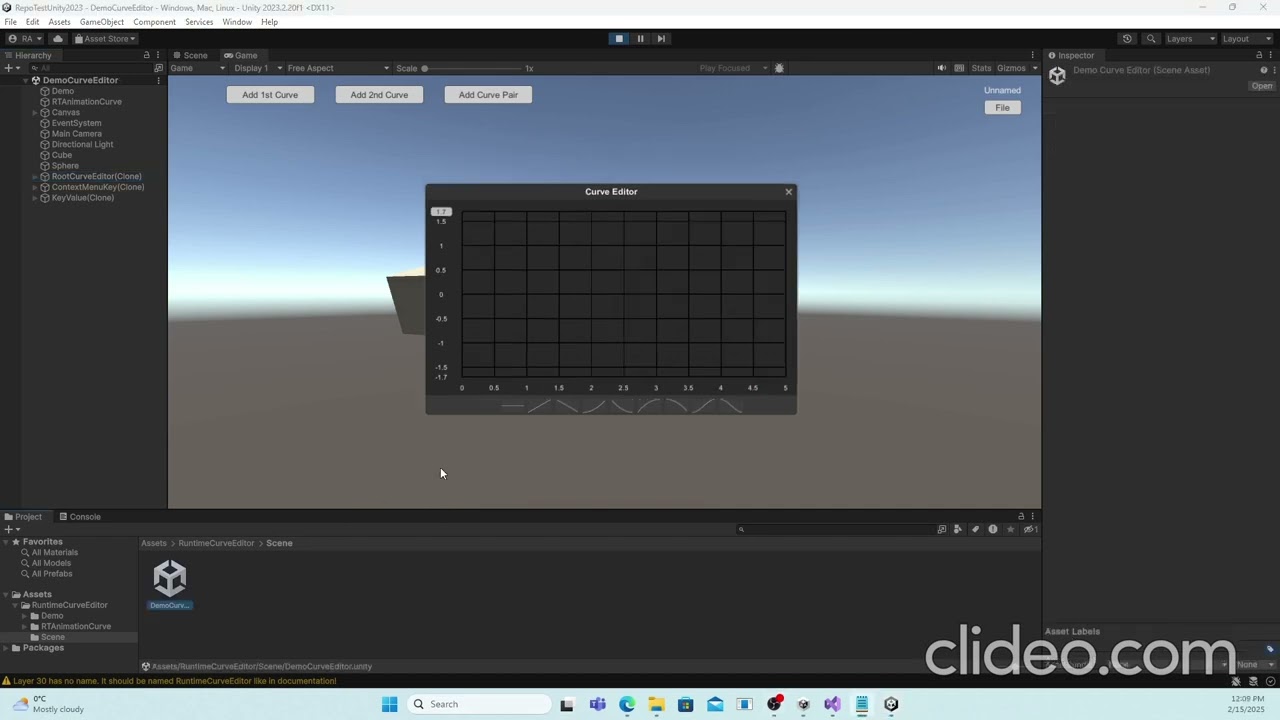
Check out please “Runtime Curve Editor”, at the lowest possible price (just $5.00).
Bump!
Check the “Runtime Curve Editor” out!
Probably the package with one of the best(excepting the free assets) ratios(value added/price) in the whole Unity Asset Store. And I’m not exaggerating at all.
The price is minimum ($5.00), Unity Asset Store doesn’t accept a lower price, unless it’s free.
After more than 10 years, since its first release, a period of time that included many sessions of additional developments, improvements, fixes etc, the package/code has became completely mature.
Since the last release (more than 7 months ago) despite a quite good number of sells, there have been no single complain, question, raised issue or anything related to this package.
I did buy it recently but uninstalled it shortly after. First impressions weren’t good as it has a pointless dependency on the Visual Scripting package that I wasn’t using, so it threw errors immediately.
After modifying the code so it could compile, it had weird drawing issues on Unity 6 and also didn’t sem to be scaling properly with 4k resolutions.
I was only using it for a quick test and it was only $5 so didn’t see fit to report or review it, but I would definitely address the pointless package dependency, and test it on the late Unity 6.
How on Earth could it be dependent to Visual Scripting, the package has nothing to do with that package :). It uses just UGUI.
The only possible issue you might encounter, is the need of setting up a proper layer “31” as described in documentation.
Probably you tested it just on Unity 6.
I mean, is this not your package? It’s right there in the code. The Visual Scripting namespace is used in about 2-3 of the scripts. If you don’t have the package installed, you will get a handful of errors.
You could check the latest update of Runtime Curve Editor, there’s no longer any dependency on Visual Scripting. The only dependency remains on Unity.UI package(UGUI). There’s no other single dependency.
You could check the last video about it.
Aside of that, take care with the rendering layers, the RuntimeCurveEditor has its own layer (now, I’ve
moved it from 31 to 30). ‘RuntimeCurveEditor’ name has to be manually set on layer 30. Because this is a project setting, it is not saved in /Assets (as the package contains only the /Assets).
I tested myself this package on Unity 2021, 2022, 2023 and Unity 6, on both Windows and MacOS.
I noticed no issues at all. I haven’t test it on 4k resolutions yet. But I doubt it can be anything related to it. I tested on lower resolutions(720p on PC) and higher resolutions on Android(2340x1080)), and there’s no issue. The resolution I’ve worked on is the standard 1080p.
Anyway, if you’ll ever see anything wrong, let me know please,
here on forum, on Unity Asset Store’s page(by writing reviews), on the Youtube channel(by writing comments on the video) or by emailing me (center@republicofhandball.com). Screenshots, explanations and why not, short video screen recordings are welcome :).