Score Flash, now available on the Asset Store!!!
FORWARD NOTICE: Now that it’s released, please go to the new forum posting:
[RELEASED] Score Flash - Scrolling Combat Text on Steroids: Easy to use GUI for Scores, PowerUps, Achievements, Tutorials
http://forum.unity3d.com/threads/152517-RELEASED-Score-Flash-Easy-to-use-GUI-for-Scores-PowerUps-Achievements-Tutorials
Please do not bump this thread, it’s only kept for historical purposes 
Archive (including full history of ScoreFlash):
HEADS UP (2012-12-17):
X-Mas Sale coming up (probably tomorrow, 2012-12-18)!
So while I really want you to buy ScoreFlash - wait until it’s 30% off!!!
V2.2.4 is now available (this is a minor bugfix release which fixes an issue with the PlayMaker actions; when you use PlayMaker, make sure to re-import Plugins/NarayanaGames/ScoreFlash/Component/PlayMaker-Actions-Package after you have updated ScoreFlash to 2.2.4!
Score Flash is a simple yet powerful GUI for pushing scores, achievements, collected power ups, tutorial instructions or even chat messages above players’ heads in a fancy and highly configurable way. With ScoreFlash, you can easily achieve the effect you may know from the Scrolling Combat Text addon for World of Warcraft. But ScoreFlash can also do a lot more for you - and it’s easy!
ScoreFlash has no dependencies (it can use UnityGUI) - but also works with NGUI, EZ GUI and PlayMaker!!!
Here’s a video showing you how easy it is to go from using ScoreFlash with UnityGUI (the default) to having ScoreFlash use NGUI instead:
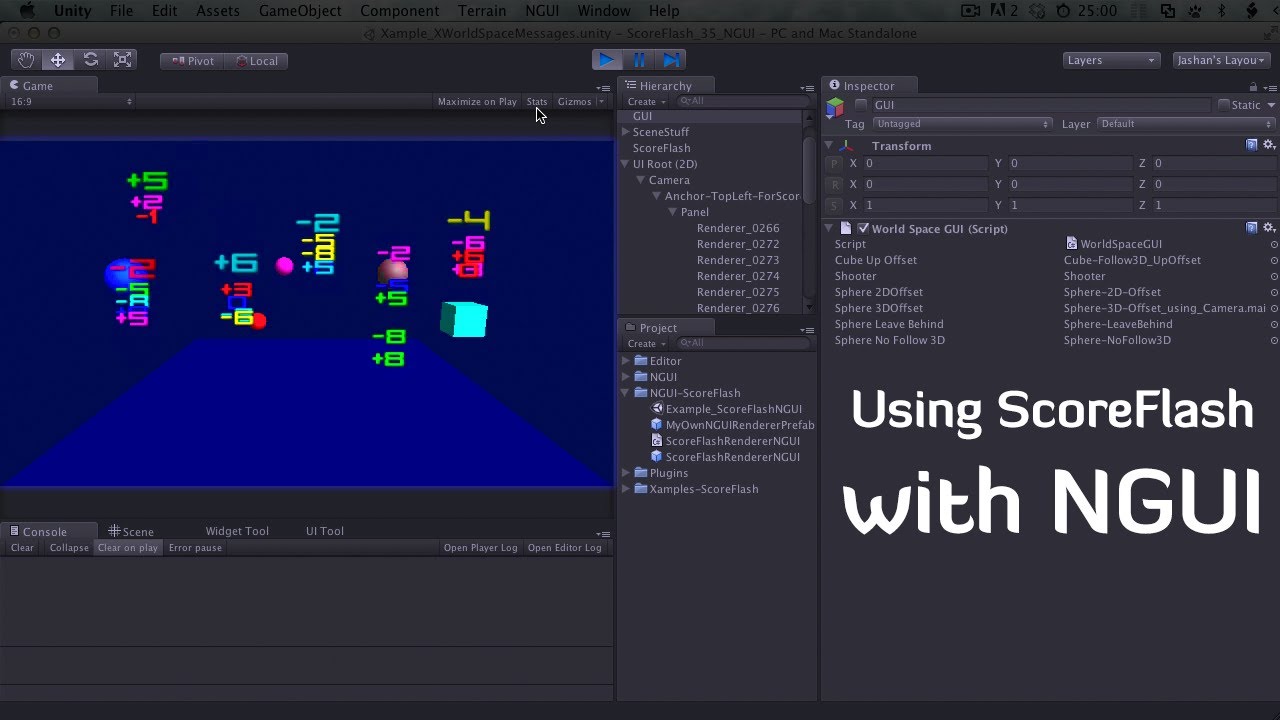
Watch on YouTube (for 720p HD)
The ScoreFlash Demo Web Player (click to start):

Check out the new PDF-Documentation: First Steps with Score Flash
Here’s a quick product introduction:

Watch on YouTube (for 720p HD)
Buy Score Flash on the Unity Asset Store!!!
Score Flash is extremely easy to set up and use; and yet quite versatile, here’s the recommended workflow:
Artist
- Drop the prefab into your scene.
- Hit play and watch autogenerated design-mode messages appear in GameView
- Tweak ScoreFlash to show the messages the way you wish (colors - tutorial, alignment and so on via the custom inspector, fonts via GUISkin - tutorial)
- When you’re done, switch off automatic test messages (Testing / Autogenerate Messages?)
- End playing (make sure the “Keep Changes after Play” checkbox is active to store the changes; it’s only visible in playmode and it’s the last entry in the inspector of ScoreFlash)
For all the details, check out: First Steps with Score Flash
Programmer
Anywhere in your code, when the user should receive a message, like “+23” or “Jump PowerUp collected” or “Achievement ‘Awesome’ unlocked” … or … “Now please make a right turn and increase velocity by 15%, watch the magic happen and enjoy the intense colors” (hey, I didn’t say ScoreFlash could only be used for stuff that makes sense) … just write:
ScoreFlash.Push("The text you want to show");
Yes, it’s that easy … so if you’re an artist that can read and edit a little code - YOU CAN DO IT, GO GO GO!
But wait: While it can be that easy, just posting text might feel a little limiting. So, since ScoreFlash V2 there’s a new interface IScoreFlash (see API documentation) which hopefully provides any method to post a message you could dream of, including using screen or world coordinates or a ScoreFlashFollow3D 
So, you might be more the kind of developer that enjoys something like:
ScoreFlashManager.Get("SpecificScoreFlashInstance").PushLocal("Awesome message");
Or maybe your specific game needs you to write something like:
string message = this.rigidbody.velocity.y > 0
    ? string.Format("+{0:0}", this.rigidbody.velocity.y)
    : string.Format("{0:0}", this.rigidbody.velocity.y);

ScoreFlashFollow3D follow3D = GetComponent<ScoreFlashFollow3D>();
ScoreFlash.Instance.PushWorld(follow3D, message);
For more details, check out the ScoreFlash product page. If you are a programmer, you might be primarily interested in the full ScoreFlash API Documentation.
Or check out some of the tutorial videos:
Tutorial that explains how to work with GUISkins, GUIStyles (custom styles) and fonts in Score Flash:

Watch on YouTube (for 720p HD)
Tutorial that explains how to work with colors in Score Flash:

Watch on YouTube (for 720p HD)
Tutorial that explains how to make sure your play mode changes in ScoreFlash-components don’t get lost:

Watch on YouTube (for 720p HD)
Here’s an introduction and tutorial video that goes into great detail (this is based on the initial version of ScoreFlash, so some parts are outdated):

Watch on YouTube (for 720p HD)
Features:
- Extremely easy to set up and use - designed for artists and programmers alike!
- Just pop in a prefab and flash your scores, no complicated setup necessary to get started
- And yet: Highly configurable if you need to - and even has thought of server-builds (use “SERVER” conditional compilation symbol to automatically disable the component that handles showing the messages)
- You can use ScoreFlash with NGUI, EZ GUI and PlayMaker
- Perfectly integrated into the editor: Trigger test messages right from the inspector in play mode, persist the changes you made while in play mode if you wish (or discard them as Unity would usually do it)
- Supports pushing messages anywhere on the screen (using screen coordinates), or on top of any 3d object; you can use 3D coordinates, or the ScoreFlashFollow3D-component which provides several configuration options and a way to handle object destruction in a nice way (e.g. keeping momentum instead of abruptly stopping the movement of the message)
- When using UnityGUI, which does add some draw calls - you can use several settings to optimize for performance, like:
- Outlines that can be auto-disabled on mobile to save draw calls or be completely disabled (to save drawcalls also on desktop machines - or if your style doesn’t need outlines)
- Several of mechanisms implemented to cope with “score spamming” (i.e. many messages coming in quickly) without degradation of performance, quality and effect
- Support for high density displays (e.g. Retina), if you need it (implemented via two GUISkins and an internal scale factor for coordinates / distances)
- Examples in C#, UnityScript and Boo (it’s so easy to use that this probably is a little overkill - but hey, I needed to make sure it works with all languages supported by Unity anyways so why not share what I’ve got )
- Survives the dreaded “recompile after code change in playmode”, so if you took care that changing code in your project while playing works, ScoreFlash won’t break it
- And finally: Just like probably almost everyone else, I’m waiting for the new Unity GUI - and I want to make sure that once it is available, my games use it … so, I’m committed to making ScoreFlash “just work” with the new Unity GUI with minimal set up / migration. Using ScoreFlash, you are certainly not locked in to an alternative GUI system once the new Unity GUI is finally available. That’s one of the reasons I’m keeping ScoreFlash somewhat barebones and simple for now (this doesn’t say that using an alternative GUI system right now is a bad idea - actually, most likely, it is a good idea but YMMV).
Limitations:
- UnityGUI is pixel perfect - so when doing very slow animations, you will get some stuttering (from one pixel to the next); this isn’t an issue when messages are moving at at least “one pixel per frame” but when doing very slow motions (one pixel every many frames), this can be an issue
- For multiline text messages, the line-height / line spacing depends on your font; with some (e.g. Ubuntu), this works fine - but some have rather large default line spacing and it’s not possible to change that in Unity; see also: Font Line Spacing and Kerning in GUI System. Again, most likely this will not effect you; especially not if you’re already using fonts in multiline texts in Unity GUI and it works. But I ran into it during development / testing with some free fonts so I want to make sure you know this can happen.
Tested on Unity Versions (ScoreFlash does not require any Unity Pro features):
- Unity 3.4.2 (NGUI is not available for 3.4.2!)
- Unity 3.5.6
- Unity 4.0
Tested build targets:
- Web players
- NaCL (seems to be not supported by PlayMaker and NGUI)
- Flash (seems to be not supported by PlayMaker)
- Standalones (Mac, Linux, Windows)
- Android (devices: Google Nexus One, Sony Ericsson Xperia Play)
- iOS (devices: iPhone 3GS, iPad 1, iPhone 4S, iPad 3)
Get Score Flash from the Asset Store!!!
History
2012-09-25: Submitted version 1.0.2 to the asset store, waiting for approval (version 1.0.0 wasn’t approved, version 1.0.1 tried to fix the issues of 1.0.0 but did so in a way that wasn’t so great, so I submitted 1.0.2 while 1.0.1 was still pending approval)
just ten hours later: Awesome - it’s already on the Asset Store! Thanks to the Unity staff - that went really quick! I greatly appreciate it! Unfortunately, in this release, the examples folder was missing because I had named it AssetStore - Examples (another beginner’s mistake - by now you can probably tell that this is the first package I published to the Asset Store ). Fixed the naming issue and a few more and re-submitted to the asset store as version 1.0.3.
2012-09-26: Created new thread (the one you are reading) because the changed title (“[RELEASED]” instead of “[Submitting]” won’t show in the list of forum entries) … link to the old thread
just a few hours later: Once again UT did an awesome job: I submitted last night, and 1.0.3 with the fixed examples folder is already online. Yes!
2012-09-27: Cleaned up this posting quite a bit, added the list of features and limitations
2012-09-29: Score Flash V1.1.0 has been submitted to the Asset Store
2012-10-01: Score Flash V1.1.0 has been approved and is now available on the Asset Store - here’s what you’ll get when you update (or when you buy now):
- Changed primary method from ScoreFlash.Instance.Show(…) to ScoreFlash.Push(…); this is easier to type (the old one still works for now but is no longer recommended to be used)
- Added ScoreFlash.Push(string text, GUIStyle style) and ScoreFlash.Push(string text, GUIStyle style, GUIStyle styleHighDensity) for more flexibility - this is primarily for people who are already managing their own GUISkins and don’t want ScoreFlash to impose anything on them (or require additional “wiring”); this way, you could also use different styles for different messages (using ColorControl.UseColorFromSkin, you could even fully control which colors are used when - set this via Colors / Color Selection Mode / UseColorFromSkin)
- Added minPaddingX (default: 20F) so you can define how close the message goes to the screen borders (left / right) when scale = 1 (obviously, if scale > 1, the message might clip at the borders) … in the inspector, this is called “Padding left/right before Wrap” and is located below Screen Align in the section “Main Layout”
- Added new section Colors
- Added new property: colorSelectionMode which controls how colors are picked and has 4 possible values: FadePhases, UseColorFromSkin, Sequence, Random (see ColorControl), as well as a list to define the colors and
- added Time Reference (under “Readability and Performance Tweaks”) that can take values UseRealTime or UseGameTime (see TimeReference); UseRealTime is the default and important when you use ScoreFlash in a pause-menu (that has Time.scale = 0); UseGameTime is best used if you want slow motion effects to have an effect on how messages are displayed (that’s really an art-choice, no right or wrong here)
- renamed examples folder to Xamples-ScoreFlash (in an attempt to find the ideal “standard name for examples”)
2012-10-02: Created a video on how to work with colors in ScoreFlash
2012-10-03: ScoreFlash V1.1.1 was submitted to the Asset Store
2012-10-03: ScoreFlash V1.1.1 has been approved and is now available on the Asset Store - here’s what this new version has for you:
- Added new setting ensureSingleton - default is true, if you set this to false, you can have multiple instances of ScoreFlash in a scene; however, if you do that, you can no longer use ScoreFlash.Push(…) - at least not reliably - instead, you need a reference to each instance and can then use myScoreFlashInstance.PushLocal(…) - this way, you have much greater flexibility (think of different time- and layout-settings for different kinds of messages; thanks to miroku000 for requesting that feature)
- Removed guiDepth as this didn’t have an effect, anyways - use script execution order if you need to get ScoreFlash above other classes rendering UnityGUI stuff
- Added new examples for PushLocal in C#, JavaScript and Boo
- Added additional advanced example code to the existing C# example
2012-10-11: ScoreFlash V2 is almost ready for submission! I’m tweaking the last few issues and getting the whole package ready for the asset store … ScoreFlash V2 demo Web player released!
2012-10-14: Added a new tutorial: ScoreFlash - GUISkins, GUIStyles and Fonts … and a link to the ScoreFlash API Documentation
2012-10-15: ScoreFlash V2.0.0 has been submitted to the Asset Store for approval - so most likely it will go online shorty (and the price for the package including all source code will go up from $15 to $30).
2012-10-15: ScoreFlash V2.0.0 has been approved and is now available on the Asset Store - price has increased from $15 to $30.
NOTE: In case you get compilation errors after upgrading from V1 to V2 - you might have to replace ScoreFlash.Instance with ((ScoreFlash)ScoreFlash.Instance) in some places. This is because ScoreFlash.Instance now returns the ScoreFlash as interface IScoreFlash and “stuff you shouldn’t need to change from code” is no longer directly accessible. For common use cases, this makes coding with ScoreFlash much more convenient because you only get what you really need most of the time with Intellisense!!!
New features in V2.0.0:
- added IScoreFlash interface which is implemented by ScoreFlash - for a clean set of methods when accessing ScoreFlash (this mainly helps with Intellisense); ScoreFlash.Instance and ScoreFlashManager.Get(string name) return IScoreFlash but you can cast this to ScoreFlash if you really have to (not recommended!)
- added new base class for custom “renderers”: ScoreFlashRendererBase, so you can now use UnityGUI, GUIText (not too useful because it doesn’t support scaling and rotating), or even NGUI and EZ GUI (adaptors will come with V2.1) to render the messages which makes ScoreFlash a “one draw-call solution” if you own these tools; the same approach will later be used to support the new Unity GUI system - whenever that becomes available
- made ScoreFlash much more robust, covering lots of corner cases (most of which are resulting from the added flexibility ScoreFlash now has, like using custom renderers) … if you manage to generate an error that I haven’t covered post to the forum (see Help / narayana games )
- added ScoreFlashManager - the best way to work with multiple instances of ScoreFlash: Simply use ScoreFlashManager.Get(string name) to access any named instance of ScoreFlash
- each instance of ScoreFlash now supports multiple message queues; this is important if, for instance, you use ScoreFlash for scores above game objects - when using ScoreFlashFollow3D, this just works and ScoreFlash makes sure that messages that belong to different game objects don’t interact with each other; if you don’t use ScoreFlashFollow3D for 3D positions, it’s up to you to make sure things don’t get messed up (you can use object.GetInstanceID() and pass it into PushLocal)
- added utility class Easing - the easing methods from Util are still there but obsolete
- Made persisting of changes during play much more robust (now supports changes in multiple objects during one session), and much more transparent (now has “store changes immediately” mode, and a new “click button to restore changes from play mode”, the latter includes a button to fix all items of one type that were changed with a single button click); this is now used both for ScoreFlash as well as the new ScoreFlashFollow3DEditor … and can be added very easily to your own custom inspectors if you need it, using PlayModeChangesHelper
- You can now enter any custom or existing style; this is useful if you want to use multiple instances of ScoreFlash with just a single GUISkin
- added new methods to Util (under common): Util.IsPortrait (simple check for portrait based on Screen.width / Screen.height) and Util.ScaleInverse(…) which simply inverts what Util.Scale(…) does
2012-10-15: Added a new tutorial: ScoreFlash - Persisting Changes after Playing
2012-10-16: Submitted V2.1.1 to the Asset Store (should have been V2.1.0 - but the upload failed and I had to increase the version number ).
2012-10-17: ScoreFlash V2.1.1 was released on the Asset Store. Here’s the changelog:
- Added custom renderer for NGUI - if you have NGUI, you can now use ScoreFlash with a single draw call!
- Added TestMode to ScoreFlashFollow3D
- Added direct font assignment (as alternative to using GUISkins)
- Added selection of “rendering”: UnityGUI-GUISkin, UnityGUI-Font, CustomRenderer
- Fixed a few warnings in Unity 4 (oops :-/ )
- added proper documentation with examples to PlayModeChangesHelper
- fixed comparing lists (this failed for list of colors resulting in PlayModeChangesHelper always thinking there was a change in all ScoreFlash instances even when there really was no change)
- PlayModeChangesHelper now prints a nice list of changes (diff) to the console
- PlayModeChangesHelper wasn’t as reliable in 3.5.6 as in 3.4.2 - fixed
2012-10-23: Submitted V2.2.0 to the Asset Store:
2012-10-23: ScoreFlash V2.2.0 has been approved and is now available on the Asset Store, here’s the change list:
- Now supporting PlayMaker!!!
- Added support for EZ GUI … but … consider this “experimental” for now!
- Added component menus for ScoreFlash, ScoreFlashManager and ScoreFlashFollow3D
- Polished documentation quite a bit; ScoreFlash class now has quite a few examples right in the class description
- Added new methods PushLocal(string text, Color color) etc. to send messages in a specific color
- Removed “Disable Outlines” section when using a custom renderer (it has no effect in that case)
- Fixed some jittering problems that could occur when using NGUI for rendering: in particular, changed the prefab to have a parent game object with a child UILabel (should have done it this way right from the start!); make sure to also update your NGUI packages if you are using ScoreFlash with NGUI!
- Added ScoreFlashFollow3D.keepStatic to not follow the messages but use the configuration options
- added new method FreezeLocation(float timeSeconds) to ScoreFlashFollow3D
- Made Util.AreEqual(…) methods more robust (these threw exceptions when null-references were passed)
- ScoreFlashManager “Copy Name” is now called “Copy Ref” and puts ScoreFlashManager.Get(“TheName”) to the copy buffer which makes this much more useful
- Fixed a bug where clicking “Show Message” in the test section in the ScoreFlash inspector would go to the wrong ScoreFlash instance
- ScoreFlashManager now also has “ensureSingleton”, which defaults to true (like ScoreFlash)
2012-10-23: ScoreFlash V2.2.2 is now available; this is a minor refactoring: Util is now called NGUtil, and Easing is now called NGEasing. This fixes problems that could occur when using ScoreFlash together with other packages (e.g. MegaFiers). After upgrading to V2.2.2, please delete the files Easing.cs and Util.cs as well as the folder “Deprecated”. They are no longer needed. You may have to replace any references to Easing or Util in your own code with NGEasing and NGUtil (obviously, the ScoreFlash code already uses NGEasing and NGUtil ).
2012-10-24: ScoreFlash V2.2.3 Added extensive written documentation in PDF format - check it out: First Steps with Score Flash
2012-12-18: ScoreFlash V2.2.4 is now available (this is a minor bugfix release which fixes an issue with the PlayMaker actions; when you use PlayMaker, make sure to re-import Plugins/NarayanaGames/ScoreFlash/Component/PlayMaker-Actions-Package after you have updated ScoreFlash to 2.2.4!