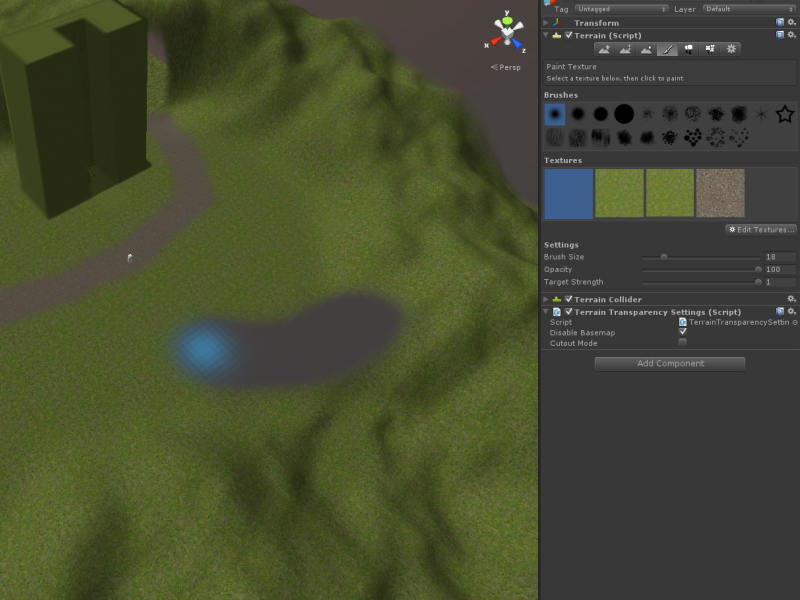
Enables transparency for terrains that ‘just works’. Simply ‘paint on’ a transparent texture, and the areas painted will become transparent.
Comes with an “object fall through” script, which disables terrain collisions, thus creating genuine holes.
Has a “cutout mode” option, for choosing whether you want transparent edges to be rigid or smooth.
Notes:
With shadows enabled, some transparent areas may have darkening artifacts. This can make the surface look a bit odd.
With “cutout mode” disabled, partially transparent areas will “clip” opaque terrain areas behind it. You can fix this by enabling “cutout mode”, or by disabling terrain shadows (as explained in the manual).
How does this interact with fog and image effects? I’d like to write the depths of the objects behind the window to the depth buffer, is that possible? It might need a second camera and some clever depth blitting…?
Also, I can’t afford to use a terrain texture for this, is there another way to tell the renderer when to hide the terrain (external mask, mesh, etc)?
“How does this interact with fog and image effects? I’d like to write the depths of the objects behind the window to the depth buffer, is that possible? It might need a second camera and some clever depth blitting…?”
I really don’t know. I haven’t used it with image effects, but with slight fog in my game, I haven’t noticed anything odd, about the terrain.
Also, “I’d like to write the depths of the objects behind the window to the depth buffer, is that possible?”, seems like something that wouldn’t be affected by changes to the terrain shader. Can you explain what you mean more?
“Also, I can’t afford to use a terrain texture for this, is there another way to tell the renderer when to hide the terrain (external mask, mesh, etc)?”
Yes, there are some other ways–but they would basically be a different plugin/product, then. One way would be to create a copy of the terrain mesh, pop out the vertices that aren’t transparent parts, then have it use a shader that writes to the depth buffer, preventing the terrain behind it from being drawn. But again, this would be a different plugin, as it’s fundamentally quite different from how my plugin does it. (it would shift the changes entirely off of the terrain shader, onto a special shader for a procedurally generated mesh)
Not as it’s currently implemented; however, the basic idea I used could be used for other objects. You would just need to have some sort of ‘second texture’, that acts as a map for what areas are supposed to be transparent (which you’d write to whenever you’re making dynamic holes). Then you’d have to make a custom shader that uses that data when calculating the final alpha value, to be sent to the GPU for drawing. Collision-disabling for hole areas would be more complicated, but there’s probably some way you could do it. (I think you’d have to have it enable/disable collisions after a collision actually occurs, though, since then is the only time you know exactly where the collision would happen, on the object’s surface, which you need to know to check for transparency)
The current version on the Asset Store does not work with Deferred Rendering. I just tested it.
However, while testing it I also discovered how to fix it, without any negative side effects.
Simply change the “RenderType” to “Opaque”, and add " exclude_path:prepass" to the end of the “#pragma surface surf Lambert” line.
I’ll update the Asset Store version, though it may be a few days because I’m very busy with another project. (a website I’m helping a friend make)
I’ve tested it myself in Deferred Mode, though, and it does work. If you have trouble adding the above fixes, (which is unlikely), PM me and I’ll send you the complete, fixed shader file.
Wow, I made a mistake. The “RenderType” should be changed to “Opaque”, NOT “Transparent”. I had accidentally copied the original value, instead of the new value. I’ve edited my previous post.
Note also that the current Asset Store version has another problem: it isn’t affected by point lights. This issue too I have fixed but haven’t yet re-uploaded it. If you need point lights in your project, I can send you the latest shader files ahead-of-release.
I just purchased this system and it doesn’t seem to be working for me either. It just renders the areas I paint black. Am I supposed to be doing something with the shaders? They’re not mentioned in the Manual.
I made the changes as you instructed here to the scripts and still don’t see any changes.
I am using deferred rendering with a directional light.
Well I added the shader to the terrain material, but I get a really strange result. It looks like I can see through some of the painted area on the terrain, but all other meshes behind the exposed area are rendered transparent as well. So all I see through the holes are skybox.
That’s odd. I have gotten results similar to this while developing the plugin, but only when cut-out mode was disabled, and the scene had a RenderSetting-based Skybox.
Could you reproduce this display issue in some sort of ‘test scene’, that you can then send me? That would give a much better chance for me to fix it, since otherwise I’m pretty much just guessing wildly at where the problem is. (if I have an actual scene with the problem, I can just swap out parts of the shader with the equivalent parts from the original, and just keep narrowing it down until I find the exact lines of code that are causing it)
Thanks, and sorry you’re having trouble with the shader.
EDIT: Oh, and no, you shouldn’t have to ‘do anything’ to get the shader working. It should work automatically as soon as you import it into your project. (It uses the same ‘shader name’ as the built-in terrain shader, so when it’s imported, Unity thinks its the built-in shader and from that point on uses it for rendering all terrains. The scripts are just for fixing one possible clipping issue, allowing you to change some settings, and of course for controlling the ‘terrain fall-through’.)
After doing a bunch more testing, it appears this system just plain doesn’t work in DX11 mode with deferred lighting. Even the demo scene in a new project displays incorrectly.
Nevermind. Sorry about that. It looks like after I applied the changes to the shaders you posted here, the plug-in works.
I discover the issue I’m having is actually linked to having the ground material set to Nature/Terrain/Bumped Specular so that I can have normal maps on the terrain.
Is there any way to get this type of material to still correctly display the holes?
There is also an issue that if I have shadows on while in deferred mode it draws the skybox over whatever’s behind the painted area while in scene mode and does some even stranger things while in game mode.
And this is all still inside the demo level in a fresh project with only the player settings modified and a directional light added to the scene. This stuff really should have been tested before submitting it to the store.
I’m afraid as it currently is, there really needs to be a HUGE warning sign on this plug-in stating that it only works at all in very specific circumstances.
Yes. But I would have to add my transparency changes to that shader then too. This shouldn’t be too hard… I’ll probably do it in the next update.
I’ve tested the above myself and get no unexpected results.
These first two images are of the Demo scene with Deferred Mode and shadows enabled. As you can see, the shadows work and you can see through to the inner cave walls. The shadowing artifacts in the first one are what I mentioned in the Asset Store description. (it darkens some of the terrain ‘behind’ the transparent surface rather than just the surfaces beneath)
This third image is of the Demo scene with Deferred Mode enabled, shadows enabled, and a second directional light added (to match fully with the changes you described). Again, I don’t get the same ‘behind-object clipping’ issue you’ve described.
Are you sure you didn’t make any other changes to the Demo scene? If not, I’m not sure what the cause would be.
I suppose it could also be that I left something out in describing my shader changes (though I did check pretty carefully). To make sure, I’ll send you a ‘pre-release’ of the updated shader files, and you can test those. If there are still problems with the above changes to the Demo scene, then it’s most likely a problem with the graphics card, and I would probably need to ask someone else how to fix it at that point.
Wow, it’s really impressive how much effort you’ve put into supporting your system. Thanks for taking all the time it took to look into this. You really are an A+ developer!
Thanks for this straight forward, easy to use system. So far everything works as expected.
I have a problem though. I want to use the shader package “Advanced Terrain Shader v2 1.0111”, and whenever I import this package to my project, the “Terrain Hole System” stops to work. I can still go through the holes in the terrain, but the “Transparent” texture does appear untransparent and black. I assume this has something to do with conflicting shader overrides.
Is there any way to combine these two packages?
Thanks for your help
I am having this issue with ATS colormap terrain ultra shader 1.6c. it goes through fine, but mine is also transparent hole is also black as well. any thoughts?