How can make an outline that is added just to the outside of the text?
Text Mesh Pro - The Ultimate Text Solution for Unity - Powerful & Flexible - Advanced Text Rendering
The Outline is added at the edge and grows inwards & outwards. If having the Outline grow into the face of the character is not ideal, you can use Dilate to inflate the character to compensate. Here are a few examples:

Image of the text - plain

Image of text with an Outline extends both inward and outward. This makes the characters appear thinner.
Image of text with the same Outline but with added Dilation to compensate for the outline. Face surface area is the same is the first image but now the Outline is effectively added on the outside of the face.
Image of the same text but with an added soft drop shadow. Why? Just because we can 


Hopefully this answers your question. Let me know if you need further assistance.
P.S. As a side note, all 4 of these examples are still using the same Arial SDF Font Asset. The only difference between these 4 text objects is their style which is amount to different material properties. Essentially, we are looking at the same Font Asset with 4 different materials.
Thanks for the explanation.
Here is a video showing the process of adding an Outline as well as a Soft Drop Shadow to the text.

Text Texturing Option in TextMesh Pro
About a week ago, I mentioned that I was going to create a short video to go over the various text (face & outline) texturing options in Text Mesh Pro. Well here it is

Thanks for the information. I have been reading as much as I can on this subject. This is a really exciting development.
(1) Do you plan on supporting Drop Caps? (Here are few references)
book: The Complete Manual of Typography, (first edition was published in 2003) (see page 211)
ISBN: 0-321-12730-7
(NOTE: There is a newer second edition, 978-0321773265 (published in 2011)
https://forums.createspace.com/en/community/docs/DOC-1811
(2) What level of kerning do you support? I was looking but I only see there is turn kerning on and off and just wondering about the specifics.
That looks like something that I could add support for.
Right now you can import kerning pairs at Font Asset creation time or add you own kerning pairs as you need them. Here is a link to the TextMesh Pro User Forum where you will find a video on adding and adjusting kerning.
Thanks. The video on kerning is very good. It is nice to have that manual level of control on kerning.
You pretty much need that control given how much flexibility TextMeshPro gives you over the styling of the font like outline, dilation, glow which all affect the size of the characters and thus it is best when you manually adjust it to your liking.
Thanks.
Do you support small caps?
book: The Complete Manual of Typography, (first edition was published in 2003) (see pages 197-198)
ISBN: 0-321-12730-7
(NOTE: There is a newer second edition, 978-0321773265 (published in 2011)
This CJK blog (author of the book I mentioned previously and I will list again here) you might find interesting.
CJKV Information Processing, 2nd Edition
Print ISBN: 978-0-596-51447-1
Not at this time but I will take a look at it.
Thanks for the reference again.
This tool can do some amazing things but you can do something like this example from PostScript. (See the attached PDF).
1674441–104900–postscript.pdf (6.81 KB)
The way this is rendered is via scale & blending of N layers.
So yes, you can fully emulate this look via script in the same way its done in postscript.
(I think this use like 80+? instance of the text)
My hope is to expand Textmesh Pro at some point to fully support volumetric text (efficiently…)
Here are some current render test, (Jokerman font)

Extrusion sample (dx9 shader, Unity free)
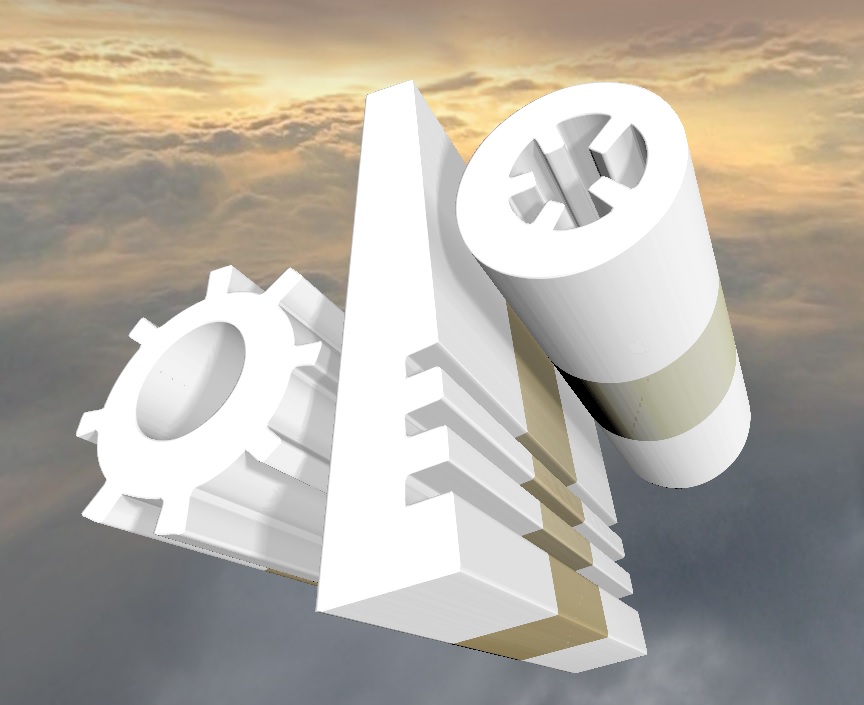
Density view
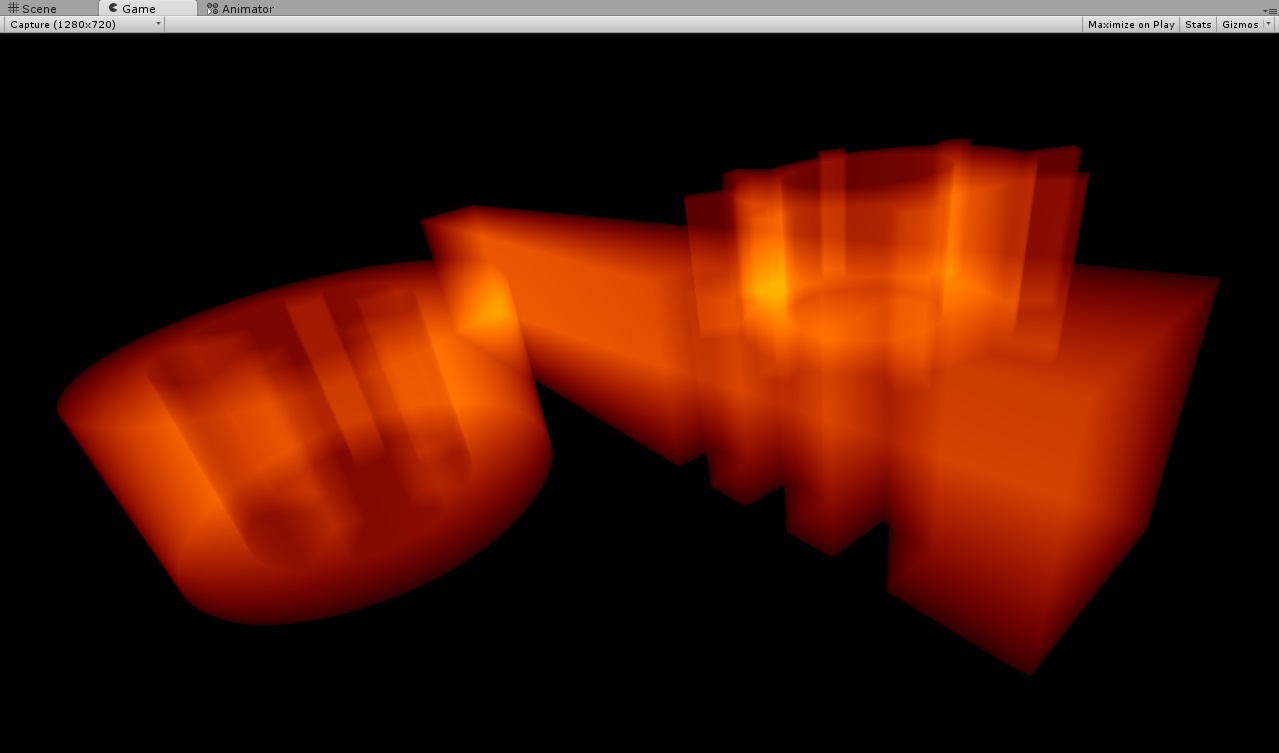
Material & extrusion deformation
(Properties can be animated at no cost, since the geometry is created in the fragment shader)

Sounds great.
I was just going through the book (Learning PostScript: A Visual Approach, ISBN 0-938151-12-6) to see how many text examples I could do with this tool.
Here is an example of how to add Glow to some text.

I really like the “template” option that you can apply “glow feature” to other text later on.
How does the Drop Caps that I mentioned in one my previous posts fit into your current roadmap?
I plan on looking into it once I am back in town early next week.
Having the ability to copy / paste material settings from one font / preset to another is super nice. Even the reset option is nice to quickly reset a material to its default settings but without whipping the SDF specific data.
I forgot to mention that most of the material properties like Glow Power for instance can be animated via scripts.
Here is an example of the “_GlowPower” material property animated via a script.

You can also see an example of this in the Surface Shader Web Demo in my signature.