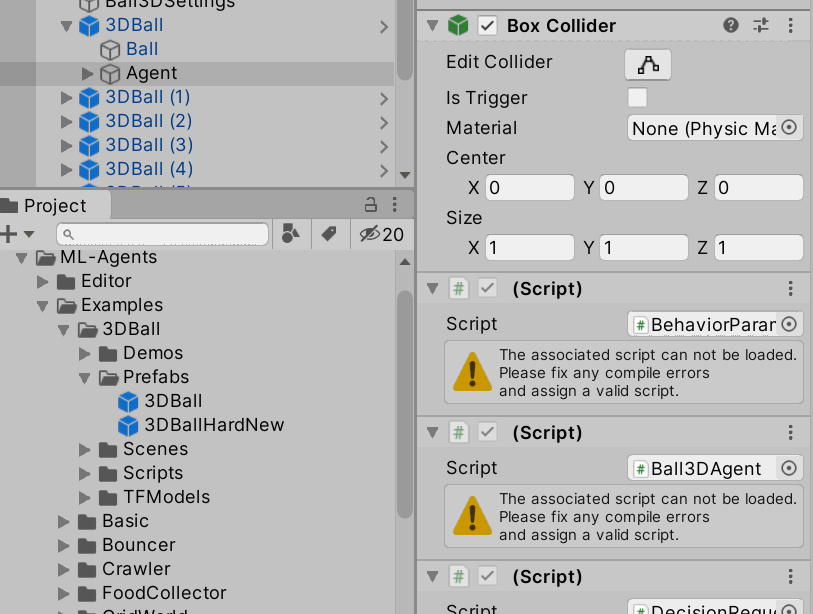
I’m the beginner of the Unity development. Recently I planned to learn to machine learning research with Unity ML-Agents. I followed the steps in the “Installation.md” document on the lastest ml-agents resository and installed all the components in my Window 7 laptop. My Unity Hub version is 2.3.5. My Unity Version is 2019.4.0f1.
I added the ml-agents\Project folder to the Projects list in the Unity Hub. Then I open the project and upgraded it to Unity Version: 2019.4.0f1. it seemed to work fine.
Then I followed the steps in the “Getting-Started.md” document to open the example 3DBall.
In the step2, I can not find the Behavior Parameters (Script) component in the Agent GameObject Inspector window. When I expanded 3DBall and click on the Agent prefab, the Inspector window can only show the agent’s properties and can not load all the scripts which should bundle with the agent, like the attach pictures shows.
I found the warning message: Unable to open Packages/com.unity.ml-agents/Runtime/Policies/BehaviorParameters.cs: Check external application preferences.
But in my \ml-agents\com.unity.ml-agents\Runtime\Policies folder, the file exists.
which ML-Agents version did you clone? I guess you have a version mismatch between the project folder from the mlagents repository that you cloned and the ML Agents version in the Package Manager.
On Releases · Unity-Technologies/ml-agents · GitHub you can see the matching versions (com.unity.ml-agents in the one you install via the package manager). Make sure it matches the repo version (0.XX.X)
Oh and btw. you’re not using the com.unity.ml-agents package from your cloned version when you install it via the package manager. So you looked into the wrong folder for the file. Make sure to look in your unity project in the packages folder.
But After I opened the project with Unity 2019.4.0f1 (64-bit), I found the same error: “The associated script can not be loaded”.
I checked the Package Manager, found that ML Agents version is preview 1.1.0. It’s the same as ML Agents Release 3 list. Mable I was wrong to operate the example 3DBall. The step 2 in the Getting-Started.md is confusing me totally.
Please show me the complete operation of open the Behavior Parameters (Script) of the example 3DBall. Not only the Project window screenshot, I need the more size of the screenshot, just like the picture below:
That’s interesting. I’d recommend going through my ML-Agents setup video and check that you didn’t miss something (probably even going through it step by step) - from the Feedback I got, the video worked for nearly everybody. If it still doesn’t work, I’d try using Unity 2019.3. Please let me know if it’s still not working.
QUOTE=“BotAcademy, post: 6040379, member: 5125603”]That’s interesting. I’d recommend going through my ML-Agents setup video and check that you didn’t miss something (probably even going through it step by step) - from the Feedback I got, the video worked for nearly everybody. If it still doesn’t work, I’d try using Unity 2019.3. Please let me know if it’s still not working.
[/QUOTE]
Thanks for your video. The difference between you and me is I used release_3 and Unity 2019.4.0f1 (64-bit).
But when I type “mlagents-learn” in Anaconda Prompt (Anaconda3) console, it shows some errors:
Then I opened the project with Unity 2019.4.0f1 (64-bit) and open the example 3DBall agent. The errors are still the same. There are the screenshots about the errors:
The first two errors hint is blank. so what should I do to solve the problem? Maybe I should install all components with the same version you used in the video and try again?
I’m not use administrator account to login my Windows 7 system. Although the account I used is created with administrator level, but sometimes I was forced to open the application with administrator permission to run it correctly.
While I was installing many software, the pop window like above is often shows. If Unity installation do not have permission to copy the script files to its install folder or my account do not have permisson to read the script files, then the Unity IDE will encount the problem and can not load the scripts.
Can someone tell me which default setup folders is the com.unity.ml-agents package used? Just like :
D:\github\ml-agents-release_1\com.unity.ml-agents\Runtime\Policies
But it actually should be installed in Driver C somewhere, such as:
C:\Program Files\Unity\Hub\Editor\2019.3.15f1\Editor..
That goes beyond my knowledge to be honest, so I hope someone else can help you. Chances are quite big that it is not working cause of missing admin privileges. Windows 7 should be fine (I know from some other users that it’s working with Win7)
Finally I found the solution to solve the problem “The associated script can not be loaded”.
It is not Windows’s privilege policies cause Unity can not load the script, It is antivirus software’s failure. I used a Windows 10 desktop PC without antivirus software reinstalled the all components. Then when I open the example 3DBall with Unity IDE, the all scripts are loaded correctly. And 3DBall can be played with 3DBall.nn model.
This time I will shutdown Avira AntiVirus in my notebook and reinstall the all components with the lastest Version(release_3 + Unity v2019.4.1f1 LTS + TensorFlow 2.2.0).