I just tried in NVidia’s control panel and it doesn’t work either.
If you are having this issue again in 2019.3.0f3:
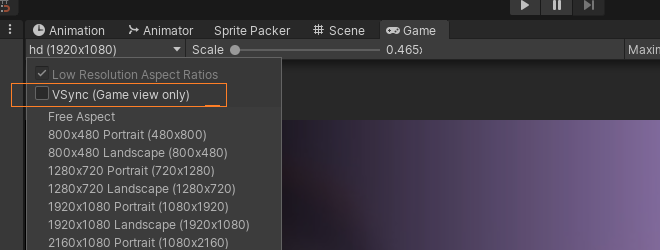
The “Stats” window may show more, i think it reports the maximum possible frames, even though it only renders one per vsync
20 Likes
Thank you, Marrt. Your screenshot helped me.
2 Likes
On a related note, if the aspect ratio is set to Free Aspect you will likely see screen tearing. Change it to better fit your monitor and it will go away.
just realized you gave some answers in 2020 in this old thread.  i couldn’t find any other info about his problem. so thanks.
i read up on the settings: Application.targetFrameRate, QualitySettings.vSyncCount and where do find it in Project Settings → Quality
i STILL got the same problem: vsync gets COMPLETELY IGNORED. it sais in the docu, vsync overrides targetframerate, nonetheless, i can set targetframerate as i please while game is running and vsync is set to 1 or 2 and it has immediate effect.
i used this guys trick:

HOWEVER except for framerate < 10 the actual framerate is WAY off.
for 30 its actually about 60 and for 60 its actually >200.
the GUI setting in play mode in the resolution menu actually seems to work however. checking vsync there results in getting my roughly 200fps from unity info and about 110 fps from bandicam, which is the same when its disabled but targetfps=60.
with both settings to 0 and vsync unchecked in GUI i get 500+ fps from unity info and about 150 fps from bandicam. so the GUI checkbox does have some effect afterall (but not the field QualitySettings.vSyncCount).
and my monitor can only do 60 fps.
does this have sth to do with the fact that its not fullscreen?
i am fairly new to unity, so is this normal or am i doing sth wrong or not getting here.

1 Like
Have you seen my post above?
https://discussions.unity.com/t/555026/22
The other Unity Editor windows have their own refresh logic afaik, but who cares about the refresh rate of these?
1 Like
yes i was actually trying to refer to it. and thanks for your replies.
and your screenshot did actually help but also confuse me. the checkbox did have an effect, but the the code property did not for play-testing. is this intended? what about the standalone build? would be nice to have clarification which option has effect in which “version” (play testing in editor vs standalone build).
this is my code:
using System.Collections;
using System.Collections.Generic;
using UnityEngine;

public class redballdance1 : MonoBehaviour
{
    float direction = 1;
    public int targ_ = 60;
    public int vsync_ = 1;
    //GameObject go;
    // Start is called before the first frame update
    void Start()
    {
        QualitySettings.vSyncCount = 1;
        Application.targetFrameRate = 60;
        Debug.Log("vsync: " + QualitySettings.vSyncCount + "framerate: " + Application.targetFrameRate);

    }

    // Update is called once per frame
    void Update()
    {
        if (transform.position.x <= -6)
        { direction = 1; }
        else if (transform.position.x >= 2)
        { direction = -1; }

        transform.Translate(direction * Time.deltaTime, 0, 0);

        if(Application.targetFrameRate != targ_)
        {
            Application.targetFrameRate = targ_;
            Debug.Log("vsync: " + QualitySettings.vSyncCount + "framerate: " + Application.targetFrameRate);
        }

        if (QualitySettings.vSyncCount != vsync_)
        {
            QualitySettings.vSyncCount = vsync_;
            Debug.Log("vsync: " + QualitySettings.vSyncCount + "framerate: " + Application.targetFrameRate);
        }

    }
}
so i did the test again. today it seems the values were more accurate this time. around 60-70 (bandicam) fps for target=60 and also vsync.
what worked in play-test mode (didn’t check standalone build yet):
-setting fps via code: Application.targetFrameRate
-checkbox for vsync actually did result in about 60-70fps.
this however had no effect, maybe my code is wrong though?
-QualitySettings.vSyncCount = 0 … or 1 or 2
whats is also strange is, that last time, i did the same test but the fps were like 40% higher, maybe there was some weird stuff on my pc happening idk?
in any case the info-window fps still shows 100 when i set 60 ad bandicamp sais 66 and it shows 700+ when i seti it to unlimited and bandicamp show 150.
so what kind of “maximum” fps is this supposed to be? its clearly not the absolute max, since it actually is 1/7 lower when i limit the fps to 60, but it is still very inaccurate.
I cannot get v-sync to work in the scene view in 2020
only game view, but I need scene view because the screen it tearing when I rotate the camera
“cannot get v-sync to work” is to little information. How do you test? The fps counter in the “Stats” will report a false fps rate because it measures the time it took to perform the game loop, nit the time between frames
Build the standalone and test that.
I want it to work in scene view, in the build its working fine
I just started having this coil whine problem in scene view. Thanks Marrt, your post above helps but it does not totally fix the problem for me. If I run the game, then stop and go back to scene view, it will start whining again - I have to disable and and then reenable “Vsync (game view only)” every time. Pretty annoying, but less so than the whine. 2019 LTS.
Guys,
Scene view has no options about vsync afaik. Small side hint, if you experience lags, it is most likely because you have an inspector open on some object that constantly changes values. These redraw events in the inspector cause lags in the other windows. Try selecting an empty object in the hierarchy.
Coil Whine is not something related to unity i guess. I had it on an old motherboard where the powerstate of the processor was on low, try enabling high speed mode. But yours could be display related, turn off the screen and listen if the whining stops directly after turning it off.
Thanks, I dont have lags, just screen tearing when I rotate the camera, I can live with it, but it would be nice if vsync also worked in the scene view
Thanks, I’ll look into that.
Fwiw it happens specifically when I move the scene view camera or move objects, though with this it is a little quieter. Even holding a mouse button while not moving the cursor causes it to whine.
I know the vsync toggle is just for game view, but it does fix the problem for scene view. Until it doesn’t. So, I guess, initially it does force vsync for scene view, (since vsync fixes the issue in game view too) but playing and stopping game disables it again, when it shouldn’t have been enabled in the first place.
So I guess it doesn’t whine while nothing on screen changes, GPU has nothing to do, but as soon as the window needs to update, it tries to push max fps (~200 by the profiler).
So I would say it is related to Unity, as it is related to how it renders scene view and it seems like it could be fixed with a specific vsync option.
vsync in the editor is broken in 2019.4.13f1: when I force VSync count to every vblank on a 60hz screen, I get 1500fps on the game view! lol
Checking the “VSync (Game view only)” checkbox in the game view resolution menu has helped a lot, but it’s still running at 80fps on a 60hz monitor! wtf?
Even forcing the target frame rate by script doesn’t help:
          QualitySettings.vSyncCount = 1;
           Application.targetFrameRate = 60;
Is it really that hard to get a real vertical sync in the game view now?? It was working just fine some Unity versions ago…

We have a custom camera movement control in the Scene view to make editing our maps easier. Enabling the VSync option in the Game view does actually seem to help the main Scene view despite what it says. It would be nice if that option could be added to the camera controls drop-down in the Scene view. With it on our camera movement is significantly smoother in Scene view.
1 Like
VSync and target frame rate is also completely broken for me as well on 2019.4.12f1.
Setting the vsync count to 2 and enabling the toggle “VSync (game view only)” and the FPS stays at above 60fps, it seems like the “VSync count” on the quality settings is useless on the editor now since it only takes into consideration the game view toggle now (so no 2 or 3 vsync count tests on the Editor anymore).
Changing the “Interaction Mode” on Preferences → General also won’t change anything.
About the ‘Application.targetFrameRate’ setting, it is doing nothing on Android, vsync count set to 0, the FPS stays on 30, no matter what value I throw at targetFrameRate.
I’m still unsure what the exact bug is in the editor, but going to the Game view / Free Aspect drop down / VSync disable/enable and then switching back to Scene view seems to definitely provide a much smoother/consistent frame rate in the Scene view.
This stops working at some point possibly related to the editor losing focus and dropping to 10-15fps (or possibly recompiling script). At some point it definitely starts stuttering again, and I have to go back to the Game view and redo the VSync setting to fix it and have smooth panning in the scene view. It would be great if someone from Unity could look at this as it is super annoying.
While i agree that we should strive for excellence, I still don’t get why you guys even need vsync to work in the editor so bad. Create Standalone, verify that vsync works there, done.
If you see heavy stuttering it is probably a heavy inspector that updates a lot of values, try deselecting the object to clear the inspector and check if the problem persists.
@Marrt For what I’m talking about, it is for in-editor tools. And there is a huge difference with vsync / stable framerates are achieved there. So if it’s not an issue for you, then you’re lucky, but for those of us that find it vomit inducing it would be nice if Unity would fix it as it does not appear to take much to fix.
5 Likes