VFX Submesh Masking (Output Particle URP Lit Mesh Block)

After spending sometime compiling mesh assets with sub meshes, I’ve hit a bit of a stumbling block that I hope someone has the answer for.

I want to change the submesh mask property (to display a different submesh) randomly by particle. As soon as I try to link up a random mask, I get an editor error:

Can not link a GPU operator to a system wide (CPU) input
Unable to compute CPU expression for mapping : subMeshMask

I get the gist of the error (I can’t mix GPU and CPU domains operations), but I’m hoping there is a way of selecting a submesh by particle? :frowning:

So a bit of an update on this that I think works. You can of course call the “Play()” method on a VFX to send play event multiple times (spawning more particles). So, if you wait a frame, then change the submeshmask, I believe the fresh Play() adds additional particles to the output using the selected mask. A bit of kludge but I think it works?

same here. I want to change the submesh with prticle id.

I also need to know the answer to this. There doesn’t seem to be any documentation available on how to properly use the Sub Mesh Mask anywhere. Yet it has the ability to be something extremely powerful… that nobody can use.

The Sub Mesh Mask setting allows you to specify which sub-mesh of your geometry to display/render.
This can be useful to only display a certain part of a Mesh. Or in more complex setup, in can be a way to pack multiple SubMeshes in on Mesh and one FBX and vary which submesh to display/render on a per-instance vfx level.

In Unity, Submeshes are defined by the Material ID specified in the DCC.
In this, this example, the “fractured” sphere has been assigned different materials for each of its 5 fragments.
This results with a mesh composed of 5 submeshes.

9498688--1337626--Unity_0v5MflKwEe.gif

By default, a Mesh output in VFX Graph is set to display/render all existing Sub Meshes of a Mesh.
But you can Right-Click to “Check All/ Check None” or manually choose which submeshes you want to render:
9498688--1337629--Unity_FtkQD87VbR.gif

Now, sadly, this setting cannot vary per-particles because, as stated by @Duckocide you cannot mix operations evaluated on the CPU and operations evaluated on the GPU.
If you want Per-particles mesh variation, the best would be to take a look at the Mesh Count feature in the Inspector (Will make a post later on this one).

Now, can this Sub Mesh mask still be useful? Here are some basic examples.

As we saw earlier, we need to use operators that are evaluated on the CPU.

Example A:
One mesh is composed of 4 submeshes, each Instanced VFX has one particle that can easily choose between SubMesh of the Mesh:
9498688--1337665--Unity_qlZE6Qkc2O_0028-0311_1000x609.gif

Example B:
While random per-Particle isn’t allowed, random Per-Component is fine, so you can randomize for each instance of your VFX which Submeshes are displayed.9498688--1337671--Unity_wvw05qjmO3.gif
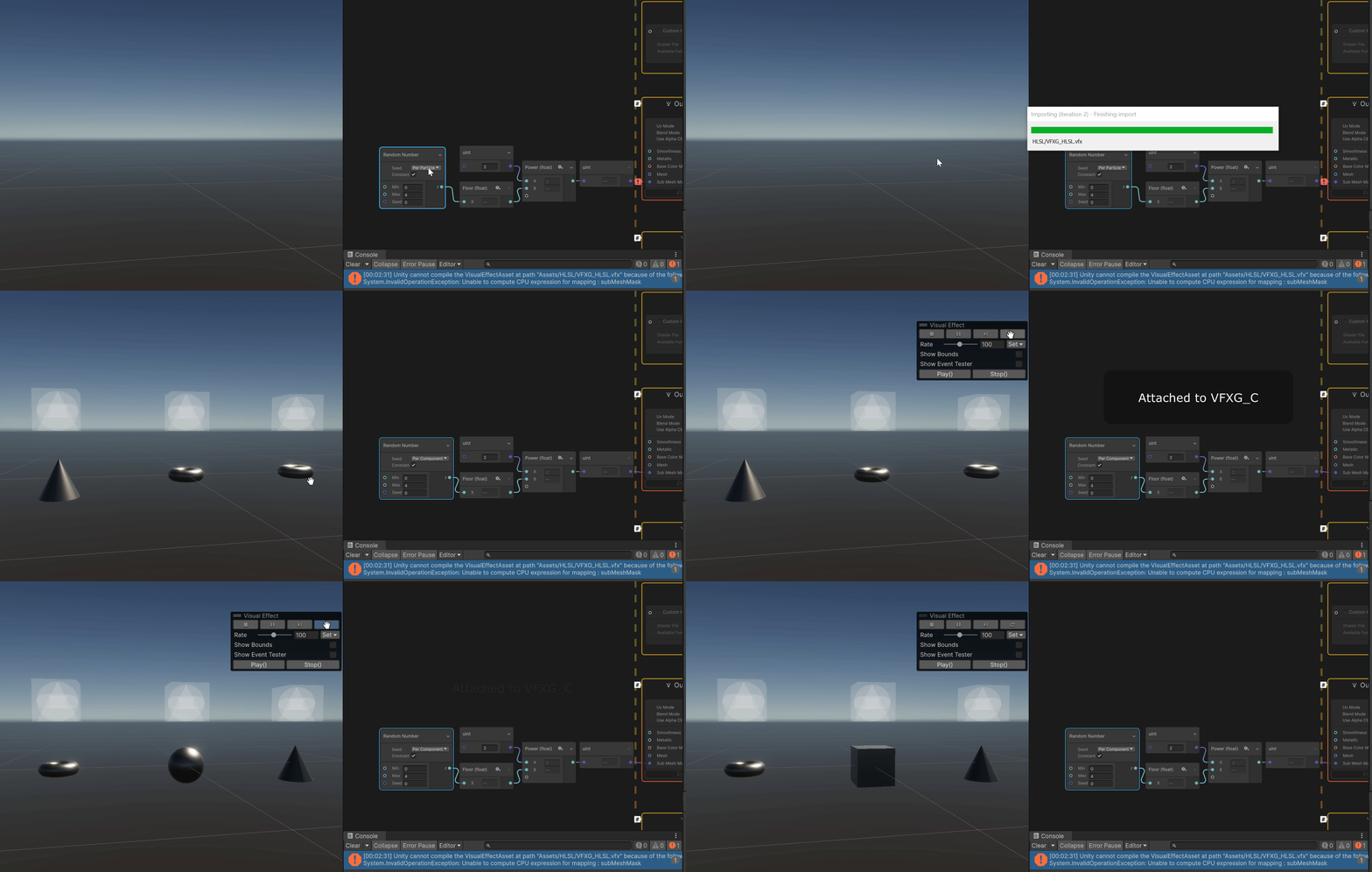
Example C
The Time is also that can be used to animate the change of submesh and could be used for basic submeshes Flipbook packed in one Mesh.9498688--1337674--Unity_5J6D94Xi6c.gif
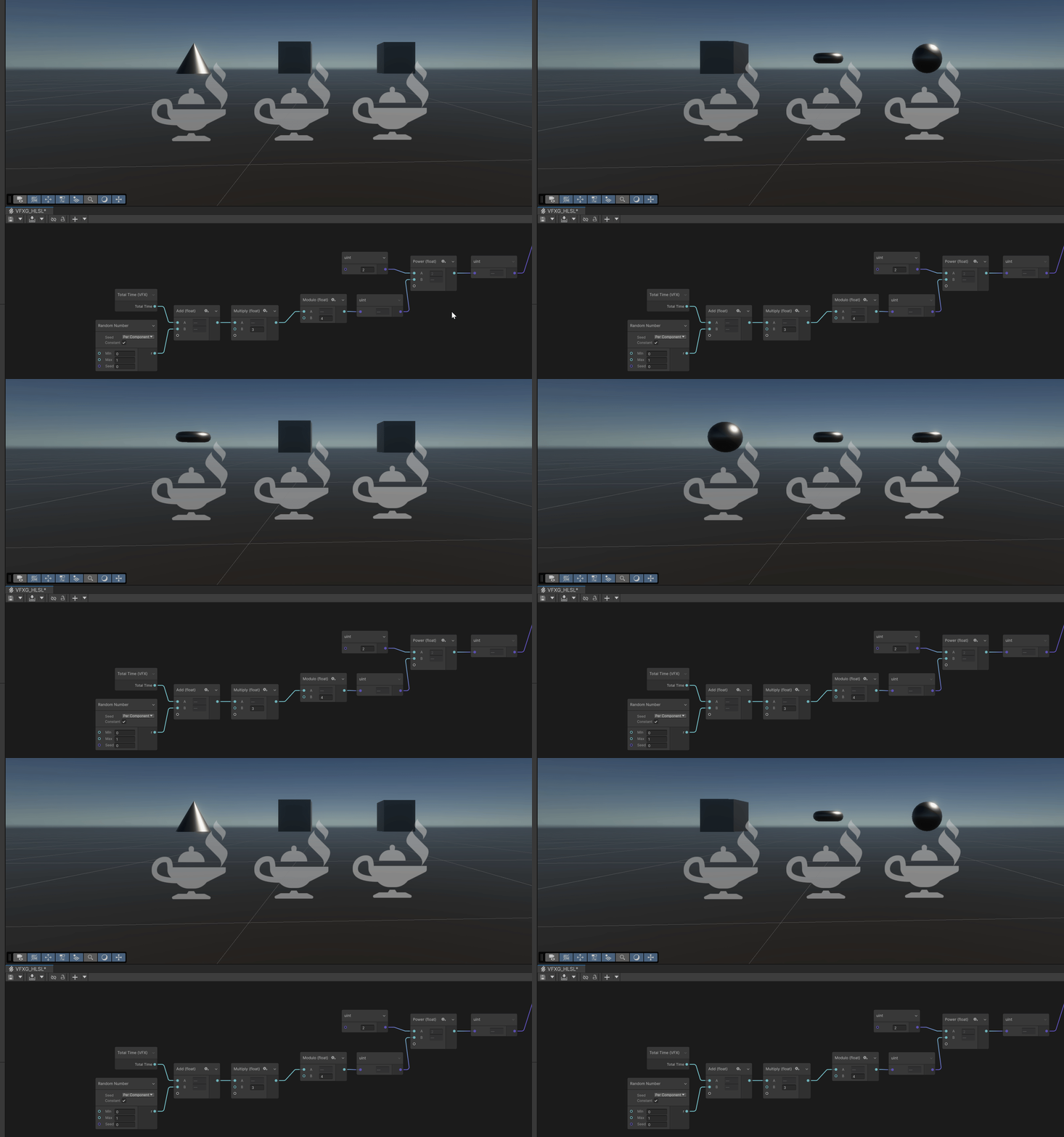
I hope that you understand now more what can be done with this feature, and its current limitation. I will make a following post on the Mesh Count feature that allows per-particles variation of Meshes with the same Output Mesh Context.

So let’s talk about the Mesh Count feature.

The Mesh Count setting can be found in the inspector when selecting an Output Mesh Context (lit/unlit/ShaderGraph). By changing its default value, which is 1 to a maximum of 4, new mesh slots appear in the Output Mesh Context.
Those Slots allow you to specify a source mesh and also have a dedicated slot regarding Sub Meshes.
After specifying the Mesh Count and the Mesh Sources, you only have to set the per-particles meshIndex attribute. This Integer type attribute allows controlling which mesh to “instance” on each particle.

In this basic example, a hundred of particles are laying down on a simple plane. Each of them has a random meshIndex value between 0-3. Note that in this cased I decided to use the same source mesh, but each Mesh has different Sub-mesh values.

A neat option to this is the LOD settings still in the inspector when selecting an Output Mesh Context. By enabling it you can specify LOD values. These values help determine which mesh to display based on its screen occupancy.

You can again choose different Meshes or a simplified version of the same mesh.
9500884--1338112--Unity_ygsVkrzK2v.gif

You can, of course, be creative with the usage and animate this mesh index value to create a kind of Rough Mesh Flipbook animation.
I hope this will be helpful, have a lovely day.

Thank you thank you thank you! This was an amazing explanation and I have so many ideas on how I can use this feature now! I suspected it could be used in making LODs but I’m overjoyed to see how simple the implementation seems to be.

It is very helpful, thank you again and have a lovely day as well.