Hello everyone!
In Unity 2023.1.5f1 (HDRP 15.0.6) there is a nice toggle ‘Deferred Tile’ (which is located in Camera->Frame Settings Overrides->Light Loop Debug, screenshot #1), which allows to remove lighting stairs visual artifact near objects’ edges (in cost of some performance overhead, but it is the best variant for our project, screenshot #2).
But in Unity 6000.0.23f1 (HDRP 17.0.3) ‘Deferred Tile’ toggle doesn’t exist anymore (we need to upgrade project version to be able to use Unity Physics, which doesn’t work on 2023.1.5f1 + project version upgrade is a good practice in general to have access to new features).
Is there a toggle with the same functionality in Unity 6? If it doesn’t exist, is it possible to add it in future Unity version?
The “lighting stairs” from your screenshot are certainly caused by having to many lights (and reflection probes) affecting these specific rendering tiles.
The proper solution to fix this is to analyse the tiled lighting debug view and reduce this count.
Or, you can increase the number of maximum lights per tile with the HDRP config package.
We plan to ultimately remove the “Light Loop Debug” section of the custom frame settings, as like the title says, it is for debugging, and should not be used outside of this context (some exceptions exists like offline rendering where performance isn’t a consideration).
In my scene there are only two active light sources: Directional light (sun) and Area light (square lamp at the top of second screenshot of previous message).
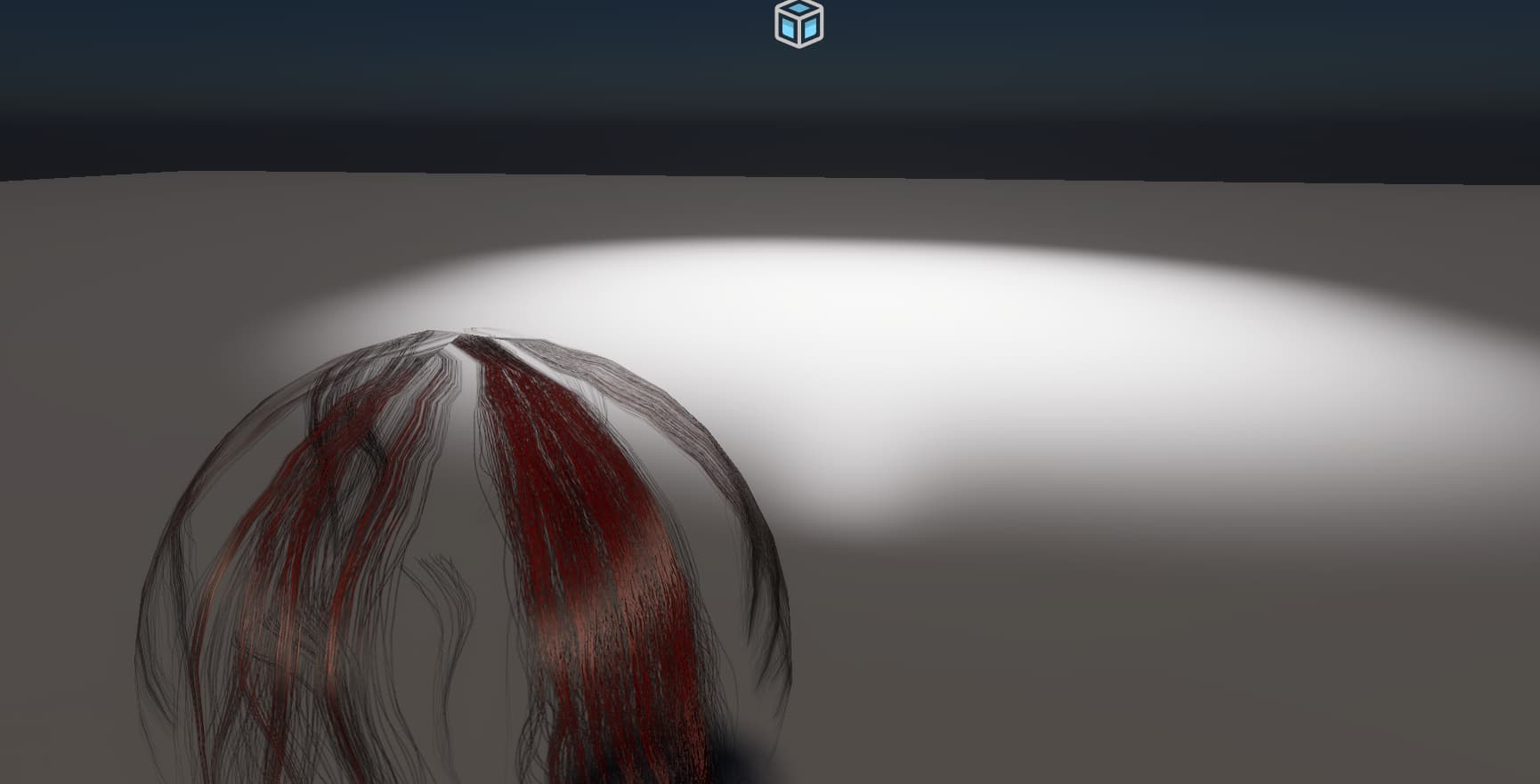
Also I found out that this visual artifact can be reproduced in empty HDRP project if add Area light in OutdoorsScene and place object with HDRP/Hair shader at certain distance from Area light like on attached screenshot. The archive of project with problem demonstration is attached below.
LightingStairsDemoProject.zip (15.4 MB)
I did ask more informations to the devs.
In the meantime, I saw that the hair material you’ve used here is set to Opaque surface type, which isn’t really made for this shader (IIRC), that should use Transparent with depth pre and post passes.
After changing this and tweaking the clip threshold, I got this rendering :
But does that mean that you are using the HDRP/Hair shader on the vehicle in the screenshot ?
If yes, why ?
I seems to be a bug on our side, where the hair shader in opaque mode seems to miss the per pixel light influence check.
I did enter a bug report that you can follow here.
If I set Surface type to Transparent for hair material, then appearance of visual artifact changes, but it stays as before as shown in video #1
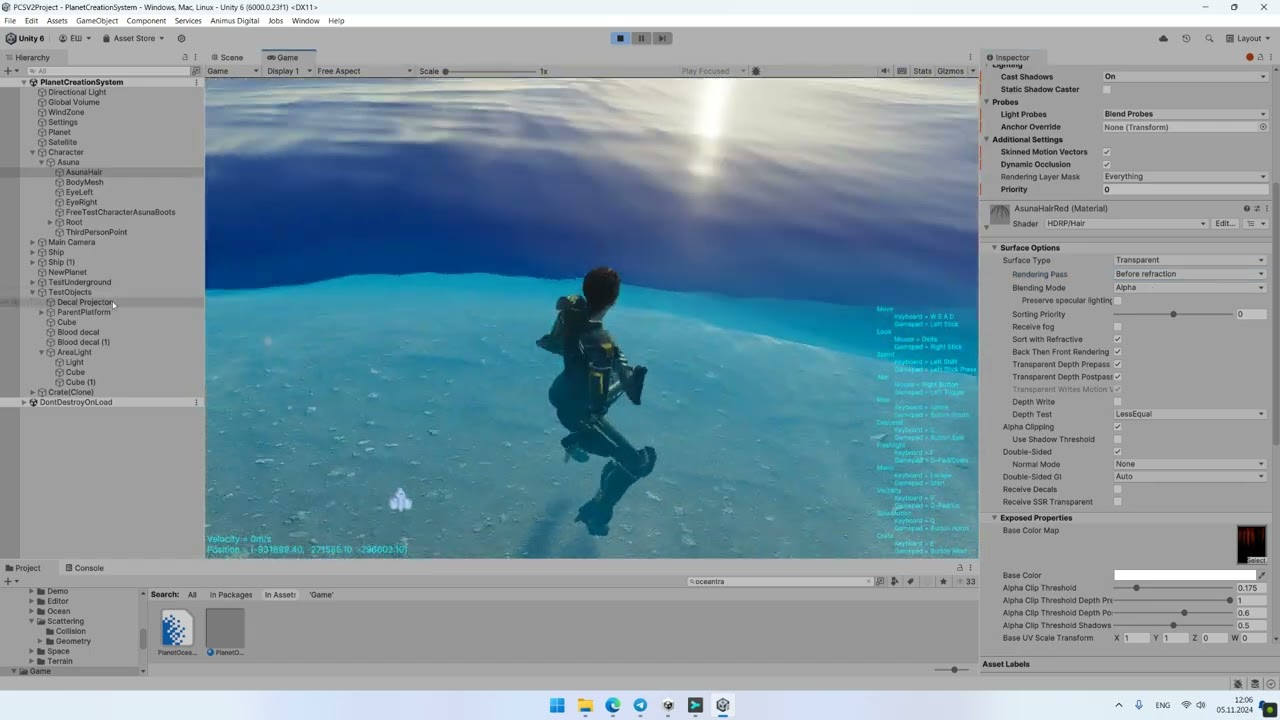
Also Opaque hair material works properly with transparent refractive ocean surface (Transparent shader which is rendered in ForwardOnly pass because of custom direct/ambient lighting for planets) as shown in video #2. Opaque hair material also looks properly with underwater fog effect and increases rendering performance on steam deck.
Also it seems that transparent hair material doesn’t receive emissive decals, so it can’t receive underwater caustics from decal projector in the project.
Ship model uses HDRP/Lit shader and light on it’s surface from Point/Spot/Area lights looks good on PC (both in Editor and Build, video #4 and #5)
But if launch build on steam deck, then lighting stairs will appear on ship edges (and it seems that it doesn’t depend on Proton version as shown in video #6)
If reduce near/far clip plane of main camera from (0.04,1000000) to default (0.3,1000), then lighting stairs on ship edges will disappear, but they will still present on transparent hair material (as shown in video #7).
Main camera with large view distance is needed for proper rendering of planet geometry and smooth transition from geometry to sphere on custom sky effect. Setup with two cameras (one with near/far planes (0.3,1000) and second one with near/far planes (1000,1000000)) has significant performance impact, so single camera is used and rendering/cascade shadows works good, but lighting from Point/Spot/Area lights on edges of surface with HDRP/Lit produces stairs on steam deck.
Thank you for all those additional informations, it gives much more context to the issue.
I’ll also forward this to the devs hopping that they’ll have a better idea than me of what could cause the issues 
As for emissive decals, it is working as intended since it doesn’t work with transparent materials.
https://docs.unity3d.com/Packages/com.unity.render-pipelines.high-definition@14.0/manual/Decal.html#limitations
The Decal Shader does not support emissive on Transparent Materials and does support Decal Layers.
I took the same character as you and did some tests.
So, here it is with opaque alpha clip hairs :
Switching to transparent does make the hairs invisible underwater (expected):
Before refraction made them visible underwater, but the overall look is very dim :
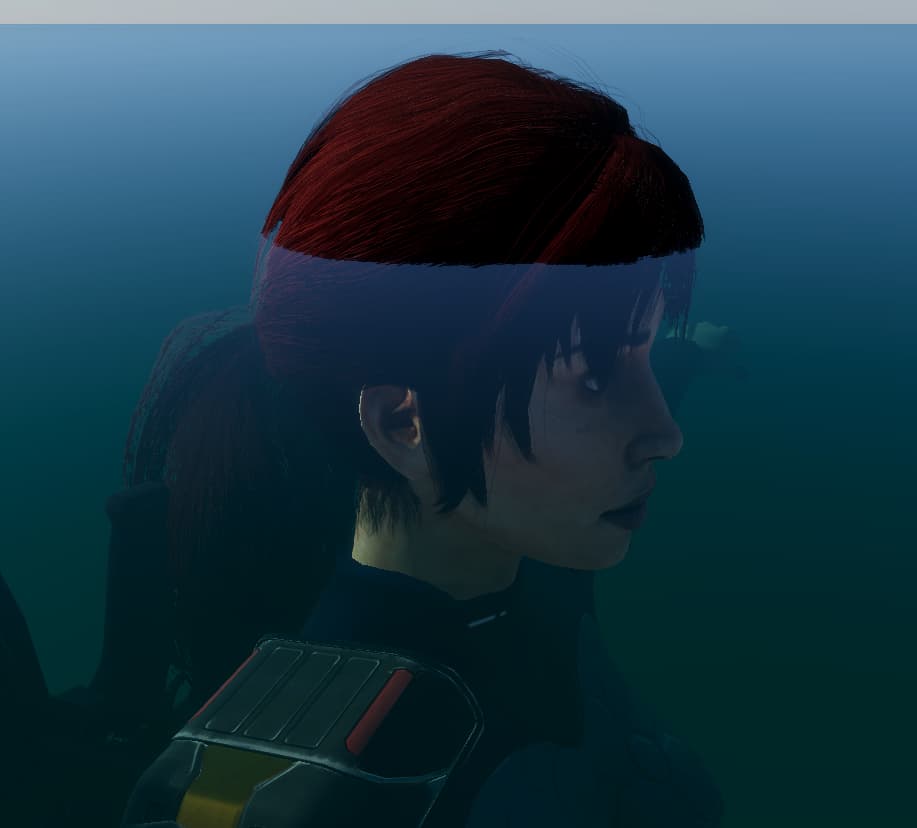
Enabling the depth prepass, sort with refractive, double side and back then front rendering, while also tweaking the alpha clip values ended up in decent looking hairs above water:
Now the issue left is that they do look transparent underwater. This is a legit issue that we reported, that has to do with the water surface absorption not using the proper depth.
I did however found a workaround, by setting the hair object in a dedicated layer (transparent FX for the example), and use a Draw Renderers Custom Pass in After Opaque Depth and Normals to force draw the depth prepass way before refraction, so it is properly available for the water absorption.
So yeah, a lot of tweaks and a little hack involved to have something looking close to the original simple opaque hairs, I agree . But you now have some nicer alpha blend on smaller strands 
I tried your idea with custom pass, and after some time got similar result:
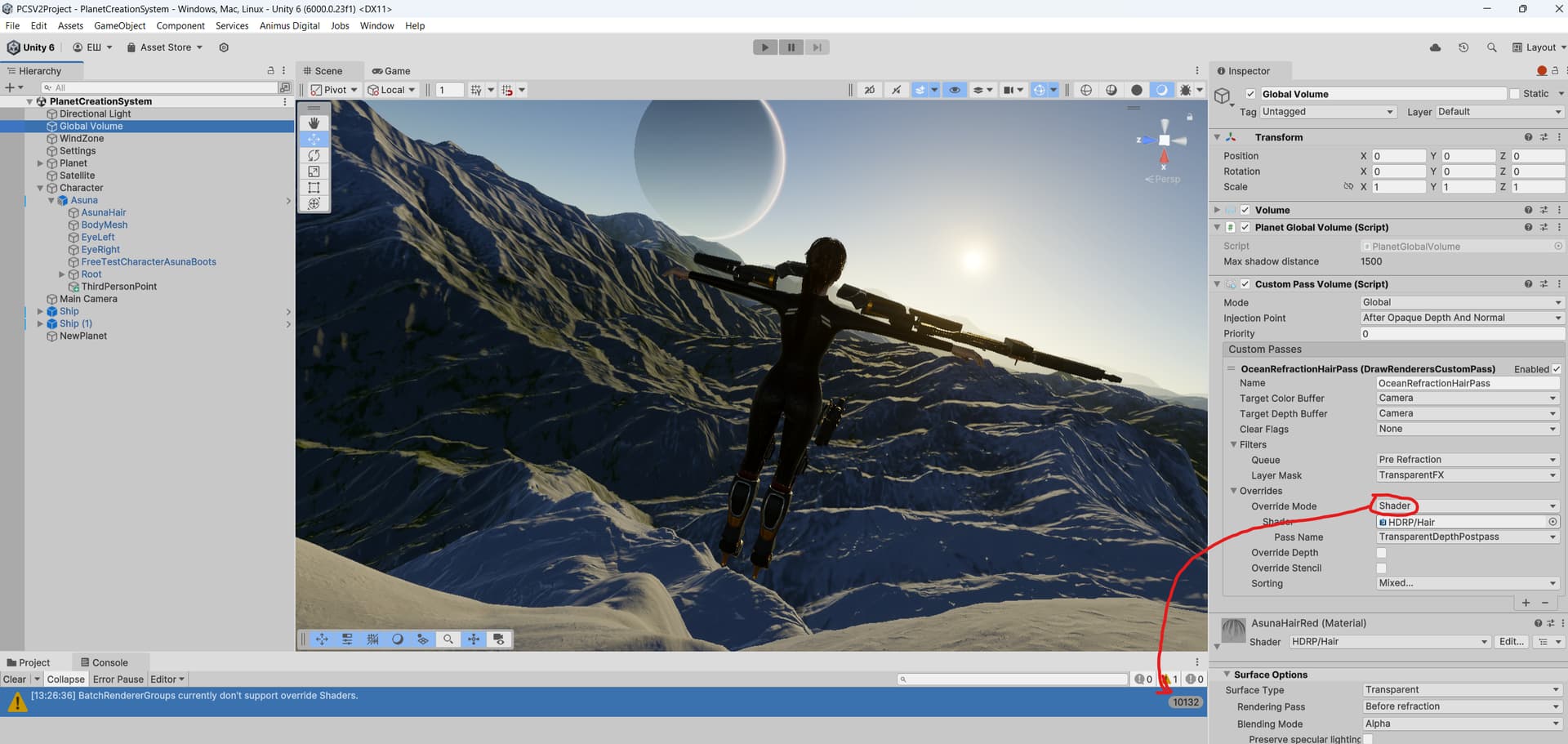
I used TransparentDepthPostpass in custom pass overrides instead of Prepass, which allows to use Alpha Clip Threshold Depth Prepass/Postpass sliders to find compromise values for haircut look when above or below water.
But it seems that such approach requires separate custom pass for every possible hair material (for example if two characters with different haircuts will stand near ocean, then two custom passes and two separate layers are required). If set Override Mode to Shader and assign HDRP/Hair in Shader field, then it will work, but in Play Mode console will be filled with warning messages as shown on screenshot
I wouldn’t worry that much about the warning:
- It clearly is something temporary that is meant to be fixed in the future
- Unless you plan to draw a lot of hair meshes in that pass, you shouldn’t have to worry about their batch count.