Hi everyone,
We recently released a 3-part video series that provides a helpful introduction to the VR Multiplayer Project Template for Unity 6. The tutorials show you how to use the template as a springboard to get started with making your own VR by reusing prefabs and creating new gameplay. You can watch all three videos here.
This post complements the video series. It will take you through the key steps to get up and running with the template, including setting it up, understanding its core tools and components, and guiding you through building basic multiplayer VR interactions.
The VR Multiplayer Template is a pre-configured Unity project designed to simplify the building of multiplayer VR experiences. Its primary purpose is to help you create immersive, networked VR environments with minimal setup. The template includes a range of essential tools, such as the XR Interaction Toolkit for VR-specific interactions and Netcode for GameObjects for managing multiplayer networking. These tools allow developers to focus on the creative aspects of their projects while the technical groundwork is already handled.
The template is available via Unity Hub. Start a new project then from the project templates list, select VR Project Template.

Find the VR Multiplayer Project Template in Unity Hub
Onboarding tutorial
When the project opens the tutorial will automatically open, guiding you step by step through the initial setup process.
The tutorial explains important aspects of the project and key stages of setting up the template. The VR Multiplayer Template also uses multiple cloud services.

The tutorial window will open automatically.
The tutorial will guide you through linking the project to Unity Cloud.

Tutorial window enabling connection to Unity Cloud services.
Vivox
Next, you’ll need to set up Vivox voice chat services. Vivox is a voice and text communication service integrated into the template. It allows developers to add real-time, high-quality voice chat functionality to their multiplayer VR experiences.
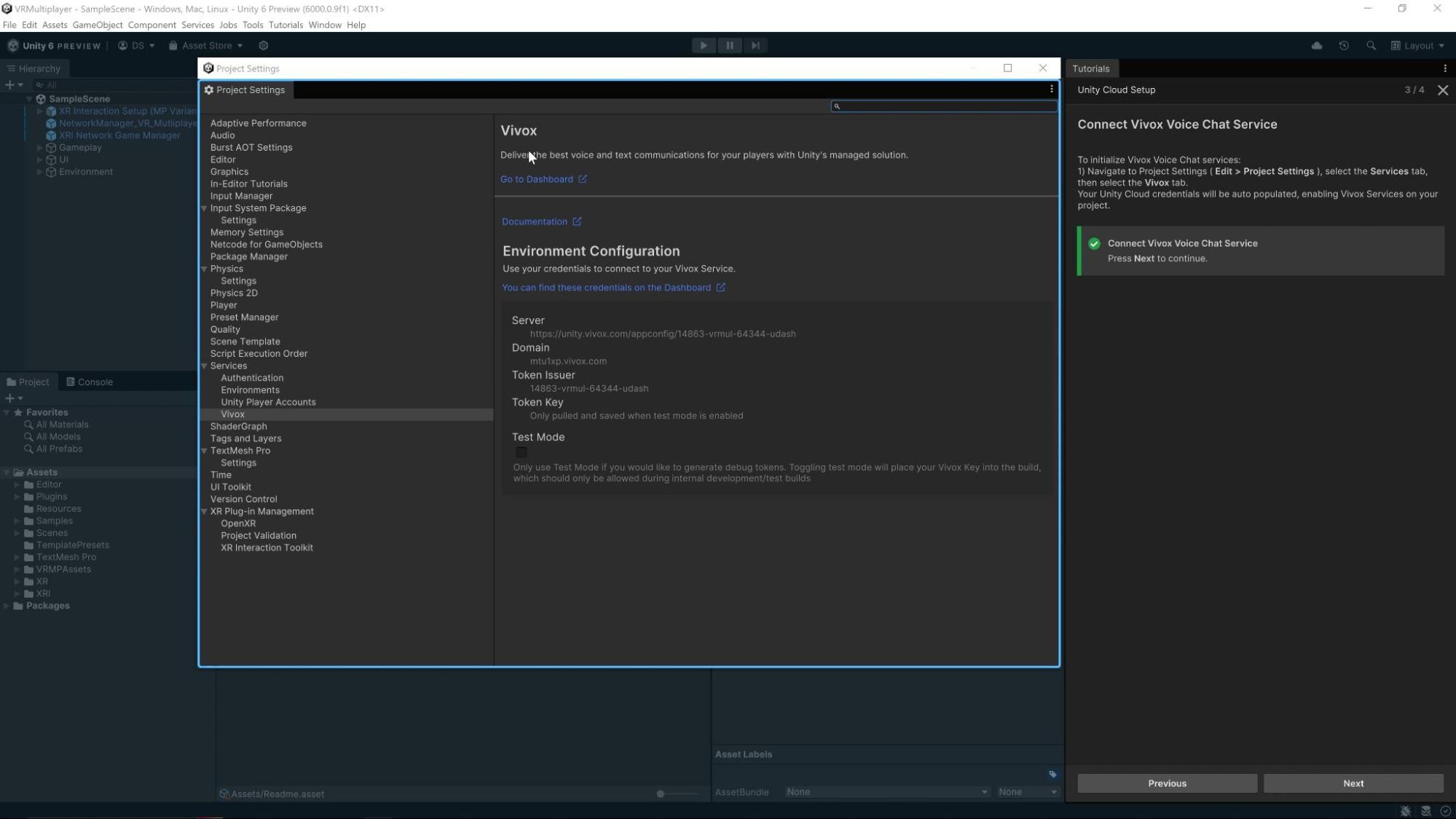
Set up Vivox in the template.
Vivox is preconfigured for integration, allowing developers to enable voice chat for players in multiplayer VR sessions easily. This simplifies adding real-time voice functionality to multiplayer interactions, without needing extensive setup or third-party integration. Clicking Next on this tutorial section completes the UGS setup.
The basic scene
The template provides a basic scene as a starting point that allows developers to test VR multiplayer interactions easily. It includes pre-configured elements to manage player connections and simulate interactions in both online and offline modes. The basic scene helps streamline early development, giving users the ability to prototype multiplayer VR environments quickly before diving into more complex setups.

The basic scene
The basic scene introduces three core prefabs:
- Network Manager VR Multiplayer
- XR Origin Hands (XR Rig) MP Template Variant
- XRI Network Connection Manager
Network Manager VR Multiplayer
This prefab handles the networking aspects of the game, such as player connections, server-client communication, and managing the multiplayer session lifecycle. It ensures that players can join and interact within the VR environment, making multiplayer functionality seamless. This GameObject also contains the Unity Transport component.

The Network Manager VR Multiplayer and Unity Transport components
The Unity Transport component enables the configuration and management of network communication in a multiplayer project. It handles the underlying transport layer, allowing you to set up parameters like the protocol, packet size, timeouts, and connections, ensuring smooth communication between clients and the server.
XR Origin Hands (XR Rig) MP Template Variant
The XR Origin Hands prefab is a variant of the standard XR Rig used to represent the player’s virtual presence in the VR world. It includes hand tracking and input features that allow users to interact with objects in the VR space. The MP Template Variant is specifically configured for multiplayer, ensuring that player avatars and their interactions are synchronized across the network.

XR Origin Hands
XRI Network Connection Manager
This prefab is responsible for managing network connections for players within the scene. It ensures that players can properly join the session and that their actions are replicated across other connected players.
The VR Multiplayer Template Part 1
This first video in our 3-part series on the VR Multiplayer Project Template steps through the basic scene and sample scenes.

The SampleScene
The SampleScene in Unity’s VR Multiplayer Project Template serves as a ready-to-use environment where developers can quickly test multiplayer VR interactions. It is pre-configured with key components to demonstrate and facilitate VR-specific functionality, including player movement, object interactions, and multiplayer networking.
This scene includes a simple yet effective layout with various interactive elements, such as VR controllers, UI panels, and networked objects, allowing for seamless testing of multiplayer features like real-time communication and object synchronization. Whether you’re exploring the basic functionalities or building out more complex interactions, the SampleScene provides a clean slate for quickly prototyping and iterating on multiplayer VR experiences.

The SampleScene
You’ll notice in the Hierarchy that the three core prefabs from the basic scene are used: the Network Manager VR Multiplayer, XR Origin Hands (XR Rig) MP Template Variant and XRI Network Game Manager.
This scene includes a suite of prefabs, minigames and elements that can be explored and reused in your own games and experiences.
The sample scene builds upon the functionality of the basic scene and offers UI to customize your avatar and create or join a room.

The Player customization UI panel
The UI elements in the SampleScene offer a wide array of interactive setups, from controlling music playback to displaying message boards, all pre-configured to provide a seamless experience for developers. These elements are designed to help you quickly grasp how Multiplayer components integrate with user interfaces in VR.
Included are several UI prefabs that demonstrate how networked elements like message boards, buttons, and audio controls can be synchronized across players. These setups allow developers to experiment with multiplayer interactions and explore how changes made by one player are reflected in real time across all players’ devices.
By using these ready-made components, you can:
- Easily modify and implement UI elements without complex setups.
- Understand how networked interactions, such as UI updates and player-driven events, are efficiently managed in a multiplayer context.
- Utilize multiplayer features such as voice chat integration and message boards to enhance the social experience in VR.
With these UI setups, developers are able to quickly experiment with and adapt UI components to fit their own multiplayer VR projects.

UI elements in the SampleScene
Interactable elements
The SampleScene has a wide range of interactable objects, from mallets to antigravity dials.

Interactable objects within the SampleScene
Upon examining the interactable objects, you’ll notice that the components managing their functionality are powered by the XR Interaction Toolkit, which is a key feature for handling interactions in VR environments. This toolkit provides the necessary functionality to allow objects to respond to VR input, such as grabbing, pressing, and selecting.
The interactable objects in the SampleScene, such as buttons, levers, and grabable items, are all configured using the XR Interaction Toolkit’s prefabs and scripts. These objects are designed to showcase common interaction patterns in a VR multiplayer setting. By utilizing the XR Interaction Toolkit, these objects can be manipulated by the player’s hands or controllers, allowing for seamless VR interactions.
Key features of these interactable objects include:
- Grabbable Items: This covers objects that players can pick up and move within the environment, demonstrating simple object manipulation.
- Pressable Buttons: These are UI buttons that trigger actions when pressed, such as starting an action or changing an object’s state in the game.
- Networked Interactions: When interacting with these objects, the changes are reflected across all players in the session, ensuring consistent experiences in multiplayer settings.
By using the XR Interaction Toolkit with these pre-configured interactables, developers can easily test and implement interactive mechanics in their own multiplayer VR projects, without having to set up these systems from scratch.
If you would like more information on the XR Interaction Toolkit, a free e-book is available to get you started.

Three components are used to enable the interactable objects to be synced across the network within the VR multiplayer project template:
- Network Object
- Client Network Transform
- Network Physics Interactable
The VR Multiplayer Template Part 2

In the second video in the VR Multiplayer Project Template series, we create a new multiplayer scene, adding core components, UI, and interactables. We also make our own networked interactable and test it.
Network Object
The Network Object component in the template plays a crucial role in synchronizing objects across the network. It ensures that changes to an object’s state, such as its position or rotation, are consistently reflected for all connected players in real-time. This component also manages ownership, allowing specific players to control objects while preventing others from modifying them. For example, a player who picks up an object becomes its owner and can interact with it, while others cannot.
Additionally, the Network Object handles networked prefabs, making it easy to instantiate and synchronize interactable objects across clients. It supports state replication, ensuring all players see the same object behaviour, and can trigger network events when an object’s state changes. This simplifies multiplayer interactions, allowing developers to focus on gameplay mechanics while the component automatically manages the low-level network synchronization, providing a smooth, consistent experience across all players.
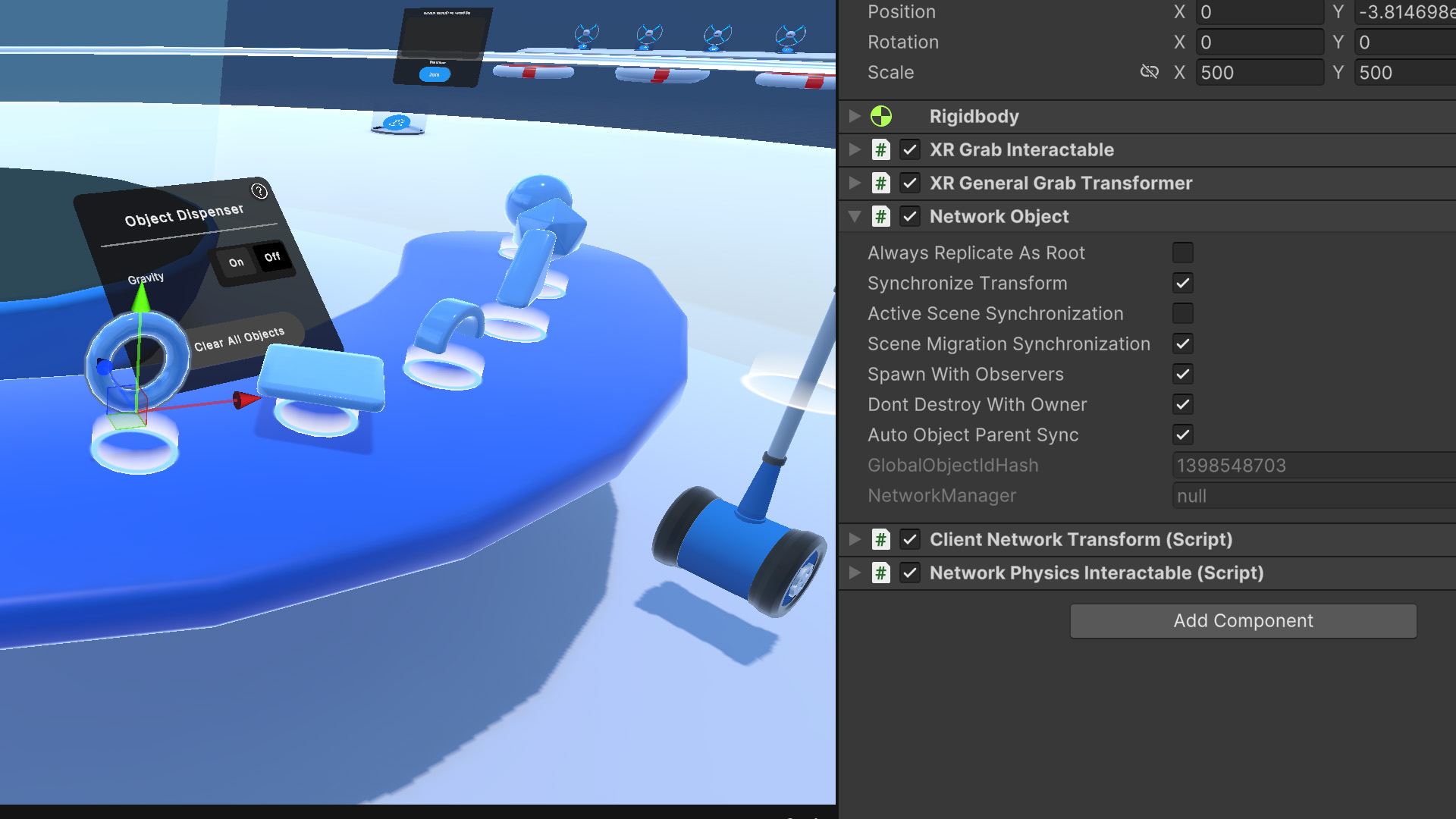
The Network Object component
Client Network Transform
The Client Network Transform component ensures that the object’s position, rotation, and scale are continuously synchronized across clients. It replicates the object’s transformations in real time, making sure all players see the same movement or changes to the object.
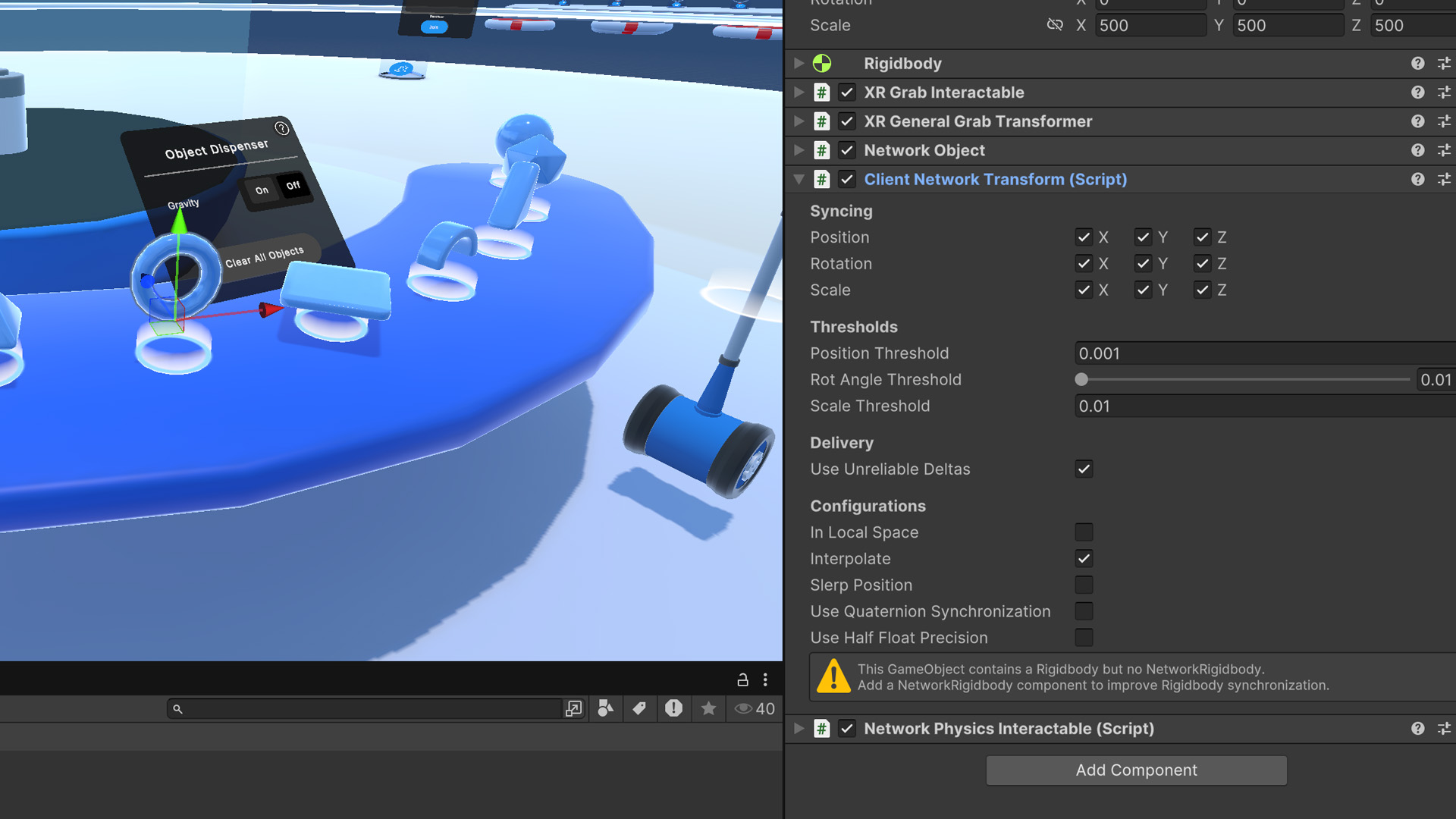
The Client Network Transform component
Network Physics Interactable
The Network Physics Interactable component plays a vital role in synchronizing physics-based interactions across the network in the template. It enables objects to interact with physics while ensuring that these interactions are correctly replicated across all connected clients. For example, it allows players to grab, move, or throw objects, with each action being reflected in real-time for other players in the session.
This component works alongside other networking components like the Network Object and Client Network Transform to synchronize the physical properties of the object, such as position, rotation, and velocity. It ensures that physics-driven interactions, such as when an object is picked up or launched, are consistent across all clients, providing a smooth and accurate multiplayer experience.
Mini game samples
The VR Multiplayer Project Template includes three mini games within the SampleScene: Slingshot, Whack A Pig, and Climber. Each game is designed to demonstrate core multiplayer interactions and mechanics. The games are pre-configured with essential components like networking, physics interactions, and player synchronization, allowing for seamless multiplayer experiences. Use the mini games as inspiration for prototyping your own projects and experimenting with gameplay mechanics.
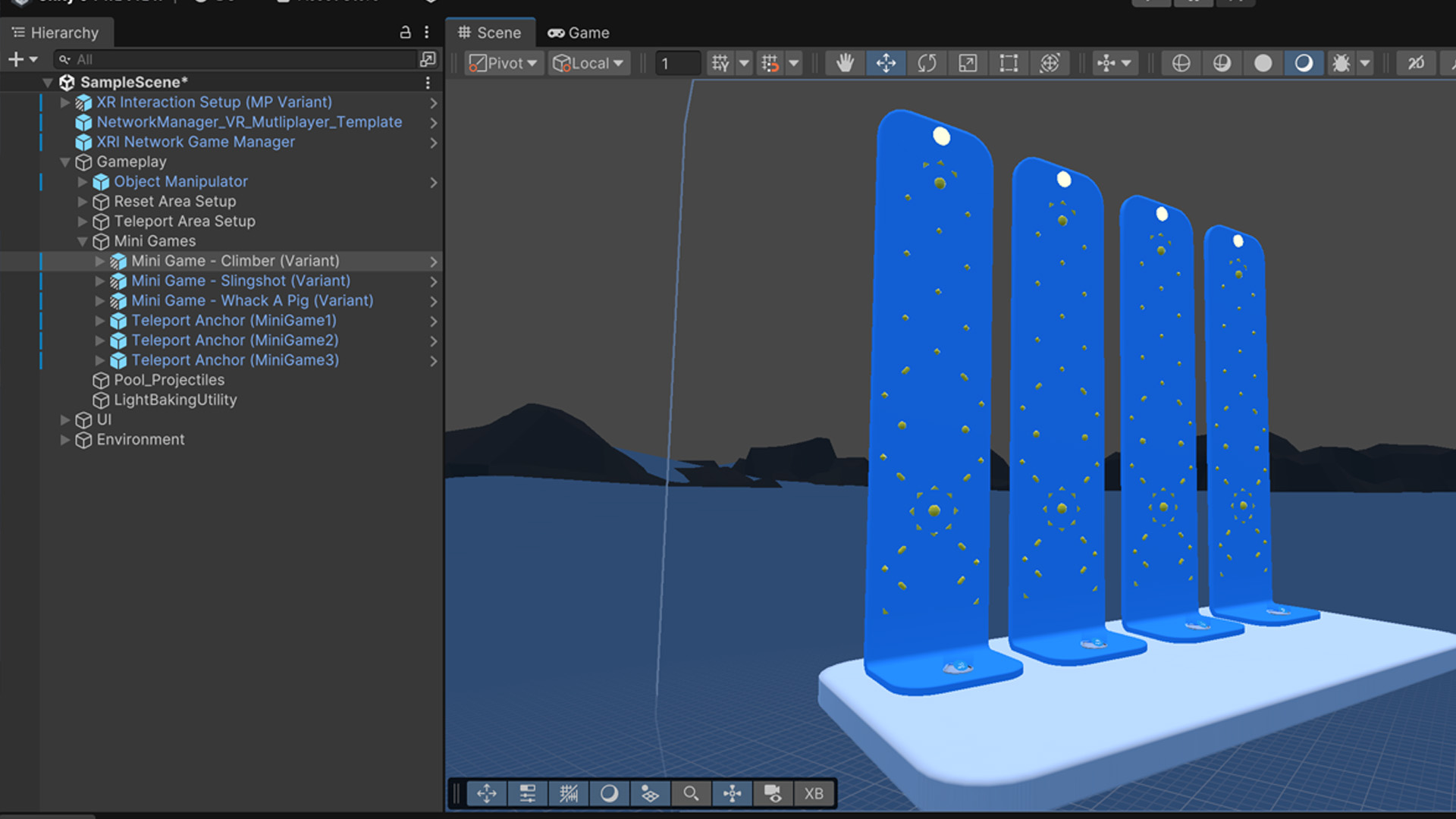
The Climber mini game
Customize the mini games
Each mini game within the SampleScene contains the Mini Game Manager component.
The Mini Game Manager script in the VR Multiplayer Project Template is a crucial component for managing and organizing mini games within the multiplayer environment. It controls the flow of the game, including setup, start, and end sequences, while ensuring that networked players are synchronized throughout the game experience. This script handles various essential tasks, such as managing the game state, tracking player scores, and transitioning between different stages of the game. Let’s look at some of the key properties of this component:
Game State Management
This script tracks the current state of the mini game (e.g., Pre-Game, In-Game, Post-Game) and updates the UI accordingly. It manages the transitions between these states, ensuring smooth gameplay and proper synchronization across the network.
Player Management
This handles player readiness and manages player connections, ensuring that players are added or removed from the game session based on the current game state. The Max Allowed Players setting defines how many players can participate in each mini game.
UI Updates
The Mini Game Manager controls the dynamic UI elements, such as displaying the current game state, player scores, and countdown timers. It also manages specific UI elements, like Best All Score and Game Name, to provide feedback to players throughout the game.
Timer and Countdown Management
The script includes configurable timers for managing game phases, including ready-up time, start countdown, and post-game wait times. This ensures the game progresses smoothly and players are informed of upcoming transitions.
Teleportation Zones
The Mini Game Manager integrates teleportation functionality, allowing players to be transported to different zones in the game world at appropriate times (e.g., when they start or finish a mini-game). This helps in creating a seamless player experience.
Barrier and Distance Check
The Barrier feature can be enabled to restrict players from moving outside the designated gameplay area. It also checks the distance from the center to ensure that players remain within the boundaries during gameplay.
Event Handling
The script is designed to trigger events based on player interactions and game state changes, helping to drive the flow of the mini-game. For example, it can trigger animations, update scores, or initiate teleportation when certain conditions are met.
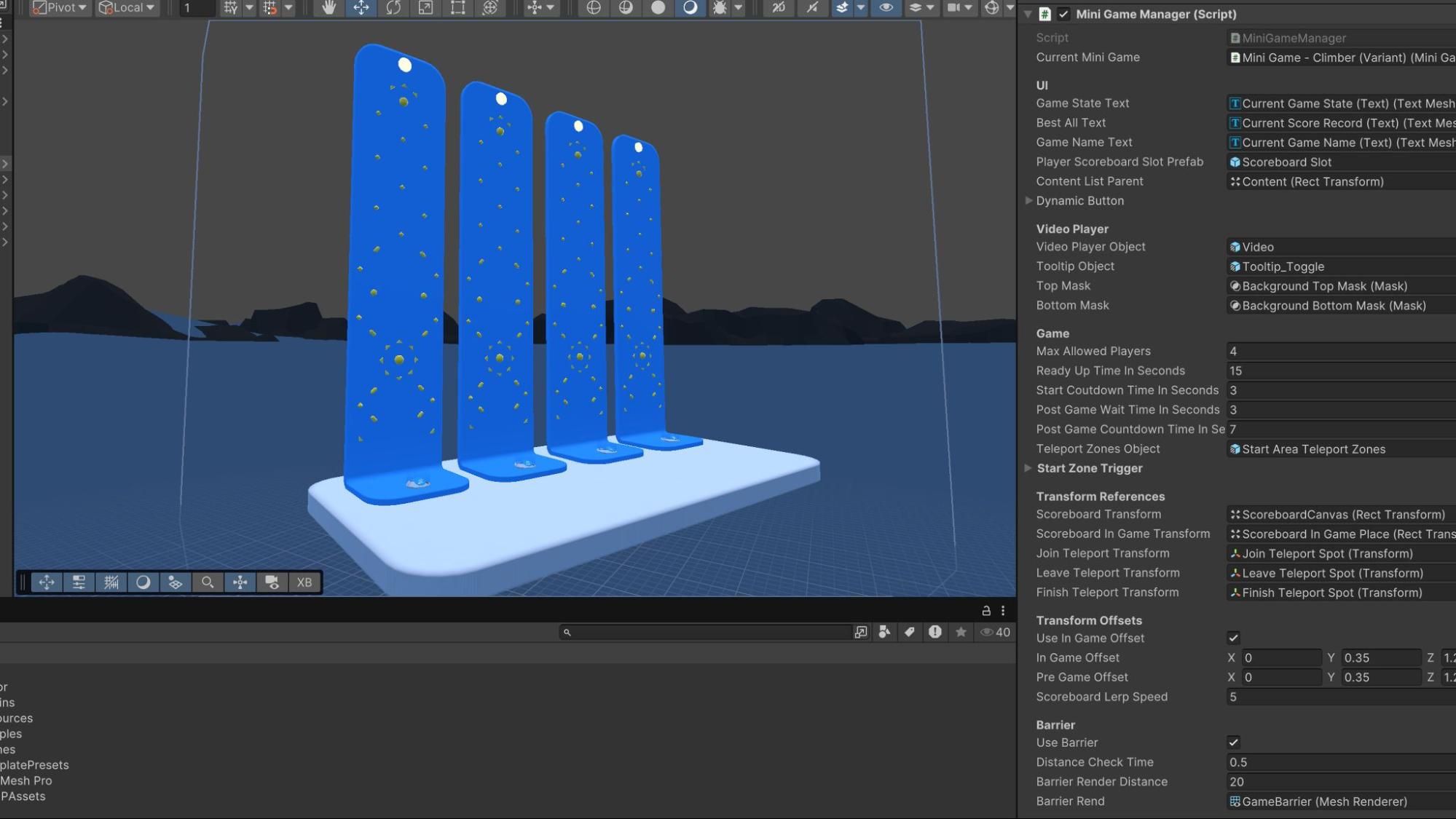
The Mini Game Manager script
You can easily reuse the Mini Game Manager component to create your own custom mini games by leveraging its built-in features for managing game states, player interactions, and network synchronization. By modifying or extending the script, you can adapt the game flow, integrate your own gameplay mechanics, and customize the UI to suit their specific game design. The script’s flexible structure allows developers to define new game types, implement unique scoring systems, and manage player transitions between different phases of the game.
Additionally, the Mini Game Manager handles crucial multiplayer features like player teleportation, UI updates, and state synchronization, making it a powerful tool for building networked VR experiences. With this reusable component, developers can quickly prototype and implement multiplayer VR games with minimal setup and maximum flexibility.
Set up your own multiplayer mini game
Let’s look at how you can reuse the components available in the SampleScene to customize a mini game.
Set up a new scene and add the three core network prefabs located within
Assets > VRMPAssets > Prefabs. These prefabs are used both in the SampleScene and the Basic Scene:
- XRI_Network_Game_Manager
- Network Manager VR Multiplayer
- XR Origin Hands (XR Rig) MP Template Variant

Prefabs reused from the SampleScene
To accompany these components you can reuse the UI GameObject from the SampleScene, by creating a prefab and then placing it into your new scene.

The UI included with the SampleScene
Not all of the UI prefabs features will be required, but to get up and running quickly and allow the user to customize their avatar and most importantly join or create a room, using just the Offline Menu UI will be enough to start the multiplayer experience.
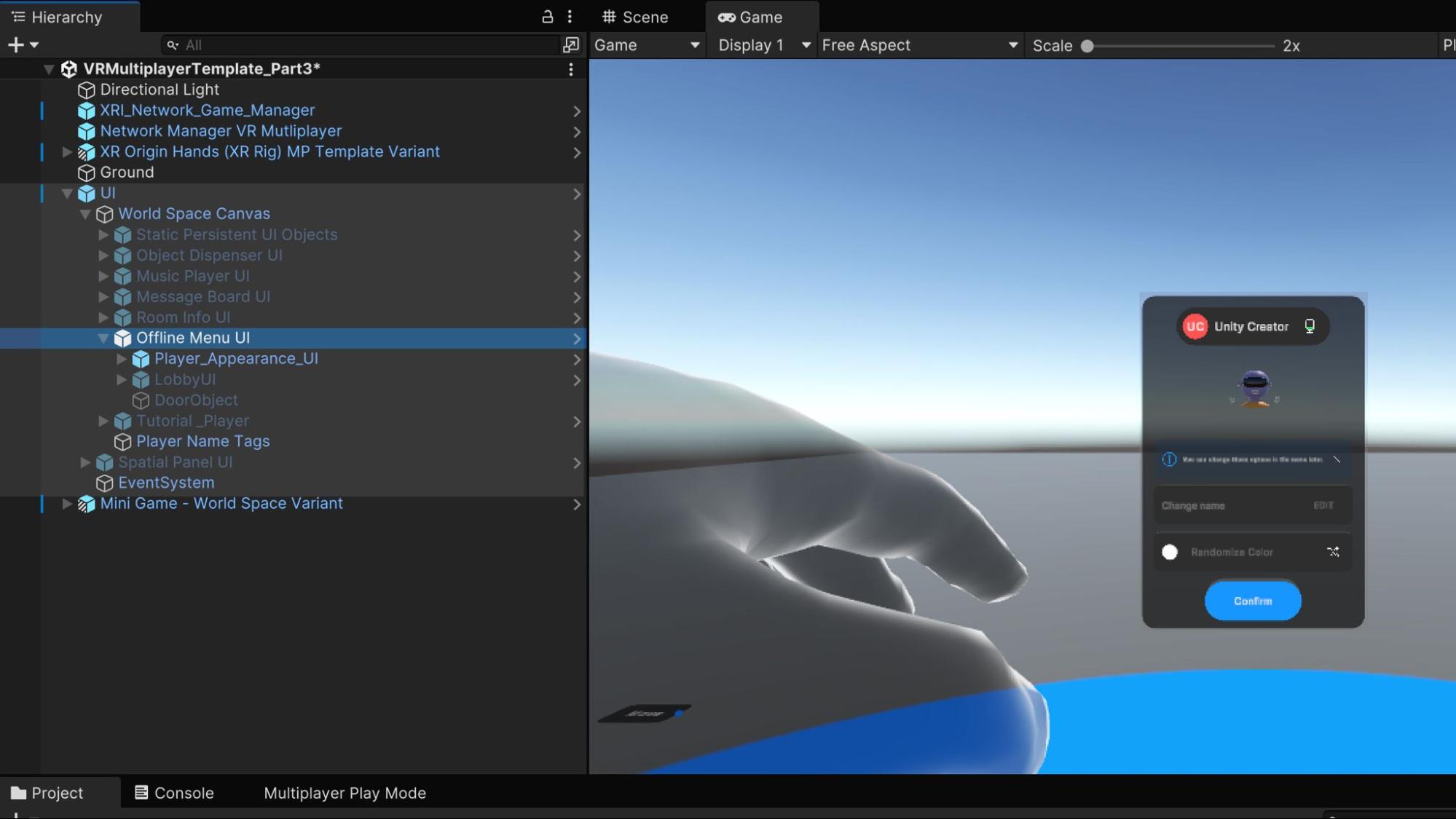
Use the Offline Menu UI features to speed up development.
This will be all that’s required to get your players into a multiplayer environment.
The last prefab required for setting up your own mini game is the
Mini Game - World Space Variant located via Assets > VRMPAssets > MiniGames > MiniGamePrefabs.
Using this preconfigured setup gives you access to all the UI elements and logic required to start building your own mini game.
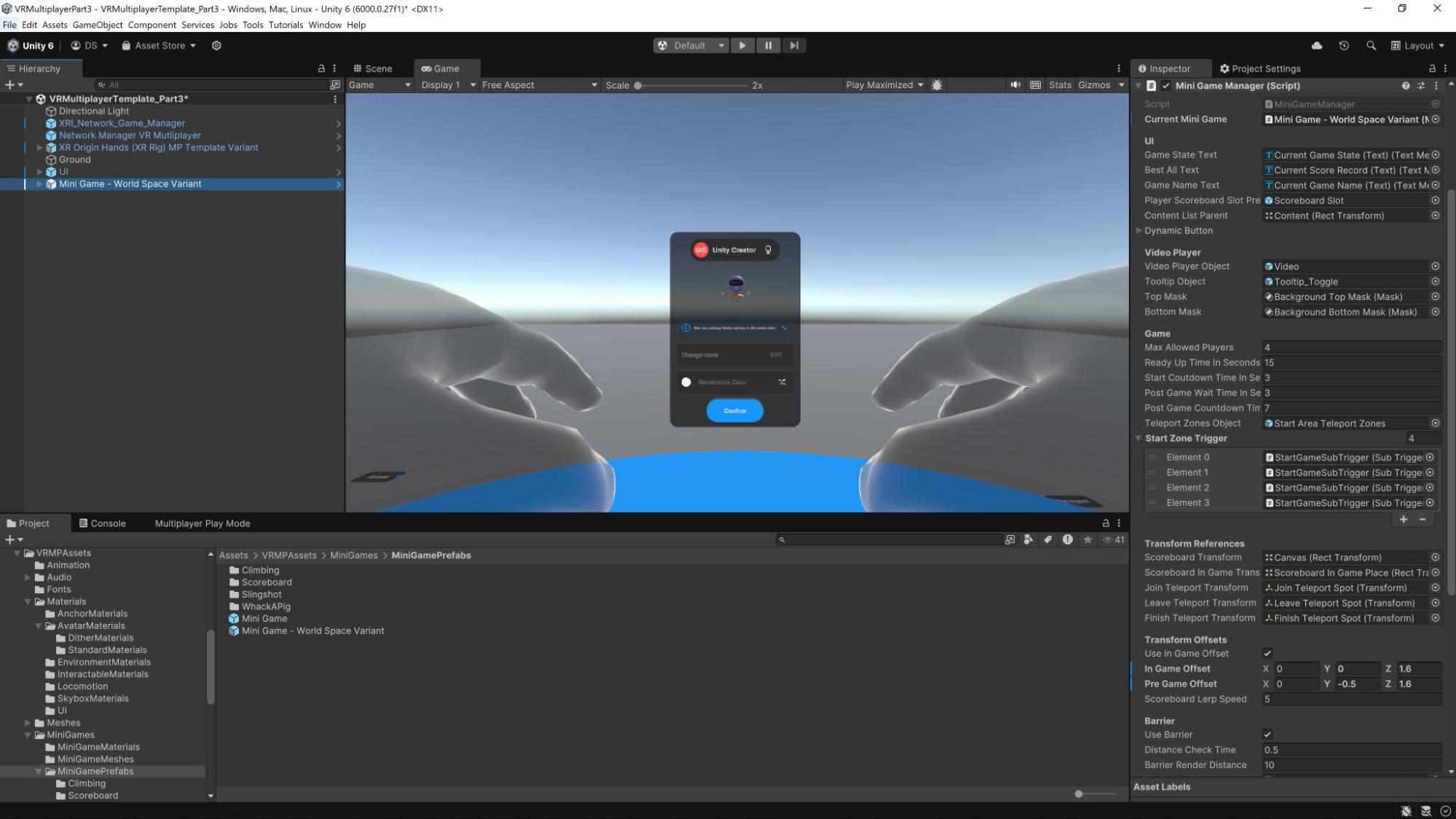
The Mini Game - World Space Varient prefab
The prefab provides a gameplay area, configured for four players, each with their own location that they can teleport to. All the UI is included and set up ready for you to start playing. The only thing required is a game idea!
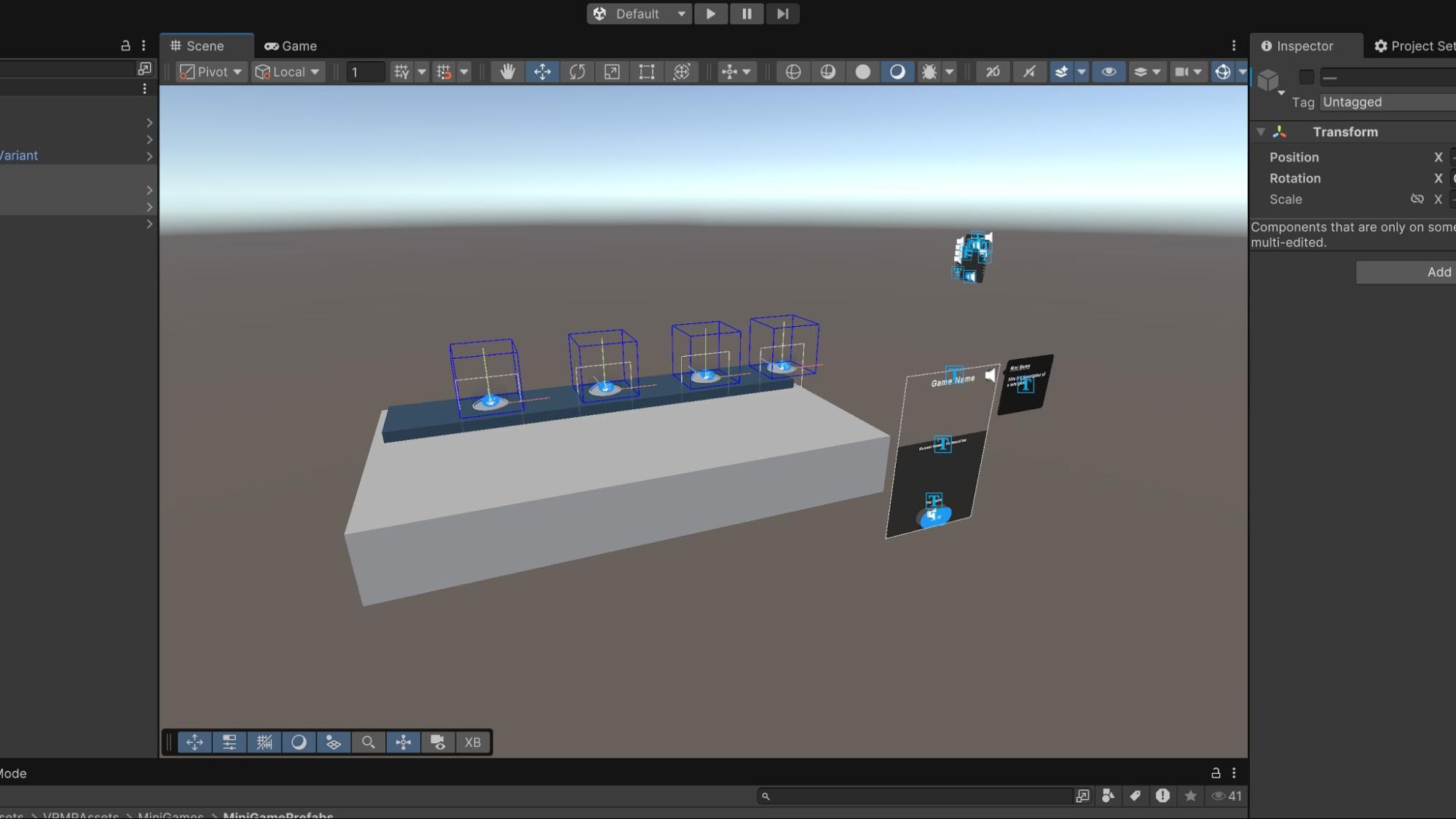
The mini game play area
The Mini Game Manager is designed to support two primary game types: score-based and time-based. In the SampleScene, the Climber mini game is time-based, where players race to reach the top as quickly as possible, with their times submitted to the Mini Game Manager. In contrast, the Slingshot mini game is score-based, where players shoot at targets, and their scores are sent to the Mini Game Manager for tracking.
These two game types offer a broad range of possibilities for creating multiplayer games. As an example, we’ll look at creating a Basketball mini game, which is score-based and has been developed as an example to demonstrate how these game types can be applied to different gameplay scenarios.
Set up artwork for your mini game
This will differ for your project, as your game will be different. This example is designed to show how you can create a very simple setup and communicate the player’s result - either time or score to the player manager.
For the Basketball mini game, the players will teleport to a game location, grab a ball and try to score by throwing it through the hoop. The setup here is quite simple, with four identical locations in the game area, all set up the same way.

Artwork set up for each location
Mini game class
To integrate the functionality of the mini game with the Mini Game Manager, you can create a custom class specific to their game, which acts as the bridge between the two systems.
For example, for the Basketball mini game, we can create the MinigameBasketball class.
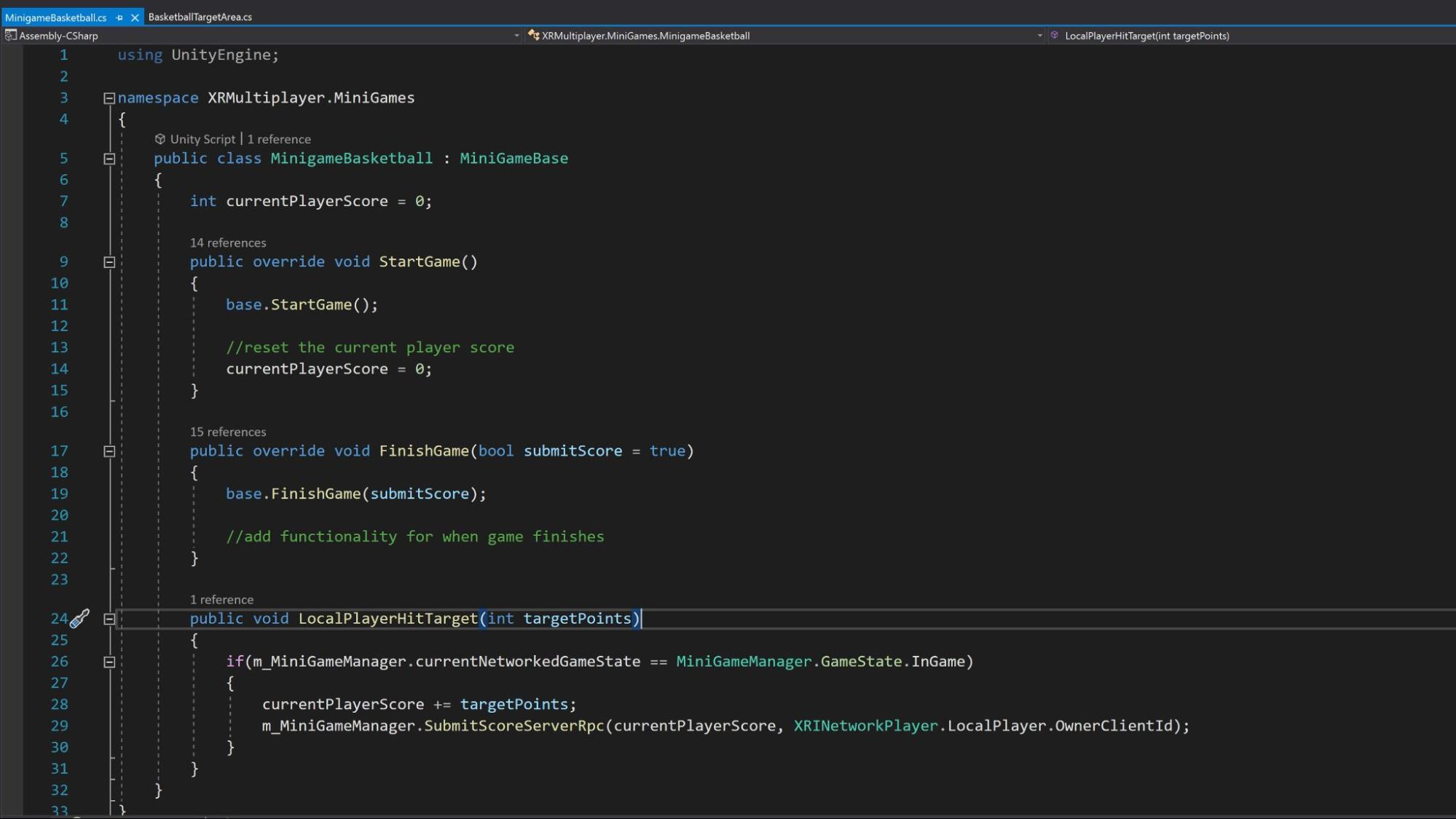
The MinigameBasketball class
The MinigameBasketball class inherits from the MiniGameBase class.
The MiniGameBase class serves as the foundational script for creating mini games in Unity’s template. It provides essential functionality for managing game states, such as starting, updating, and finishing the game. This class allows developers to create both score-based and time-based games by overriding key methods like StartGame, FinishGame, and UpdateGame. It also includes a system for tracking player scores and managing game events, making it a flexible base for developers to build their own custom mini games. By extending MiniGameBase, you can easily integrate multiplayer elements like synchronization and player interactions, ensuring a smooth networked experience.
By assigning this component to the Mini Game - World Space Variant GameObject, the inherited variables of the MiniGameBase are now available and you can populate the fields for Game Name, Game Type and Game Length.

Assigning the Minigame Basketball as a component
This new component can now be assigned to the Mini Game Managers, Current Mini Game variable slot.

Assigning the mini game
The last step is to connect the functionality of the player scoring by shooting the ball through the hoop to our new MinigameBasketball class.
Within the MinigameBasketball class, there is a method called LocalPlayerHitTarget(). This method needs to be accessed when the player successfully scores. Upon calling this method the Mini Game Manager is accessed and the players score, along with the player who scored it, is sent to the method SubmitScoreServerRPC().
By calling this method, the client’s score is sent to the server, where it can be updated and synchronized across all players. This ensures that the score is properly recorded in the multiplayer session, and all players will see the same score information.
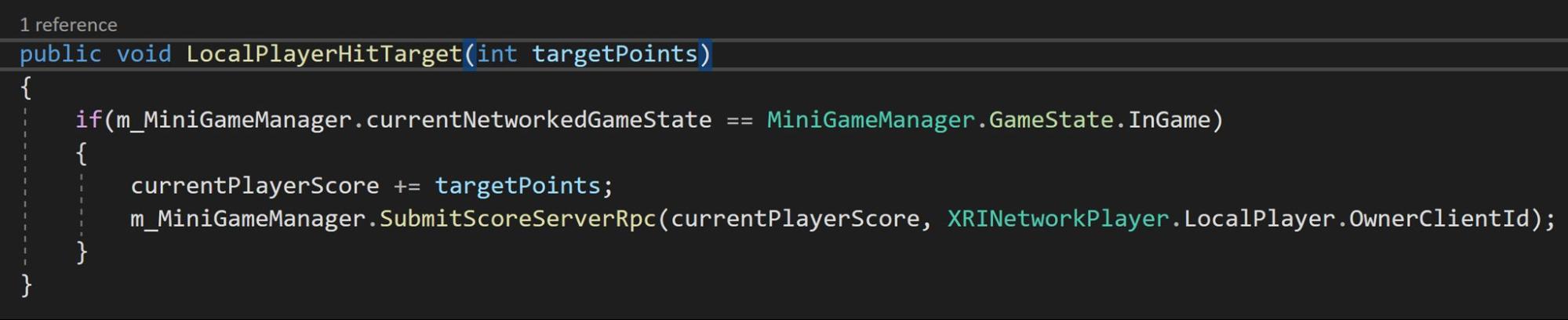
LocalPlayerHitTarget is accessed when the player scores, sending the score to the server.
To call this method, we need to detect when a player has scored. Within the Basketball mini game a trigger area has been placed within the hoop.
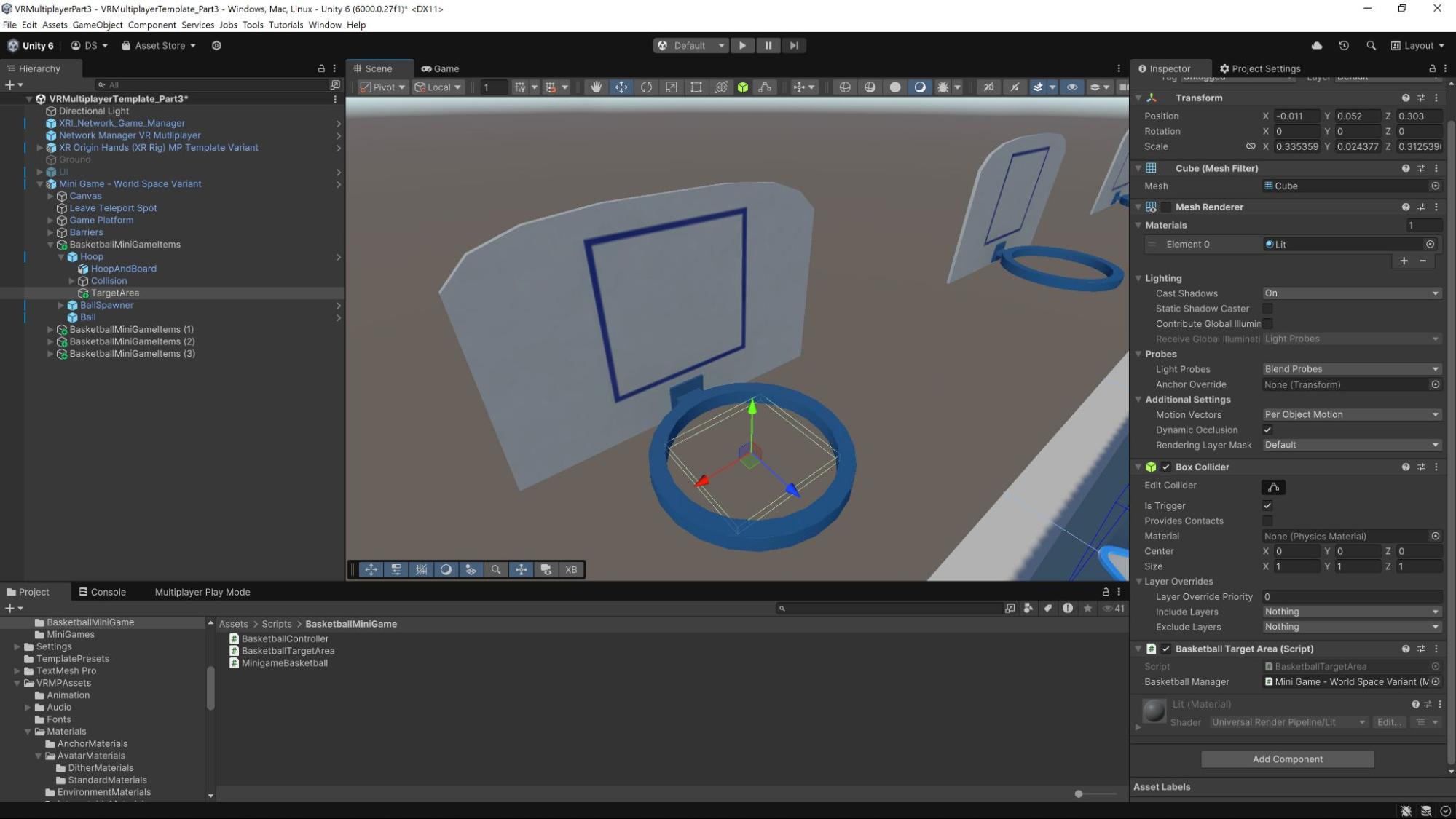
The trigger area within the hoop with the BasketballTargetArea component attached
When a ball passes through the trigger, an OntriggerEnter event is raised and an additional script, Basketball Target Area accesses the MinigameBasketball class to call the LocalPlayerHitTarget() method, passing it an Int as a parameter for the score.

The
BasketballTargetArea class calls LocalPlayerHitTarget(int) when a player has scored.
This is all that’s required for this example mini game to be played across a network.
The VR Multiplayer Project Template allows you to quickly prototype and build multiplayer mini games by reusing core components and prefabs like the Network Manager, XR Rig, and Mini Game Manager. The Mini Game - World Space Variant prefab provides a configurable game area with pre-set locations for players, ready to integrate with the MiniGameBase class for managing game states and player scores. Developers can create custom game logic, like in the Basketball mini game, by linking scoring actions to the MiniGameManager, ensuring that scores are synchronized across the network. This setup enables fast development of multiplayer VR experiences, with minimal configuration required.
The VR Multiplayer Template Part 3

In the final video of the VR Multiplayer Project Template series, we create a new mini game: A basketball game with our own assets, extending the template’s mini game class.