How to edit texture pixels at run time through C# code.

Hello,
Here I’m trying to edit a texture at run time for achieving a scratch card functionality, I know that there are other options to achieve this but for learning purposes, I want to go with editing pixels itself.
My idea is according to mouse position I will change the alpha value of the nearby pixels to 0.

For that, I have conducted a small experiment where I’m copying a texture and just setting its middle portion pixel’s alpha value to 0 through the following code.

public class TextureEditor : MonoBehaviour
{
    public Image image1;
    public Image image2;

    // Start is called before the first frame update
    void Start()
    {
        Texture2D copyTexture = new Texture2D(image1.sprite.texture.width, image1.sprite.texture.height, TextureFormat.ARGB32, false);
        Graphics.CopyTexture(image1.sprite.texture, 0, 0, copyTexture, 0, 0);

        var colorData = copyTexture.GetPixels32();
        for (int i = 0; i < colorData.Length; i++)
        {
            if (i > (colorData.Length/2) - (colorData.Length * 0.2f) && i < (colorData.Length / 2) + (colorData.Length * 0.2f))
                colorData[i].a = 0;
        }
        copyTexture.SetPixels32(colorData);
        copyTexture.Apply();

        image2.sprite = Sprite.Create(copyTexture, image1.sprite.rect, image1.sprite.pivot);
    }
}


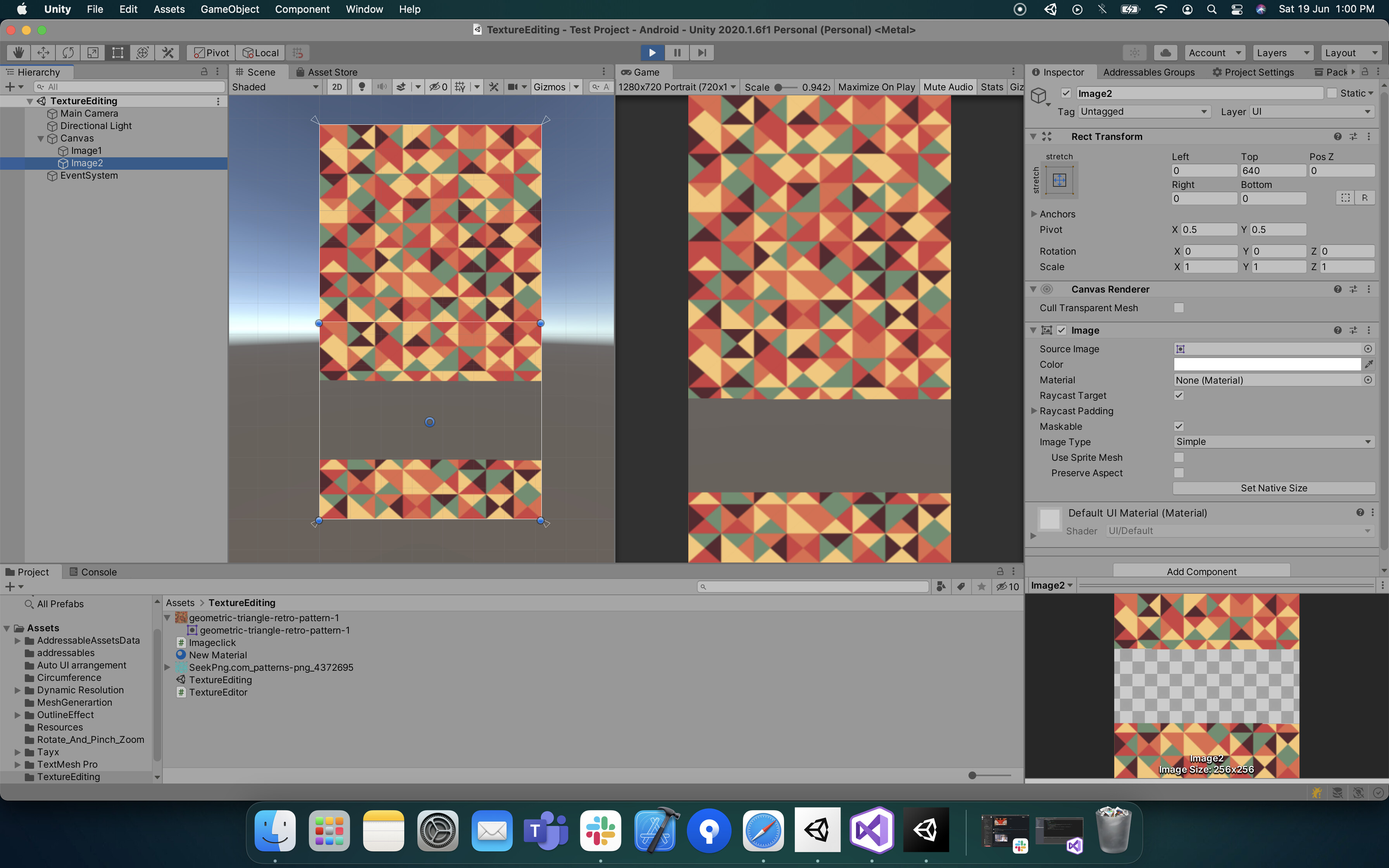
But the resulted texture(copytexture) is not what I have expected, though its middle portion is disappeared, the top and the bottom portion have lost their original colors. I’m not getting why the other 2 portions are changing their color to blue/pink? is I’m doing anything wrong in the code? please can someone help here?

I Have also attached my project setup video link (1minute video), where I have shown texture editor settings and other details.
I dont really see a problem right away. I would suggest approaching the problem like anything else you may need to debug in the future. Try to gain aditional information about the problem.
For example, try to comment out the code where you loop over the pixels, and see if the resulting image is still purple. If so, possibly use Debug.Log to compare the values of some arbitrary pixels on the two images after you used CopyTexture. If they are identical that’s not the problem, so maybe the sprite creation is. And so on.
It is interresting how all the brown/ green triangles from the original image turn transparent as well.

Eventually you should close in on the line causing the problem. Which will then help you figure out why the problem comes to be and thus figure out how to fix it.
As i personally dont really work with images, thats the best advice i can give you, but approaching problems correctly is a critical way to solving them, no matter the kind of problem.
One general piece of advice: even for one-line if-statements, use the brackets {}. It is basically no effort, improves readability, and makes code a lot less prone to bugs when you add additional lines in the future.

Edit + Solution: Take a look at your Textureformat. You use ARGB32, but work with RGBA32.

2 Likes

Hey, Thank you so much.
As you said I should have used RGBA32 instead of ARGB32 in code, changing that resolved my issue. Good observation.

I have made that change in the code.

Texture2D copyTexture = new Texture2D(image1.sprite.texture.width, image1.sprite.texture.height, TextureFormat.RGBA32, false);

Got the expected output.
7252196--874142--upload_2021-6-19_13-1-7.jpg

1 Like

Note that your CopyTexture call is kinda pointless and essentially was the root of the issue. Since for CopyTexture to work, both textures need to be readable anyways. So you could have simply read the pixels array from your source texture directly and assign the modified array to your destination image. The copy is pointless since your SetPixels32 call will replace the whole content of the image anyways. GetPixel32 will properly extract the color information and SetPixels32 will properly assign the color information regardless of the used texture format.

This is essentially what I’ve done in the script I posted to this question over here which asked about the very same thing ^^.

Also I’m not sure why you used the CopyTexture version that included the element and mipmap index. This only makes sense when you actually have a texture that has either several elements (cubemap or texture array / 3d Texture) or if you want to read / write only certain mipmap levels. Make sure you checkout the documentation.

1 Like

Hey,
The issue was not related to copying the texture, it was related to texture formate. and I copied it for some other reason, basically, I don’t want to edit the image1 texture so I was copying it instead of manually assigning each property of image 1 texture to image 2 texture, pre-built API was there so I was just testing it, yeah I can optimize it in various ways but this thread is not related to optimization.
Anyways thanks for the suggestion.

Of course it was related to CopyTexture since CopyTexture can only copy between the same or compatible texture formats. As I said since there was no reason to use it the issue would be gone if CopyTexture was not used. The colors got messed up when CopyTexture was used as the order of the colors in memory did not match. As I said, when you just use GetPixels32 and SetPixels32 its does the same as CopyTexture but without any issues.

In that case can you please answer this?
https://drive.google.com/file/d/1egKM459TuucrQGMJ2944fyAlTsu-IYTm/view?usp=sharing

Here I’m copying RGBA32 texture into an ARGB32 texture, but it works fine. so I got confused here and created this thread.

And regarding copying texture, I have already told that I had a requirement so I was doing that. I don’t want to manually copy the texture properties from source texture to dest texture so I was using the inbuilt API.
And also as you said if I have gone through your method then wouldn’t have come across this issue, but while learning I got into this way and found the weird result so I wanted to find out why the issue was happening in this method, as it was for learning purpose I wanted to find root cause instead of finding another way of doing it.

Here is how I achieved scratch card functionality through code, Just posting it because if someone refers to this thread in the future they can get some idea of how to edit the texture at runtime through c# code.
My project setup video (Might not be available for a long time, so I’m sharing the 2 scripts which I made to achieve this functionality) : Recording #24.mp4 - Google Drive

using UnityEngine;
using UnityEngine.UI;

public class TextureEditor : MonoBehaviour
{
    public Image image;
    public Texture texture;
    public Color pixelColor;
    public int brushSize = 10;

    private Texture2D copyTexture;
    private RectTransform imageRectTransform;
    private Vector2 localPoint;
    private Vector3 lastMousePos;

    void Start()
    {
        copyTexture = new Texture2D(texture.width, texture.height, TextureFormat.RGBA32, false);
        Graphics.CopyTexture(texture, 0, 0, copyTexture, 0, 0);
        image.sprite = Sprite.Create(copyTexture, new Rect(0.0f, 0.0f, texture.width, texture.height), new Vector2(0.5f, 0.5f));
        imageRectTransform = image.rectTransform;
    }

    private void Update()
    {
        if (Input.GetMouseButton(0) && lastMousePos != Input.mousePosition && brushSize > 0)
        {
            if (RectTransformUtility.RectangleContainsScreenPoint(imageRectTransform, Input.mousePosition))
            {
                lastMousePos = Input.mousePosition;
                Erase(Input.mousePosition);
            }
        }
    }

    private void Erase(Vector2 touchPosWithinRect)
    {
        RectTransformUtility.ScreenPointToLocalPointInRectangle(imageRectTransform, touchPosWithinRect, null, out localPoint);
        int px = Mathf.Clamp(0, (int)((localPoint.x - imageRectTransform.rect.x) * copyTexture.width / imageRectTransform.rect.width), copyTexture.width);
        int py = Mathf.Clamp(0, (int)((localPoint.y - imageRectTransform.rect.y) * copyTexture.height / imageRectTransform.rect.height), copyTexture.height);
        copyTexture.EracePixelsWithinRadius(px, py, brushSize, pixelColor);
    }
}
using UnityEngine;

public static class Tex2DExtension
{
    private static int rSquared;
    private static int xMin, xMax;
    private static int yMin, yMax;

    public static void EracePixelsWithinRadius(this Texture2D tex, int x, int y, int r, Color color)
    {
        rSquared = r * r;

        if(x-r < 0)
        {
            xMin = 0;
        }
        else
        {
            xMin = x - r;
        }

        if (x + r > tex.width)
        {
            xMax = tex.width;
        }
        else
        {
            xMax = x + r;
        }

        if (y - r < 0)
        {
            yMin = 0;
        }
        else
        {
            yMin = y - r;
        }

        if (y + r > tex.height)
        {
            yMax = tex.height;
        }
        else
        {
            yMax = y + r;
        }

        for (int u = xMin; u < xMax; u++)
        {
            for (int v = yMin; v < yMax; v++)
            {
                if ((x - u) * (x - u) + (y - v) * (y - v) < rSquared)
                {
                    tex.SetPixel(u, v, color);
                }
            }
        }

        tex.Apply(false, false);
    }
}
1 Like

Hey @Paulx774 , this fellow seems to have some scratcher goodness too.

1 Like

Thank you for the code and everything. I just want to ask a question. Your code works perfectly in the editor, however, on an Android device, the sprite’s color looks like half transparent. It happens even though I set the color manually.

void Start()
    {
        copyTexture = new Texture2D(texture.width, texture.height, TextureFormat.RGBA32, false);
        Graphics.CopyTexture(texture, 0, 0, copyTexture, 0, 0);
        image.sprite = Sprite.Create(copyTexture, new Rect(0.0f, 0.0f, texture.width, texture.height), new Vector2(0.5f, 0.5f));
        // It still happens even though I add this line
        image.color = Color.white;
        imageRectTransform = image.rectTransform;
    }

I was wondering if you come across this issue. If so, how can I solve this?

EDIT: Here’s the screenshot. That area is dark gray in the editor, however, on my phone, it looks like this. The yellow are should’ve been covered by a dark gray sprite.

EDIT2: I tried the same texture on another image by assigning beforehand, and it was opaque. So, it doesn’t related to the RGBA 32 compression option. It should be related to copying the texture or creating the sprite. Any idea why does it happen?

Hey,
The thing is I didn’t try this on a mobile device . I was just doing this for fun and didn’t build it to actual devices.
Currently im not sure about what might be causing this issue.
Checking your texture might give some idea.

  1. Add your texture manually to an image component and check if it looks fine or not. if it looks fine the there might be some issue while copying the texture but it doesn’t look fine then it is the texture issue, you might have to replace it.

  2. We are creating an “RGBA32” texture2d in code so even the texture which you have given reference in inspector should also in RGBA32 formate or else you will get a similar color copying issue. in both code and the texture which you are giving the reference in inspector should have the same formate it can be “RGBA32” or anything else but it should be same.

  3. If everything looks fine then do one thing, instead of copying the texture just directly assign the inspector referenced texture while creating the sprite.

image.sprite = Sprite.Create(texture, new Rect(0.0f, 0.0f, texture.width, texture.height), new Vector2(0.5f, 0.5f));
  1. Any of these above points should help you to find the issue, if nothing works then do one thing, instead of copying texture and creating a new sprite just manually create an image in the editor and take reference of that image to try to edit that. just skip copying and creating a new sprite through code.

Hey, sorry you told me that it is working fine in the editor so yeah there might be an issue in copying the texture so try 3rd and 4th points.

@Paulx774 Just now I built it to my android device and it is working fine. this is the screen recording.

There might be some issue in your texture setup I guess.

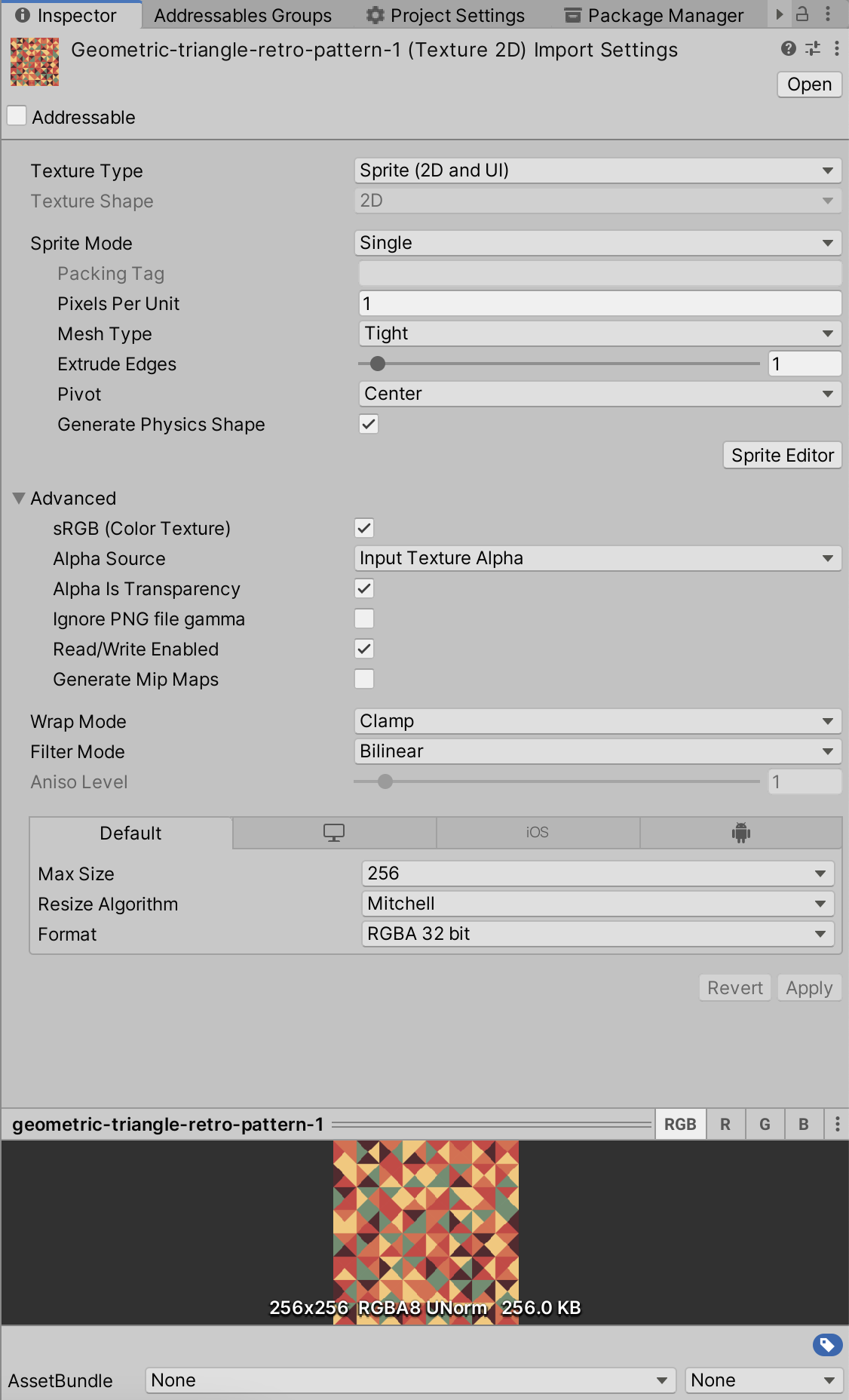
@ysshetty96

This is the import settings of the texture. Its resolution is 256x256 and it’s just gray square.

By the way, if I don’t use Graphics.CopyTexture, does it change the original texture? I use this scratch area feature more than one time.

I’ll try some approaches to see where the issue is. I’ll let you know the results.

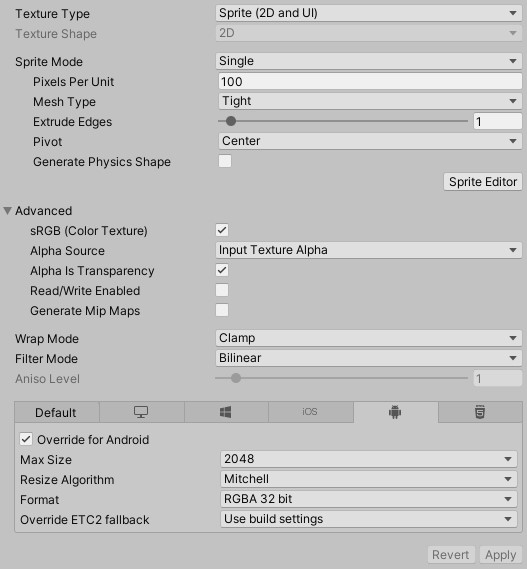
7298437--883471--upload_2021-7-5_9-54-34.png
Try with these settings once.
Disable the fallback for android, keep the default settings. And also enable the “Read/Write Enabled” option.
And yes if you don’t use copy texture then it will affect the original texture itself. But the original texture is required only once, for example in the start method you store all the texture-related information in a global variable, for example, its color data and width/height, etc, next time you can use the same data while creating the new texture at run time. no need to refer original texture again in that case.

@ysshetty96

I’ve solved the problem. The problem was Graphics.CopyTexture, I guess. Because I changed the code to the code down below and I got the same issue in the editor. (Half transparent).

        Color[] pixelBuffer = texture.GetPixels(0, 0, texture.width, texture.height, 0);
        copyTexture = new Texture2D(texture.width, texture.height, TextureFormat.RGBA32, false);
        copyTexture.SetPixels(pixelBuffer);

It was interesting that when I started scratching the area the transparency disappeared in the editor. So, I think, it was related to the updating (refreshing) the UI. (Something related to the Unity). As a solution, I set the sprite normally first. I don’t use the “copyTexture” first. When I start scratching the area, I change the sprite to the “copyTexture” by using Sprite.Create function (for only the first touch). Everything now works perfectly. I also had to enable the read/write option in the texture’s settings.

Here’s the full code:

    [SerializeField] private Image coverImage = null;
    // These 2 are the same texture. One is stored as Texture2D and the other is stored as Sprite
    [SerializeField] private Texture2D coverTexture = null;
    [SerializeField] private Sprite coverSprite = null;
    [SerializeField] private int scratchSize = 0;

    private Texture2D copyTexture = null;
    private RectTransform coverTransform = null;
    private Vector2 localPoint = Vector2.zero;

    private bool isInitialized = false;
    private bool isErasing = false;

    public void Initialize()
    {
        Color[] pixelBuffer = coverTexture.GetPixels(0, 0, coverTexture.width, coverTexture.height, 0);
        copyTexture = new Texture2D(coverTexture.width, coverTexture.height, TextureFormat.RGBA32, false);
        copyTexture.SetPixels(pixelBuffer);

        coverImage.sprite = coverSprite;
        coverTransform = coverImage.rectTransform;

        isInitialized = true;
        isErasing = false;
    }

    private void Update()
    {
        if (!isInitialized)
            return;

        if (Input.touchCount > 0 && Input.GetTouch(0).phase == TouchPhase.Moved && scratchSize > 0)
        {
            if (RectTransformUtility.RectangleContainsScreenPoint(coverTransform, Input.GetTouch(0).position))
            {
                Erase(Input.GetTouch(0).position);
            }
        }
    }

    private void Erase(Vector2 touchLocation)
    {
        RectTransformUtility.ScreenPointToLocalPointInRectangle(coverTransform, touchLocation, null, out localPoint);
        int px = Mathf.Clamp(0, (int)((localPoint.x - coverTransform.rect.x) * copyTexture.width / coverTransform.rect.width), copyTexture.width);
        int py = Mathf.Clamp(0, (int)((localPoint.y - coverTransform.rect.y) * copyTexture.height / coverTransform.rect.height), copyTexture.height);

        int xMin, xMax;
        int yMin, yMax;

        if (px - scratchSize < 0)
        {
            xMin = 0;
        }
        else
        {
            xMin = px - scratchSize;
        }

        if (px + scratchSize > copyTexture.width)
        {
            xMax = copyTexture.width;
        }
        else
        {
            xMax = px + scratchSize;
        }

        if (py - scratchSize < 0)
        {
            yMin = 0;
        }
        else
        {
            yMin = py - scratchSize;
        }

        if (py + scratchSize > copyTexture.height)
        {
            yMax = copyTexture.height;
        }
        else
        {
            yMax = py + scratchSize;
        }

        int rSquared = scratchSize * scratchSize;
        for (int i = xMin; i < xMax; ++i)
        {
            for (int j = yMin; j < yMax; ++j)
            {
                if ((px - i) * (px - i) + (py - j) * (py - j) < rSquared)
                {
                    copyTexture.SetPixel(i, j, new Color(1.0f, 1.0f, 1.0f, 0.0f));
                }
            }
        }

        copyTexture.Apply(false, false);

        if (!isErasing)
        {
            coverImage.sprite = Sprite.Create(copyTexture, new Rect(0.0f, 0.0f, coverTexture.width, coverTexture.height), new Vector2(0.5f, 0.5f));

            isErasing = true;
        }
    }
1 Like