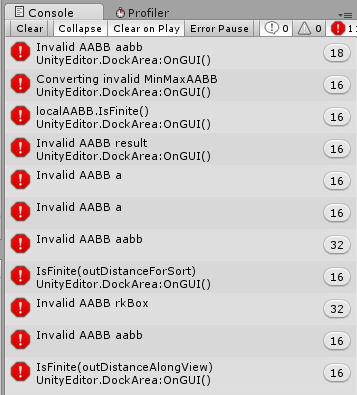
I don’t know what this error means, i don’t even know where or how to begin debugging it. Attempting to doubleclick the errors in the console does nothing. They don’t give me any information about what could be causing it.
I’ve attempted to google it and search for results. But the only people with similar errors, seemed to be having their problems with particle systems. I don’t have any particles in this project, never used them.
I need some guidance here. This has been around for two months and im having no luck fixing it. It doesn’t seem to affect anything except my patience, but i’m finding it infuriating
sounds a lot like something isn’t having time to sort itself out when it starts being used and it’s bounds are 0 or infinity, given that it’s an error in the editor ongui I’d start checking there.
Offhand, the only thing i can think of is my interactiveObject scri[pt which runs in edit mode. i’ve tried disabling all instances of objects which use it, and that doesn’t seem to have solved anything.
I don’t believe i’m using any kind of plugins or editor extensions in this project. But is there any way to be sure?
Ok i’ve found the source of the problem. or at least narrowed it down.
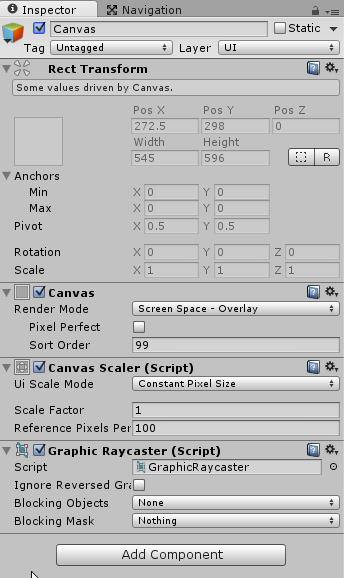
I have all my UI objects under one main umbrella canvas (it has lots of smaller subcanvases on it)
The main canvas itself seems to trigger the issue. disabling and reenabling it fires those errors. Disabling and reenabling any/all of its children, does not.
Nothing that I see there, that’s all completely generic canvas stuff and looks fine, but you’re making a faulty assumption.
Disabling the parent actually COULD cause a problem in a child (or a script attached to a child) when disabling the child itself does not, provided that there’s some script that relies on the “activeSelf” instead of “activeInHierarchy” of one of your GUI objects to tell whether or not to try and access / how to access the scripts attached to them. “activeSelf” will return false only if the object itself is disabled directly, while “activeInHierarchy” will return false if it’s not active either because it’s been disabled directly or because a parent/grandparent is disabled.
I get exactly the same set of errors if I’ve got a corrupted .blend file and have the animation preview window open.
The error messages are the kind generated by assertions - seems like there’s an IsFinite() assertion in the UnityEditor.DockArea:OnGUI() method. So there’s probably something in your scene (or one of your inspectors) which has a 0-size bounding box, which seems to cause a divide by zero, which fails the assertion and causes the error spam. That’s by best guess.
Ok i went looking through the hierarchy, and i was able to find one subcanvas which had its width and height set to 0.
I changed them to something small, 30 i think.
Now the errors i get from disabling and re-enabling the canvas, have changed
that’s all just from disabling and re-enabling the main canvas once.
In addition to that, and almost certainly related, disabling and reenabling also causes two of my UI elements to be moved to incorrect positions.
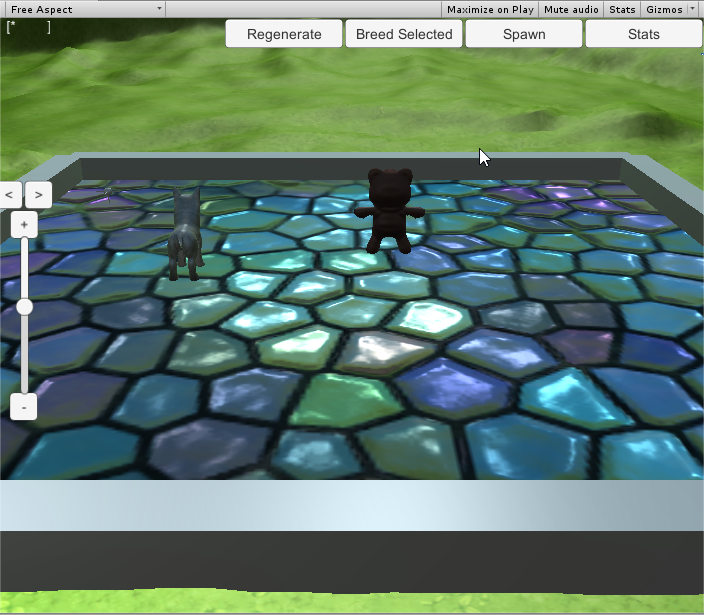
For reference, here’s how it normally looks (game view)
The tall slider is the zoombar.
The box with buttons and text in it is the StatsPanelCanvas (it’s normally shrunk to 0.01 scale and hidden under the Stats button in the upper right, it shouldn’t be visible outside of play mode)
Both of these main things are direct children of the main canvas.
These new positions are NOT reflected in the inspector, none of the inspector values change. but they are visible in game view, and also in scene view if i enable viewing the UI layer
I found this thread as I was also suddenly seeing the AABB errors when ending play mode. After much messing around I found an item with the rect transform scale set to 0,0,0. Fixing this removed the errors.
i don’t think it’s anything related to blends, i never import them, and no meshes at all are involved in this issue. i’m confident it’s caused by something in my UI
Click that link and then the Download button at the top of the screen.
I’ve isolated the problem down to the bare minimum. You can open this scene in any project, it uses mostly default assets. Although it might throw errors if you try to actually run it. Going into play mode is not necessary.
To reproduce the problem, open the scene, go to Scene View (this is important, doesnt seem to happen in game view), clear the error console,
And then toggle the enabled flag on the toplevel “Canvas” object, off and back on.
It will output about 65 errors into the console
If you disable some of its children (and its children’s children), and then do the toggling again, the number of errors is reduced proportional to the number of objects you disabled. As far as i can tell there’s about four errors for each child.
Can someone please look at this and figure out what’s going wrong ;-;
well now, interesting, that DOES fix it. But why? Why does override sorting cause a problem to begin with?
I originally turned that on though, for two reasons In my original UI,
the statspanel folds away to underneath the stats button. I had to edit the sort order to make sure it stayed under, and not ontop. It seemed to keep popping back ontop when it was moved
I have a “dimmer” screen object which is a partially transparent black panel used to cover the screen, i activate that when the window loses focus. To indicate to me and the player, that the window is out of focus, and also to prevent clicks registering until its focused again. I used sort order to make this draw ontop of every other UI element.
Any idea how i can achieve these these results without overriding the sorting?
Also turning off override sorting on my subcanvases causes their content to be invisible. I can fix this by removing the Canvas component from them, and everything that depends on it. That sorts it, but it’s also no longer a canvas
I was under the impression that a canvas was the general “thing you put other things on” and that i should be using lots of them to group together buttons. If that’s not the case, then what are subcanvases even for? am i using them wrong? They don’t seem to work very well
I’ve also encountered the “Invalid AABB aabb” issue, and none of these fixes have helped yet. I wrote the following code to search for scales that were somehow set to 0, but none have appeared. Possibly this code would be helpful to someone else though.
using UnityEngine;
using System.Collections;
using UnityEngine.UI;
using System.Collections.Generic;

// This should only be used for debugging the "Invalid AABB aabb" error - JB

public class CanvasAABBInvestigator : MonoBehaviour {

    public bool                        delve = false;

    public List<RectTransform>        rts;

    // Use this for initialization
    void Start () {
        if (!delve) return;

        rts = new List<RectTransform>();

        RectTransform rt = GetComponent<RectTransform>();
        Delve(rt);
    }

    void Delve(RectTransform rt) {
        if (rts.IndexOf(rt) != -1) return;

        rts.Add(rt);
        RectTransform[] tempRTs = rt.GetComponentsInChildren<RectTransform>();
        foreach (RectTransform rtT in tempRTs) {
            Delve(rtT);
        }
    }

    void Update() {
        if (!delve) return;

        // Search for any scale that is 0
        Vector3 scale;
        foreach (RectTransform rt in rts) {
            scale = rt.localScale;
            if (scale.x == 0 || scale.y == 0 || scale.z == 0) {
//                Utils.Print("CanvasAABBInvestigator", "RectTransform scale of 0", rt.gameObject.name, scale);
                Debug.LogError(System.String.Format("{0}\t{1}\t{2}\t{3}", "CanvasAABBInvestigator", "RectTransform scale of 0", rt.gameObject.name, scale));
            }
        }
    }

}
After more research and testing, it seems like my Invalid AABB error may have been caused by a corrupted scene file. To fix the issue, I cloned an older version of my GIT repo (from before the error appeared) into another folder. None of the code changes since that version seemed like they could account for the error, so I tried copying the main Scene file from that safe version into my new version that was experiencing the AABB errors. When I loaded the old (safe) scene in the new (broken) Unity project, everything worked absolutely fine!
So, if you encounter this error and are using version control, I recommend trying to pull a scene from a previous version of your project and see if that doesn’t fix it. As far as I know, I didn’t make any scene changes between the non-broken and broken versions; it just stopped working or got corrupted or something.
I’m encountering the same issue. However, going back to a previous scene file is out of question for this project. Could you do a diff on the scene files? Maybe that somehow shows where the problem came from…
I encountered the bounding box error when I was manipulating the vertices of a mesh through code, and sometimes set y values to Mathf.NegativeInfinity (seemed like a good idea at the time.). Setting them to a valid floating point number made the problem go away.
I’m seeing these AABB related errors. Except I have almost no idea what the cause is. I’m pretty sure it was nothing I did. My hard drive crashed and all I had was the code in my Git Repo and when I cloned it a lot of stuff was jacked up. I restored model asset meta data and had to reanimate one of the characters, but I suddenly noticed these aabb errors. Also suddenly if you load a scene everything goes very dim.