My Main Preview in Shader Graph has been empty for a while now. I have tried clicking and dragging in the Main Preview window, but nothing changes. I have also tried different meshes, but it doesn’t change. Not even a gray mesh. I have closed and opened the Main Preview. I have closed the Graph and reopened it. I have tried different Shaders. I have tried different projects, but it is all the same. I am using 2021.3.20f1, was using 2021.3.3.1f1, where the problem started. I have rebooted my computer, and restarted Unity multiple time. I haven’t been able to find anything from Google Searches, so I am pretty lost, and having to save the shader and go into scene view for each change is getting bothersome.
One thing I have noticed about this, is if I have the surface type set to Transparent, it works fine, and I get the preview, but if it is set to Opaque, it does not display.
I have the same issue, like [IntrovertGenius]( Main Preview In Shader Graph Is Blank members/introvertgenius.8732280/) says above, the only solution I’ve also found is to set the surface to transparent (in Graph Settings) . . . but obviously this isn’t ideal as it changes the available modules . . . the other (much slower and less interactive) solution is to have the scene and/or game window open, with the shader applied to a game object, then every time you hit Save Asset in Shadergraph the object’s material is updated . . . neither are perfect solutions, but you can sort of botch your way through.
Yes, I have to Save Asset to see the changes, and depending on the complexity of the Shader Graph, I could imagine that would get very time consuming. I am just learning Shader Graphs via online course, but I am starting to see how non-ideal this is. I haven’t found any solutions anywhere, and I’ve asked a few times in the Discord, and haven’t gotten replies there either.
In searching for a solution I can see the issue has been around for - literally - years, I’m guessing it’s some sort of issue specific to a person’s graphics card / graphics set up, and probably doesn’t effect the other 99.9% of people, otherwise I guess it would have been addressed, as the issue has been around for such a long time.
Maybe list your computer / graphics card here . . . . over time, with enough entries a pattern might emerge, which should make it easier for Unity to address . . .
I’m on an old 27" iMac from 2013 (wow, a decade old !)
Graphics = NVIDIA GeForce GT 755M 1024 MB
Same issue with me. The “transparent” workaround also works.
Unity 2021.3.19f1
Windows 11 64bit
12th Gen Intel(R) Core™ i7-12700K
32.0 GB RAM
NVIDIA GeForce RTX 3070 Ti
Google searches seem to indicate that this has been a problem since Unity 2019…I wonder if it’s been fixed in later versions…but I just don’t want to mess around with updating the program mid-development.
I, too, have encountered the same problem, though,
I encounter it when I start a project with a 3D (URP) template.
Perhaps this is a bug in Unity.
In my environment, I found that it develops when using URP-HighFidelity.
If you have no problem with the other option, there is a solution.
First, in the “Graphics/Scriptable Render Pipeline” in the project settings
URP-HighFidelity" is set in the “Graphics/Scriptable Render Pipeline” in the project settings, please change it to “URP-Balanced”.
Next, change the “Quality/Render Pipeline Asset” setting in the project settings to “URP-Balanced” as well.
If the ShaderGraph window is open at this point, close it.
Then open the ShaderGraph window again and check the MainPreview.
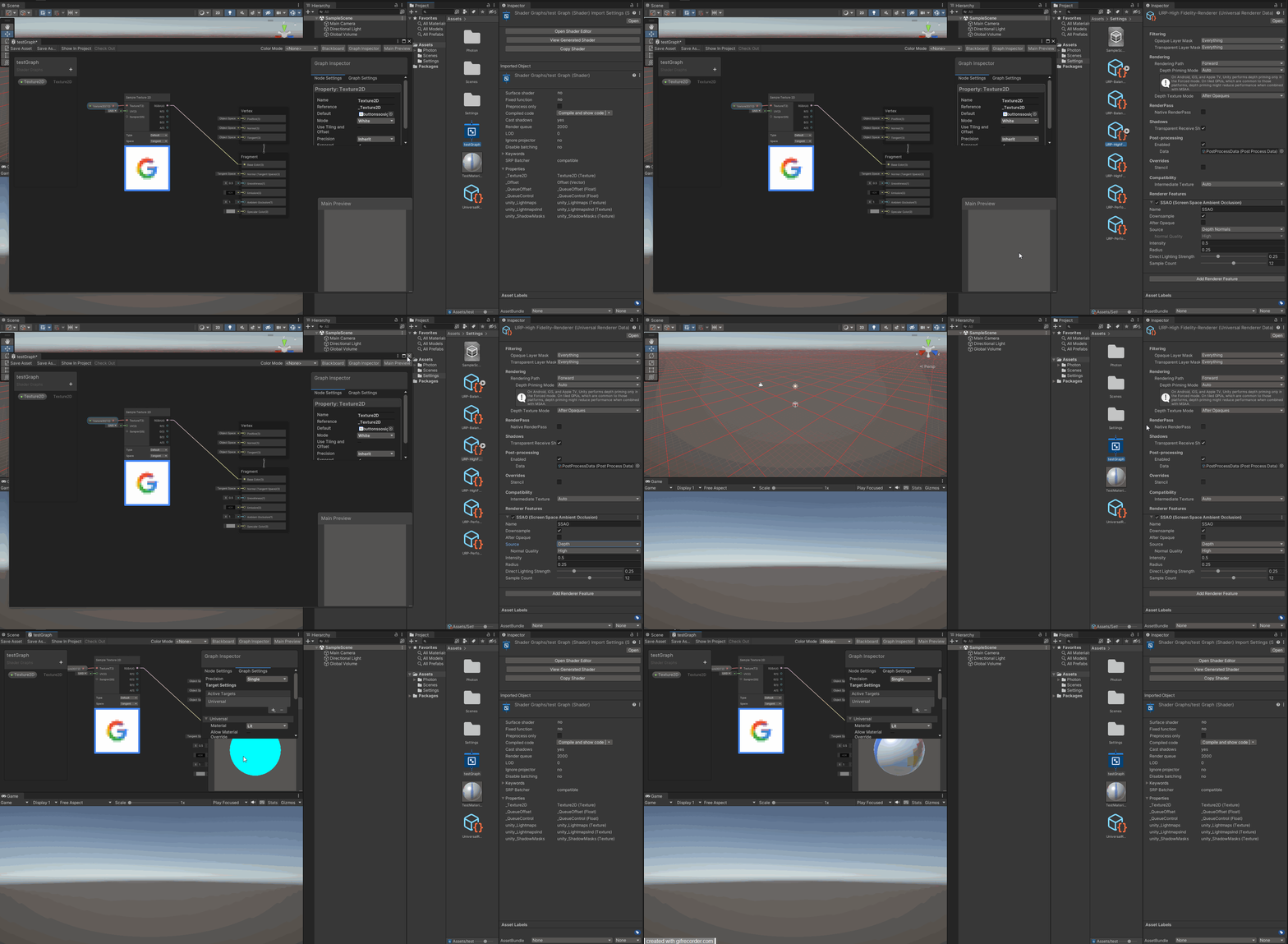
Explanation with images.
The version of Unity in the description is 2031.3.25f1.
First of all, this problem is that the main preview may not be displayed correctly in the shader graph editor,
as shown in image 1.
Normally, the shading set here in the editor should be reflected in the preview object.
However, in some cases, this does not happen and a flat gray display is produced.
This is happening because the Render Pipeline Asset in the project settings is set to “URP-HighFidelity.”
Click on the small button to open the asset window, as shown in Image 2,
and change the setting to “URP- Balanced” in the asset window.
Then, as shown in Image 3,
change the Render Pipeline Asset item from “URP-HighFidelity” to “URP-Balanced” for the Quality setting as well.
Now check if the preview is reflected as shown in image 4.
However, this will not work in cases where the Render Pipeline must be URP-HighFidelity,
in which case you will need to consider a different solution.
You only need to edit the “URP-HighFidelity-Renderer”.
Under the SSAO (Screen Space Ambient Occlusion), they have Source marked as “Depth Normals”.
Just change it to “Depths” and choose your quality. (I chose “High” quality).
If the Shader Editor is open, you will need to close it and re-open it again.