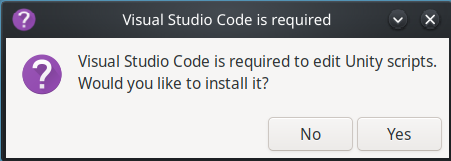
How compatible is com_unity_ide_visualstudio package with Linux? I can’t find info about this. Requirements in the relevant documentation page won’t even mention Linux
I ask this because I struggle to make VSCode work fully with Unity Editor on Linux. Here is what I mean:
My next step was to choose Browse... and select executable manually at /opt/visual-studio-code/code.
Aaaaaaaand it doesn’t work.
Opening script from anywhere in Editor simply does nothing. And no trace in log files, nothing.
open by file extension
Last-ditch option is Open by file extension. It works… partially. It opens up the file but not the workspace and won’t jump to the correct line. I tried changing $(File) to $(File):$(Line) and wth - exactly the same result.
All I know is that VSCode support arrived, moved around, departed completely, then came back, supposedly in some semi-official capacity now.
I have used it for a while a few years back but now I’m back to Visual Studio.
This is my #include <stdintellisense.h> link, which includes some noise about VSCode.
As far as VSCode specifically on Linux, my info is null
This may help you with intellisense and possibly other Visual Studio integration problems:
Sometimes the fix is as simple as doing Assets → Open C# Project from Unity. Other times it requires more.
Other times it requires you also nuke the userprefs and .vsconfig and other crufty low-value high-hassle files that Visual Studio tends to slowly damage over time, then try the above trick.
Barring all that, move on to other ideas:
Also, try update the package inside of Unity: Window → Package Manager → Search for Visual Studio Editor → Press the Update button
Depending on flavor and version of Visual Studio, it may also have an installation step that you perform within the actual Visual Studio. This step seems finicky at best and may require multiple openings of VS before it comes up.
Update: The VSCode extension has been deprecated and abandoned:
Update: the VSCode integration is back… maybe!?
There may be a community fork available that is receiving updates.
Also, this tidbit:
Recently (July 2023) I worked on a Windows11 system that required a Microsoft component to be installed from within Visual Studio before it would work properly with all the OTHER software installed under Unity. I have no documentation on that process as I have only seen it once and it surprised me as well.
I can’t recall where I read this (I think somewhere in the manual) that Unity officially sanctions or even supports VS Code for OS X and Linux, given the deprecation of Visual Studio for Mac respectively VS not running on Linux. While Rider is the preferred choice for professionals for all operating systems, it is not free.
So in essence: you get what you pay for.
Also be sure to be on Ubuntu 22 or 24 because that’s what Unity requires. All other “Linuses” as well as running Unity in a VM are unsupported and use at your own risk - that includes interoperability with IDEs.
That’s pretty normal for VS Code regardless of platform. I’ve had brief periods where everything worked properly on Windows and MacOS, but most of my time with it was spent keeping it working. Eventually I just bought Rider.
VSCode works fine on Linux with Unity. Of course you must have the Visual Studio Editor package installed into Unity’s package manager. But I assume you do.
The problem is that, depending on how you installed VSCode, Unity may or may not find it. I investigated that issue in detail when I experimented with flatpacking Unity.
The Visual Studio Editor package will search for VSCode by iterating the directories listed into XDG_DATA_DIRS and search for a desktop file named code.desktop. But if you installed VSCode through Flatub then the desktop file will be named com.visualstudio.code.desktop. I’m not sure what it does if you install it with AUR, I don’t use Arch.
Iterating on XDG_DATA_DIRS to find an application is the right thing to do. But instead for searching for a desktop file with a particular name the correct way is to inspect the content of all the desktop file and find the one with the right entry.
A solution (that I didn’t try but I assume will work) would be to create a symlink from com.visualstudio.code.desktop to code.desktop.
Investigated this further today. Attached a debugger to the editor and soon enough I started seeing that File.Exists("/app/bin/code") returns true - which would be fine if not for the one reason that my system has no such path (/app in general). It was pretty much case solved from here as I learned that this is possible when application is executed in sandboxed environment with virtual file system running. Flatpak being one of those environments…
Long story short:
Do not install any serious dev tools, Unity included, from KDE Discovery app / Flathub / flatpak.
Flatpak creates virtual file system sandboxes for your tools and makes everything either unnecessarily confusing or totally broken. That’s my take on this rn at least.
Solution:
Uninstalled this Unity Hub and installed different one from AUR.
VSCode integration works totally fine now!
In other words: I made sure both Unity and VSCode are installed from AUR so one won’t end up in a sandbox and the other won’t - causing them to never find each other.
Installing both programs form flathub should work ok as well, I guess. As this will made both run in a sandbox where they can find each other (?). But I learned to dislike sandboxing even before today so I am not even going to try that out.
Sandboxed apps can find each others just fine, and I know because I tried it myself. The real problem is that app path shouldn’t be hard coded. To do File.Exists("/app/bin/code") is just utterly dumb. On Linux you’re supposed to find applications by looking up the .desktop files, not assume they’ll always be installed at the same location on every system. Even without sandboxing apps can be installed at different locations on different systems. But hey, blaming sandboxing for incompetence is easier.
I jumped to conclusion too hastily then. Wanted this to finally start working badly and this was the first thing that achieved it.
To give developers credits where it’s due - it seems that they checked both for direct paths and .desktop files as well. I just overlooked it at the time and haven’t checked why resolving XdgCandidates failed in my setup
#elif UNITY_EDITOR_LINUX
	// Well known locations
	candidates.Add("/usr/bin/code");
	candidates.Add("/bin/code");
	candidates.Add("/usr/local/bin/code");

	// Preference ordered base directories relative to which desktop files should be searched
	candidates.AddRange(GetXdgCandidates());
#endif

	foreach (var candidate in candidates.Distinct())
	{
		if (TryDiscoverInstallation(candidate, out var installation))
			yield return installation;
	}
}

#if UNITY_EDITOR_LINUX
private static readonly Regex DesktopFileExecEntry = new Regex(@"Exec=(\S+)", RegexOptions.Singleline | RegexOptions.Compiled);

private static IEnumerable<string> GetXdgCandidates()
{
	var envdirs = Environment.GetEnvironmentVariable("XDG_DATA_DIRS");
	if (string.IsNullOrEmpty(envdirs))
		yield break;

	var dirs = envdirs.Split(':');
	foreach(var dir in dirs)
	{
		Match match = null;

		try
		{
			var desktopFile = IOPath.Combine(dir, "applications/code.desktop");
			if (!File.Exists(desktopFile))
				continue;

			var content = File.ReadAllText(desktopFile);
			match = DesktopFileExecEntry.Match(content);
		}
		catch
		{
			// do not fail if we cannot read desktop file
		}

		if (match == null || !match.Success)
			continue;

		yield return match.Groups[1].Value;
		break;
	}
}
They did. But, as I explained in my previous post, they mistakenly assumed that the .desktop file for VS Code would always be named code.desktop. That’s not the case. If you install VS Code with flatpack then it’s named com.visualstudio.code.desktop. And this is the reason why Unity can’t find VS Code if VS Code was installed with flatpack.
That’s not because of flatpak itself, that’s because of whoever made the flatpak for VS Code.