Webview objects with Unity 6 Accessibility API

I’m trying to integrate Unity 6 Accessibility features.

So far, playing with the sample project, it looks fine. But I also use a WebView to display content inside the app. When this webview opens, it is not accessible to the mobile device’s screen reader. For example on iOS, swipes will still highlight buttons and UI elements behind the webview.

How do I use the API to transfer control to the web view, while still utilizing the OS screenreader?

Hi jonobarel-matific,

Thank you for reaching out!

To prevent the screen reader from focusing on the application’s UI while the WebView is open, you will need to either deactivate the current accessibility hierarchy by setting AsisstiveSupport.activeHierarchy to null, or hide all accessibility nodes by setting their AccessibilityNode.isActive property to false when the WebView opens.

When it comes to the accessibility of the WebView itself, being that it contains HTML content, I believe that it should be automatically accessible to screen readers. However, I could be wrong.

I hope this helps. Let me know if it works! :slightly_smiling_face:

1 Like

Thanks Bianca!

I tried doing that by explicitly setting AssistiveSupport.activeHierarchy = null. Since the page is Wikipedia, I assumed the screen reader would work with it, but I’m still not getting the right interaction.

Is there something I need to do to set the focus?

Hi Bianca,

I’ve done a few more tests.
Setting the hierarchy to null basically leaves us with no ability to navigate at all, just beeps and boops in the background.

I also tried setting the hierarchy to only include the webview, but then it simply highlights the RectTransform without actually navigating into it.

            AccessibilityHierarchy hierarchy = new();
            var node = hierarchy.AddNode("webview content");
            node.frameGetter = () => AccessibilityManager.GetFrame(webviewObject.transform as RectTransform);
            AssistiveSupport.activeHierarchy = hierarchy;
            webviewObject.gameObject.SetActive(true);
            webviewObject.Init();
            webviewObject.SetVisibility(true);
            webviewObject.LoadURL("https://en.wikipedia.org/wiki/John_Silva_Meehan");

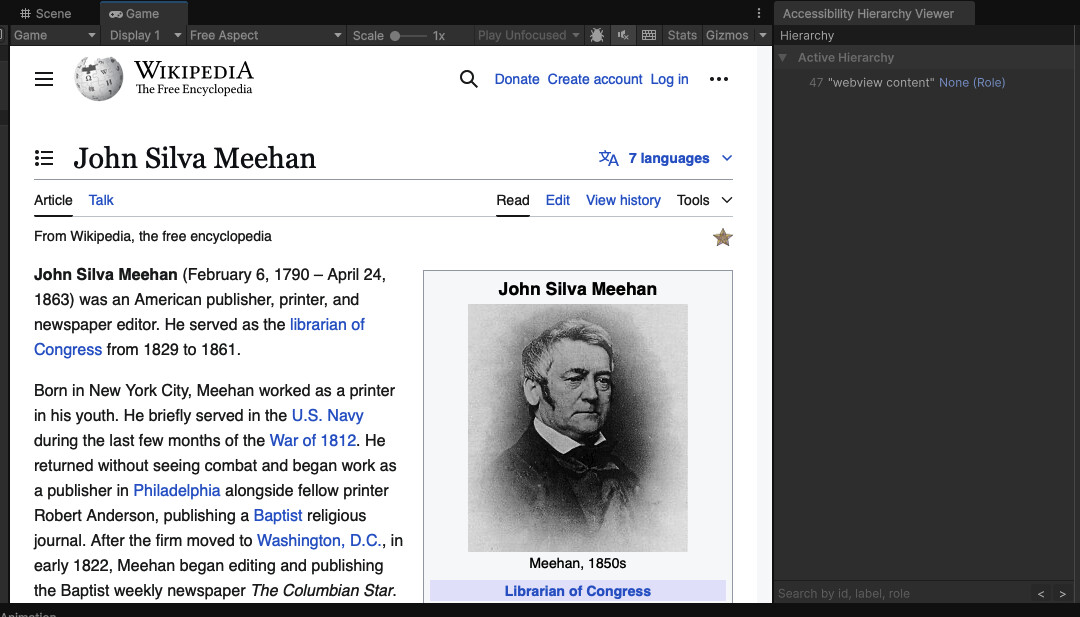
screenshot in Unity 6 Editor

Screnshot from iPhone in accessibility mode (VoiceOver enabled):

Hi Jono,

I spent some time looking into the code of the WebView plugin and found out why the screen reader does not see it: it is because on iOS, we overwrite the native accessibility hierarchy, and the WebView is not included in it.

A workaround solution might involve changing the code of the plugin to do the opposite: when a WebView is initialized, it overwrites the native accessibility hierarchy by replacing its contents with itself:

// plugins/iOS/WebView.mm

- (id)initWithGameObjectName:...
{
    ...

    UIView *view = UnityGetGLViewController().view;

    ...

    [view addSubview:webView];

    view.accessibilityElements = @[webView]; // workaround

    return self;
}

This will make the WebView and its content visible to the screen reader. However, this solution would only work for cases where the WebView is presented fullscreen.

It should be possible to write a solution that inserts the WebView into the accessibility hierarchy without overwriting it, which should look like this:

// plugins/iOS/WebView.mm

- (id)initWithGameObjectName:...
{
    ...

    NSMutableArray<UIAccessibilityElement *> *accessibilityElements = view.accessibilityElements ?
        [view.accessibilityElements mutableCopy] : [NSMutableArray array];

    [accessibilityElements addObject: (UIAccessibilityElement *)webView]; // adds the WebView at the end of the accessibility hierarchy

    view.accessibilityElements = accessibilityElements;

    return self;
}

When the WebView is disposed, it should be removed from the native accessibility hierarchy:

// plugins/iOS/WebView.mm

- (void)dispose
{
    if (webView != nil) {
        ...

        NSMutableArray<UIAccessibilityElement *> *accessibilityElements = view.accessibilityElements ?
        [view.accessibilityElements mutableCopy] : [NSMutableArray array];

        [accessibilityElements removeObject: (UIAccessibilityElement *)webView];

        view.accessibilityElements = accessibilityElements;
    }

    ...
}

Of course, it might be better to add and remove the WebView when it is shown and hidden than when it is initialized and disposed.

On Android, the WebView should be accessible without any changes to Unity or WebView code because the accessibility hierarchy works differently than on iOS.

Let me know if this works! :slightly_smiling_face:

1 Like

Thank you so much for looking into this and coming up with a solution!

I see that you went all the way into the iOS code, that’s more than I could have hoped for.

1 Like

Alright, I promised an update!

The first version (// workaround) works!

I had to add UIView *view = UnityGetGLViewController().view; in the dispose method, I think?

I initially tried your second option which adds the element, but for some reason (I’m still trying to figure out), that completely stops the webview from opening. I tried debugging the WebView in XCODE. I couldn’t see any exceptions or any clear reason why it wasn’t working, but it’s a great first step!

I’ve opened an Issue on the GitHub repo for Unity-Webview if anyone is interested in engaging with the conversation:

1 Like

That’s right. I forgot to add that.

Oh, that’s interesting. :confused: At least, it’s good that the first option works! :sweat_smile: