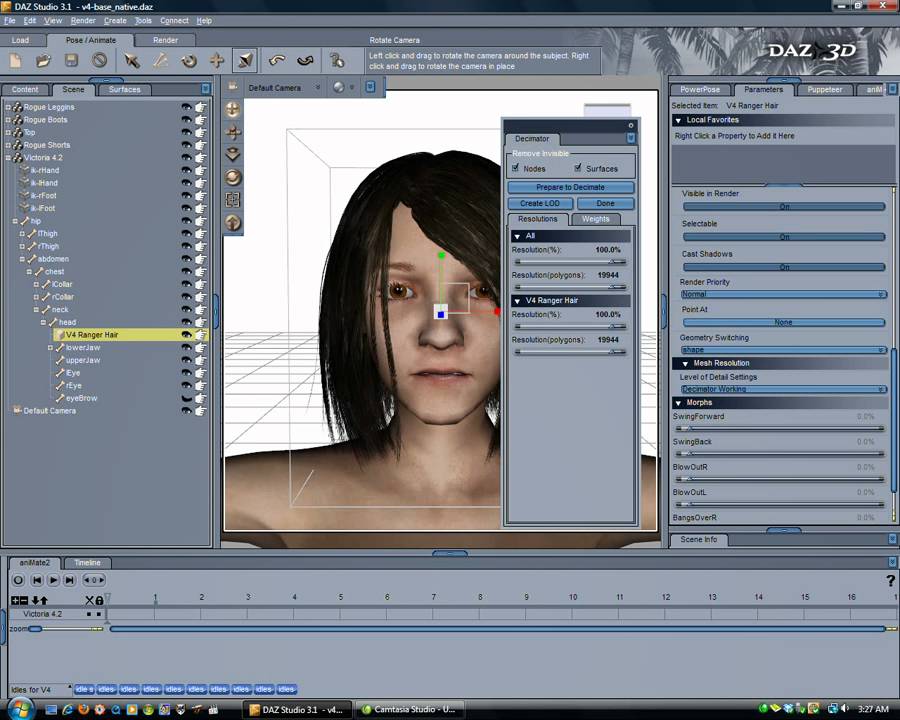
As is common with a lot of developers I am always looking for great game content. Having been a 3D artist for a goodly while, the idea that Daz content could be made game ready really got me excited. I picked up the Digami Game Developer Pack (includes Texture Atlas, Decimator, and FBX Exporter for Daz Studio) and set to.
There have been a number of discussions in different forums about whether this works and if so how well. So far the experimentation has been pretty successful. I wanted to share my workflow and let everyone here see that we just might have another workable path after all!
Glad you’re finding them useful Hopefully by next month I’ll have a better solution for handling gear w/this workflow.
I am also ironing out the FBX into LW and Messiah process to see how that’ll work out handling the adding of animation to purchased assets. Its already working in part with my DAZ exported FBX files.
On another forum I was asked how I got the V4 LOD set. I used the one created by Daz themselves, the 4K version. The best I’ve been able to create after tweaking the weights is around 6K.
In case you’re interested, I’ve attached some wires as well.
Wires 1 2 are from within Daz Studio, and Wire 3 was captured within Unity.
btw, a new version of Unwrap is out. You can delete unused materials with a single click now.
And if you want to select multiple materials at once, see Select → Materials.
I did a test and came up with a nice model of 60K Polys using Victoria 4 and NighHawk dress
But that was just a quick test. I think there is a lot that can be done with the Decimator yet.
Yes it has. Thats why I said " I think there is a lot that can be done with the Decimator yet."
To be really usable one needs to get down below 20k (at least for my needs).
Thank you for your great tutorials (and for smoking in the video :-).
May I ask if you have not had the eyelash problem? For me, the eyelashes become black blocks.
I did not follow your in-depth tutorial yet, I only followed your decimator “lessons”.
Would the eyelash problem be gone if I went through all your steps?
I am watching your videos over and over again just because your voice is so cool.
There are so many points where you talk exactely like that starship captain in Futurama.
Priceless I love his voice.
The eyelash transparency issue is created by how daz exports transparency - i.e. as a stand-alone map. You need to combine that alpha map with the diffuse one and add it as an alpha channel (use your favorite image editor). Afterwards use your newly combined map in place of the base diffuse color one (that way you have 1 draw call not multiple).
@Roland :: good looking character – you can certainly get her below 20K using Decimator Promise!
May I ask what seems to be the main difference here? I am trying to get my model from DAZ studio into Unity 3D as accurately as possible.
What (for example) makes my model’s edges so sharp? Is it the polygon count? I have used Decimator to reduce my model to about 40.000 polys. In DAZ studio it still renders perfectly (as long as I don’t zoom in too much), but in Unity it looks really different.
Thank you for the help.
ps: The image on the left shows the rendered model in DAZ studio already decimated to about 40.000 polys.
Different smoothing algorithims and lighting account for the differences that you are seeing. Are you doing stand-alone decimations on V4? Are teh included LOD versions not good enough for your project?
Okay, that seems to be one of the major problems: The lighting. I find it incredible hard to get a good lighting in Unity 3D.
I would really like to know how to get a “natural” lighting. Everytime I try something with lights, the lights are so “hard” (even if they are miles above my scene) that one side of the model is light (lighted?) well, and the other half is almost black.
I have experimented a lot with the lights, and right now I have made 4 lights at the 4 borders of my terrain, but it still looks horrible. I would like to get a natural light. How do you manage this?
What do you mean by “standalone-decimations”, please?
The LOD is fine for my project, if they would appear as in DAZ Studio, but unfortunately I have not been able to get such a great look as in DAZ studio.
I think my foremost problem right now is the lighting, isn’t it?
I suspect so. As for lighting, my environments have a distant light with soft shadows and local lights that generally have no shadows or hard shadows. I imagine that using unity Pro the post processing effects (bloom, blur, etc ) can also really help. By stand-alone decimation - I was trying to determine if you used the provided LOD sets or had created that LOD from scratch through just the weight map assignments within the Decimator itself.
I have only used the LOD set that was created by the decimator. I only wanted to see if everything works before I put energy into getting everything well done.
Can you tell me which kind of light you use for the distant light?
I have put a “sun” in the sky (a directional light pointing down to the ground, intensity 1, shadow type: no shadows.
No when I have this light and a box on the ground. The “lid” (=the upper part) of the box is well light, but the shadows are almost completely black. I think that sums up my problem well: The sides are extremely dark. Is there nothing like a “sun”? Do we have to put lights on an object from all directions with different lights to make a “sun” simulation?