Hey everyone,
If you tune into Unity’s YouTube channel then you’ll see that we have a new video tutorial about best practices for using the 2D Sprite Atlas feature. My post today is based on the work and research made for the video, so please read on if you want to learn more about this powerful feature for 2D developers and artists.

What is a Sprite Atlas?
A Sprite Atlas is a texture that combines multiple individual sprites, reducing draw calls and memory usage to significantly improve 2D game performance. Depending on the size of the project, you might need multiple sprite atlases.

Purpose of Sprite Atlas
Optimization
- Reduces the number of draw calls, as the GPU can render many sprites from a single texture.
- Minimizes texture memory usage by packing sprites efficiently.
- Faster loading times for assets.
For this to happen
- Users need to group sprites that frequently appear on screen or used together at the same time into the same atlas (e.g., all sprites for a specific character, all UI elements for a particular menu, or all assets for a single level).
- Depending on the number and size of the Sprites used, it might not be possible to have all of them in a one Sprite Atlas. Thus careful planning is required to optimize the usage of Sprite Atlas.
The basics
To get started, ensure you have the 2D Sprite package installed. As always, all the information can be found in the Unity documentation.
- Right-click in your Project folder.
- Select Create > 2D > Sprite Atlas.
- Drag your sprites or entire folders into the Objects for Packing list.
- Click Pack Preview to see how Unity has arranged your sprites.

Pro Tip: If your sprites use secondary textures (like Normal or Mask maps), Unity will automatically pack these into corresponding secondary atlases.
Very important, ensure that textures that are normal maps are texture type: normal map, and mask maps default or single channel, otherwise if they are imported as texture type: sprite, they will be also added to the main atlas wasting space.
Project Settings
While most likely the default settings will work well for your project, there are a few options available. Unity has 2 versions of Sprite Atlas, v1 and v2. V1 is deprecated. This article will focus on V2.

- Enabled for Builds, allows you to bypass rebuilding the atlases when you enter in play mode, helping you save some time during development
- Enabled will rebuild the atlases also when going into play mode.
10 Common Mistakes
Some of the common mistakes that studios from small to big sometimes experience and the recommended solutions by our 2D team.

First, install the Sprite Atlas Analyzer (available in the 2D Tooling package) to help you catch these:
| Mistake | Consequence | Fix |
|---|---|---|
| Wrong Grouping | Increased loading times | Create atlases like “Level1_Enemies”, “Player_Animations”, “MainMenu_UI”, and “Gameplay_HUD” based on when these sprites are actually used together in the game. |
| Single-Sprite Atlases | Unnecessary system overhead | Don’t create an atlas for just one image. |
| Unused Atlas Space | Wasted GPU memory | Trim transparent pixels and adjust padding. |
| Full Rect Meshes | High overdraw on mobile | Use Tight mesh type instead of Full Rect, adjust the outline inside the Sprite Editor for even more control and optimization |
| Multiple Pages | Breaks draw call optimization | Increase max texture size or split by frequency of use. |
| Unnecessary Read/Write | Doubles memory usage | Disable unless you are using GetPixel methods in C#. |
| Double Compression | Visual artifacts/quality loss | Set imported Sprite compression to None; only compress the Atlas instead. |
| Ignoring Formats | Higher bandwidth/memory costs | Use platform-specific overrides (ASTC for iOS, ETC2 for Android). |
| Inconsistent Secondary Textures | Wasted space in Map atlases | Ensure all sprites in the same atlas have the same secondary texture setup. Otherwise sprites without a secondary texture will still waste space in the normal or mask map atlas |
| Slow Play Mode | Long wait times in the editor | Enable “Enabled for Builds” in Project Settings to skip packing during dev. |
Example of multiple pages in the atlas

Advanced features
The Sprite Atlas feature offers advanced options for optimizing performance, build size, and asset management.Variant Atlases

Variant Atlases
The Variant feature in Unity’s Sprite Atlas allows you to create different versions of a single, master sprite atlas. This is particularly useful for optimizing your game for various platforms and devices without having to manually manage multiple sets of art assets.
-
Why is this needed?
- Memory Optimization: Different devices have different memory limitations. A high-resolution sprite atlas might be suitable for PC or console, but a scaled-down variant would be more appropriate for mobile devices with less available memory.
- Platform-specific optimization: It allows you to create separate atlases with different resolutions, compression settings, and formats for specific platforms (e.g., iOS, Android, etc.) to ensure optimal performance on each.
- Efficient Workflow: Instead of duplicating and manually resizing your art assets for different resolutions, you can maintain a single set of high-resolution master sprites and let Unity generate the variants automatically. This saves time and reduces the risk of errors.
-
How to use it?
- First, you must have a Master sprite atlas. This is the source for all your variants and contains the full-resolution sprites.
- Create a new Sprite Atlas asset in your project.
- In the Inspector window for the new atlas, change its Type from “Master” to “Variant”.
- A new field will appear called “Master Atlas”. Drag and drop your master sprite atlas into this field.
- You can then adjust the Scale property of the variant atlas to a value between 0.1 and 1.0. A scale of 0.5 would create a variant with half the resolution of the master.
- Finally, either use Late-binding to automatically ensure sprites references the SpriteAtlas directly or use the SpriteAtlas.GetSprite() API to load a specific sprite at runtime from the desired variant atlas, giving you precise control over which version of the sprite is used.
-
Example use cases
- Multi-platform games: Create a master atlas for high-end PCs and variants with reduced resolutions for mobile devices to manage memory usage and performance on each platform.
- Dynamic quality settings: Allow players to switch between different graphical settings (e.g., “high” and “low” quality) by loading the appropriate master or variant atlas at runtime.
- On-demand content: If you have a large number of sprites, you could use a variant atlas to create a small “preview” version of the art, and then download and load the full-resolution master atlas when needed.

Late binding usage
Unity’s Late Binding for Sprite Atlases is a feature that allows you to manage sprites more efficiently by not including them directly in the build but loading them at runtime from a separate Sprite Atlas asset. This is a powerful optimization technique for games with a large number of sprites, as it can significantly reduce initial build size and memory usage.
-
Why is this needed?
-
Optimized Build Size: Unity, by default, includes all referenced sprite assets in the build. For games with many sprites, this can lead to a very large build size. Late Binding prevents this by leaving the sprites out of the initial build.
-
Reduced Initial Memory Usage: Sprites that aren’t used in the first scene don’t need to be loaded into memory. Late Binding ensures that a sprite is only loaded when it is requested, saving valuable memory, especially on low-end devices.
-
Dynamic Loading and Unloading: It provides the flexibility to load and unload sprite atlases on demand. You can load an atlas just for the level a player is in and then unload it to free up memory when they move on.
-
How to use it?
-
In a Sprite Atlas asset, you must ensure Include In Build is toggled OFF.
-
Next, you need to add your desired sprites, folders of sprites, or even other Sprite Atlases to the Objects for Packing list.
-
SpriteAtlasManager.atlasRequested is a callback that tells you when a Sprite is requested which is not included in the build.You can load SpriteAtlas through AssetBundle or Addressables or Resources. SpriteAtlases loaded this way will automatically be bound to the requesting sprites. Fore more info see the docs
using UnityEngine;
using UnityEngine.U2D;

public class AtlasLateBinder : MonoBehaviour
{
    [SerializeField] private string atlasToLoad; // Name of the atlas file

    void OnEnable()
    {
        // Subscribe to the event fired when a Sprite is requested but its atlas isn't loaded
        SpriteAtlasManager.atlasRequested += HandleAtlasRequest;
    }

    void OnDisable()
    {
        SpriteAtlasManager.atlasRequested -= HandleAtlasRequest;
    }

    void HandleAtlasRequest(string tag, System.Action<SpriteAtlas> callback)
    {
        // Check if the requested atlas matches the one we want to load
        if (tag == atlasToLoad)
        {
            // Load the atlas from the Resources folder (or use Addressables/AssetBundles)
            SpriteAtlas atlas = Resources.Load<SpriteAtlas>(tag);

            // Pass the loaded atlas back to Unity to bind the sprites
            callback(atlas);
        }
    }
}
-
Example use cases
-
Large games with many levels: In a game with hundreds of levels, each with unique sprites, you can have a separate Sprite Atlas for each level. Using Late Binding, you can load only the atlas for the current level, and unload it when the player finishes.
-
Asset Bundles: Late Binding is a perfect fit for games that use Asset Bundles. You can put your Sprite Atlas assets into Asset Bundles and load them remotely, allowing you to provide new content (like new levels or cosmetic items) without requiring a full game update.
Custom packing usage
For custom packing in Unity’s Sprite Atlas feature, it’s about giving you control over how sprites are arranged within the atlas texture. Instead of Unity’s automatic packing, you can manually arrange sprites or use a custom algorithm to optimize texture space and memory usage.
-
Why is this needed?
-
Optimized Layout: Automatic packing algorithms in Unity are generally good, but for specific use cases, a manual or custom arrangement can lead to a more efficient texture layout. This can reduce wasted space, allowing you to fit more sprites into a single atlas.
-
Control over Placement: You might need to group related sprites together in the atlas for specific reasons, such as for shader-based effects that rely on texture coordinates or for more efficient rendering of animated sprites.
-
Reduced Memory Usage: A more tightly packed atlas means you can potentially use a smaller texture size (e.g., 2048x2048 instead of 4096x4096), which directly translates to less video memory used at runtime.
-
How to use it?
-
Scripting: This feature is primarily for advanced users and requires scripting. You create a custom script that implements the ScriptablePacker interface.
-
Algorithm: Within your script, you write the logic for the packing algorithm. This involves determining the position and size of each sprite within the atlas texture. You can use an existing packing algorithm or create a new one tailored to your specific needs.
-
Assigning the Packer: After writing your script, you assign the custom packer to your SpriteAtlas asset. This tells Unity to use your custom logic instead of the default packing algorithm.
-
Example Code (Conceptual): The code would look something like this:
public class MyCustomSpritePacker : ScriptablePacker
{
public abstract bool Pack(SpriteAtlasPackingSettings config, SpriteAtlasTextureSettings setting, PackerData input)
    {
        // Custom packing logic goes here
        // Set the sprite's texture coordinates and other properties
    }
}
-
Example use cases
-
Hand-optimized atlases: For a game with a critical set of UI elements or characters, a designer might manually arrange the sprites for pixel-perfect alignment or to fit them into a specific texture size. The custom packer can then apply these pre-determined coordinates.
-
Animated character spritesheets: You might use custom packing to arrange all the sprites for a single character animation in a linear order, which can be beneficial for some animation systems and reduce draw calls.
-
Reducing wasted space: For games with many small sprites, a custom packing algorithm can be written to be more aggressive in its packing, leaving less empty space on the texture and thus saving memory.

Runtime Atlas (Available in Unity 6.4)
For runtime atlas creation, Unity’s Sprite Atlas feature provides the ability to generate a sprite atlas dynamically during the game’s execution rather than pre-building it in the editor. This is useful for situations where the content is not known at build time or needs to be loaded on demand.
-
Why is this needed?
-
User-generated content: If your game allows users to create and import their own sprites, you can’t pre-build an atlas for them. Runtime atlas creation lets you pack their custom sprites into an atlas for efficient rendering.
-
On-demand asset loading: In games with a vast amount of content, such as a large asset store or a massive online world, you can’t load everything at the start. Creating atlases at runtime allows you to load and pack only the necessary sprites for the player’s current location or inventory.
-
Dynamic UI and skins: If your game has customizable UI themes or character skins that are downloaded from a server, you can pack these new sprites into a runtime atlas to improve performance.
-
How to use it?
-
Scripting: This feature is entirely script-driven and is handled through the SpriteAtlasManager API. There is no editor UI for runtime atlas creation.
-
Create the atlas: SpriteAtlasManager.CreateSpriteAtlas API provides ability to pack runtime SpriteAtlas and immediately bind the Sprites to the created Atlas. .
-
Pack the sprites: This process involves creating a new texture(s), copying the individual sprite textures into it, and setting up the position within the texture for each sprite within the atlas.

In the video tutorial we create our atlas based on the ice cream truck selection, calling CreateModAtlas() and passing a list of sprites to be packed and a name.
public void CreateModAtlas(List<Sprite> modSprites, string modName)
    {
#if UNITY_6000_4_OR_NEWER
        if (TruckType != TruckType.Mod)
        {
            Debug.LogWarning("CreateModAtlas should only be used when TruckType is set to Mod.");
            return;
        }

        string atlasTag = modName + "Atlas";

        // Pack the sprites into atlas pages
        SpriteAtlasCommon.CreateSpriteAtlasAtRuntimeDemo(
            atlasTag,
            modSprites.ToArray(),
            TextureFormat.RGBA32,
            1024,
            1024,
            ScaleMultiplier
        );

        // Add these lines
        modSprites[0].texture.filterMode = FilterMode.Point;
        modSprites[0].texture.Apply();

        Debug.Log($"Created runtime atlas: {atlasTag} with {modSprites.Count} sprites");

#else
        Debug.LogWarning("Runtime Sprite Atlas requires Unity 6000.4 or newer");
#endif
    }
-
Example use cases
-
MMOs with custom player gear: An MMO where players can equip different helmets, boots, and weapons would use runtime atlases to pack the textures for a player’s current gear into a single atlas. This reduces the number of draw calls needed to render a character.
-
Mod support: Games with extensive modding capabilities can use runtime atlases to pack assets from mods into atlases, ensuring that modded content is rendered efficiently alongside the base game’s assets.
-
Dynamic background scenes: A game that procedurally generates a background scene with a large number of randomly selected sprites can create a runtime atlas to pack all the selected sprites together, optimizing rendering performance.
Sprite batching: Dynamic-Batching vs. SRP-Batcher
Both Dynamic-Batching and SRP-Batcher are optimization techniques designed to improve rendering performance, but they approach the problem from different angles. By using the current default 2D sprite shaders: Sprite-Lit or Sprite Unlit you will be leveraging the benefits of SRP-Batcher, and you can see the difference in this section.


Dynamic-batching is utilized by the legacy Sprites/Default shader when all the sprites share the same shader and single texture with the help of Sprite Atlas. Now let’s look at the current URP sprite shaders.
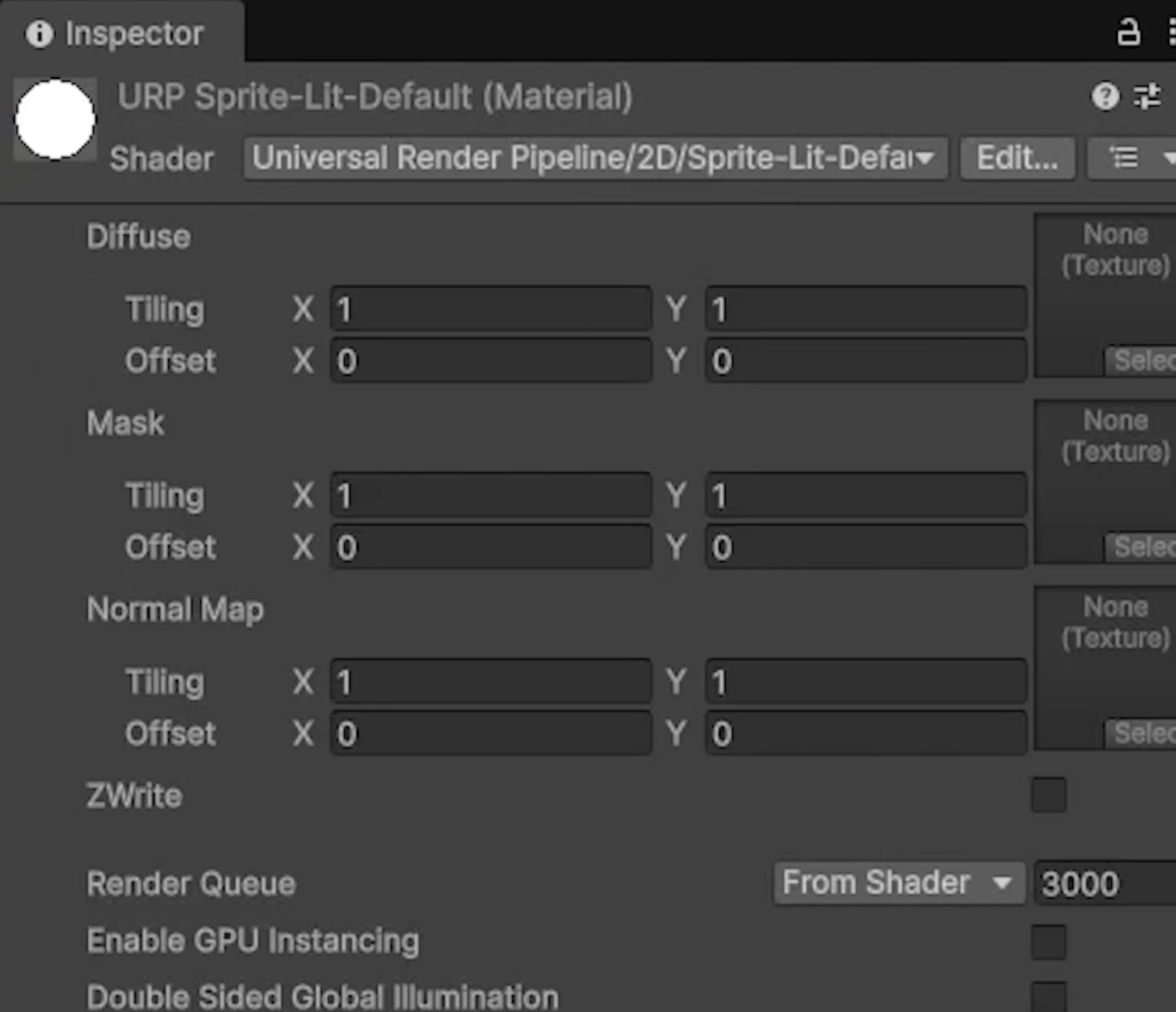

SRP batch is already taking effect by using the URP sprite shaders, when using Sprite Atlas, we can see in the memory profiler and profiler how the texture size was optimized.


Key Differences
The primary difference lies in what each method aims to reduce:
- Dynamic-Batching: Primarily focuses on reducing draw calls.
- SRP-Batcher: Primarily focuses on reducing render-state changes between draw calls.
Advantages and Considerations
Each method comes with its own set of advantages and disadvantages, which impact performance in different scenarios.
| Feature / Method | Dynamic-Batching | SRP-Batcher |
|---|---|---|
| Primary Optimization | Reduces draw calls | Reduces render-state changes |
| CPU Cost | Incurs CPU cost for pre-transforming vertices for all batchable sprites | CPU cost is significantly minimized |
| Vertex Buffer Upload Cost | Incurs vertex buffer upload cost for every batch, every frame | Does not incur vertex buffer upload cost |
| GPU-Skinning Compatibility | Does not work with GPU-Skinning | Works well with GPU-Skinning |
| Batch Breaking Conditions | Breaks batch with Texture Change or Property Change | Does not break batch on Texture change; only the state is modified within the batch |
| Shader Requirement | All Shaders can Dynamic-Batch | Shaders must be compatible for SRP-Batcher. Check SRP-Batcher compatibility in Shader Inspector. |
For more detailed information, please refer to the additional resources available via this.
FAQ:
Q: Are there any limitations or specific requirements for SRP-Batcher?
A: Yes, SRP-Batcher is only applicable for Shaders that support it (e.g., Sprite-Default does not). Additionally, textures within a single SRP-Batch won’t show for all SpriteRenderers in the current batch.
Q: Does SpriteAtlas help with these batching methods?
A: Yes, SpriteAtlas helps both SRP-Batcher and Dynamic-Batching by allowing multiple textures to be packed into a single texture, which can reduce draw calls and render-state changes.
More on Sprite Atlas new features and 2D roadmap
In case you missed it. Check out the Unite Barcelona 2025 2D talk where we present many of the features of the article live in the talk alongside other new exciting features.
