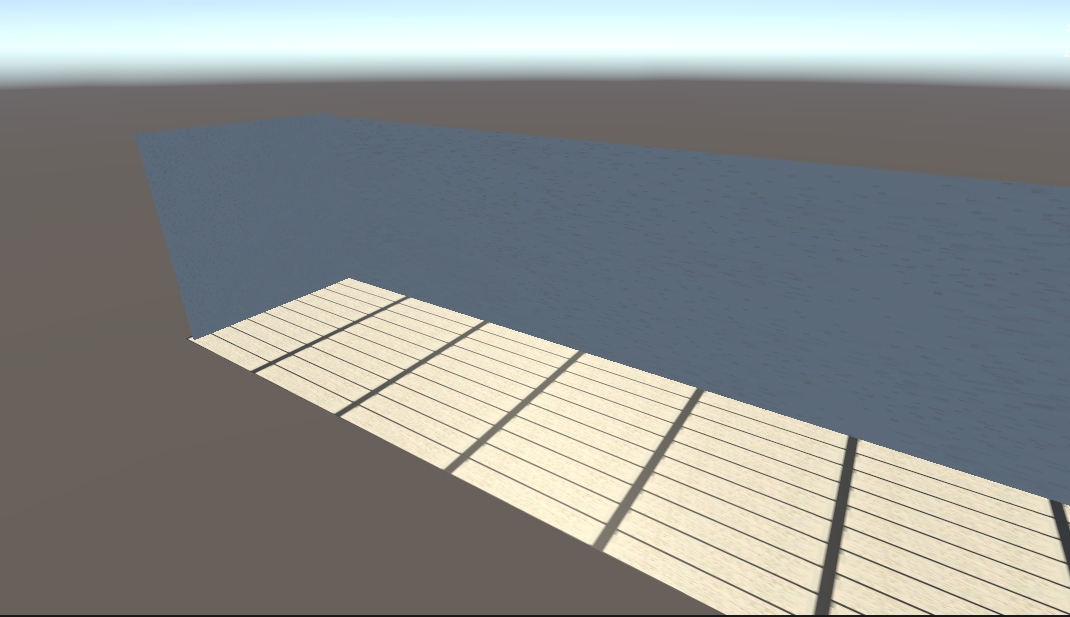
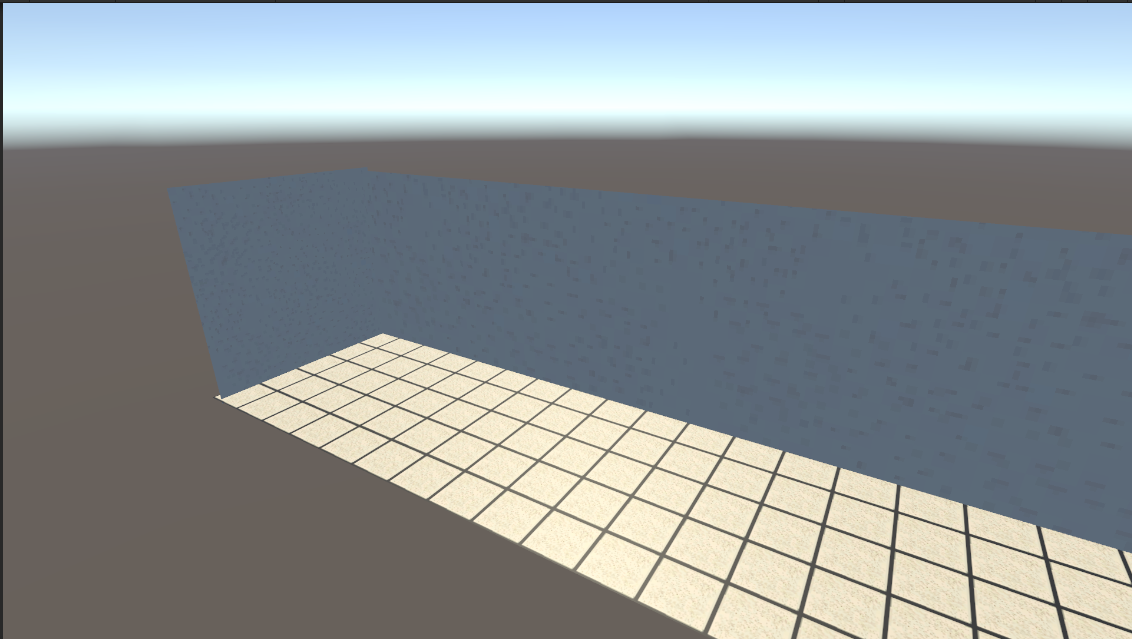
I have a game where I made a scene with many walls using scaled cubes. When I add a wall material to it, it will be stretched according to the object’s transform. After some messing around with UV and the material tiling, I made this script which is able to calculate the UV and tiling for each wall, adjusting it so the walls look right. I’ve attached 2 screenshots so you can understand what I’m talking about.
It works just fine, but the problem is that it seems to be creating a different material for every wall (each wall will have different tiling according to it’s scale), and I guess this must be somewhat bad performance wise. Additionaly, when running the script in the editor it gives the following error:
“Instantiating material due to calling renderer.material during edit mode. This will leak materials into the scene. You most likely want to use renderer.sharedMaterial instead.
UnityEngine.Renderer:get_material()
TileTexture:Start() (at Assets/Scripts/TileTexture.cs:66)”
But if I use shared material it’ll change for all the walls, which is not correct.
Is there a better way to do this? Or can I get away with using it the way it is?
It’s not possible to have a material with multiple different tiling settings, so that’s unavoidable. For example, if you have a material with tiling settings of x=1, y=1, then changing that to x=2, y=1 means you must make a new material if you still want the original tiling setting to apply to a different object. The only thing you could do is check to see if a material for a given tiling has already been made, then share that material with each wall that has the same scale.
Assigning to renderer.material makes Unity instantiate a new material for you, hence the error, since the new material only exists in the scene, not the project. This is OK to do at runtime, since the new materials will be cleaned up when Play is stopped, but not really something you should do in edit mode. It might be better to create an actual editor script, rather than using [ExecuteInEditMode], and save the resulting materials to the project. You can create the materials, then assign them using sharedMaterial.
However, one big issue I see is that you’re changing mesh UVs and you’re creating new materials with different tiling values. You should only do one or the other. If you remove the material, though, you still have the same general problem with the mesh, as far as leaking mesh instances in the scene. The solution would be the same idea as above: create an editor script and saving the changed meshes in the project, which would prevent the leaking meshes problem. (And can be assigned using sharedMesh.)
If you don’t want to do the “editor script/save results into project” thing, you should make the script operate only during play mode, and not in edit mode. Either that or just live with the error messages, since it wouldn’t actually affect a build.
Someone should solve this properly and throw it up on the Asset Store. It’s like, Unity can’t even make Doom-style levels from 1993 without multiple UV material instances? That’s ridiculous…
You were right, I was able to change it so it only calculates the new UV, no need to change the material. But now I realized that it’s also creating new meshes for each wall… which means I still can’t use it in edit mode, and it’s still hurting the performance. I guess the only true way to do it is model the scene in a 3D modeling software…
You can get this to work if you modify a specific instance of a material and not ALL the materials. Check out the link below get pointed in the right direction.
void Awake() {
sheetMaterial = renderer.material; // modify this instance of the material
//sheetMaterial = renderer.sharedMaterial; // modify all materials of this type
If I’m understanding the problem correctly, it can indeed be solved by adjusting UV coordinates; My android game, Cubeology, uses a single texture and a single shared material to draw a different image on each of the cubes that make up the whole block. So it can display a block of 216 cubes, with different images on them, in a single draw call.
That’s nice, but the problem is the same I think, if you try to scale one of the blocks, your uv coordinates will change, and your texture with it, so it will be distorted, or no? I’m missing something?
The only thing that I think could work are triplanar textures, but I’m not sure.
I haven’t tried it, but if the texture wrap mode is set to repeat rather than clamp, wouldn’t that prevent it stretching as you resize it?
Edit: Actually, that probably isn’t the solution entirely, but it looks like this script should do what’s required, without creating extra materials as far as I can see from a quick scan of the script. https://github.com/Dsphar/Cube_Texture_Auto_Repeat_Unity
Edit 2: Out of curiosity, I tried the above script and it does seem to do exactly what the OP wanted, I can have the same material on multiple cubes with different scales and the texture repeats rather than stretches.
I’m trying to use the script, but every time it crashes the project :S
What I’m doing wrong? I create a scene, create a cube, attach the script, and with “R” escalate the cube on one axis, then Unity crashes
I’ve no idea, that’s exactly what I did (except I didn’t use the ‘R’ shortcut key to scale, I used the mouse instead). Which version of Unity are you using? I tried it with 2018.3, although I can’t see anything in the script that stands out as being incompatible with other versions.
If you’re trying it in an existing project, maybe try it in a fresh empty project instead and see if it makes a difference.
lmao. how is this not built into unity by default? oh, no problem, just code your own engine. but then why use an already built engine? this is almost as stupid as Unreal Engine not having a built in parallax shader!! hahaha (which it doesnt)
I know this is 4 years old but I’ve been facing this problem so much and using some replies I’ve come up with a possible scripted solution, for flat planes at least.
You can set the tiling of a mesh renderers material in code. Because textures stretch to match the scale of objects, if you change the tiling to equal the scaling of the object, it will match it as intended. You can then edit how much it tiles by changing the tiling of the original object. It’s only visible in game, but here’s what I got working, with this code. Just attach the script to all objects you want to have tiling textures on.
public class MaterialTiling : MonoBehaviour
{
    MeshRenderer mr;
    private Material mat;
    // Start is called before the first frame update
    void Start()
    {
        mr = GetComponent<MeshRenderer>();
        mat = mr.material;

        mat.mainTextureScale = new Vector2(this.transform.localScale.x * mr.material.mainTextureScale.x, this.transform.localScale.z * mr.material.mainTextureScale.y);
        mr.material = mat;
    }

}