2017/04/20
[edit for clarification]
I am not trying to import blend files into unity. As per my list of steps I’m taking, my last step was to export FBX. This is what I am using, not the blender file itself 
[/end edit]
I’ve done searching for this in google and here for a while now and everyone seems to say the same things, that the texture has to be saved separately in blender and placed into the material manually in unity. As well, most posts I find are for older version of unity or blender.
Now, I know I can import a model made in Blender with textures/materials intact w/o having to save a separate image. How do I know? I’ve done it twice, somehow. I don’t know exactly what I’ve done that made it work. But, generally, I can’t reproduce this, and it’s frustrating. I’m looking for help from someone using the current version of blender (2.78) and unity (5.5 in my case), that also knows the correct steps to make this happen.
Here’s what I’m doing :
- Make model in blender.
- Add new Material to the object (w/ object selected, in Properties->material - assuming one hasn’t already been assigned)
- Add new Texture to the object (Properties->texture, click on empty slot, click new, then under image mapping->coordinates: UV)
- In edit mode, mark appropriate edges as seams
- In UV/image edit pane, make new texture
- Select all of model, then UVUnwrap
- In UV/image edit pane, go to paint mode and paint texture
- Under UVs, pack as PNG.
- Back in properties->textures, under the Image section, I click the browse image to be linked, and select my newly painted texture.
- Export to FBX.
After import in unity, no texture  I really don’t know what I did those two times I got it to work. I’ve been trying for about a month to get this to work again, where I can reproduce it, and no go.
7 Answers
7
Well, I guess this is the best I’ll get. For everyone out there asking this question time and time again, and getting the same old tired responses, I logically thought there has to be more to it, but I guess not.
Anyway, thanks to the two who took the time to reply.
[update 2017/04/26]
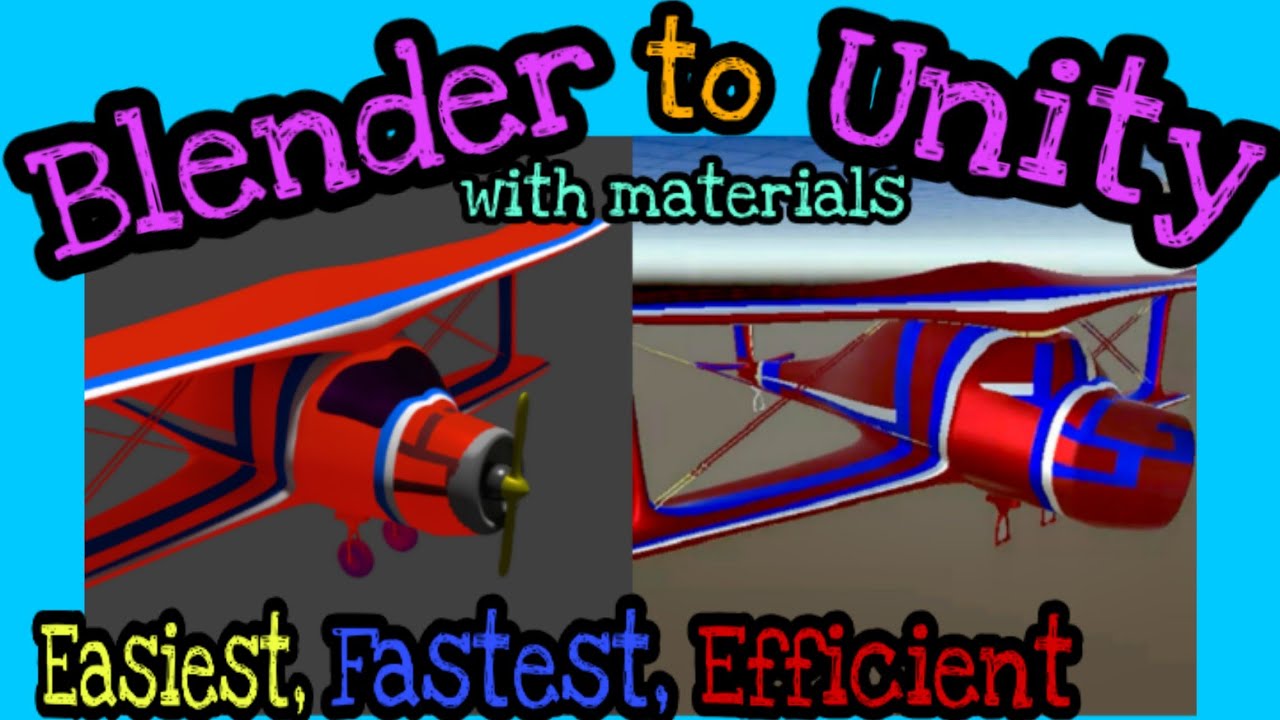
I made a discovery today that answered my question and will give everyone seeking this solution a REAL answer for importing textures to Unity from FBX made in Blender. No you don’t have to save out separate image files.
Here’s how to do it:
After making your model and assigning materials/textures, make sure it looks good in texture mode, then:
- Go to export → FBX.
- Make sure FBX 7.4 Binary is selected
- Look towards the bottom of the “Export FBX” options, and locate “Path Mode”. Set path mode to “Copy”, and then click the little icon to its right, so that its background is darker (a little page icon will appear on it). This copies the texture data and embeds it into the FBX file.
- Save the exported file.
Now, when you import this into unity, the model.fbm folder will be generated, and the textures will be intact on the model. I just tested this with a new model in a new project and it worked like a charm! No separate image files needed!
I’ve been thinking, trying to remember everything I did and tried when I got it to work with an FBX. I don’t recall saving out the image file, but I can’t say definitely I didn’t either.
I hate to admit defeat when I’ve been so sure it was possible! lol But at least not having to manually assign textures to albedo’s for every model import is a step in the right direction.
Thanks, Zilppuri, I’ll contemplate this and see if I can’t find my old project files for comparison.
Is this still working in with Unity 2018? For some reason there is no materials folder generated when I import the fbx. I followed the steps accordingly to the post 
@dansopanso Did you figure it out with the latest Unity? I’m not able to do it either!
I am not able to read the comment replies here, is there a setting I need to activate?
hello everyone! I know somebodies still not getting the idea, here is the best solution for exporting from blender to unity with materials:
Hello all, it’s now 2020 on blender 2.8 and I seem to be in the exact same situation as the top post. I have got two to work however my third model attempt is having no luck. I have done the exact same steps as the previous two models that did work but no luck. I have checked the copy paths and ticked the box next to it. I have tried packing all external data, unpacking in all options and tried changing path modes. I have tried calling the materials the exact same name as the textures and have tried cycles, evvee and blender render and nothing. Just seems to work when it wants to. Exporting textures into game engines is a pretty commonplace activity for a program like this so don’t understand why it’s so un-intuitive. Any actually completely figure this one out?
You can’t embed image data in .blend file and import it to Unity.
You can have a Texture/Material name in a .blend file that corresponds to a image file in a subfolder. Unity will automatically create a material with the Texture/Material name in the .blend and create .mat files to match. If a corresponding image file is found, it will also auto assign that.
So:
- Unity searches for a .mat file with matching name as .blend files texture/material
- If no .mat file is found, it creates one. If image matching the material/texture is found, it is used when creating this material
So if you simply match your texture/material names and have the image files in correct folders (or adjust the import settings), then the textures will be retained.
What you might have done, is exported an fbx file, where the correct images have been exported to filename.fbm folder, where Unity could have looked them up when creating the necessary material files.
Hi @AnOrdinarySandwitch, packing textures is saving texture to blend file, not to exported file.
– Kamil_Reichwe also use firebase for notifications and you mean that we need to update firebase sdk?
– yangxin2016