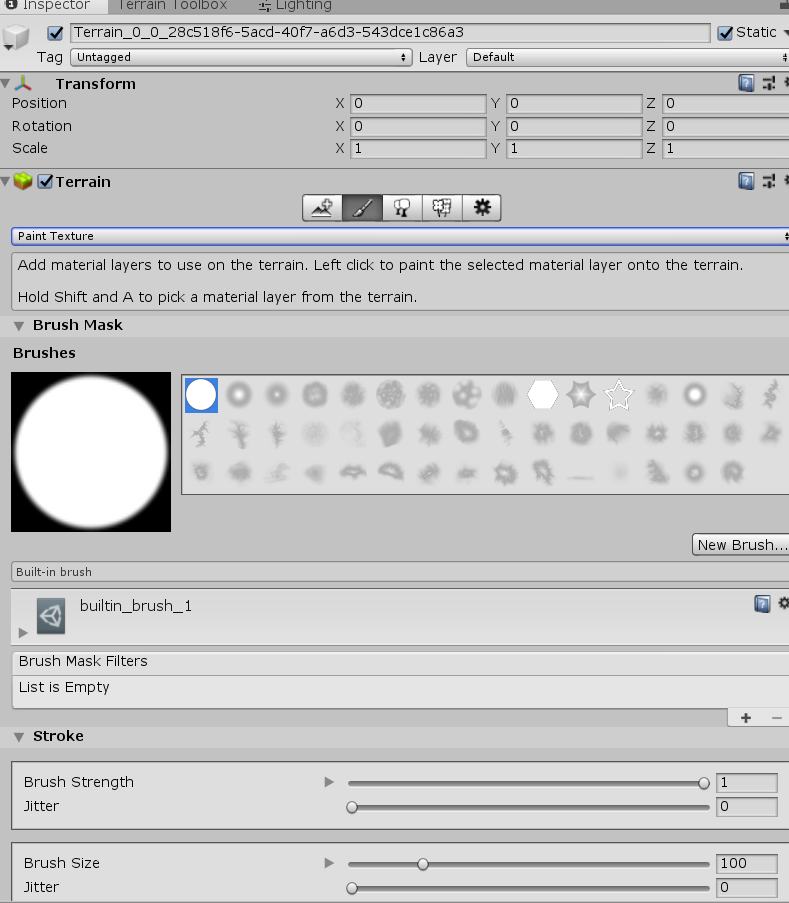
Hi, so I’m making a terrain and want to add terrain layers. I went to the brush, paint texture, and under there I could only see the words “Add material layers to use on the terrain. Left click to paint the selected material layer onto the terrain. Hold Shift and A to pick a material layer from the terrain.” There was no option for me to select a terrain layer or add one.
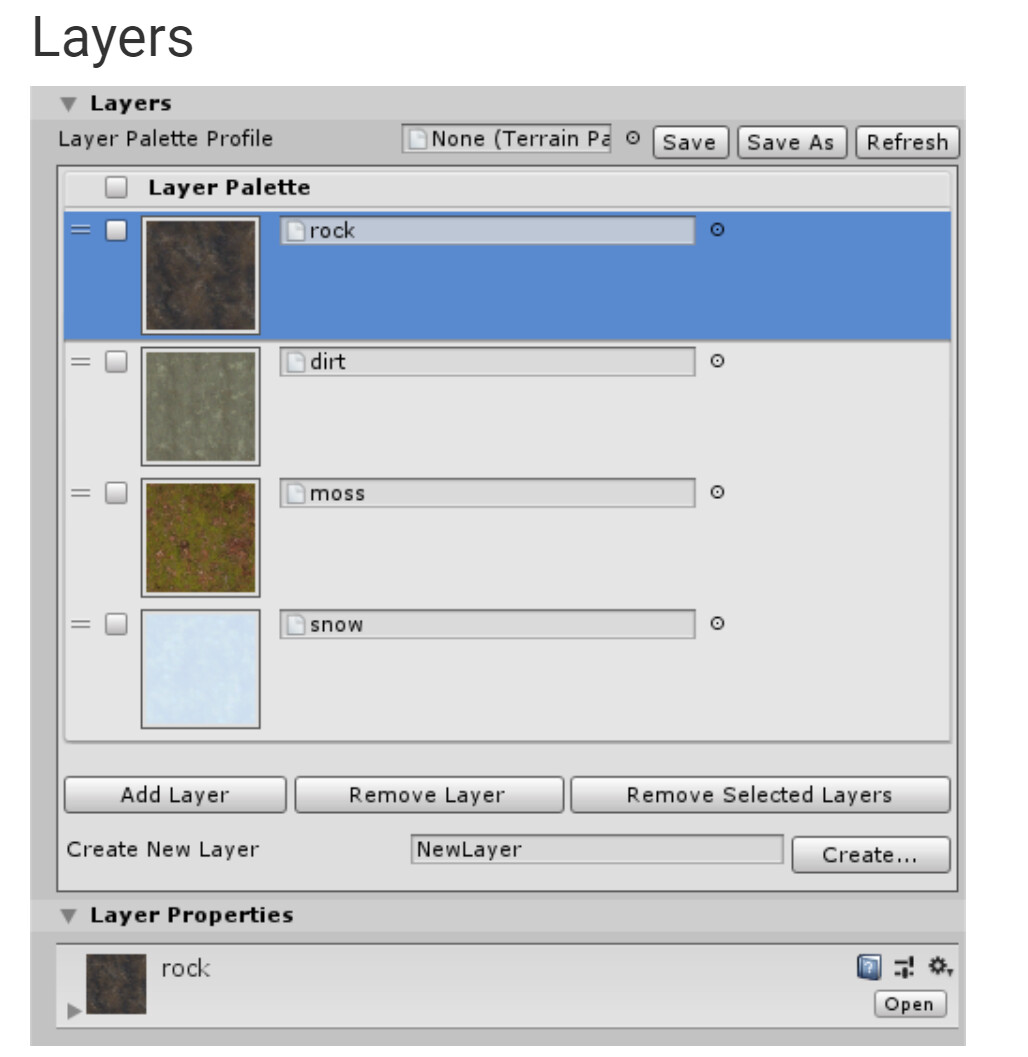
Looks like you have the Terrain Tools package in the project. We updated the Paint Texture tool with a new UI in the package, so Inspector will look different from what’s shown in the editor manual. Terrain Layers is a little down in the Inspector that looks like this:
Previous answer is no help… so I’ll chime in. Yes you have the terrain tools installed… somehow the layers drop down disappears. It happened to me after duplicating a terrain and after a couple hours on the internet searching these forums I found no answer. I tried all the settings thinking I must have changed something, nope. Just a glitch. So, the fix is really simple. Save your project and any scenes etc… then right click in the project portion of the editor where all your folders and files are, then select reimport all. The program will take a minute and reimport all your packages and boom the ability to edit layers is now available. Hope this helps someone in the future, because it was stressing me out.
I know I am quite late to answer but I stuck in the same situation and I found this video tutorial, where they have installed terrain toolbox and then guide you to texture their terrain. To save your time… start watching from 35:00 minute in the video
Thanks for the tip. Reimport all could be a nightmare based on someone’s project size. I just restarted the editor and it came back. However, before that I did a right-clicked on just the terrain tools package and did a reimport. I also did the same for the terrain tools sample folder. Neither of which fixed the missing UI, but maybe that was required in addition to a restart? Not sure. Wish I had just tested a restart first.
Yes, Reimport just the Terrain Tools folder and restart fixed it for me. Project would take over an hour to Reimport All.
I noticed you can select layers and paint from the Terrain Toolbox > Terrain Utilities > Terrain Layers rollout. But you cannot add new layers because the + button is greyed out.
Hello! I wanted to explain how I found an easy solution to this! Layers dropdown is not visible if you have selected the brush option “Raise or Lower terrain”!
As soon as I select Paint Texture, the dropdowns came back…
It was my third time encountering this “bug” but I think we were just using it wrong??
I updated a project from 2018 to 2019 and had an issue. 1) terrain data was not found automatically, so I had to find that first. 2) 2019.x uses the terrain tools package? I updated that to the latest version. 3) The default paint mode was “Sculpt → Bridge”, which does not support layers. After changing the mode to “Paint Texture”, I was able to see the layers panel.
FYI, I’m working on this tutorial based on 2019 that for some reason has a 2018 project for download. This stuff is not easy when you have to troubleshoot things like this while learning Unity at the same time. I can only imagine what it would be like for people who are new to dev/computers, as well.
Update: for step 2, I also had to apply my changes (update of the terrain data) because the terrain was a prefab. Otherwise, the terrain data would need to be reassigned after every unity restart.